Run an Insights Pipeline over the API
This tutorial covers how to create batch task using the NeuroScale API.
In order to follow along with this tutorial and test out its code on your end, your Python environment should be installed and setup; please look over the Python documentation if this is not the case. Also see NeuroScale Platform and Run a Batch/Report Pipeline for information on batch tasking.
Creating a batch task requires the pipeline ID and parameters, which can be extracted from Dashboard or using the NeuroScale API. This tutorial covers both methods.
1. Extracting Pipeline Info from Dashboard
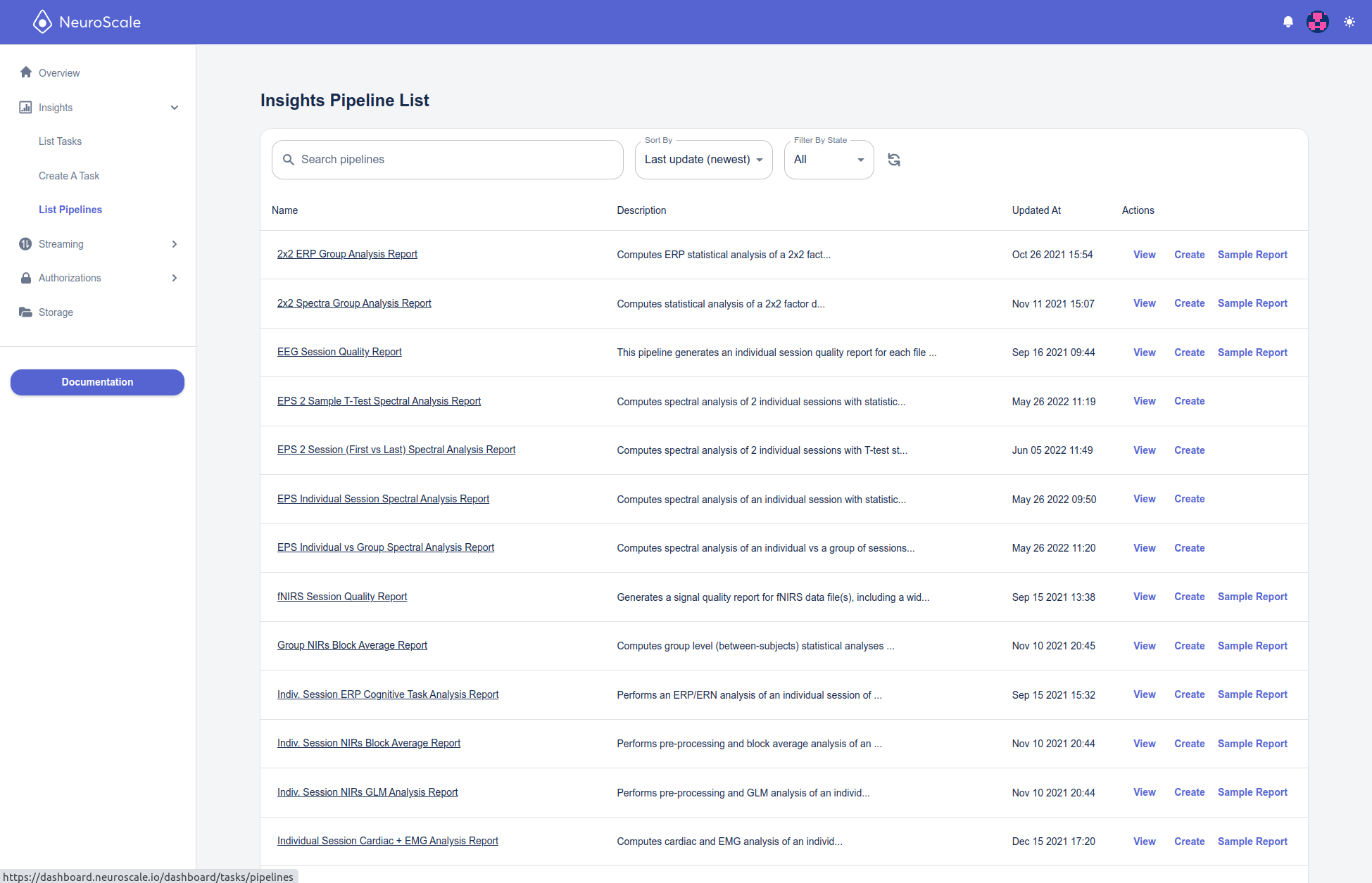
First, navigate to the List of Available Pipelines page and View the Pipeline of interest, shown below in Figure 1. Note that the Pipeline must be of type Batch; Run a Streaming Pipeline (API) covers how how to create Pipelines of type Stream.
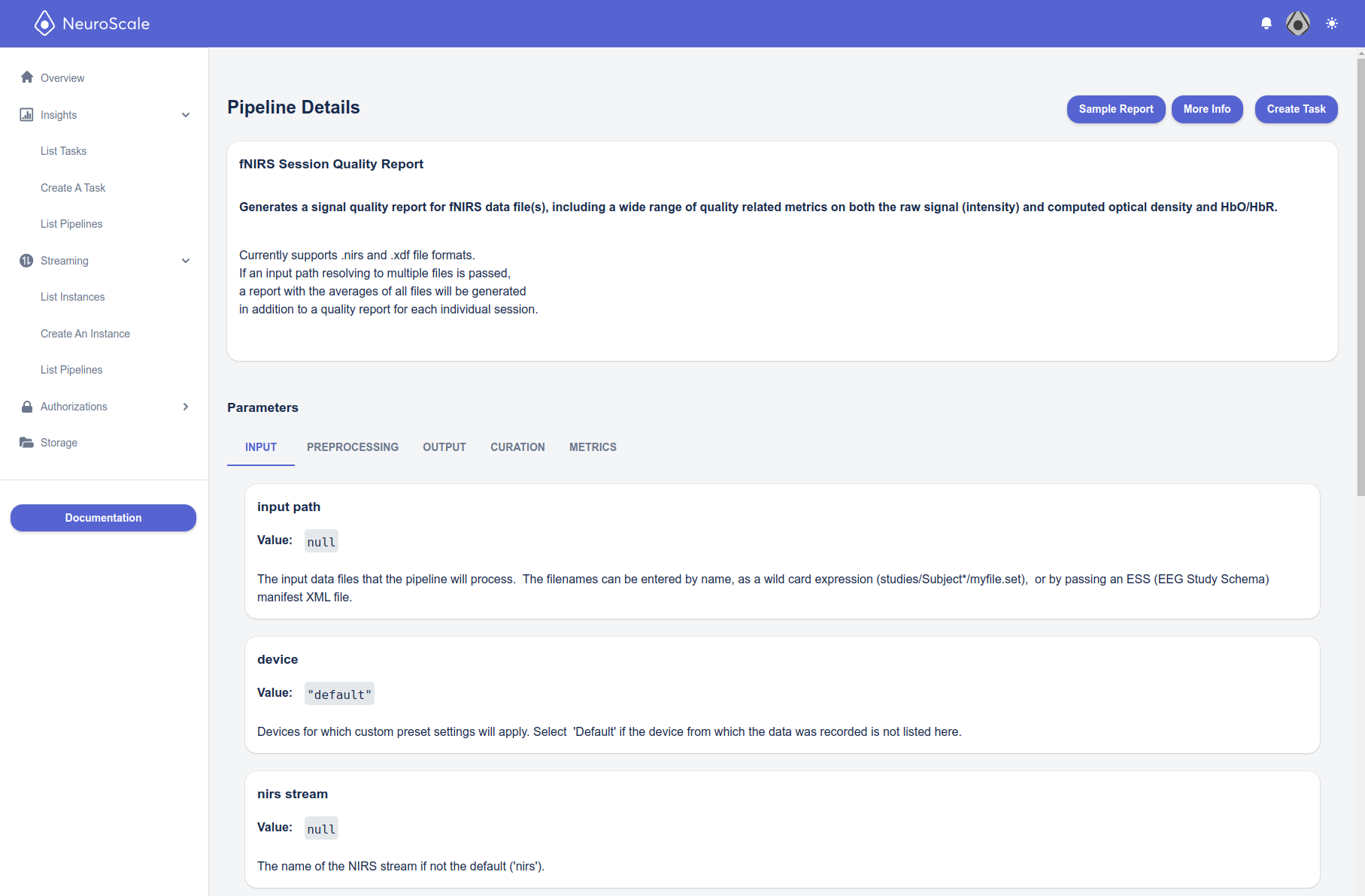
This brings us to the View an Existing Pipeline page, which has the pipeline ID and parameters, shown below in Figure 2. The number of Pipeline parameters will depend on the how many parameters were exposed to the user when the Pipeline was designed. In this example, the Pipeline has a single parameter. Most Batch pipelines will at the least have a filename parameter containing the file(s) to be processed. Other pipelines may have more parameters that are user configurable. These parameters expose specifications that govern Pipeline behavior and allow the user to adjust their Pipeline with each run.
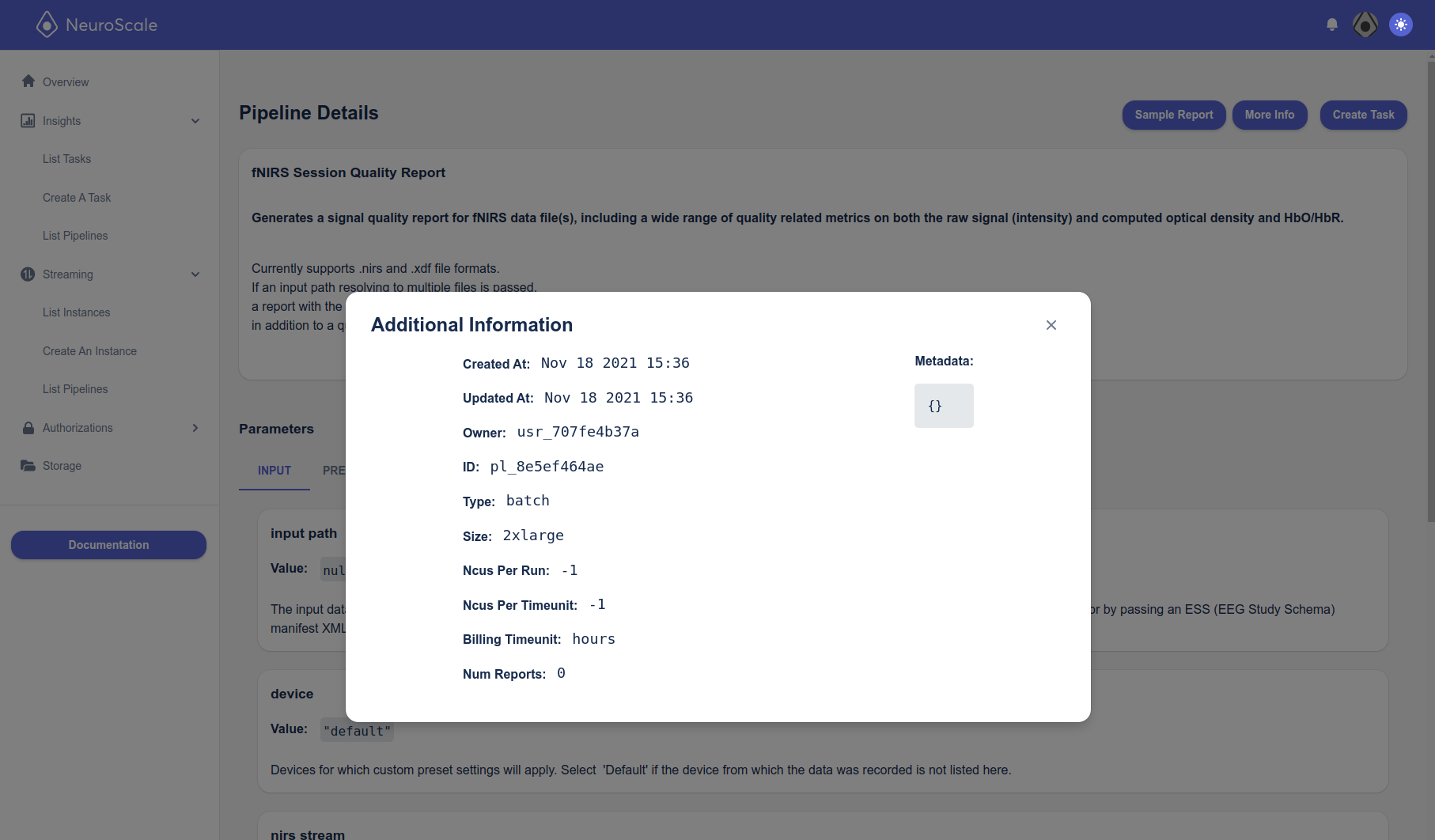
More pipeline details, including the Pipeline ID - necessary for interacting with the pipeline over the API - are available in the More Info button.
We can extract the pipeline ID and parameters by copying the information and pasting into some python code (more details in the Assemble Pipeline Info and Launch section).
2. Extracting Pipeline Info with the API
Prerequisite Information
Lets start our code with some prerequisite user information:
import requests

# we need to define the Neuroscale API URL to use
api_url = 'https://api.neuroscale.io'

# you also need to provide your own access token; for security
# reasons it is best to keep this string out of your code commits and instead
# read it from an environment variable or file (if you do not have a token,
# check our online documentation on how to generate one from your
# username/password combination)
access_token = '<your-access-token>'

# construct the HTTP header that will be used for authorization
auth_header = {'Authorization': 'Bearer ' + access_token}

# next we need to identify the pipeline that we want to launch on Neuroscale
# in this example we will launch the "MyTask" pipeline, which is a dummy pipeline
# takes a input file and generates a sumary report
pipeline_name = 'MyTask'
The access_token will be set to one of the authorization tokens for your account. (See Create Access Tokens for more info on access tokens.) The auth_header creates the HTTP header using the access_token. The api_url should be set the NeuroScale API URL shown in the above code snippet (unless instructed otherwise under special circumstances). The pipeline_name is the name of the pipeline we want run.
Find Pipeline and Extract Information
This prerequisite information will be used to find the pipeline of interested and extract the pipeline details:
# init pipeline details
pipeline_id = None
pipeline_parameters = None

# next we will look up the pipeline of interest by name from the list
# of available pipelines
r = requests.get(api_url + '/v1/pipelines', headers=auth_header)
if r.status_code == 200:  # 200: ok
    body = r.json()
    pipelines = body['data']
    # now go through all pipelines and pick the one that has a matching name
    for p in pipelines:
        if p['name'] == pipeline_name:
            pipeline_id = p['id']
            pipeline_parameters = p['parameters']
            break
    else:
        print("ERROR: Could not find a pipeline named '%s'" % pipeline_name)
        exit(1)
else:
    print("ERROR: Could not query available pipelines (HTTP %s); check "
          "your API URL and credentials." % r.status_code)

if pipeline_id is not None and pipeline_metadata is not None and pipeline_parameters is not None:
    print("pipeline_id = %s" % pipeline_id)
    print("pipeline_parameters = %s" % pipeline_parameters)
Here all available pipelines are found with the requests.get REST command, the pipeline of interest is matched by name, and the pipeline of interest's ID and parameters is extracted.
Configure Pipeline Parameters
Both Dashboard and NeuroScale API pipeline information extraction methods result in the following pipeline information:
pipeline_id = pl_RSWmAgPYysWdFJzF7A99GS
pipeline_parameters = {'filename': {'value': '*.set', 'is_filename': True, 'verbose_name': 'filename', 'description': 'name of .set recording file', 'expert': False, 'type': 'string', 'category': ''}}
Here you can see MyTask's pipeline parameter filename, (name of .set recording file) and its accompanying details are accessible, which means you can adjust its value to your liking before each launching a pipeline.
Assemble Pipeline Information and Launch
Now our pipeline information configured lets assemble our pipeline information and launch our batch task using a requests.post REST command, as shown below. This command returns the ID of the instance in the response body, which you should save so that you can use it to terminate the instance later.
IMPORTANT: The parameters object in the request body when launching a task is a flat mapping of parameter name to value, not the full JSON of parameter metadata above.
Or, if you're extracting these from the return value of the API call above, you can use:
Omitted parameters keep their defaults, so you only need to send the ones you are changing.
Putting it all together and launching the task:
# assemble batch pipeline information
data = {
    "name": pipeline_name,
    "description": "Description of Task",
    "pipeline": pipeline_id,
    "parameters": parameters,
}
# to launch our batch pipeline now we need to create a new task
r = requests.post(api_url + '/v1/tasks', headers=auth_header, json=data)
# check the task launched successfully
if r.status_code == 201 or r.status_code == 200:  # 201: created / 200: ok
    print("Successful launch of batch pipeline '%s'" % pipeline_name)
    # we can extract the task id to query it later
    body = r.json()
    task_id = body['id']
else:
    print("ERROR: Could not post (HTTP %s); check "
          "your API URL and credentials." % r.status_code)
If you have not received an status code errors your batch pipeline is now launched!
Verify after launching. 
GET /v1/tasks/<task_id> and confirm each parameter came back as a plain scalar rather than an object. If any is an object, DELETE /v1/tasks/<task_id> and re-create with flat values.
Check the Task's State
Now that your task is launched you can check its current state, which can be in any of the following states: submitted, pending, runnable, starting, running, succeeded, failed, and error. If you see a failed or error status your Task setup failed, please checkout the Troubleshooting your Pipeline Configuration section in the Troubleshooting page for common mistakes that cause this error.
# check task's current state
task_state = None
if task_id is not None:
    r = requests.get(api_url + '/v1/tasks/' + task_id, headers=auth_header, json=data)
    if r.status_code == 201 or r.status_code == 200:  # 201: created / 200: ok
        body = r.json()
        task_state = body['state']
        print("Task '%s' current state: '%s'" % (task_id, task_state))
    else:
        print("ERROR: Could not get (HTTP %s); check "
              "your API URL and credentials." % r.status_code)
The response also returns a list of log messages, contained in the logs key. So in the above example, these would be available with:
Logs will be a list of dictionaries. Examples:
{'module_name': 'batch', 'message': 'loading batch job configuration...', 'level': 'INFO', 'timestamp': '2024-02-29T05:00:11.942540+00:00'}, {'module_name': 'graph', 'message': 'graph loading graph structure', 'level': 'INFO', 'timestamp': '2024-02-29T05:00:12.211533+00:00'},
 {'module_name': 'misc', 'message': 'GuessSamplingRate is using all data to calibrate...', 'level': 'INFO', 'timestamp': '2024-02-29T05:00:21.488880+00:00'}
Get a list of the Task outputs
Insights pipelines generate outputs, typically in the form of an HTML report, but can be other outputs as well, such as files with the computed metrics displayed in the report, which may be in CSV, HDF5 or Pickle format, depending on the pipeline. These outputs are stored on your Neuroscale storage, typically in the same folder as the original signal data (i.e., XDF) files, though that depends on the pipeline configuration.
To get the list of outputs created by your task, use the same API call as to check the task state (above). The list of outputs is included in the outputs key of the JSON response. You'll also find a list of the inputs that were ingested by the pipeline (i.e., the XDF file passed to it), in the inputs key of the JSON response.
# get list of task inputs and outputs
r = requests.get(api_url + '/v1/tasks/' + task_id, headers=auth_header, json=data)
if r.status_code == 201 or r.status_code == 200:
    body = r.json()
    print("Task '%s' inputs: '%s'" % (task_id, body['inputs']))
    print("Task '%s' outputs: '%s'" % (task_id, body['outputs']))
else:
    print('Error. Could not fetch task data.')