Upload a Pipeline from Neuropype
If you have a license for the NeuroPype Suite, you can create your own pipelines on your computer and upload them to the cloud for execution. This guide explains how to do that.
- NeuroPype Overview.
- Preparing a Pipeline for Upload.
- Upload Credentials .
- Upload Status.
- Pipeline on Dashboard.
1. NeuroPype Overview
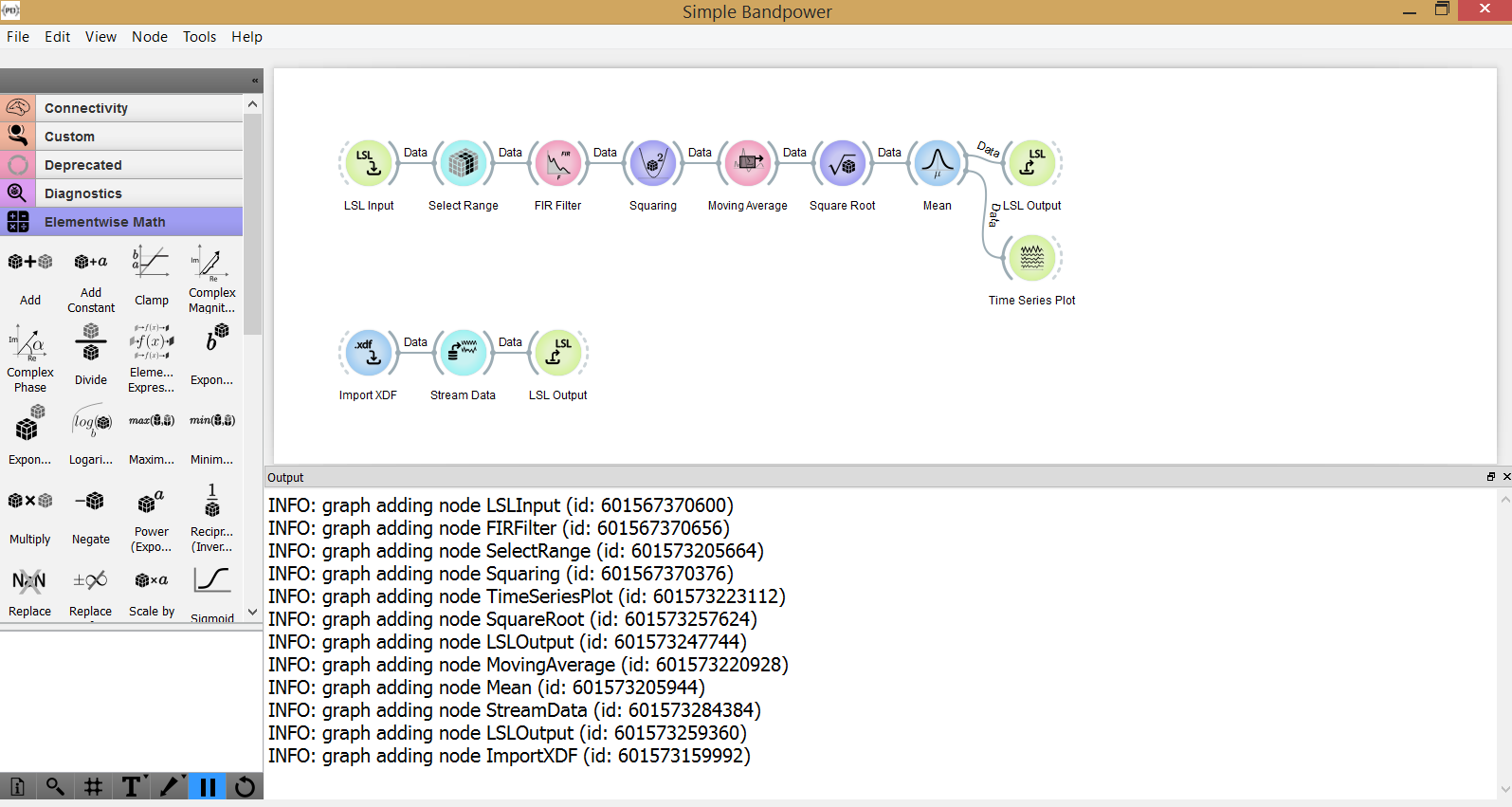
NeuroPype is a platform that includes tools for building and running real-time processing pipelines of neural data and other biosignals. The core of the suite is NeuroPype itself, a powerful server-side application that contains all of the pipeline nodes and which handles execution of one or more pipelines simultaneously. Included in the Suite is the Pipeline Designer, a standalone open source application which allows users to create processing graphs by connecting NeuroPype nodes together on a graphical canvas, and which can run them by connecting to Neuropype through the NeuroPype API.
These pipeline graphs (or “patches”) are saved as .pyp files which can be run from any client application that connects to NeuroPype. They can also be uploaded to NeuroScale to be executed there. (See the NeuroPype documentation for more information on using NeuroPype and the Pipeline Designer.)
2. Preparing a Pipeline for Upload
A few preparatory steps in NeuroPype are required before a pipeline can be uploaded:
-
Expose the parameters that you want users to be able to configure through the NeuroPype Dashboard or API, using the
ParameterPortnode. This allows you to quickly iterate or run variants of your pipeline without modifying the pipeline itself. -
Rename one input and output node (usually
LSL InputandLSL Output) to 'default' (queryset toname='default'for LSLInput and LSLOutput node). By default, the NeuroScale endpoints will input/output streams with those names.
Checkout the Simple BandPower example below:
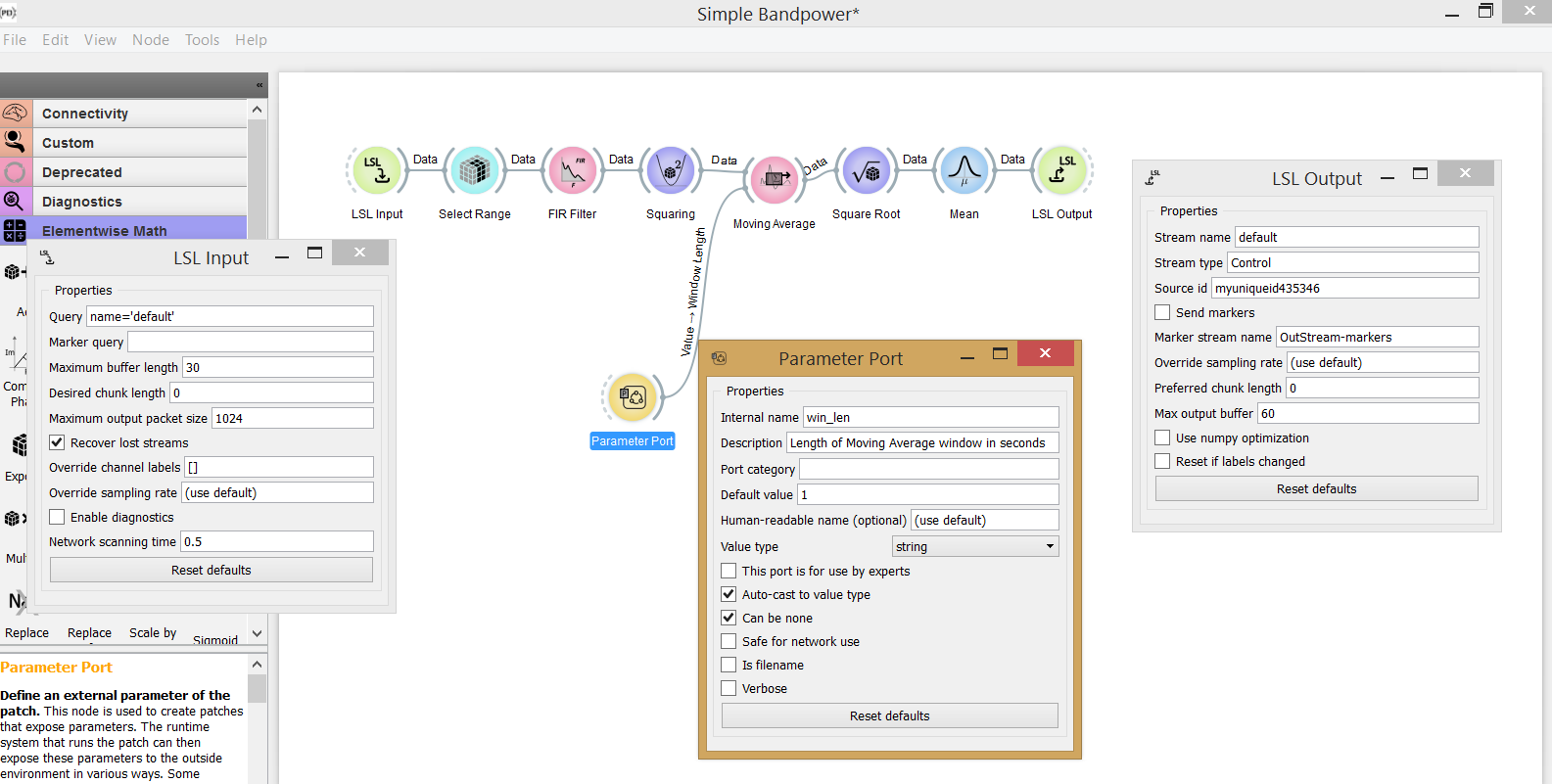
Here the LSL Input and LSL Output nodes' stream names parameters are renamed to 'default' and the Moving Window node's win_len parameter is exposed on NeuroScale (allowing it to be configured in the Dashboard) with the Parameter Port node.
3. Upload Credentials
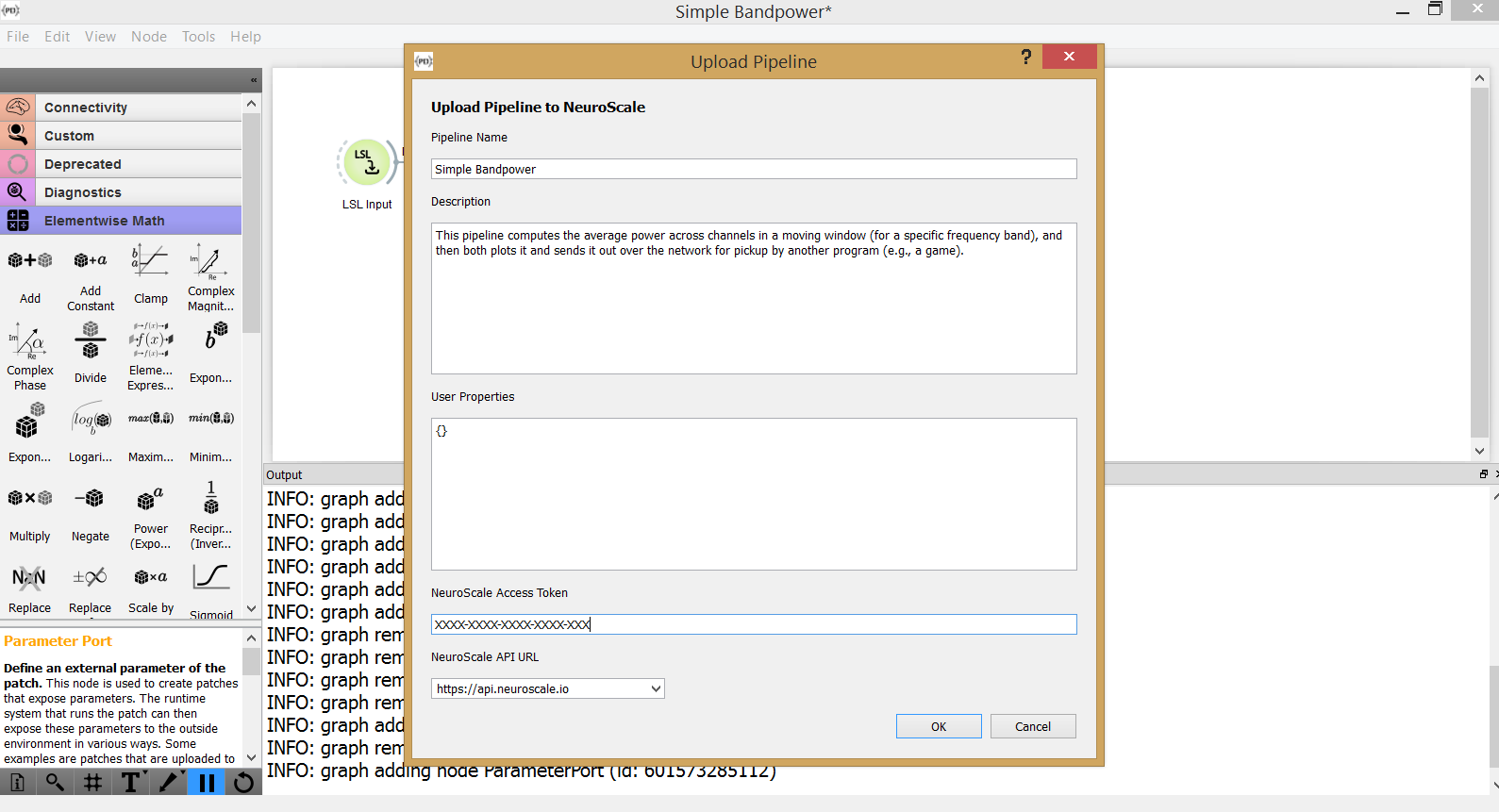
Once the pipeline is ready for upload, click Upload Pipeline... under File or press Ctrl + U. Edit the pipeline name and description to how you want them to appear on NeuroScale. Input your NeuroScale access token and leave the API url is set to: https://api.neuroscale.io/. The User Properties section is for special cases and generally left empty.
4. Upload Status
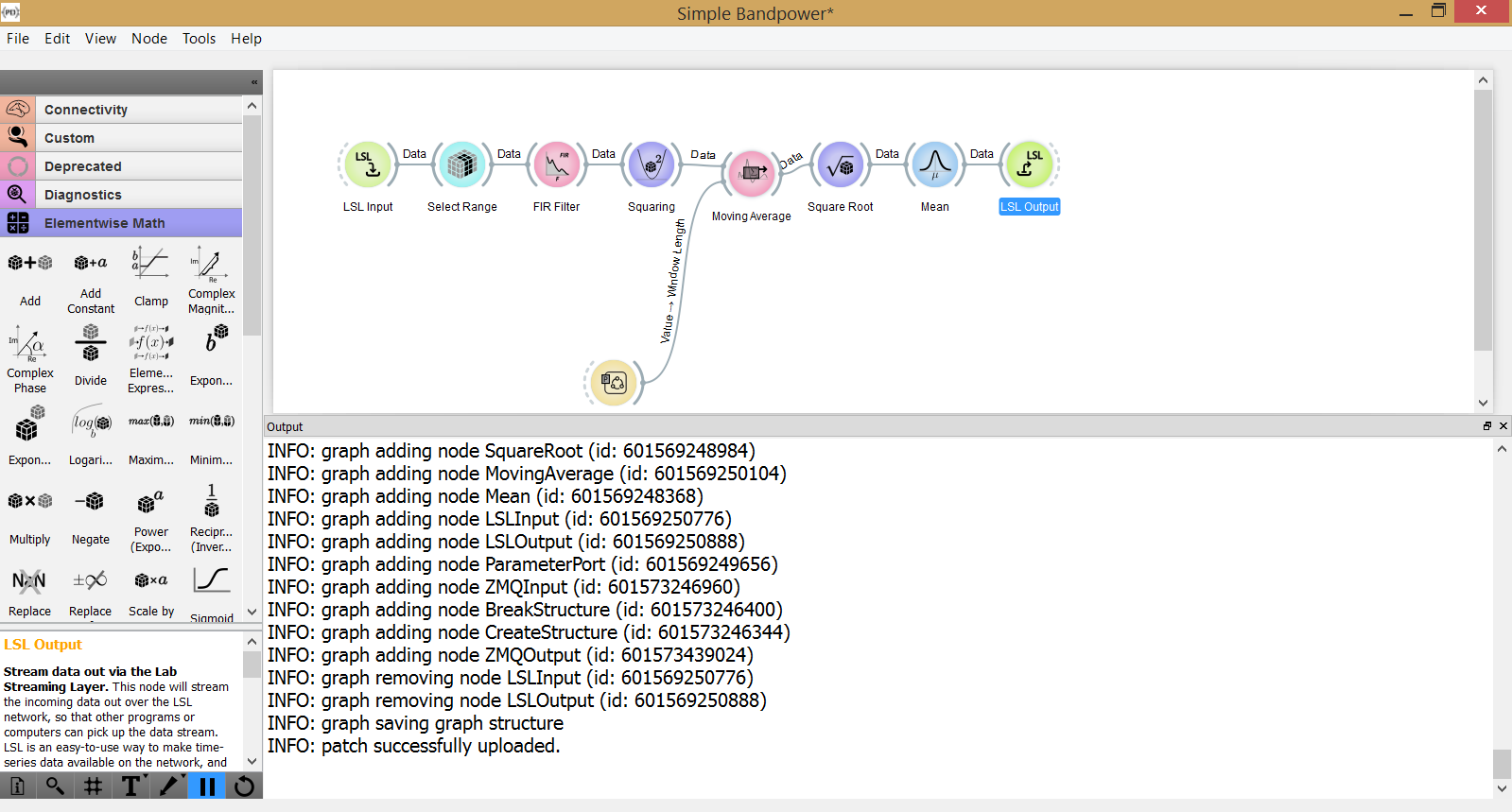
The status of the upload will be shown in the Pipeline Designer output window. If patch successfully uploaded is returned, the pipeline is ready to be used on NeuroScale. Otherwise address any errors or warnings and repeat the upload process.
5. Pipeline on Dashboard
The pipeline will now appear on the NeuroScale Dashboard under List of Available Pipelines. Click View to inspect the pipeline's properties or Launch streaming invoice to launch the pipeline.
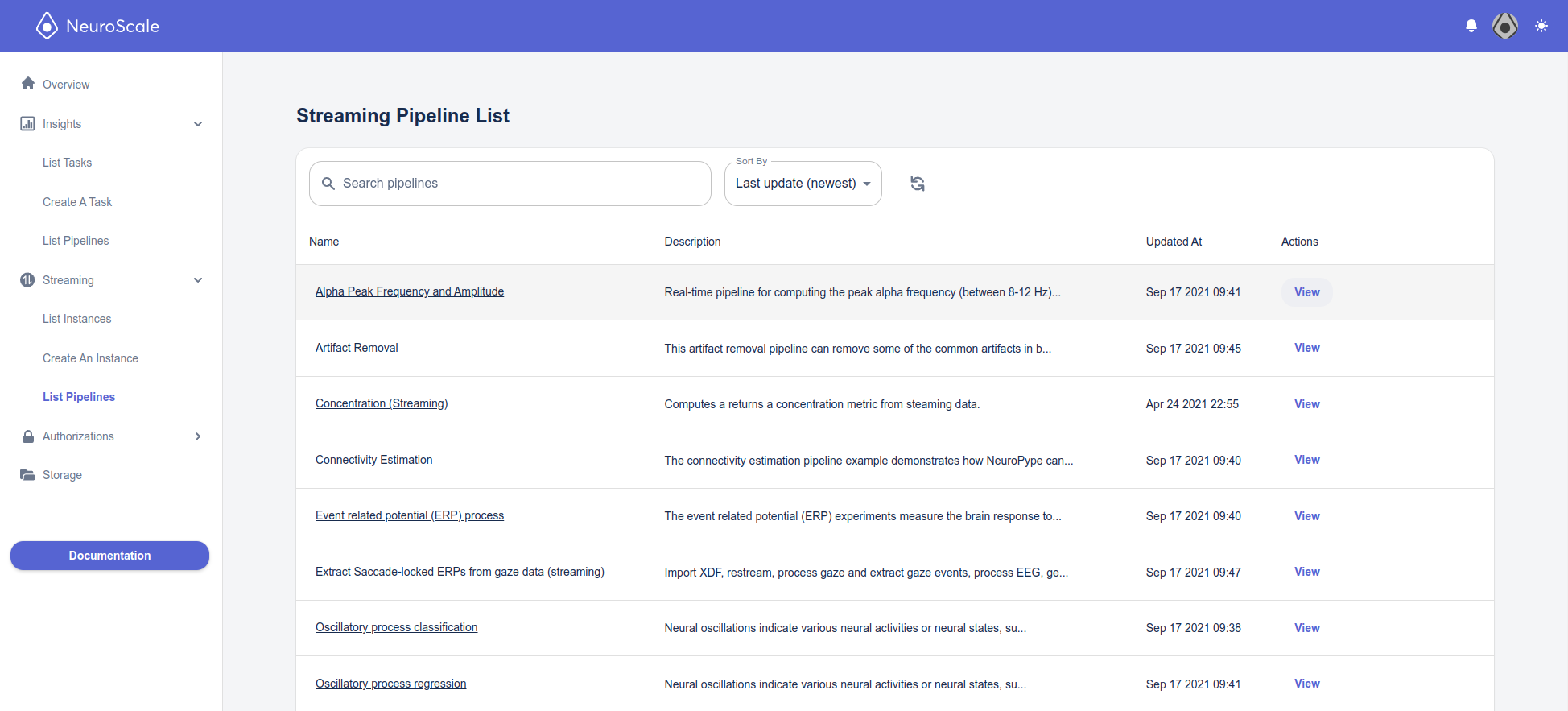
Your pipeline is now ready for action!