Javascript
This tutorial describes how to use JavaScript to connect to NeuroScale Platform and execute API commands needed to create echo instances. An echo instance accepts real-time messages sent over MQTT and echoes (or mirrors) the data back out the other side (without alteration). They are useful for testing and development purposes.
Prerequisites
JavaScript envoronment
There are two canonical choices for running JavaScript code:
-
In the browser, this is where JavaScript started. You can use the command prompt of FireBug, Chrome DevTools or an online service such as JsFiddle. If you are using an online service, you should enclose the variables you want to view, e.g.
xmlHttp.responseTextin the code samples below withalert()function:alert(xmlHttp.responseText); -
On your Desktop using Node.js. Node can be used in an interactive mode (run >> node command without any parameters). If you chose to use this method, you need to install xmlhttprequest package and add these two lines to the beginning of all the examples codes in this tutorial:
// if you are using Node.js, you need to include the following two lines of code
// in order to have access to XMLHttpRequest()
// you should skip these lines for JavaScript code that is running the browser
require("xmlhttprequest")
var XMLHttpRequest = require("xmlhttprequest").XMLHttpRequest;
MQTT over Websockets
MQTT messages can be sent and received in the browser using a JavaScript MQTT client that uses WebSockets to communicate to an MQTT server. NeuroScale MQTT endpoints support this. In this tutorial, we use Paho JavaScript client.
Authentication
API commands require use of an access token to authenticate requests to the NeuroScale Platform. In the examples below, a dummy access token has been used that should be replaced with your own personal access token that you received when you registered an account on the NeuroScale Platform.
If you do not have an access token, please visit NeuroScale Dashboard to create one (under Authorization).
1. Retrieving the Echo Pipeline Identifier
In order to create an instance, you must tell NeuroScale what pipeline you wish to use. The pipeline acts as a sort of blueprint from which NeuroScale can create a running instance. Different pipelines process data in different ways, so you must choose the pipeline that best fits your requirements for processing data (i.e. what kind of input device you have, what kind of signal you wish to process, what kind of metric/measure you wish to infer from the data, etc.).
You will use the echo pipeline to create your echo instance. So the first thing you need to know is the unique identifier of the echo pipeline. Determining this is easy; retrieve the list of available pipelines from the NeuroScale Platform API, find the one named "Echo", and note its unique identifier.
To retrieve the list of available pipelines from the NeuroScale Platform API, simply copy and paste the following command into your terminal or command-line (make absolutely sure to copy and paste the command in a single line):
Important!
Remember to replace the dummy access token xxxxxxxx-xxxx-xxxx-xxxx-xxxxxxxxxxxx shown below with your own personal access token when running the following command.
var xmlHttp = new XMLHttpRequest();
theUrl = "https://api.neuroscale.io/v1/pipelines";
xmlHttp.open( "GET", theUrl, false ); // false, so we have a synchronous request
xmlHttp.setRequestHeader("Authorization", "Bearer xxxxxxxx-xxxx-xxxx-xxxx-xxxxxxxxxxxx");
xmlHttp.send( null );
xmlHttp.responseText
Assuming no errors, a response similar to the one shown below will be received (for brevity, pipelines other than the echo pipeline have been removed from the output):
HTTP/1.1 200 OK
Allow: OPTIONS, GET
Content-Type: application/json
Date: Wed, 16 Sep 2015 16:41:26 GMT
Server: nginx/1.1.19
Vary: Accept-Encoding
X-Frame-Options: SAMEORIGIN
transfer-encoding: chunked
Connection: keep-alive

{
    "count": 10,
    "data": [
        ...,
        {
            "created_at": 1442367180,
            "description": "Echoes all input data.",
            "id": "pl_gKhLG5KvPGTmSJVqSxw7tX",
            "metadata": {
                "nodes": {
                    "in": [
                        {
                            "name": "default",
                            "streams": [
                                {
                                    "name": "echo",
                                    "type": "Custom",
                                    "sampling_rate": 0,
                                    "channels": [
                                        {
                                            "label": "msg"
                                        }
                                    ]
                                }
                            ]
                        }
                    ],
                    "out": [
                        {
                            "name": "default",
                            "streams": [
                                {
                                    "name": "echo",
                                    "type": "Custom",
                                    "sampling_rate": 0,
                                    "channels": [
                                        {
                                            "label": "msg"
                                        }
                                    ]
                                }
                            ]
                        }
                    ]
                }
            },
            "name": "Echo",
            "object": "pipeline",
            "owner": null,
            "parameters": {},
            "updated_at": 1442370288
        },
        ...
    ],
    "object": "list",
    "url": "/v1/pipelines"
}
Please pay particular attention to the name of the pipeline ("Echo") along with its unique identifier (in this case, "pl_gKhLG5KvPGTmSJVqSxw7tX"). You will need this unique identifier to create an echo instance in Step 2.
Important!
Remember that your particular values (i.e. the echo pipeline's unique identifier, the number of pipelines returned, etc.) will be different to the ones shown here. This is just an example response.
2. Creating an Echo Instance
To create an echo instance, simply copy and paste the following command into your terminal or command-line, replacing pl_xxxxxxxxxxxxxxxxxxxxxx with the unique identifier of the echo pipeline retrieved in Step 1 (make absolutely sure to copy and paste the command in a single line):
Important!
Remember to replace the dummy access token xxxxxxxx-xxxx-xxxx-xxxx-xxxxxxxxxxxx shown below with your own personal access token when running the following command.
var xmlHttp = new XMLHttpRequest();
theUrl = "https://api.neuroscale.io/v1/instances";
xmlHttp.open( "POST", theUrl, false ); // false, so we have a synchronous request
xmlHttp.setRequestHeader("Authorization", "Bearer xxxxxxxx-xxxx-xxxx-xxxx-xxxxxxxxxxxx");
xmlHttp.setRequestHeader("Content-Type", "application/json");
xmlHttp.send("{\"pipeline\":\"pl_xxxxxxxxxxxxxxxxxxxxxx\"}" );
xmlHttp.responseText
Assuming no errors, a response similar to the one shown below will be received:
HTTP/1.1 201 CREATED
Allow: POST, OPTIONS, GET
Content-Type: application/json
Date: Wed, 16 Sep 2015 17:48:21 GMT
Server: nginx/1.1.19
Vary: Accept-Encoding
X-Frame-Options: SAMEORIGIN
transfer-encoding: chunked
Connection: keep-alive

{
    "created_at": 1442425700,
    "description": "",
    "encoding": "json",
    "endpoints": {
        "count": 2,
        "data": [
            {
                "created_at": 1442425700,
                "id": "ep_uTM23uQVC8ecTj6AcoPbUA",
                "instance": "in_NGcu6V6DPaMpQYwhpEYkYA",
                "mode": "write",
                "object": "endpoint",
                "updated_at": 1442425700,
                "url": "mqtt://streaming.neuroscale.io:443/maiYbX8nrBdWPStj82G4Xb/in"
            },
            {
                "created_at": 1442425700,
                "id": "ep_BLstXqCnt27BVS7agdou8i",
                "instance": "in_NGcu6V6DPaMpQYwhpEYkYA",
                "mode": "read",
                "object": "endpoint",
                "updated_at": 1442425700,
                "url": "mqtt://streaming.neuroscale.io:443/maiYbX8nrBdWPStj82G4Xb/out"
            }
        ],
        "object": "list",
        "url": "/v1/instances/in_NGcu6V6DPaMpQYwhpEYkYA/endpoints"
    },
    "id": "in_NGcu6V6DPaMpQYwhpEYkYA",
    "metadata": {
        "nodes": {
            "in": [
                {
                    "name": "default",
                    "streams": [
                        {
                            "name": "echo",
                            "type": "Custom",
                            "sampling_rate": 0,
                            "channels": [
                                {
                                    "label": "msg"
                                }
                            ]
                        }
                    ]
                }
            ],
            "out": [
                {
                    "name": "default",
                    "streams": [
                        {
                            "name": "echo",
                            "type": "Custom",
                            "sampling_rate": 0,
                            "channels": [
                                {
                                    "label": "msg"
                                }
                            ]
                        }
                    ]
                }
            ]
        }
    },
    "mode": "predict",
    "object": "instance",
    "parameters": {},
    "pipeline": "pl_gKhLG5KvPGTmSJVqSxw7tX",
    "properties": {},
    "replace_nans": true,
    "replace_nans_with": 0.0,
    "state": "configuring",
    "time_to_live": 21600,
    "updated_at": 1442425701,
    "user": "usr_ZTNc2sEjoq6JoEgPNFUg6g"
}
Please pay particular attention to the items highlighted below:
"id": "in_NGcu6V6DPaMpQYwhpEYkYA"
...
"url": "mqtt://streaming.neuroscale.io:443/maiYbX8nrBdWPStj82G4Xb/in"
...
"url": "mqtt://streaming.neuroscale.io:443/maiYbX8nrBdWPStj82G4Xb/out"
...
"state": "configuring"
The first item is the unique identifier of your newly created instance. You will need this unique identifier to poll the state of the echo instance in Step 3 and to delete it in Step 5.
Important!
Remember that your particular values (i.e. the echo instance's unique identifier et al.) will be different to the ones shown here. This is just an example response.
The second and third items are the MQTT topic names that you need for streaming data in Step 4. They are easily distinguished; the one that ends with /in is for publishing, while the one that ends with /out is for subscribing.
3. Polling the State of an Echo Instance
The fourth item represents the instance's current state. When you first create an echo instance, it must configure itself to accept incoming data. This takes a small amount of time to complete. Therefore, you must wait until the echo instance is ready before you can publish data to it over MQTT.
To poll the state of an echo instance, simply copy and paste the following command into your terminal or command-line, replacing in_xxxxxxxxxxxxxxxxxxxxxx with the unique identifier of your echo instance from Step 2 (make absolutely sure to copy and paste the command in a single line):
Important!
Remember to replace the dummy access token xxxxxxxx-xxxx-xxxx-xxxx-xxxxxxxxxxxx shown below with your own personal access token when running the following command.
var xmlHttp = new XMLHttpRequest();
theUrl = "https://api.neuroscale.io/v1/instances/in_xxxxxxxxxxxxxxxxxxxxxx";
xmlHttp.open( "GET", theUrl, false ); // false, so we have a synchronous request
xmlHttp.setRequestHeader("Authorization", "Bearer xxxxxxxx-xxxx-xxxx-xxxx-xxxxxxxxxxxx");
xmlHttp.send( null );
xmlHttp.responseText
Again, assuming no errors, a response similar to that shown in the previous section will be received.
When the state of the instance changes from configuring to running, you are ready to move onto Step 4 and begin streaming data over MQTT:
4. Streaming Data over MQTT
For a quick introduction to MQTT, see here. If you have successfully followed the instructions from the previous steps, the echo instance that you created is now connected to the MQTT broker and is ready to accept incoming data.
The connection settings for the MQTT broker are as follows:
Using these connection settings, you can connect a MQTT client application (or library) to the MQTT broker as demonstrated in the following screenshot (username and password are not required):
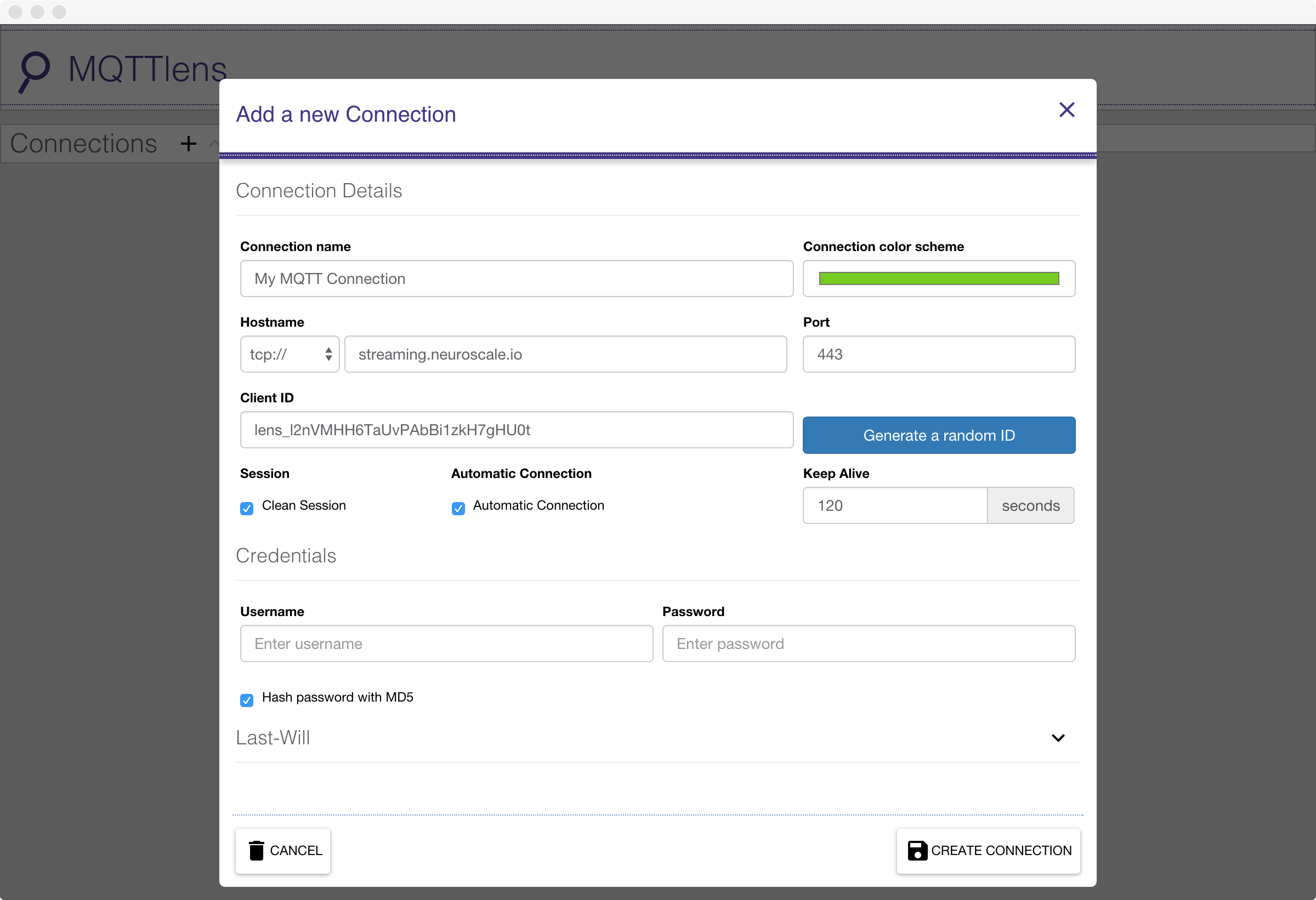
In this example, MQTTlens for Google Chrome is used to establish a connection to the MQTT broker.
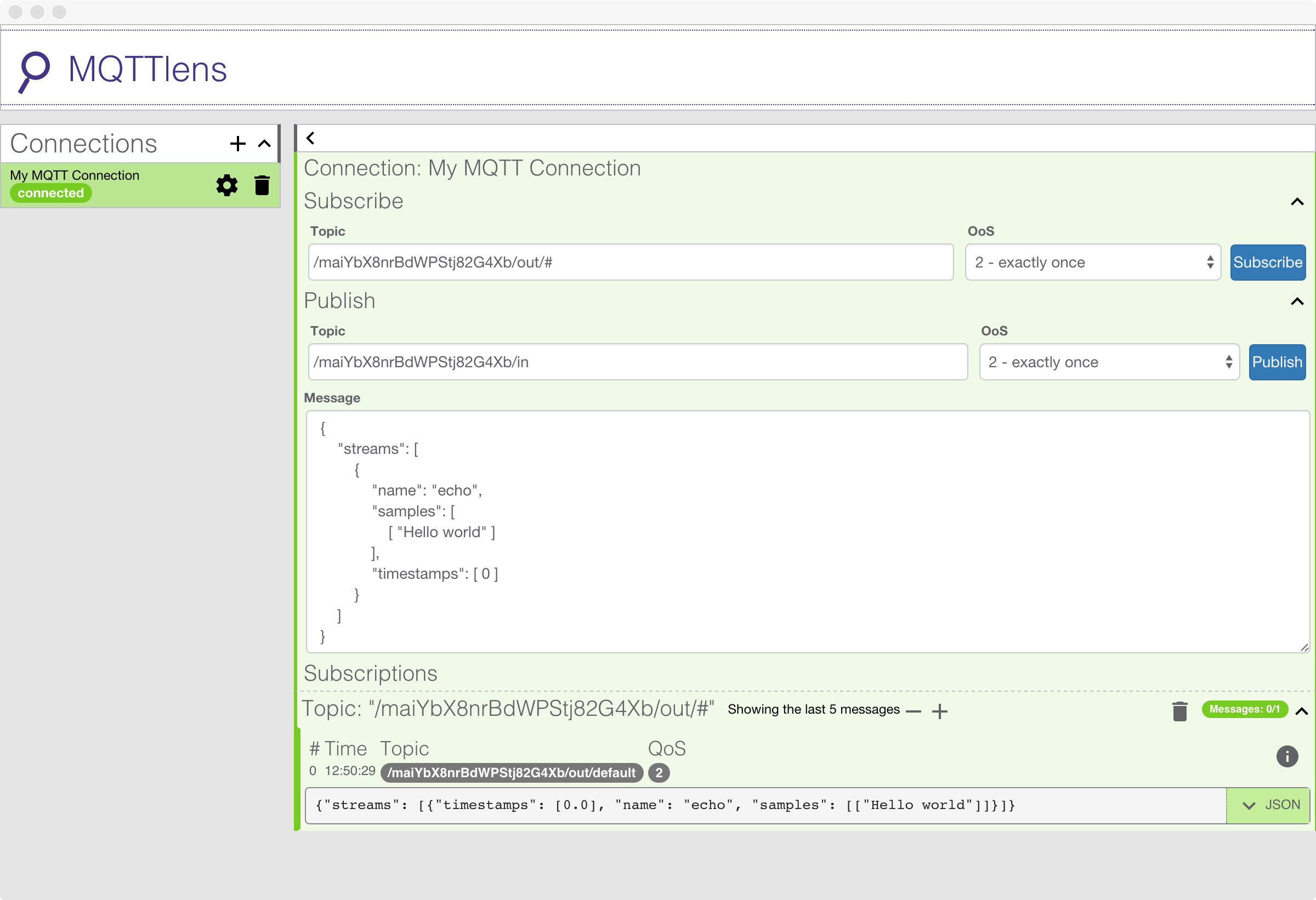
Once you have established the MQTT connection, you can use the topic names for your echo instance (the second and third items from Step 3) to publish data and subscribe to the output, respectively, as demonstrated in the following screenshot:
Important!
You must subscribe to the multi-level MQTT wildcard topic in order to receive output messages from your echo instance (the reason for this is beyond the scope of this tutorial). To do this, simply append /# to the end of the topic name. Remember, your topic names will be different to the ones shown here!
Message Format
Echo instances accept messages containing JSON-encoded dictionaries (or objects) of the following form:
A detailed description of this message format is beyond the scope of this tutorial. For now, it is enough to know that you can change the "Hello world" text to any of your choosing and see the output echoed back to you. For example, here we have changed the text to read "NeuroScale rocks!". As you can see, our change gets echoed out the other side.
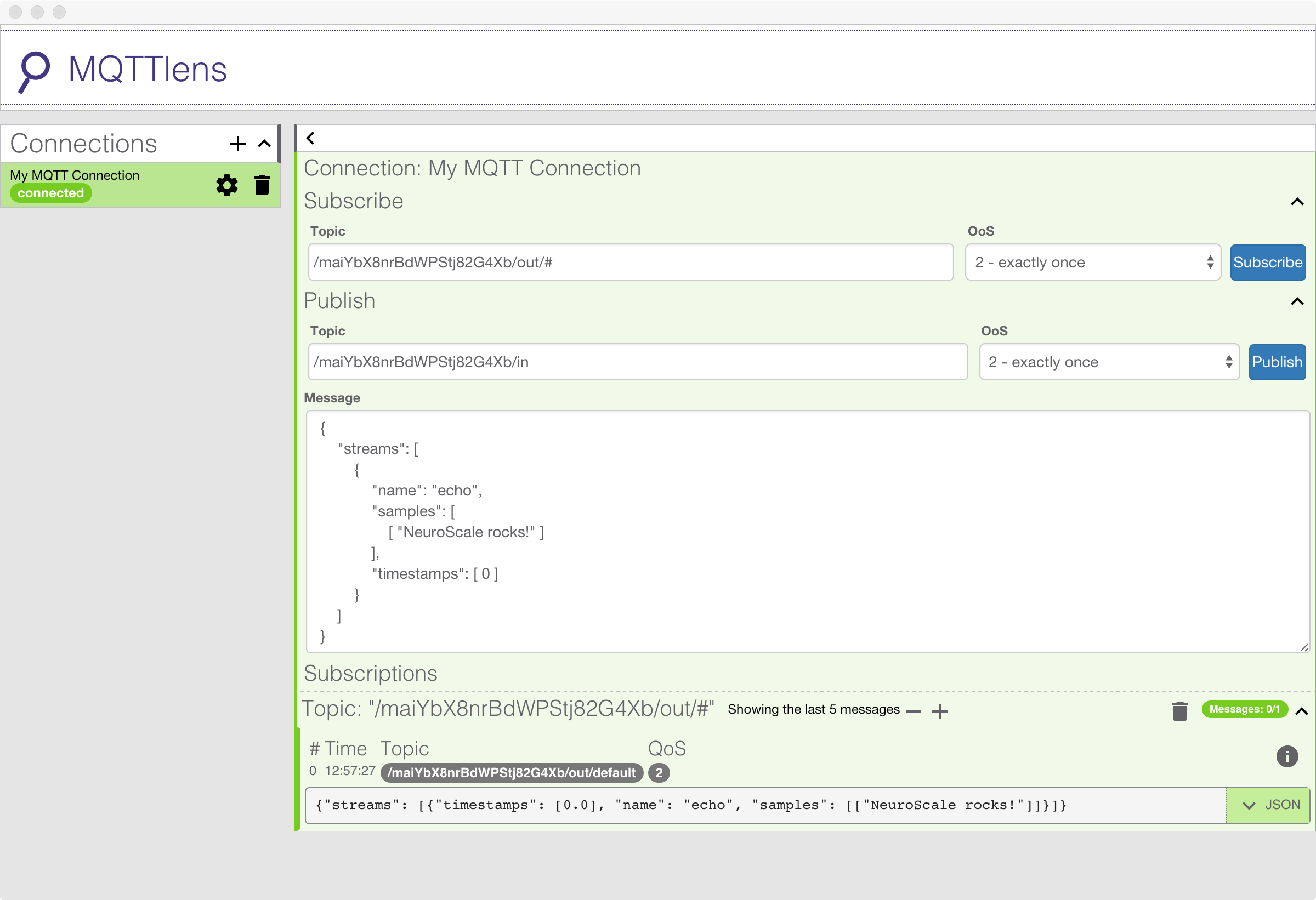
Depending on your MQTT client application (or library) of choice, you may need to encode the message as a string manually before publishing it. Either use a native JSON-encoder (where possible) or make sure to escape quotes inside the string, like this:
If you're not receiving any output from your echo instance but you can send data to it, then as a first resort, check to make sure your messages are formatted correctly.
5. Deleting an Echo Instance
When you are finished using your echo instance, you should delete it to save resources. You will need the unique identifier of your instance to delete it.
To delete an echo instance, simply copy and paste the following command into your terminal or command-line, replacing in_xxxxxxxxxxxxxxxxxxxxxx with the unique identifier of your echo instance from Step 2 (make absolutely sure to copy and paste the command in a single line):
Important!
Remember to replace the dummy access token xxxxxxxx-xxxx-xxxx-xxxx-xxxxxxxxxxxx shown below with your own personal access token when running the following command.
var xmlHttp = new XMLHttpRequest();
theUrl = "https://api.neuroscale.io/v1/instances/in_xxxxxxxxxxxxxxxxxxxxxx";
xmlHttp.open( "DELETE", theUrl, false ); // false, so we have a synchronous request
xmlHttp.setRequestHeader("Authorization", "Bearer xxxxxxxx-xxxx-xxxx-xxxx-xxxxxxxxxxxx");
xmlHttp.send( null );
xmlHttp.responseText
Assuming no errors, a response similar to the one shown below will be received:
HTTP/1.1 204 NO CONTENT
Allow: DELETE, OPTIONS, GET, PATCH
Content-Length: 0
Date: Thu, 17 Sep 2015 01:44:54 GMT
Server: nginx/1.1.19
X-Frame-Options: SAMEORIGIN
Connection: keep-alive
Summary
The basic workflow described in this tutorial is applicable to any type of pipeline supported on the NeuroScale Platform. In summary:
- Retrieve a pipeline identifier;
- Create an instance;
- Poll the state of the instance until it is ready to receive and process incoming data;
- Connect to the MQTT broker and publish/subscribe on the instance's topic names;
- Delete the instance when no longer required.