Developers can stream data to a pipeline running on NeuroScale by accessing the pipeline instance API write endpoint and sending the data through an MQTT client in your script/app. (See details in the Developer API Tutorials.)
However, we also provide several desktop tools to allow you easily stream data to NeuroScale without having to write your own script or application. Desktop-Clients, made available to NeuroScale Users on Github, is a collection of Python GUI applications for easy streaming of EEG and other biosignal data to NeuroScale and also provides basic real-time visualization of the processed data on the desktop.
Overview
Desktop-Clients includes:
- PlayEEGLSL: An EEG headset emulator that allows real-time streaming of EEG and other data and markers from pre-recorded files over the Lab Streaming Layer (LSL). EEGLAB (.set) and XDF (.xdf) data file formats are supported.
- NSSender: An application that launches a NeuroScale pipeline instance and transmits a local LSL data stream to that instance for processing.
- NSReceiver: An application that retrieves and visualizes outputs from a running NeuroScale pipeline instance. NSReceiver also broadcasts pipeline outputs over LSL for easy integration with other devices on the local network.
OS Support
The GUI-Client applications are currently supported on Windows, Mac, and Linux operating systems. They may also work for other operating systems that support Python.
Installation
Download
The Desktop-Clients can be set up using the Python source code or Windows and Mac installers. The source code and installers are available at our Github repository.
If you do not have access the Github repository, please send a request to support@neuroscale.io with your Github ID, name/company name, and NeuroScale account ID.
Using the Microsoft Installer
On Windows, the fastest way to get started with the GUI clients is to use the Windows MSI installers included in the latest Github release as:
- Desktop-Clients-
<version>-Win.exe - PlayEEGLSL-
<version>-Win.exe
After installation, NSSender, NSReceiver, and PlayEEGLSL executables can be launched via your installation directory and/or Start Menu.
Using the Mac Installer
On Mac OS, download the compressed binaries in the latest Github release as:
- Desktop-Clients-
<version>-Mac.zip - PlayEEGLSL-
<version>-Mac.zip
After unzipping the files, you can launch the apps from a terminal as follows,
From Source Code (Linux / Mac / Windows)
For non-Windows operating systems, you will need to download the Python source code and relevant packages and launch the GUI client applications via the Python shell.
Instructions are provided below for Linux and for Windows. These procedures have been tested on Python 2.7.9 and Python 3.4.2 but they may work on other Python versions as well.
Linux
-
Move to
/.../Desktop-Clientsdirectory. -
Install the required modules listed in the
requirements.txtfile:
- Install PyQt4 with:
Windows
- Install Enthought Canopy Express.
- Install PyQt4 from this download link and when asked, point it to your Canopy environment.
- Open Canopy and go to Tools->Canopy Command Prompt, move to
C:\...\Desktop-Clientsdirectory and install the modules listed in therequirements.txtfile:
Depending on the specific configuration of your system, i.e. installed C compilers, pip may fail to install some packages listed in the requirements.txt file. In this case, you can proceed to install them manually through Canopy Package Manager in the Tools menu.
Launching Desktop-Clients from the Python shell on Windows
For Windows users wishing to run Desktop client programs via the Python shell, it is recommended to initiate them via the Canopy Command Prompt. See the Tools menu in Canopy's IDE.
Streaming pre-recorded EEG with PlayEEGLSL
PlayEEGLSL streams EEG and/or other time-series data from a pre-recorded file in real-time via the Lab Streaming Layer. This can be helpful for testing and demonstrating real-time NeuroScale and NeuroPype applications when a live hardware sensor device is not available. The application currently supports XDF (.xdf) and EEGLAB (.set) file formats.
Launching the app
Windows
Launch PlayEEGLSL.exe from the Start Menu or installation directory
Linux / Mac
From the command prompt, navigate to the respective code directory and type:
Using the app
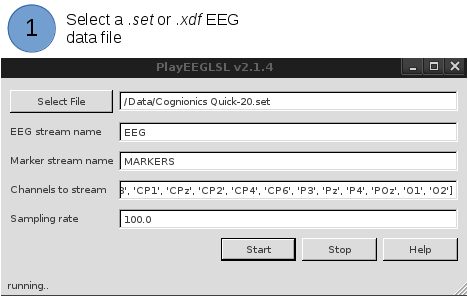
Data will be streamed via LSL using EEG stream name. If the file contains event markers they will be sent out through the separate Marker stream name. By default, the data is streamed using the sampling rate specified in the data file. You can stream data at a different sampling rate by overriding the Sampling rate option. In addition, it is possible to stream only a subset of channels by editing the Channels to stream option.
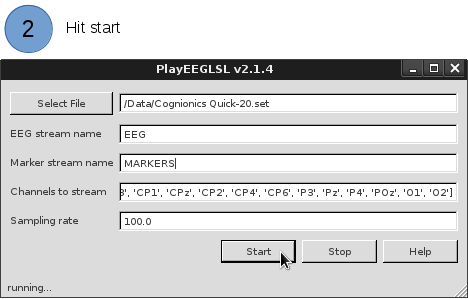
After clicking Start the app will begin streaming data over LSL. To stop data streaming click Stop.
Launching pipelines on NeuroScale with NSSender
Use the NSSender app to launch NeuroScale pipeline instances and stream data from an LSL stream to these instances for real-time processing on NeuroScale.
Launching the app
Windows
Launch NSSender.exe from the Start Menu or installation directory
Linux / Mac
From the command prompt, navigate to the respective code directory and type:
Using the app
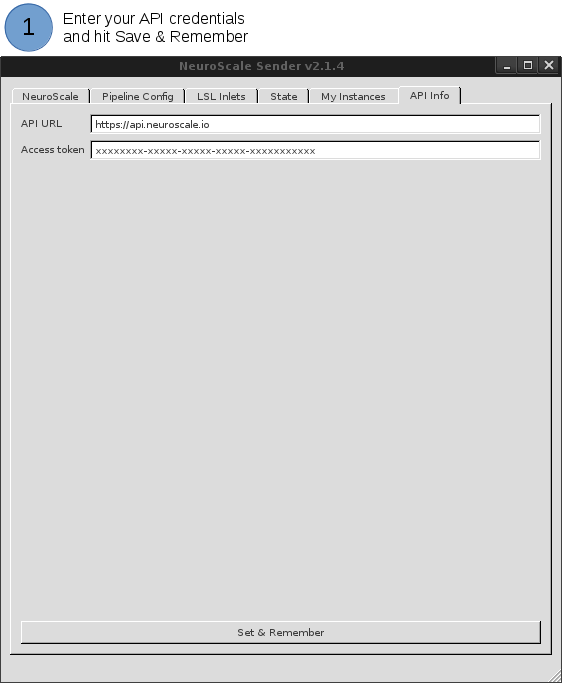
To setup the app, please enter in your access token and leave the default API URL (https://api.neuroscale.io) unless specifically instructed to by the Intheon team. If you are not sure where to get your access token or would like more information about the security of access token, please visit Create Access Tokens and Security in NeuroScale
In order to execute pipelines on the NeuroScale Platform we first need to acquire data from a hardware sensor device; for instance, an EEG headset, gaze tracker, or heart rate monitor. NSSender uses the open source Lab Streaming Layer (LSL) to connect to data streams recorded on a hardware device. Many commercially available hardware devices have the ability to open LSL outlets to publish data from the device on a local machine or local area network (LAN). These streams can be picked up by NSSender and transmitted to NeuroScale for processing.
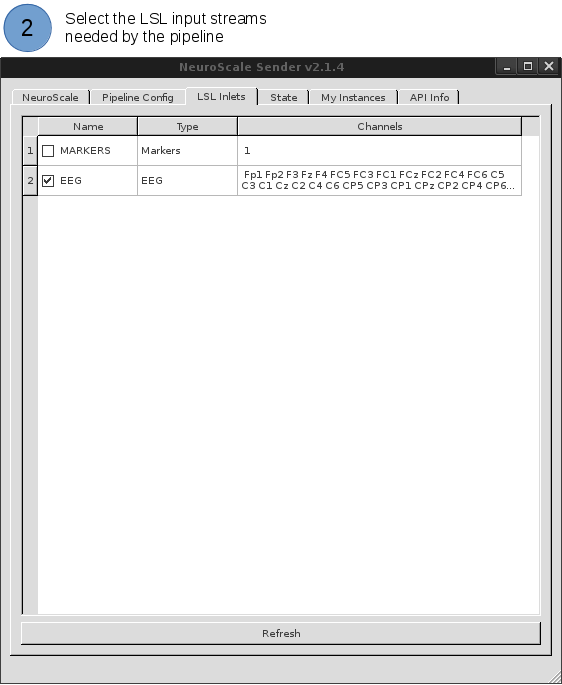
On the LSL Inlet tab select the LSL data streams you wish to transmit to NeuroScale. It's usually a good idea to quickly verify the channel labels here (by default provided by LSL).
Warning
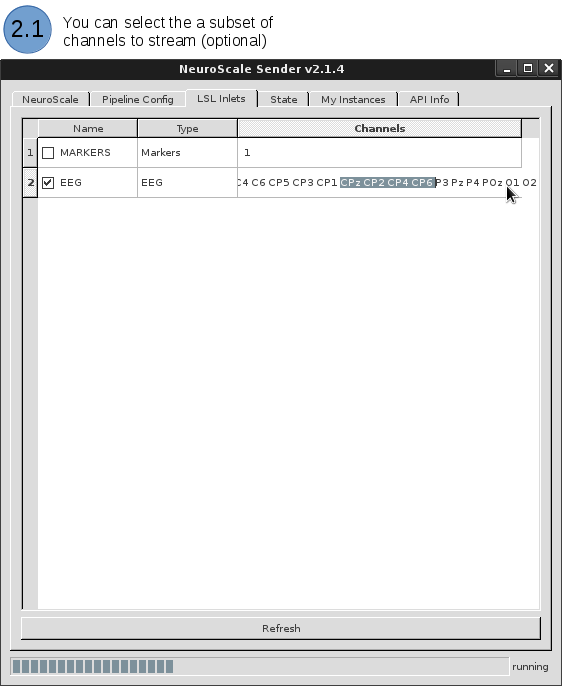
Some devices may bundle additional non-EEG channels along with those containing EEG data. Remove channels that are not required by your NeuroScale pipeline by selecting those channel names and pressing delete.
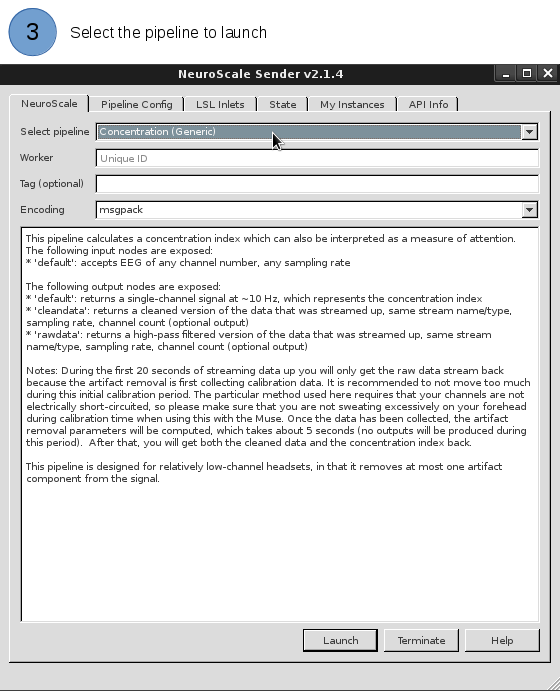
To launch a NeuroScale pipeline instance, navigate to the NeuroScale tab. Select the pipeline that you want to launch from the Select pipeline drop-down list. NeuroScale will assign a unique Instance ID, in addition you can provide your own easy-to-remember Tag. For Encoding, we recommend you use msgpack.
Review the pipeline-specific description to learn about input/output streams, configuration parameters, accepted channels, etc. Pipeline-specific parameters can be set on the Pipeline Config tab.
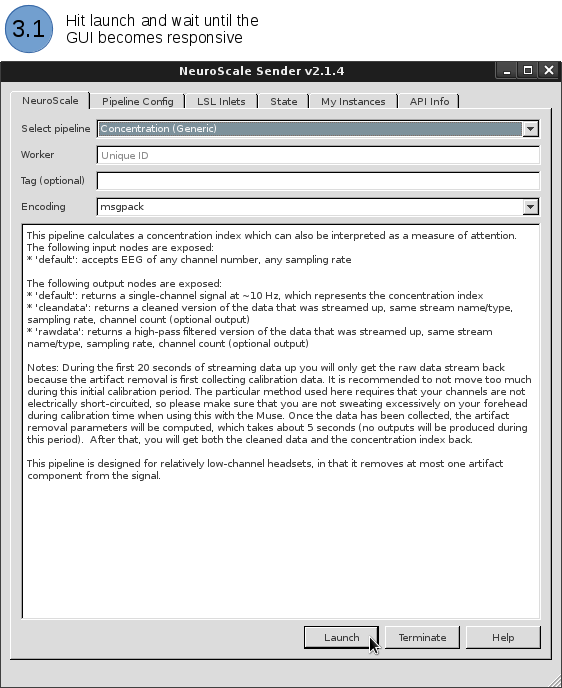
If everything looks good you can click the Launch button. The status bar at the bottom will indicate several stages of the launching process. Please wait until the instance is up and running.
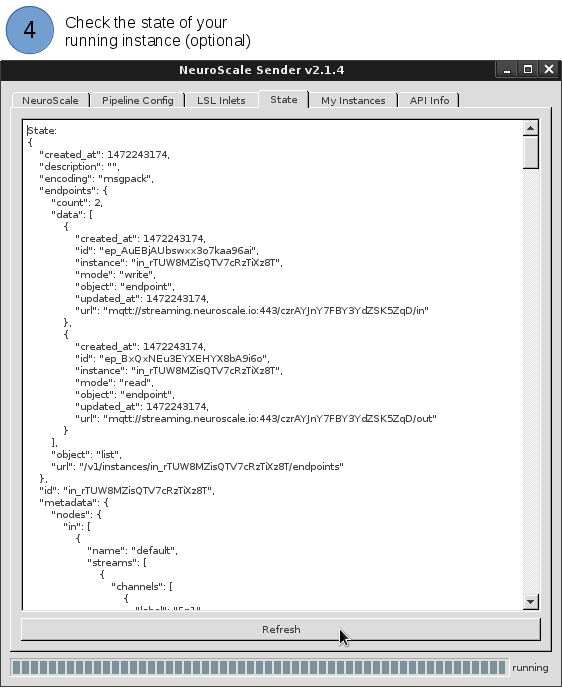
The State tab displays useful information, in JSON format, on the status of your running instance. Here you will find information like read/write end point urls and other relevant metadata.
Visualizing NeuroScale pipeline outputs with NSReceiver
The NSReceiver app allows you to connect to your running NeuroScale instances, visualize the pipeline outputs, and stream pipeline output data to other local applications via the Lab Streaming Layer. These may be instances you launched using NSSender (above) or through the Dashboard or the API.
Launching the app
Windows
Launch NSReceiver.exe from the Start Menu or install directory
Linux / Mac
From the command prompt, navigate to the respective code directory and type:
Using the app
First check the API Info tab to ensure the desired credentials are provided. API credentials previously stored in the NSSender application will be automatically imported here.
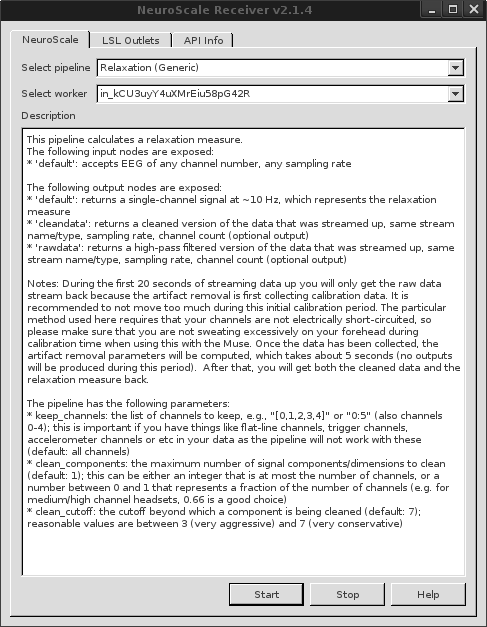
Next, click on the NeuroScale tab and select the pipeline you would like to read from in the Select pipeline drop-down list. If there are instances of the pipeline currently running, their IDs will be listed in the Select worker drop-down list. If you have multiple instances running, be sure to match the instance ID with that listed in the NeuroScale tab of the appropriate NSSender application (if using NSSender). Select an instance to read from and click Start to begin receiving data from the NeuroScale pipeline. For most pipelines, one or more real-time data visualization windows will subsequently appear.
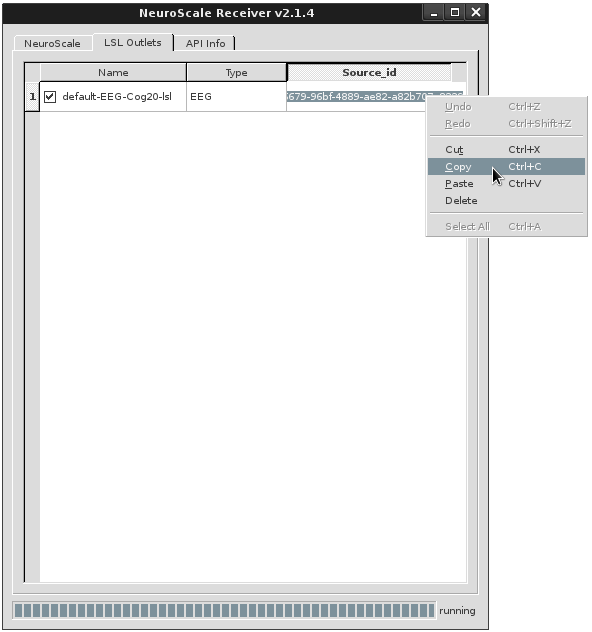
Data received from NeuroScale can also be broadcast via the Lab Streaming Layer. This allows you to transmit NeuroScale pipeline outputs to any LSL-enabled application, including NeuroPype™, running on your local machine or other devices on your Local Area Network. The Name, Type, and Source ID for each LSL stream are displayed in the LSL Outlets tab. To start streaming over LSL you have to first enable the specific outputs as shown in the figure below.
The code snippet below exemplifies how to consume pipeline outputs via LSL using Python. For more LSL examples in different languages check out the repository here.
from pylsl import StreamInlet, ContinuousResolver

# First save stream's source id from the Source_id field (see figure below).
source_id = '246d6679-96bf-4889-ae82-a82b707e8339'

"""
Resolve the stream using the source_id field.
It is recommended resolve the stream using the "source_id" field instead of the "type" or "name" fields because the former is guarantee to be unique.
"""
print("looking for an LSL stream outlet...")
resolver = ContinuousResolver(prop = 'source_id', value = source_id)

# Query the resolver until it finds the stream that we are looking for
while len(resolver.results()) == 0:
  continue

# Create a new inlet to read from the stream
inlet = StreamInlet(resolver.results()[0])

# Consume from the pipeline's output
while True:
    # get a new sample (you can also omit the timestamp part if you're not
    # interested in it)
    sample, timestamp = inlet.pull_sample()
    print(timestamp, sample)