Insights: View Task Details
Task Details page
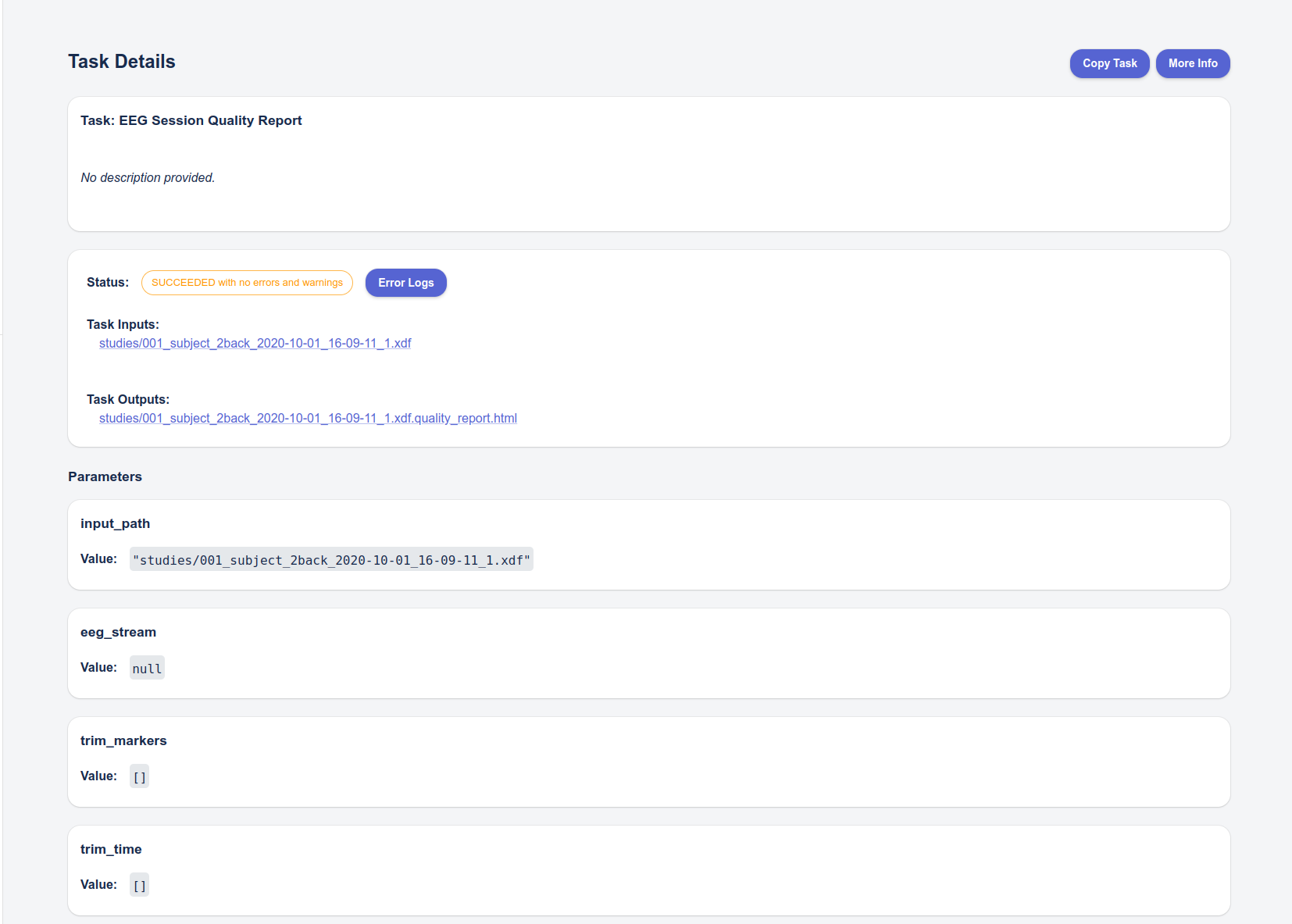
The execution of an Insights pipeline is called a "Task". A list of all running tasks and complete tasks can be found on the List Tasks page. Clicking a View link on the List Tasks page brings up the Task Details page for that task. This page shows the following information:
- current status
- input files which were imported by the pipeline and processed
- output files generated by the pipeline
- the parameter values for that task
The Task status will change as the pipeline runs, starting with Submitted and ending with either Succeeded or Failed. When the Task completes, the status will either be "Succeeded" or "Failed".
The list of inputs is incrementally updated as each file is successfully located and imported; likewise the list of outputs is incrementally updated as each output file is generated (typically at the end of the pipeline run). These lists will only be complete once the status is set to Succeeded or Failed. Refresh the page to update the status and lists of inputs and outputs.
Warnings / Errors
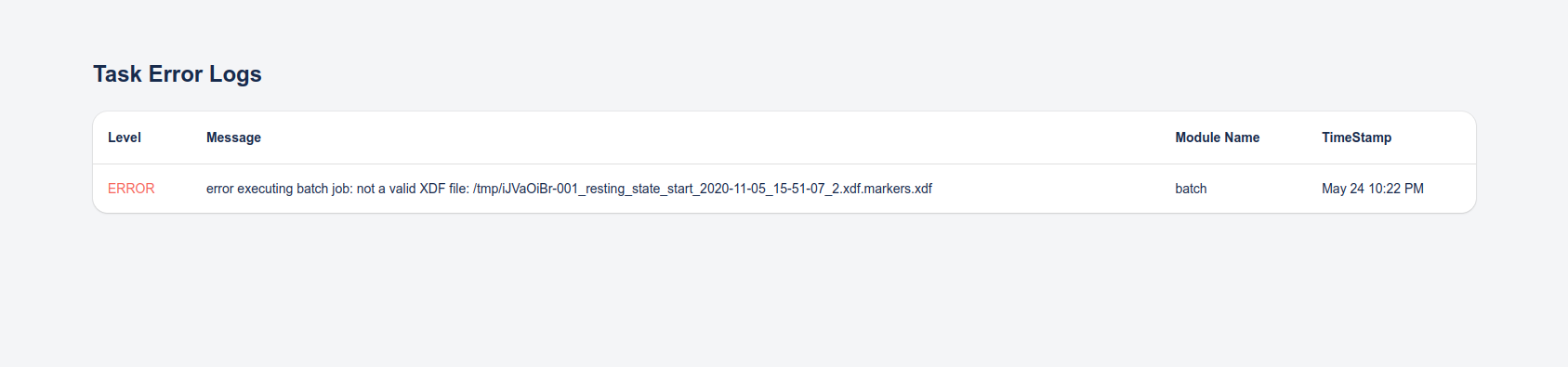
If the pipeline completes and the status is Failed, an Error Logs button will appear which will show the error (or errors) that caused the pipeline to fail.
Warnings
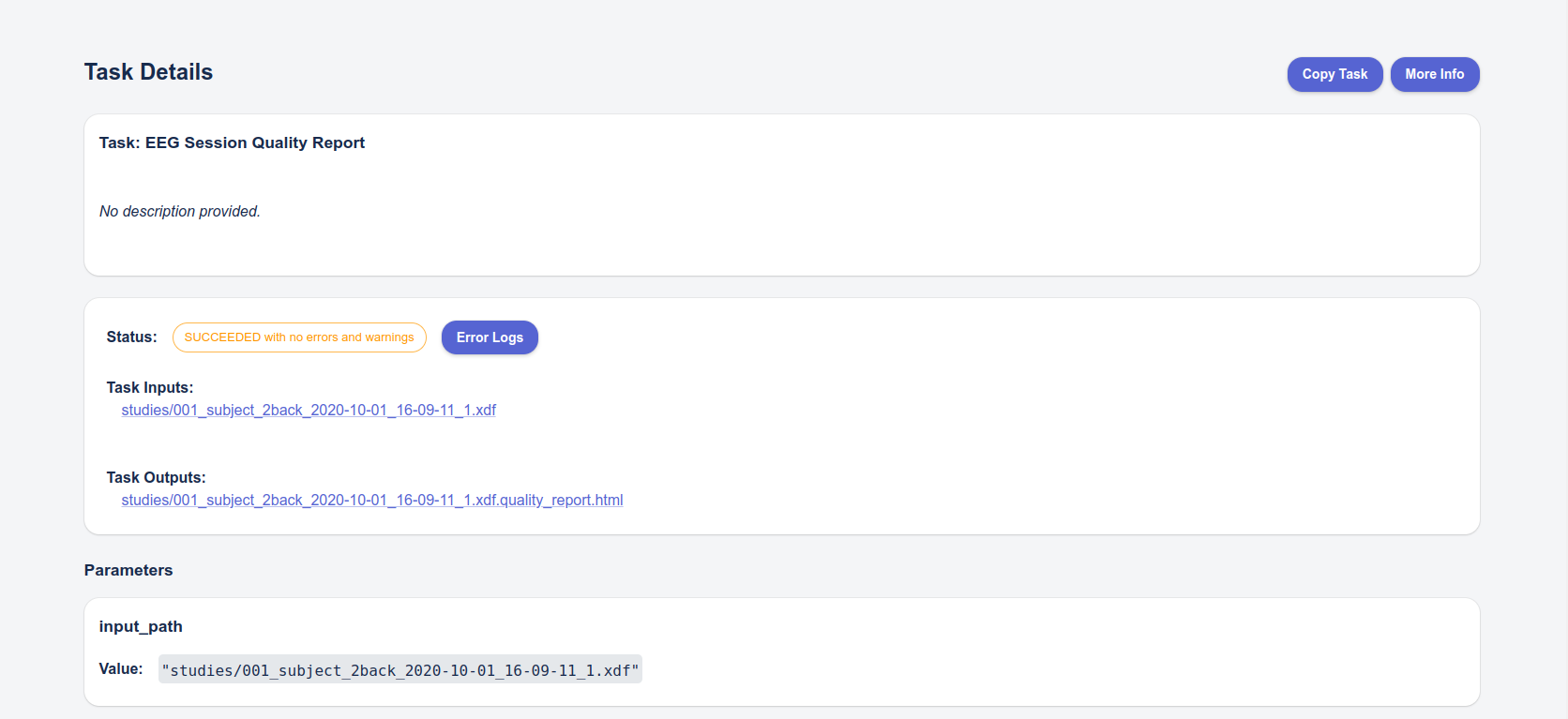
In some cases a pipeline will complete successfully but have Warning messages pertaining to the data (a particular marker could not be found, for example), which may impact the integrity of the output report. Some of these may be benign, for information purposes. In that case, the Status will show as Succeeded with warnings and the Error Logs button will again appear. Clicking that button will show the list of Warnings.

Errors
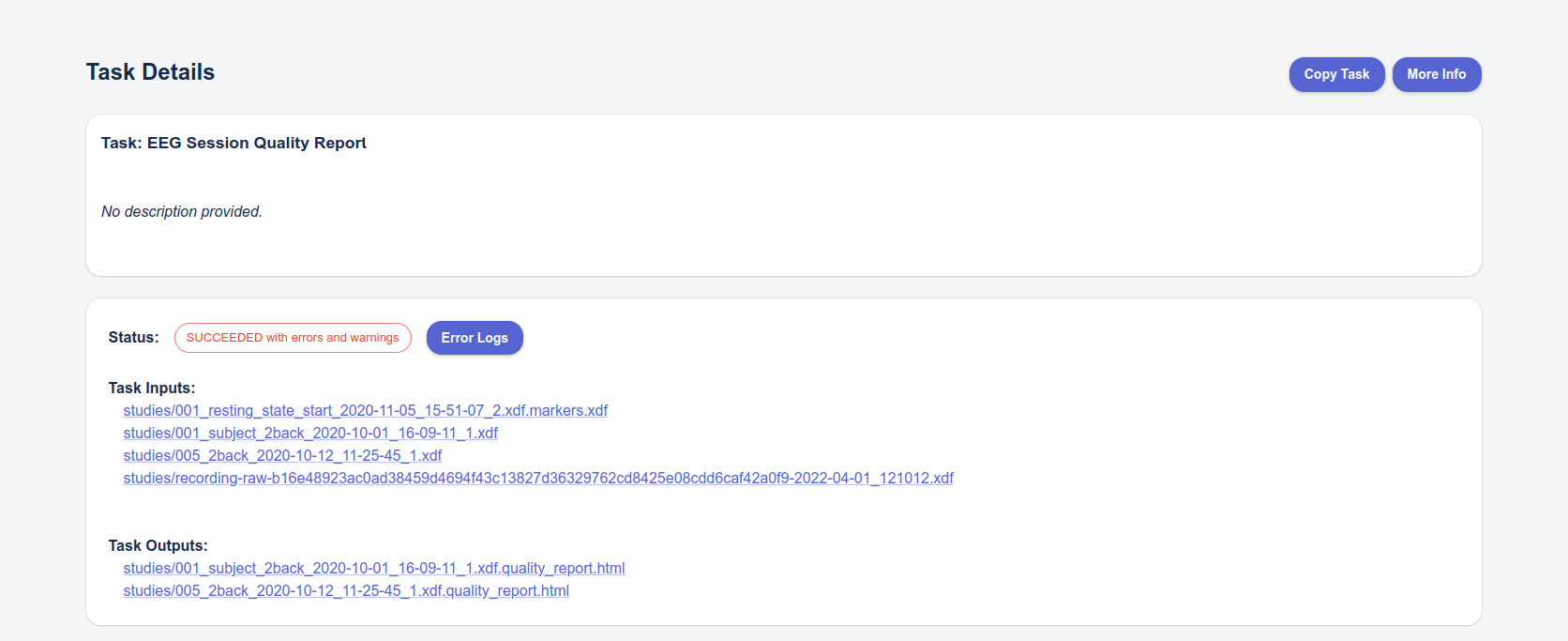
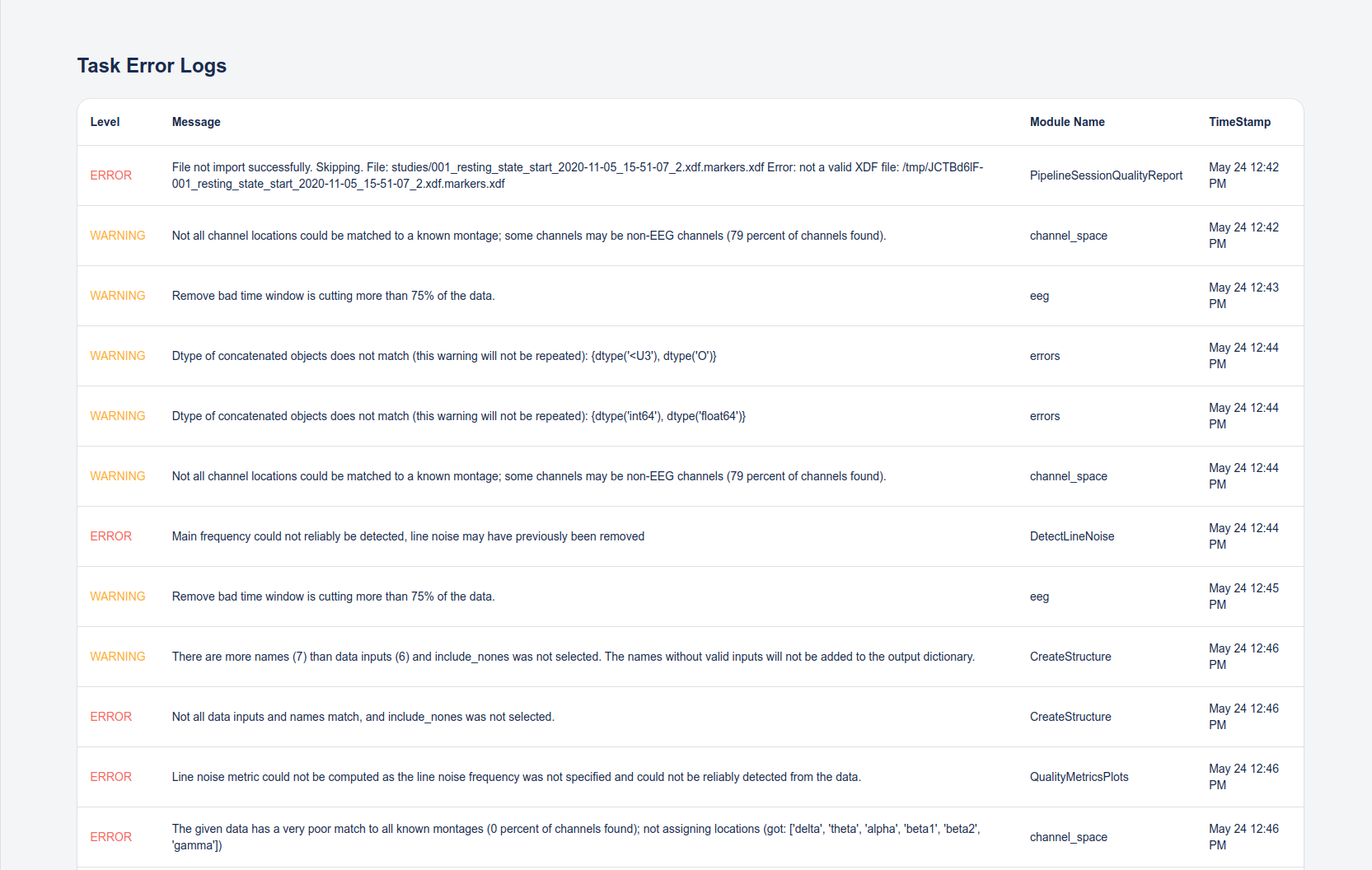
In other cases, a pipeline will complete successfully but have errors which may either cause certain files not to be computed, or which may cause a section of a report not to be output. For example, if a pipeline iterates over multiple files, if processing one of the file fails, the pipeline will log an error but continue to iterate through the rest of the files rather than terminate.
In the case below we see that there were four input files found but only two outputs, so two of the input files failed to generate a report.
Clicking the Error Logs will show the warnings and errors. In this case we see that one file was skipped because it was not a valid XDF file, and another file contained invalid channel names.
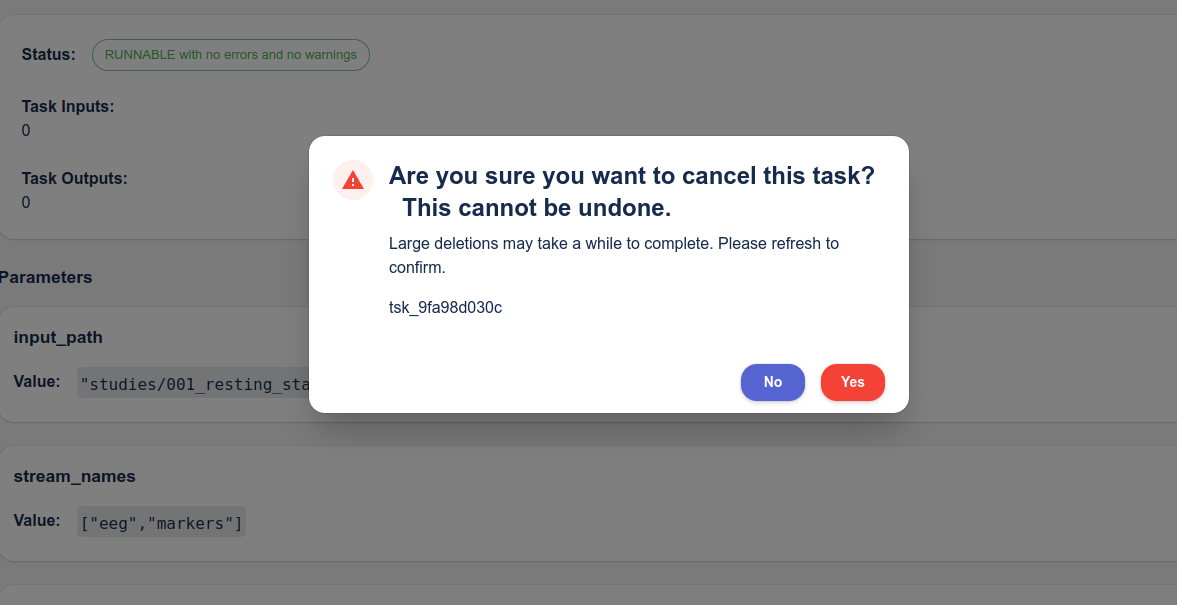
Cancelling a Task
You can cancel a task that was launched in error. Click the Cancel button and a confirmation dialog box will come up. Note that cancelling a task cannot be undone. It make take a little while before the task status changes to Cancelled.