Manage Authorization Tokens
Account authorizations govern accessibility to the NeuroScale API. Users can create unique access tokens with varying degrees of permission for different persons or applications using their account to run pipelines. This is a helpful feature in managing multiple users connecting to your account, or for developers using NeuroScale for more than one application. Also, if you feel your access token has been compromised in some way, you can easily generate a new one.
As a reminder, an Authorization Token does NOT give someone access to your NeuroScale Dashboard, which is available to your username/password only. Rather it allows a user to run, or perform other actions on, pipelines accessible to your account, over the API. For example, create a Streaming Instance or an Neuroscale Insights Task, using the API. For example, if you have an app with multiple users
You can manage your account's access tokens through the Dashboard or the API, but in the latter case require your Dashboard Account credentials (username/password).
Using the Neuroscale Dashboard
List Tokens
Click on Authorizations, List Authorizations in the sidebar menu to show the your account's tokens. One token with full permissions was created automatically when your account was created. This is the token that used by your Dashboard account and which you can use to perform the same operations through the API.
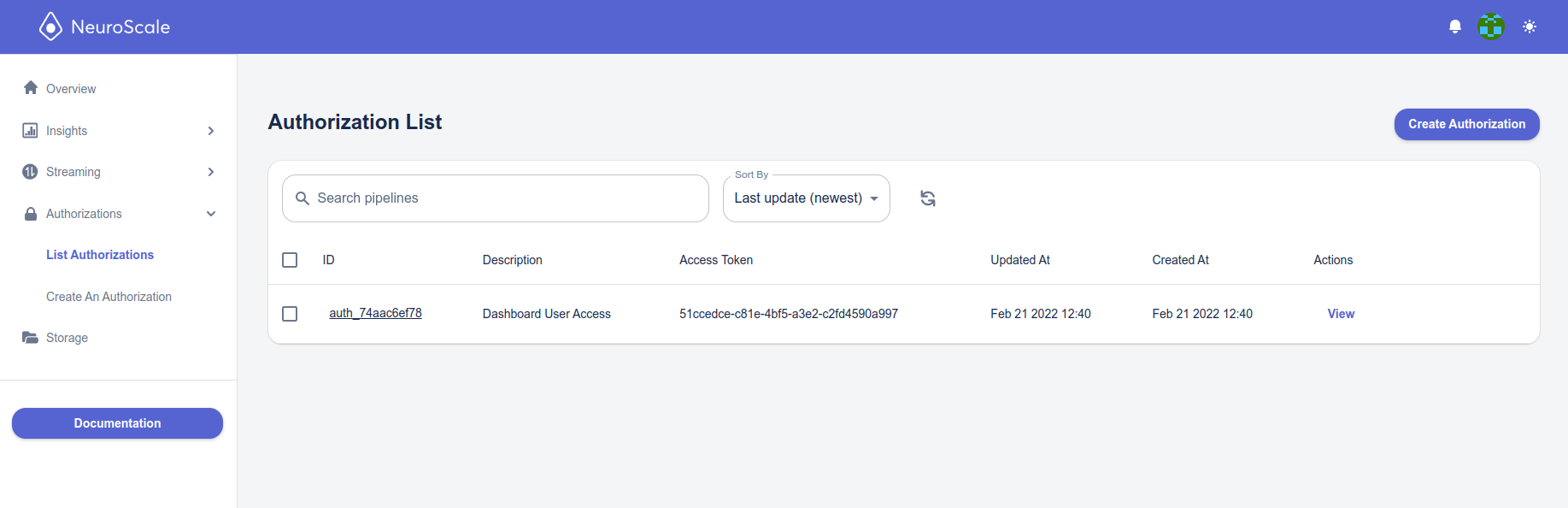
Create a Token
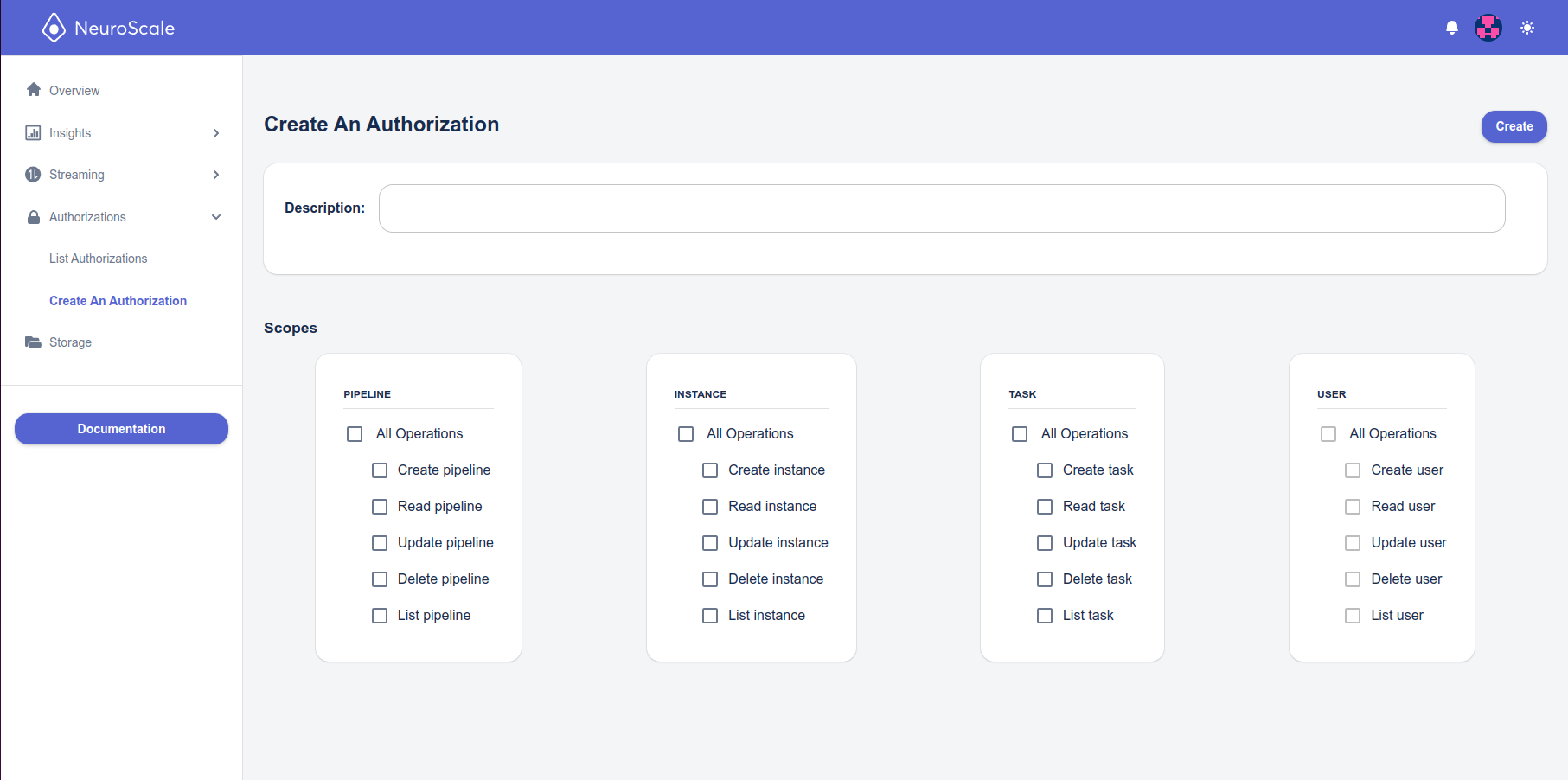
To create a new token with custom permissions , in the Authorizations tab click on Create An Authorization, as shown here:
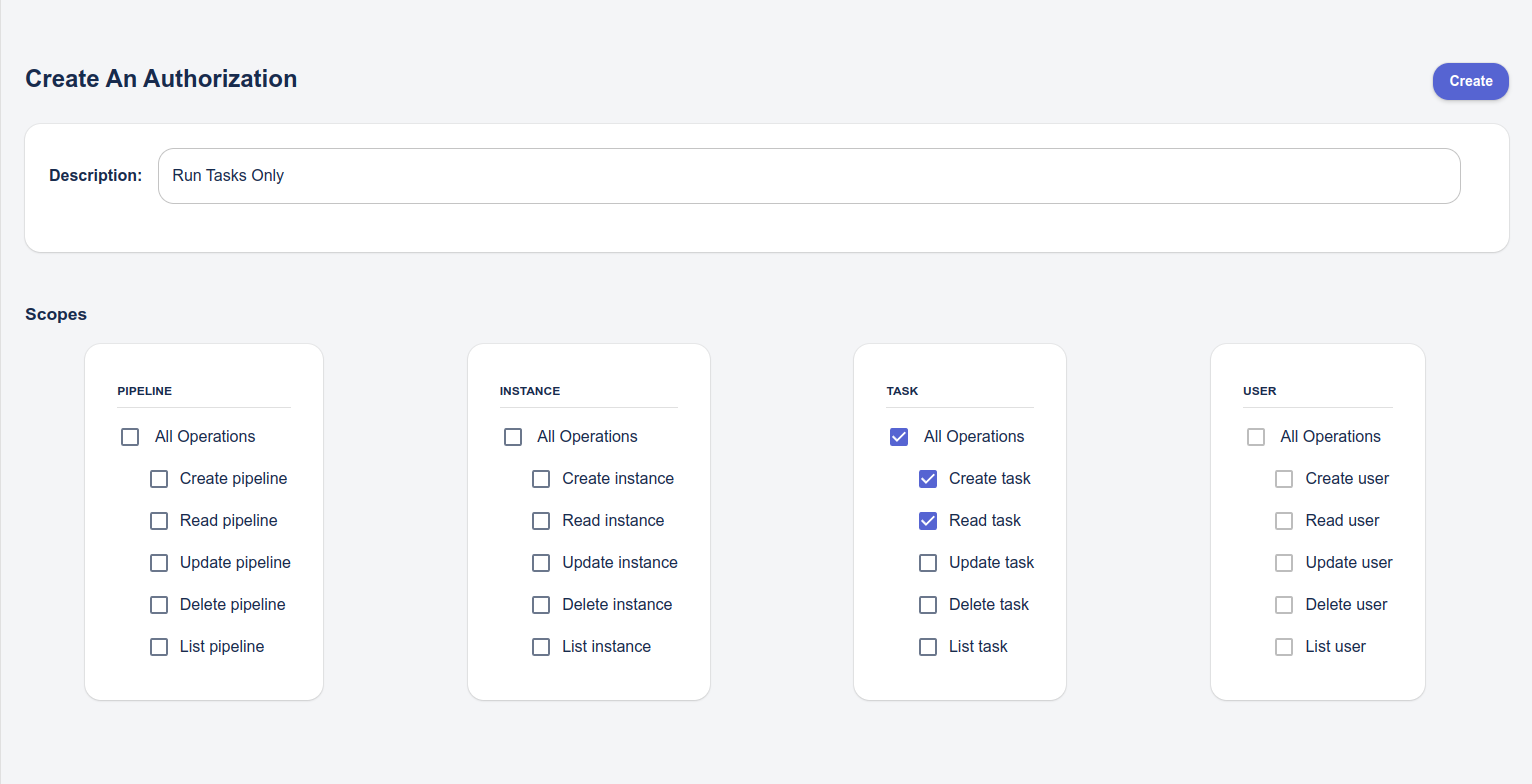
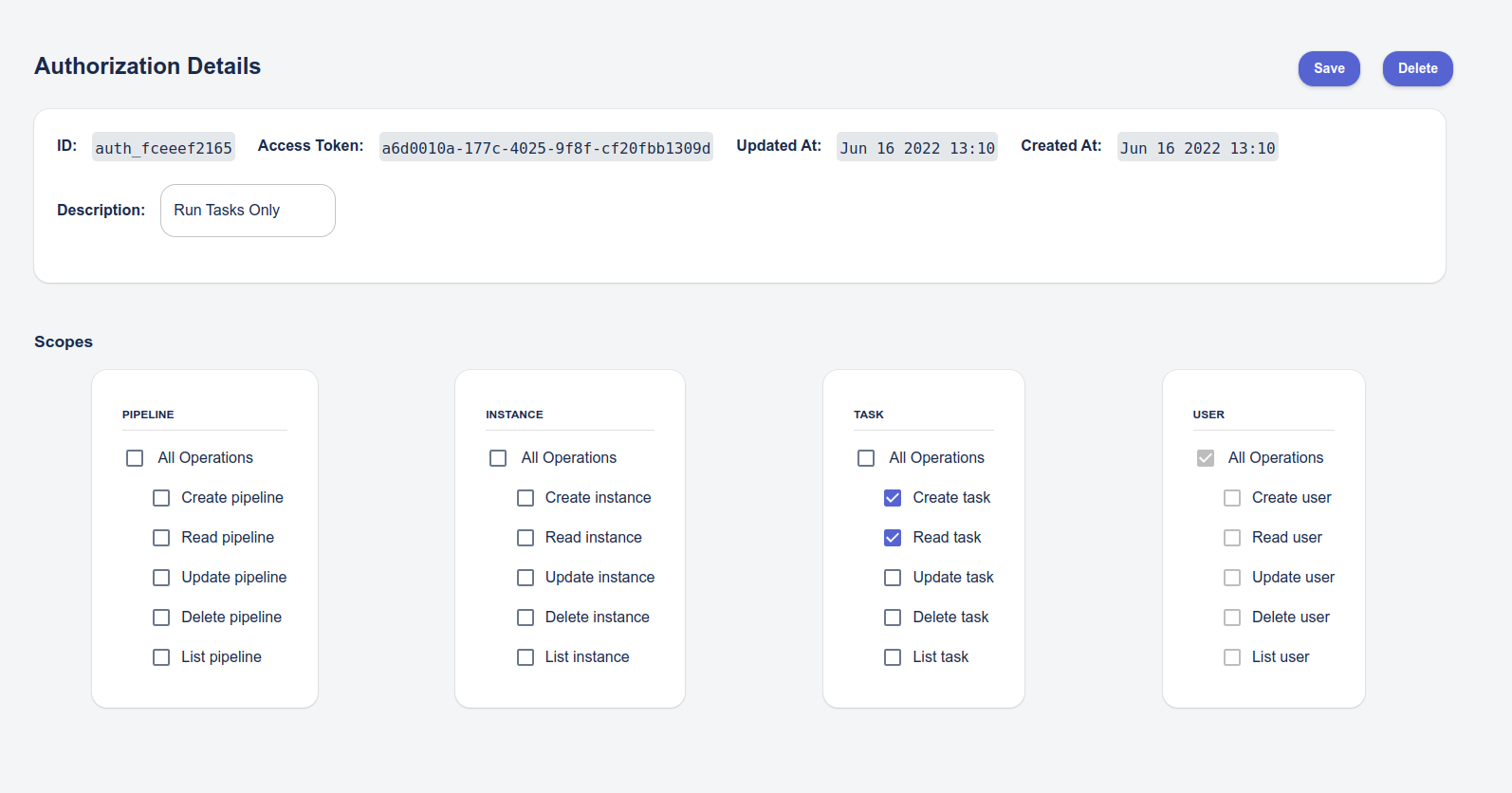
Then, you type in a description for your new access token, and check all the boxes for the permissions that you want to grant (note that it can be useful to create tokens with limited access to give to other users or for use with applications). The permissions are grouped by type, and there are some blanket checkboxes that enable all the permissions in the respective group (i.e., create, read, update, delete). Once you've selected the desired permissions, click the Create button. In the example below, the token will allow the the user to run a Neuroscale Insights pipeline only (launch a Task (Create) and view that Task (Read)). An authorization with List Instances only, would give permission to show all running instances for that user but not interact with them in any way or create new ones.
User permissions are only available to admin or super users and therefore greyed out.
Now when you go List Current Authorizations, you will see your newly created entry in the table.
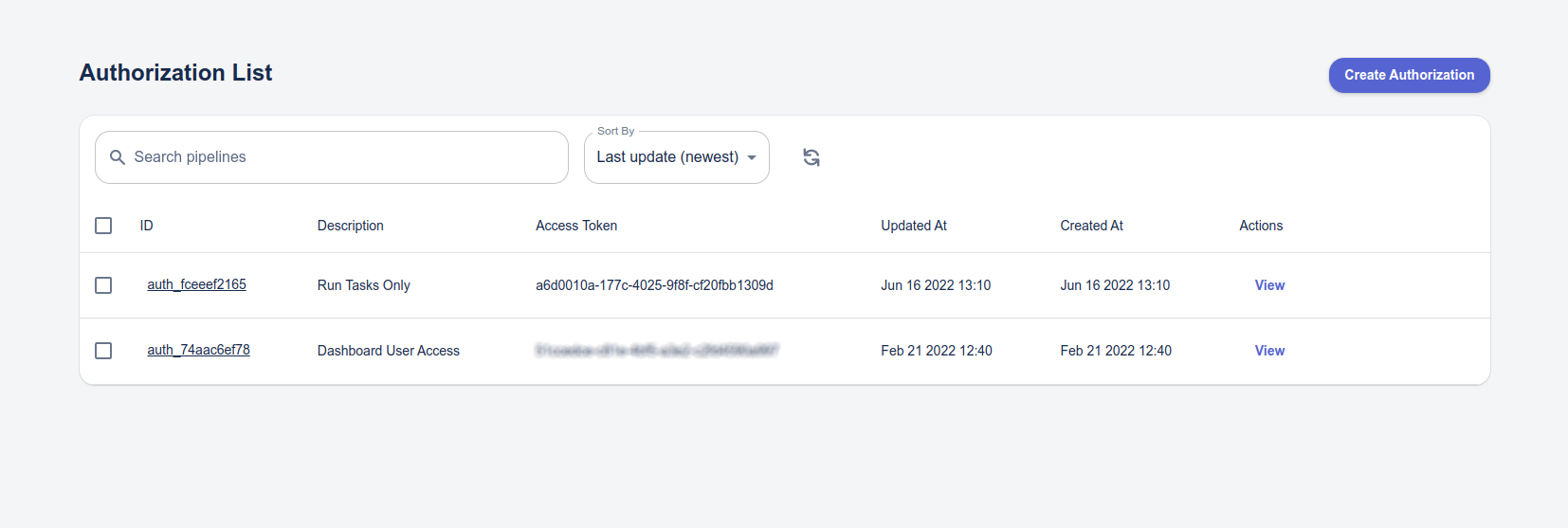
You can copy a token by selecting the token and pressing Ctrl-C to copy it to the clipboard (i.e., for use in your API calls).
View / Edit a Token's Permissions
You can also view and/or change a token's permissions or description by clicking the View link for that token on the Authorization List page.
Delete a Token
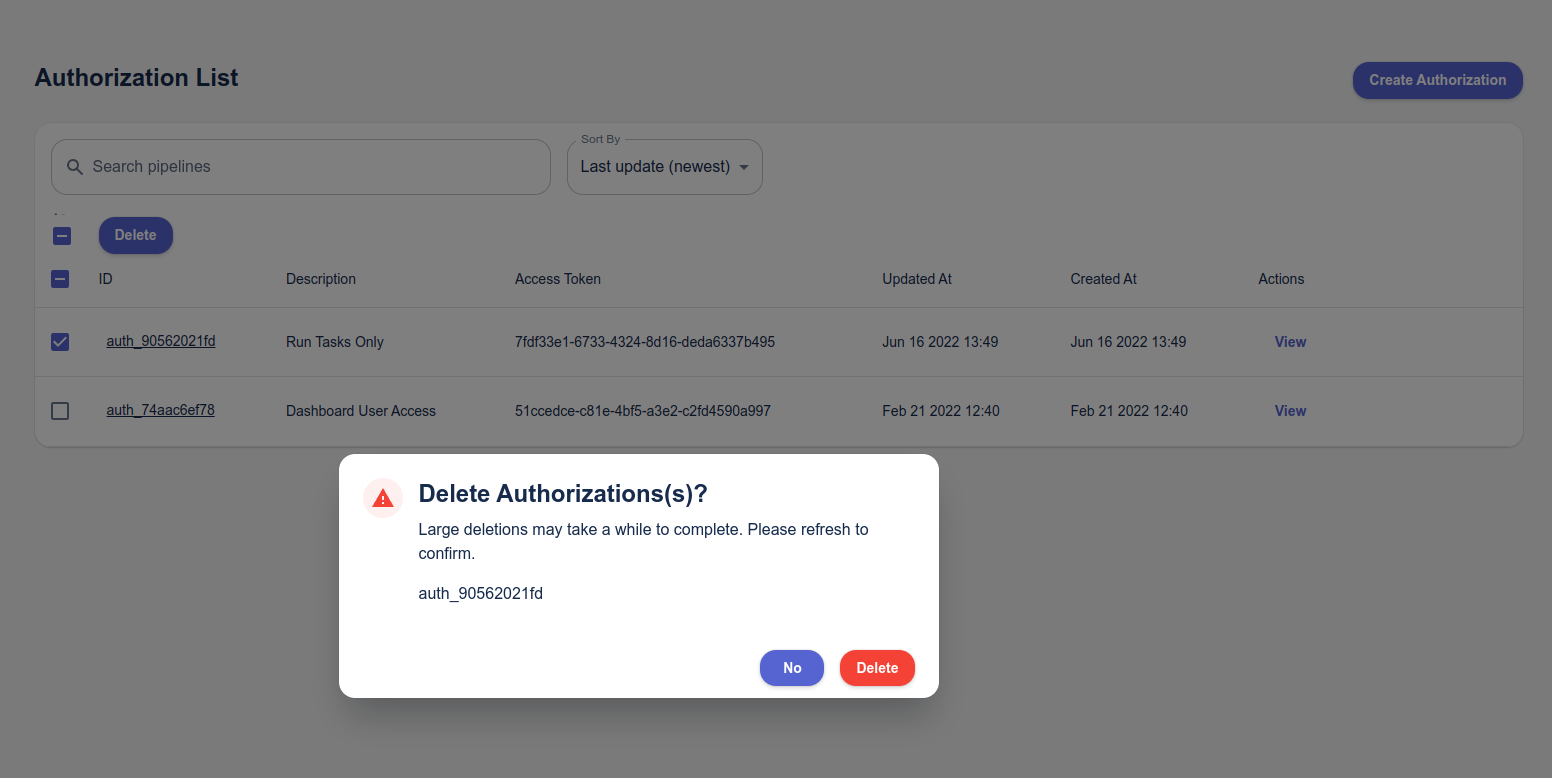
To delete a token, simply select it in the List Authorizations page and click the Delete button. WARNING: This operation cannot be undone. If that token is being used by your application or user(s) you will need to create and issue a new token to them.
Using the API
Alternatively you can do it via a cURL command, which works as follows:
curl -i -u <username> -H "Content-Type: application/json" -X POST -d "{\"description\": \"My access token\", \"scopes\": [\"instance\", \"pipeline\", \"user\"]}" https://api.neuroscale.io/v1/authorizations
Assuming no errors, a response similar to the one shown below will be received containing your access token:
HTTP/1.1 201 CREATED
Allow: POST, OPTIONS, GET
Content-Type: application/json
Date: Thu, 29 Oct 2015 00:41:54 GMT
Server: nginx/1.1.19
Vary: Accept-Encoding
X-Frame-Options: SAMEORIGIN
Content-Length: 384
Connection: keep-alive

{
    "access_token": "91c0f144-9001-4452-8fe2-029fe5573f60",
    "created_at": 1446079314,
    "description": "My access token",
    "id": "auth_obrnnaiEy3Y4jnXK6wXZRg",
    "object": "authorization",
    "properties": {},
    "scopes": [
        "instance",
        "pipeline",
        "user"
    ],
    "updated_at": 1446079314,
    "user": "usr_uRCXw3odNhJjtAAHGouVeb"
}
This step is documented more comprehensively in the API Reference.