Overview
This guide will walk you through all the steps for running a sample insights group report pipeline using the free demo account. The group report pipelines typically compute group-level statistics across multiple subjects and/or sessions. The group report pipelines are therefore setup quite differently from the individual session pipelines that are meant to only run on a single subject/session of data (e.g. Indiv. Session ERP Cognitive Task Analysis Report). The individual session report pipelines are important to run first as those let you specify all the specific parameters needed for computing the desired metrics on your data sets (e.g. power spectral density, frequency band powers, ERP waveforms, cognitive metrics, etc.) The individual session report pipelines do the computations for each of those metrics and will save an output ".pkl" extension file that contains the metric values for the input individual session data file. The group report pipelines will then input these computed metrics .pkl data files rather than your raw data sets. The group report pipelines will also allow you to choose which subjects/sessions should be included in the group statistics and analysis report as well as specify the factors for your study design.
Here we will use the 2x2 Spectra Group Analysis Report as an example for the walkthrough. The "2x2" nomenclature indicates that this group report pipeline is setup as a common 2x2 ANOVA, which is a two-way ANOVA that contains two independent variables known as factors, each with two different categorical levels. A common use case for EEG analysis would be comparing 2 groups of subjects (between-subjects) assigned to a control or treatment group, and each subject completed 2 sessions (within-subjects) of a given task (e.g. "eyes-closed resting state") pre and post an intervention. This group report pipelines will use the spectral analysis metrics (power spectral density and frequency band powers) as the dependent variable.
Because this particular pipeline (and all other group report pipelines) requires you already have compute metrics from the individual sessions, we strongly recommend you first start with the Inisghts Tutorial: Indiv. Session ERP Cognitive Task Analysis Report walkthrough before continuing on. Once you have run an individual session report pipeline on all your files you wish to use for group statistics you will be ready to follow this tutorial for properly setting up the pipeline. As with the individual session pipeline workflow you will similarly start by choosing a pipeline, creating a task, settings parameters, and then running the pipeline.
Choosing a Pipeline and Creating a Task
From the Neuroscale dashboard you can start by clicking on "Create a Task" under the "Insights" category in the navigation menus. From here you will need to select the pipeline titled "2x2 Spectra Group Analysis Report" from the drop-down list.
Setting Parameters
Next, you will need to setup parameters. Remember, the group report pipelines do not compute any metrics (dependent variables) so there are no parameter pages to define how your power spectral measures are computed. This must have been done previously in the individual session pipeline you ran. After completing those pipelines you will have output .pkl files that contain the power spectral density measures as well as the frequency band powers that are then input into this group report pipeline. The "INPUT/OUTPUT" parameter page contains the parameters you will need for determining the inputs and outputs for this pipeline.
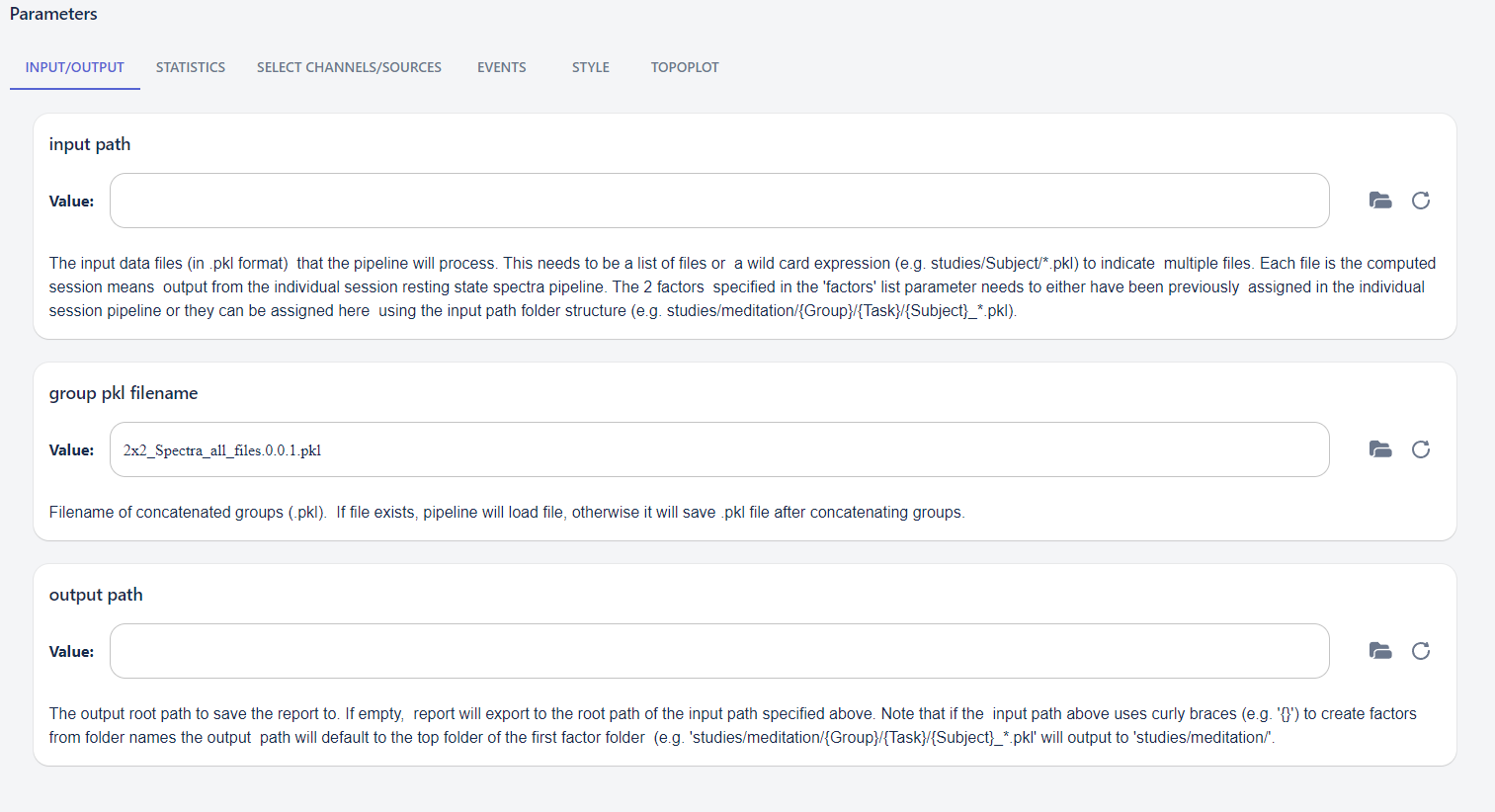
The "input path" parameter is used to specify where the input .pkl files are located in the S3 storage. For this pipeline you will need to setup this path with wildcard expressions such that it will find all the eligible individual .pkl files you wish to choose for this statistical analyses. This is also how you would setup the 2 factors and the 2 levels this pipeline expects. By using the double curly braces you can specify the level of folders to become meta data variables for your individual files. The string used in the curly braces creates the variable name and the actual folder names create the different values for that given variable. For instance "studies/meditation/{Group}/{Task}/{Subject}.pkl" would use the sub-folders within the "meditation" directory as the "Group" factor variable name and there should be exactly 2 different sub-folders within the "meditation" directory, one for each group. In this demo those 2 sub-folders are called "control" and "meditators", so the "Group" factor variable has 2 levels called "control" and "meditators", and which each of those sub-folders also contains 2 more sub-folders for the "Task" factor. The 2 sub-folders within "studies/meditation/control" and "studies/meditation/meditators" are "meditating" and "thinking" (those are the "Task" factor values). Finally, the .pkl files are all stored within the last level of sub-folders so the "{Subject}.pkl" is used to indicate the filenames this pipeline will search for. In this demo the raw filenames are all consistently named with a subject ID, date, and oddball.bdf, and the individual report pipelines outputted the metric means with consistently named files in format {subject_id}_{date}_oddball.bdf.IndivSessionERP.{version}.pkl. The wildcard "{Subject}.pkl" means it will create a "Subject" variable and the value for a given file will be whatever comes before the "" and the asterisk ("") after the "" means it will find all files regardless of what characters come after the "_", and finally the ".pkl" will ensure it only identifies the ".pkl" extension files (e.g. not the .html report files).
The "group pkl filename" is the name of the concatenated .pkl file that contains all the subjects together. This file is created and saved while running this group report pipeline. Then, if you run this pipeline again and that "group pkl filename" file already exists and is found, then this pipeline will load that file for the input to do the group analyses and statistics rather than re-do the process of loading all the individual files again. This can save a significant amount of compute time in case your group cohort is large and contains many files.
The "output path" parameter let's you specify the exact location you would like to have the final .html group report save to. If no path is given then the pipeline will default to saving the .html reports in the first, top level directory before the first curly braces factor directory, in this case that would be "studies/meditation/".
Next, the "STATISTICS" parameter page allows you to setup the type of statistics and factors you need for this report.
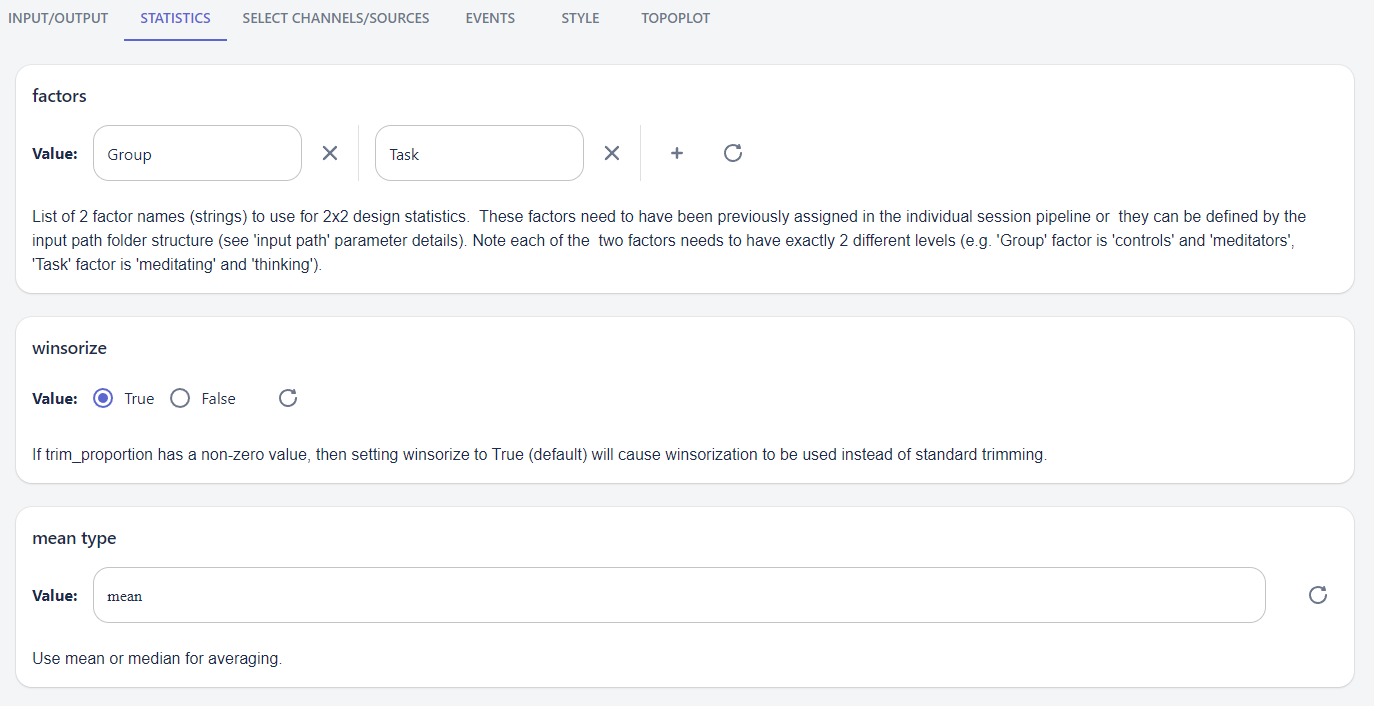
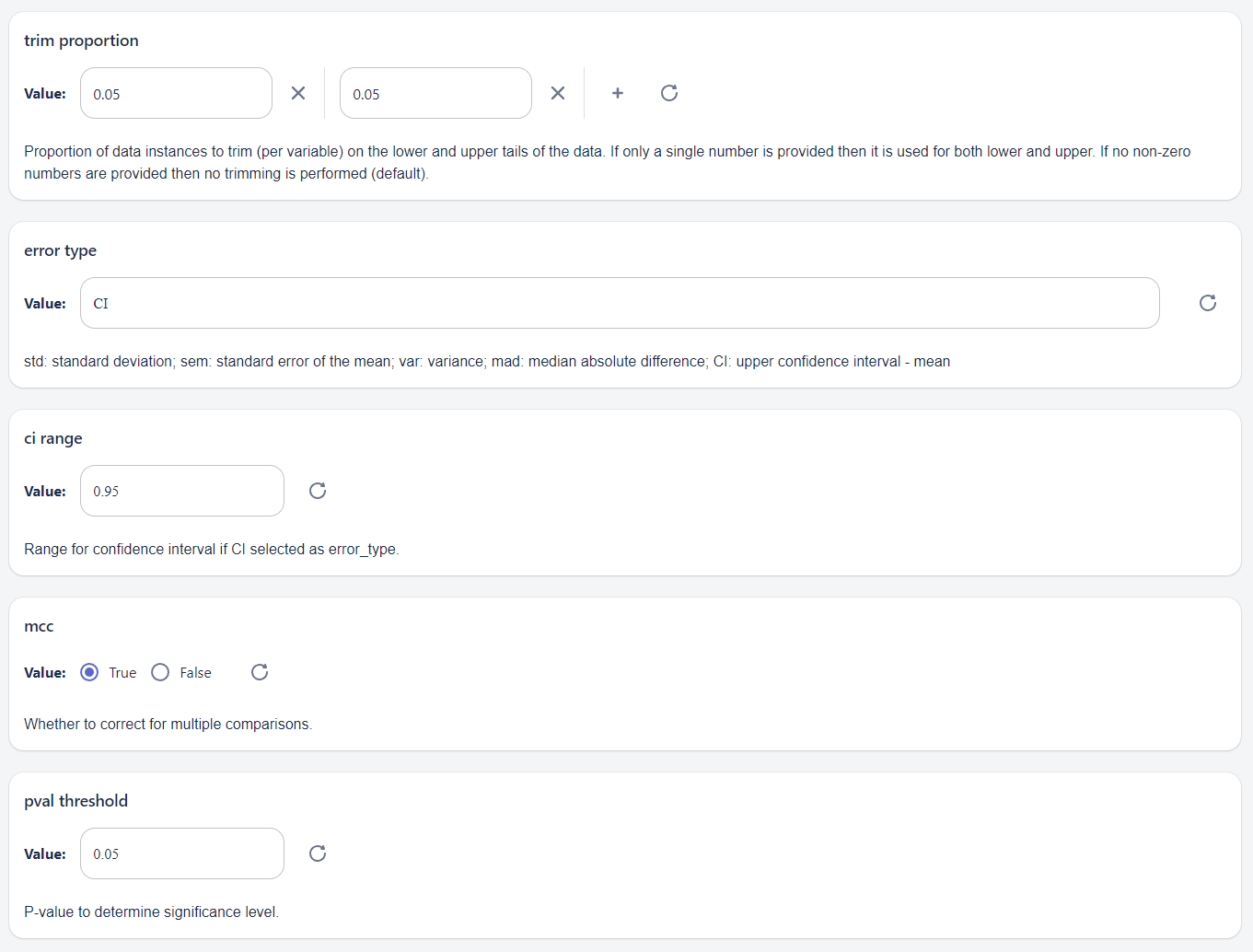
The "factors" parameter is a list of exactly 2 factor names. These names need to come from the "input path" naming scheme. In this demo we created 2 factors called "Group" and "Task" using the curly braces and each of those factors has exactly 2 levels (e.g. "Group" factor contains "controls" and "meditators", "Task" factor contains "meditating" and "thinking"). The "winsorize" parameter is used to set if winsorization across the data sets should occur, this can be used to impute data to replace the outliers of a group, and the "trim proportion" parameter allows you to set the lowest and highest tails of your outlier criteria for which data will be imputed. The "mean type" parameter allows you to select "mean" or "median" for your statistics and the "error type" parameter let's you select which type of error variance to report. If you choose to use confidence interval, "CI", then the next parameter "ci range" let's you specify the confidence interval value (this will be ignored if you are not using "CI" as your "error type"). The "mcc" parameter is used to set whether to run multiple comparisons correction on your statistics. If True, this pipeline will use False Discovery Rate (FDR) for multiple comparisons correction, and in all cases the space axis is treated as independent such that if you have multiple EEG channels or source regions of interest (ROIs) then the multiple comparison correction will not account for the N number of comparisons among the multiple channels/sources.
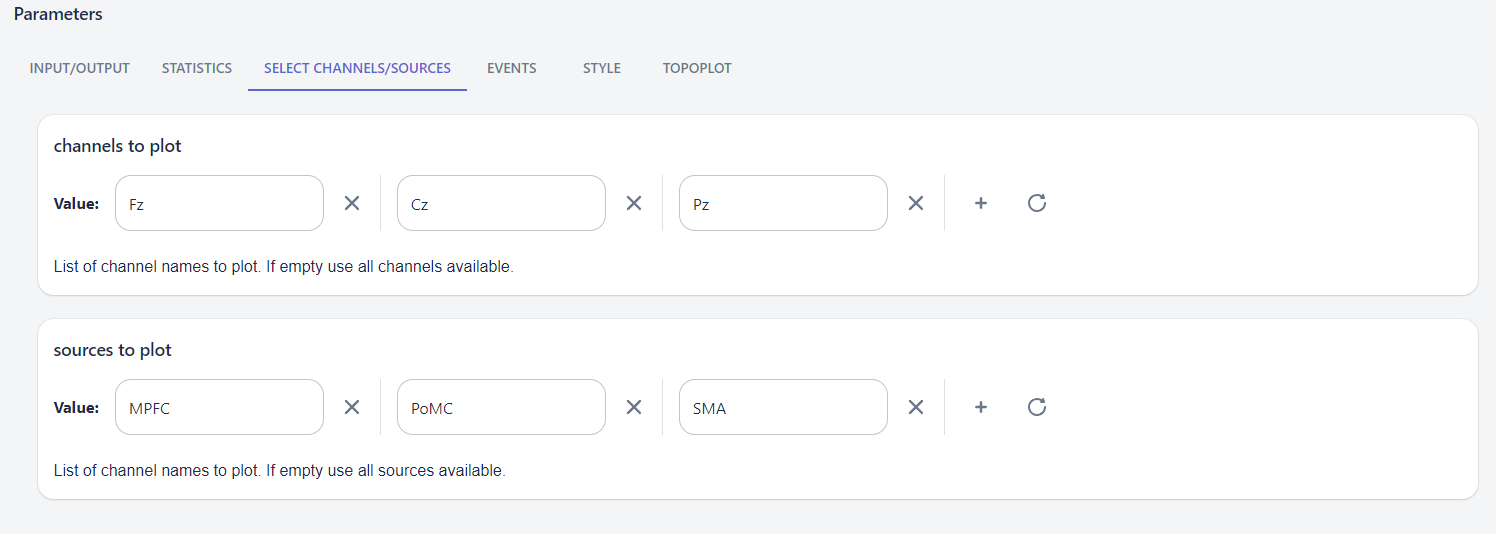
The "SELECT CHANNELS/SOURCES" parameter page allows you to optionally set a subset of channels ("channels to plot") and/or source ROIs ("sources to plot") to keep for the plots.
The "EVENTS" parameter page only contains one parameter called "condition" which is used for selecting which epoch/trial condition type to use as your dependent variable for all the spectra measures. This report will only compute the statistics for a single condition in case you created multiple condition types from your individual session pipeline. For instance, and ERP individual report pipeline might create 4 conditions such as "oddball correct", "oddball incorrect", "standard correct", and "standard incorrect". Or if you did ran the individual session spectral analysis pipeline on a resting state dataset that contained both eyes open and eyes closed segments you might have both an "eyes open" and "eyes closed" condition. The "condition" value needs to match the naming of the condition variable you used for the individual pipeline.

The "STYLE" parameter page simply lets you chance the "style figure font" to use in the tiles and text.

And finally, the "TOPOPLOT" parameter page allows you to change the "topoplot colormap" to use for the topoplot figures.
