Insights: List Tasks
Tasks, like Streaming Instances, represent a running pipeline and can be considered an instantiation of a specific pipeline that may be manipulated and interrogated in a number of ways. However, Tasks read in one or more input files and produce one or more output files containing the results. A Task ends when the file is finished processing, whereas an Streaming Instance will continue to run until it is stopped. For example, a Task is started by running a report pipeline and ends with a report generated of peer reviewed article HTML format in your Storage.
Overview of Current Tasks
The NeuroScale Dashboard home page shows the number of tasks that are currently running:
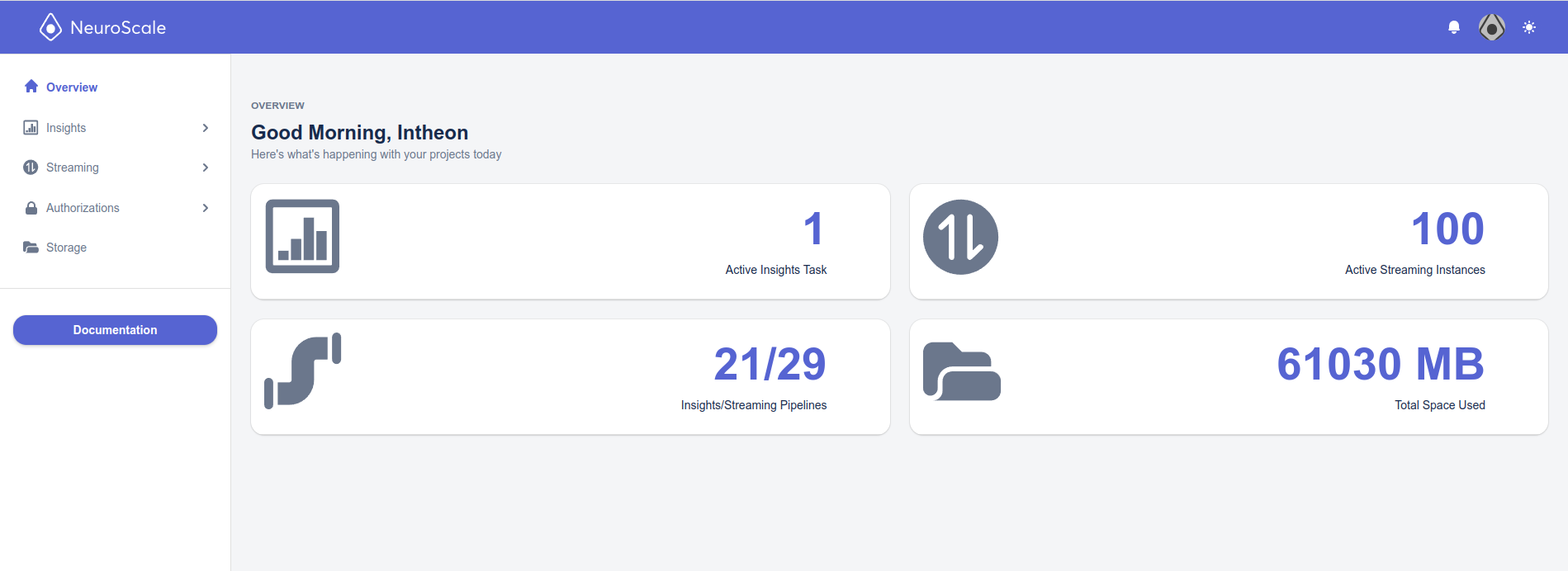
List of Running Tasks
On the left, Dashboard has a Tasks tab for managing currently running tasks for your account. Here you can view all the tasks you have submitted, terminate a task, view the details of a running task, and create a new task.
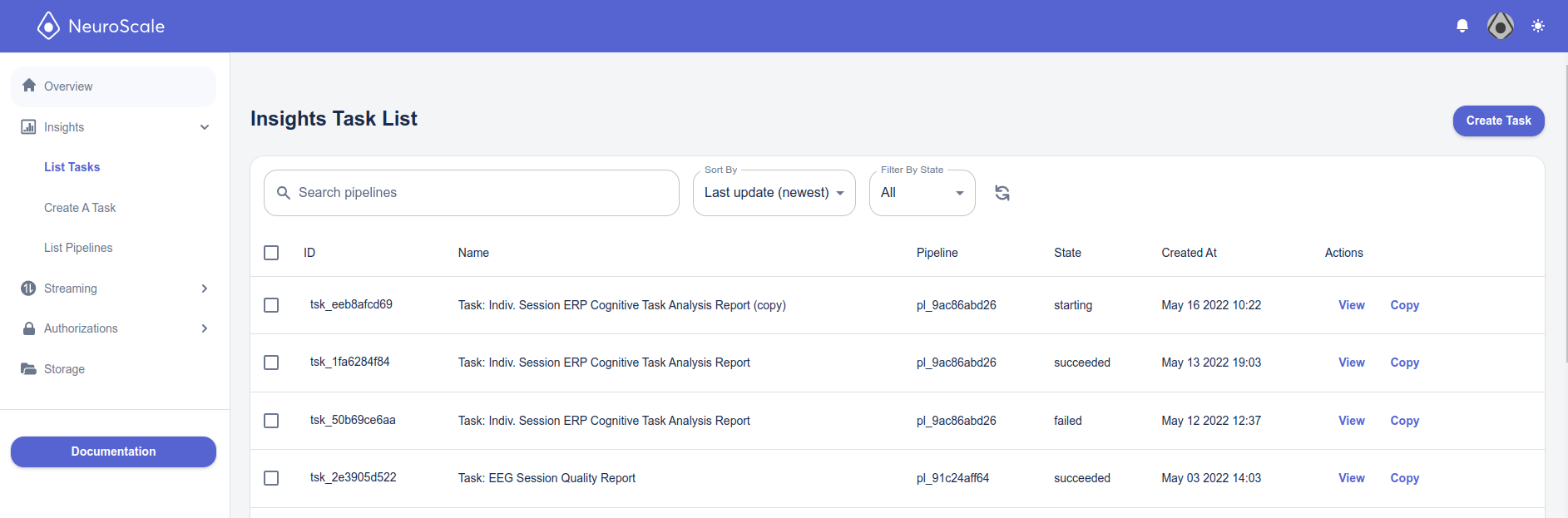
Tasks Definitions
ID
A unique identifier used by the API to manage the task. You can use this ID if interacting with your tasks over the NeuroScale API rather than through the Dashboard.
Name
The name of the task. By default this is the name of the pipeline used to run the task, but it can be edited by you when creating the task (i.e., to make it more specific).
Pipeline
The unique ID of the pipeline used to create the task.
State
The current state of a task, which can be in any of the following states: submitted, pending, runnable, starting, running, succeeded, failed, cancelled. If you see a Failed status, click the View link to go to the task details page and the Error Logs button to see the reason for the pipeline run failed. See the Troubleshooting your Pipeline Configuration section in the Troubleshooting page for common mistakes that may cause a pipeline run to fail.
Created At
The time and date when the task was launched.
View
Go to the View task page.
Copy
Takes you to the Create Task page prepopulated with the same pipeline and parameters of the previously run task. You can run exact same task again, or change some parameters before running. See Re-running a Previous Task for more details.
Task Details
Detailed information about a task can be seen by clicking the View link for a task, or the task ID. See Insights: View Task Details page for more information.
Create Task
Please see the Insights: Run a Report Pipeline page for information on how to create a task.
Copy
You can also create a task based on an already existing task; see Iteratively Running a Insights Pipeline for details on this.
Cancel a Running Task
A running task can be cancelled by clicking the View button to bring up the Task Details page, and then clicking the Cancel tab. Cancelling a task will terminate it so it will not complete, and its status will change to Cancelled.