Overview
Here we will guide you through all the steps from start to finish for running an Insights pipeline. This tutorial uses the demo account (which already contains the EEG files used here), but the same process would apply to running this pipeline on your own data in your own account.
In order to run an insights report pipeline you will first need to understand what each of the different pipelines accomplish (e.g. the analysis report, any data outputs it produces, etc.) and what type of data format each requires as input. Once you select the pipeline that fits your needs you will learn how to properly apply your own input data, set your desired parameters, create a task to run on the Neuroscale platform, and view the output report and results.
Choosing a Pipeline
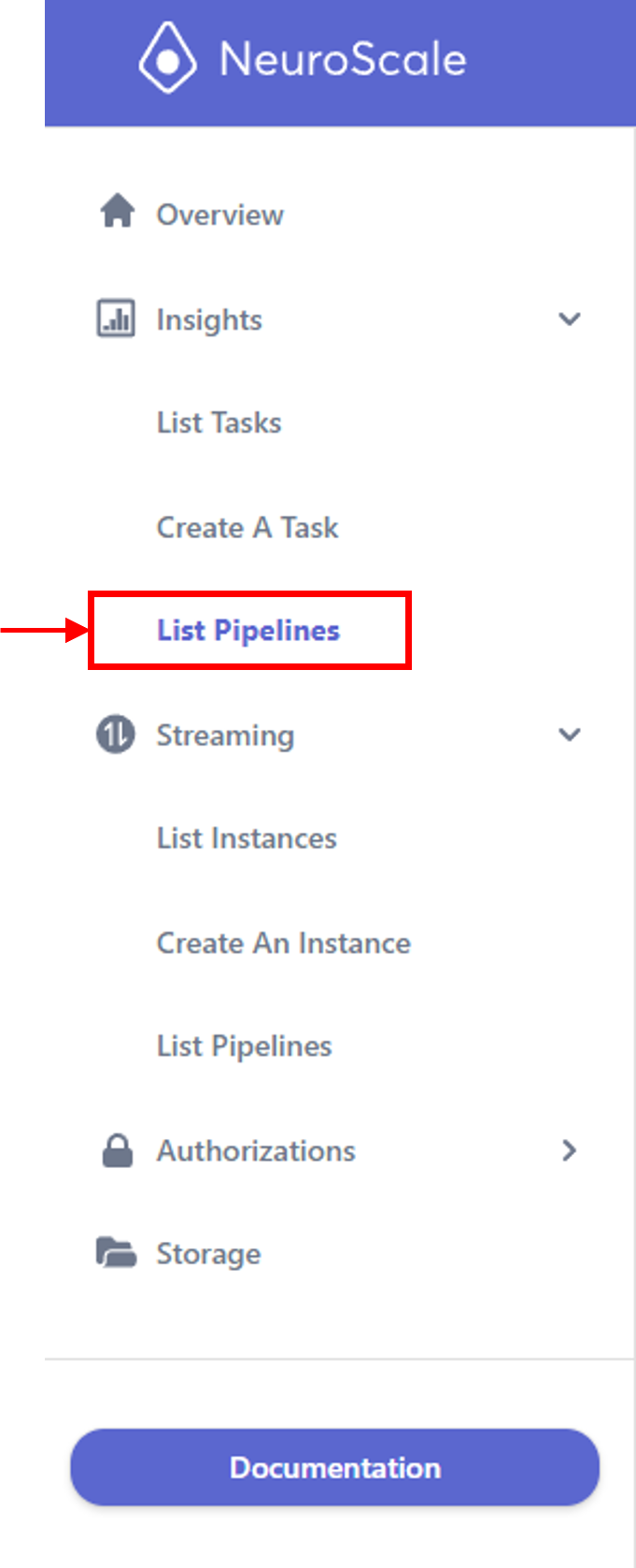
First, you will need to view the list of available pipelines and decide which one you would like to run. Start by navigating to "List Pipelines" under the "Insights" drop-down options in the left navigation toolbars:
Next, you will see a list with the names and descriptions for all the available insights pipelines. For our tutorial example we will focus on the pipeline named "Indiv. Session ERP Cognitive Task Analysis Report". Select this one from the list by clicking on its name. Read the details of the analysis and figures this report will run, and if you would like to see an example of what this report looks like click on the words "Sample Report" in the upper right corner of this "Pipeline Details" window. That will open up a new browser tab with the ERP .html report loaded using a sample data file. Note it may take a few seconds for all the figures to load. Browse through the report and examine the figures to explore what results are shown. Once you have decided to use this pipeline you can are ready to setup your task.
Create Task
There are multiple ways to setup the chosen pipeline for use with your own data. In order to do this you need to create a task.
- The first method is from the Pipeline Details window for the desired pipeline you can click on "Create Task" in the upper right corner. This will bring you to the "Run an Insights Pipeline (Create Task)" view in which you can select your input data as well as set any other parameters you might need.
- The second method for creating a task is by browsing your storage bucket and locating the data you wish to use. In this example you should click on the "Storage" button in the left navigation bar and that will show you the folder and files that this demo account contains. First double click on "studies/" and then on "flanker/". Here you will see multiple files, some are outputs (extensions .html, .pkl, .h5, .mat, .csv, etc.) and some are inputs (extensions .xdf). Choose the file named "example2_flanker.xdf" and right click on it. From the menu select "Task".
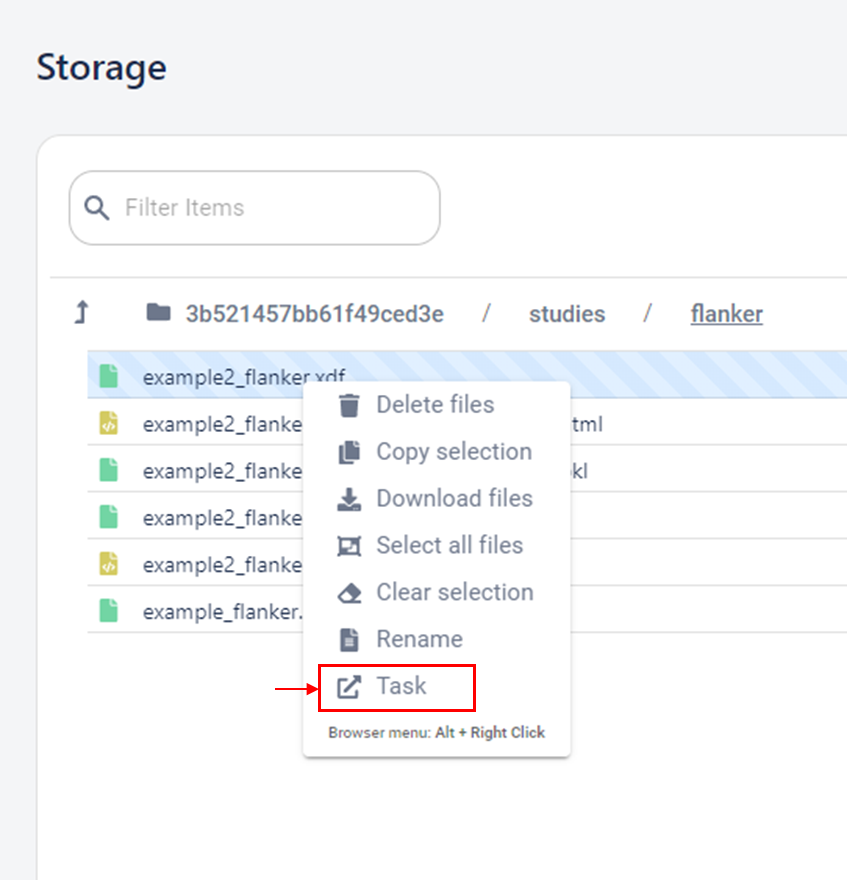
Or alternatively, with the file you wish to use selected you can click the "Task" button in the upper right corner:

This method will bring you to a new window called "Run an Insights Pipeline (Create Task)" and from here you will need to navigate the drop-down menu to select the appropriate pipeline, for this example select "Indiv. Session ERP Cognitive Task Analysis Report".
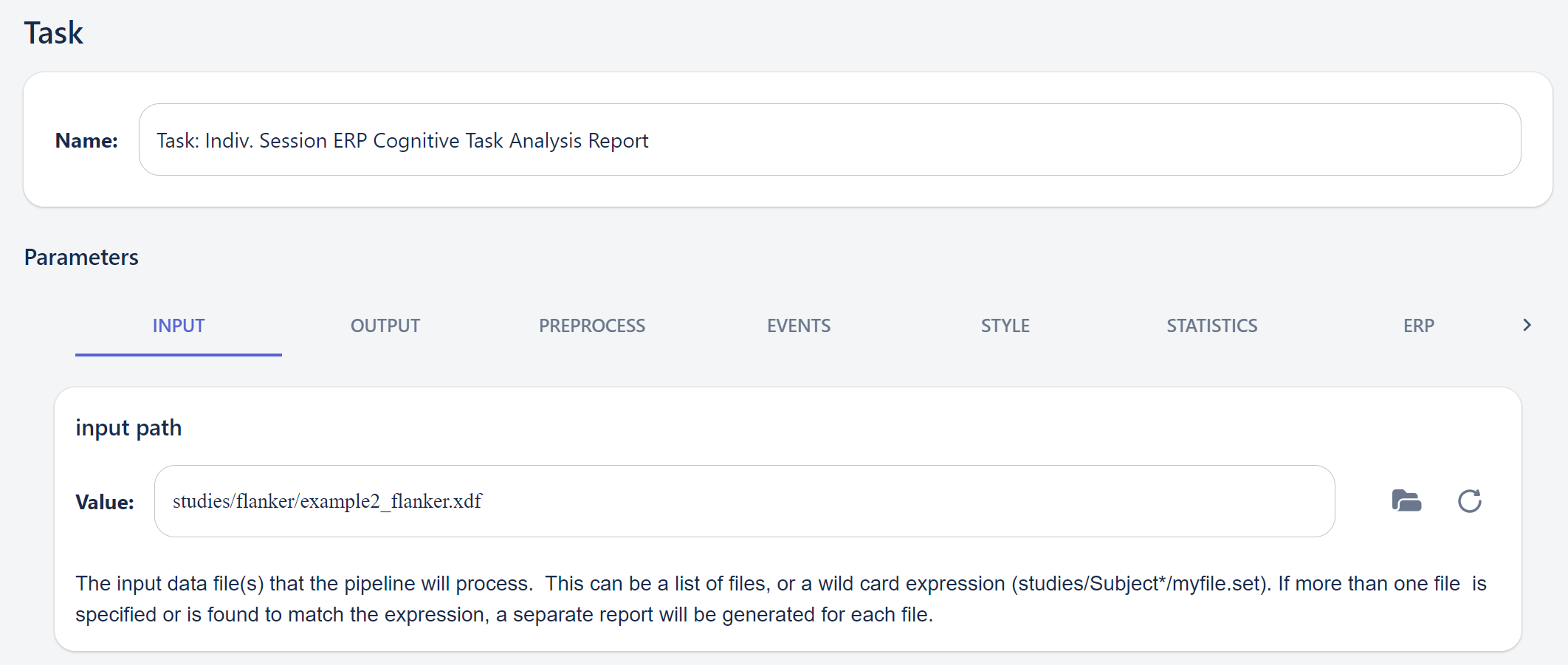
After selecting the pipeline you will now be at the same "Run an Insights Pipeline (Create Task)" view in which you can now set your desired parameters. However, by doing this method you will notice the "input path" parameter is pre-filled with the path to your selected input file from the S3 storage folders.
Setting Parameters
Next, you will need to setup parameters. For each pipeline there will be a corresponding documentation page with information about what each parameter does and how to set them. For the "Indiv. Session ERP Cognitive Task Analysis Report" pipeline you can read about that here.
For this demo we will walk through each of the parameter pages so you can become familiar with how they work.
The first parameter page to examine is the "INPUT" as seen here:
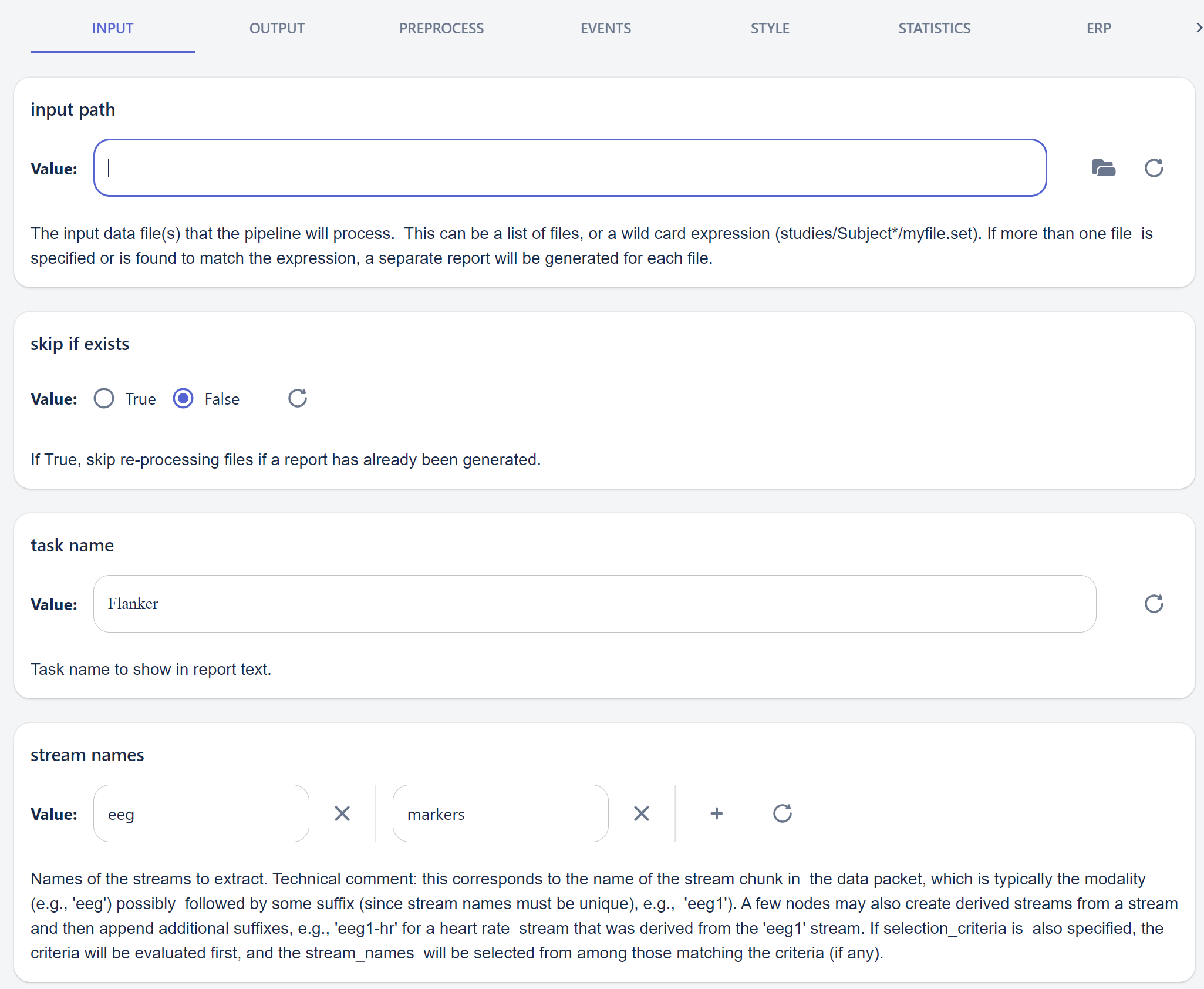
Most insights will typically start with this "INPUT" page as that is the starting place for providing the input information a pipeline will need to begin. Note that all parameters for all pipeline will have default parameters set, even if the default value is empty (e.g. a blank box). For this demo to run, technically the only required parameter that needs setting is the "input path". If you chose to create the task directly from the S3 storage folders then this parameter will already be properly set. However, if you chose to create the task from the pipeline itself then you will need to either type in the correct file path or use the open file button next to the text box to navigate the S3 storage directories to locate the desired input data.
Note, most pipelines are able to be run as a batch process over multiple data files. The "input path" descriptions should specify if this is the case. As an example, in this case there are 2 .xdf format data sets in the /studies/flanker folder so you could choose to have this pipeline run over both files by setting the "input path" parameter to "studies/flanker/*.xdf", where the asterisk (*) is a wildcard that will find any file with .xdf extension in the specified folder to process.
The parameter "skip if exists" will allow you to skip re-processing individual files that you have already ran through the pipeline in case the "input path" you chose to have the pipeline iterate over multiple files. The "task name" parameter is only the text word(s) you want to see printed in the .html report. The "stream names" parameter allows you to specify certain streams you want to extract in case your input data has multiple streams in a packet. For this sample data file the stream names needed for this pipeline are "eeg" which contains the time by channel EEG data and the "markers" which contains the event marker names and timestamps that contains the events related to the task which will be used for segmenting ERP trials.
The "OUTPUT" parameter page will contain any options specific to the data and/or report outputs.
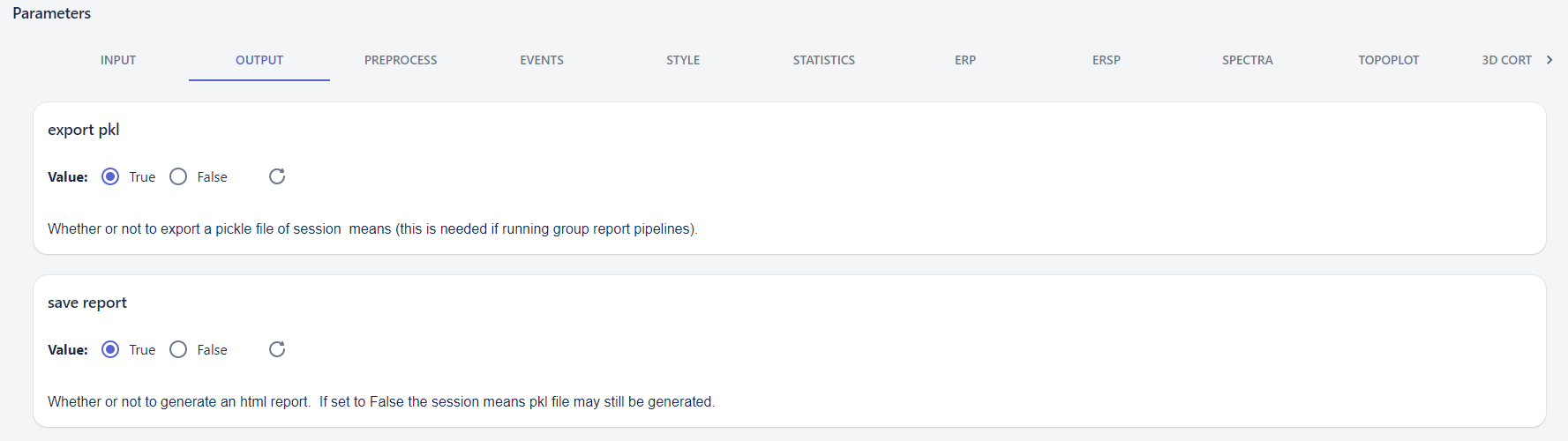
Here the only options are to "export pkl" which would output the session means as a Python pickle file and these files are required for doing any group level analyses and statistics. The .pkl files would be used as the input files for insights group reports. The other option is to "save report" which lets you choose if you want to save the .html report or if you want to skip generating that in the case you might only want the .pkl file to output.
The "PREPROCESS" parameter page has many options related to our standard EEG preprocessing chain.
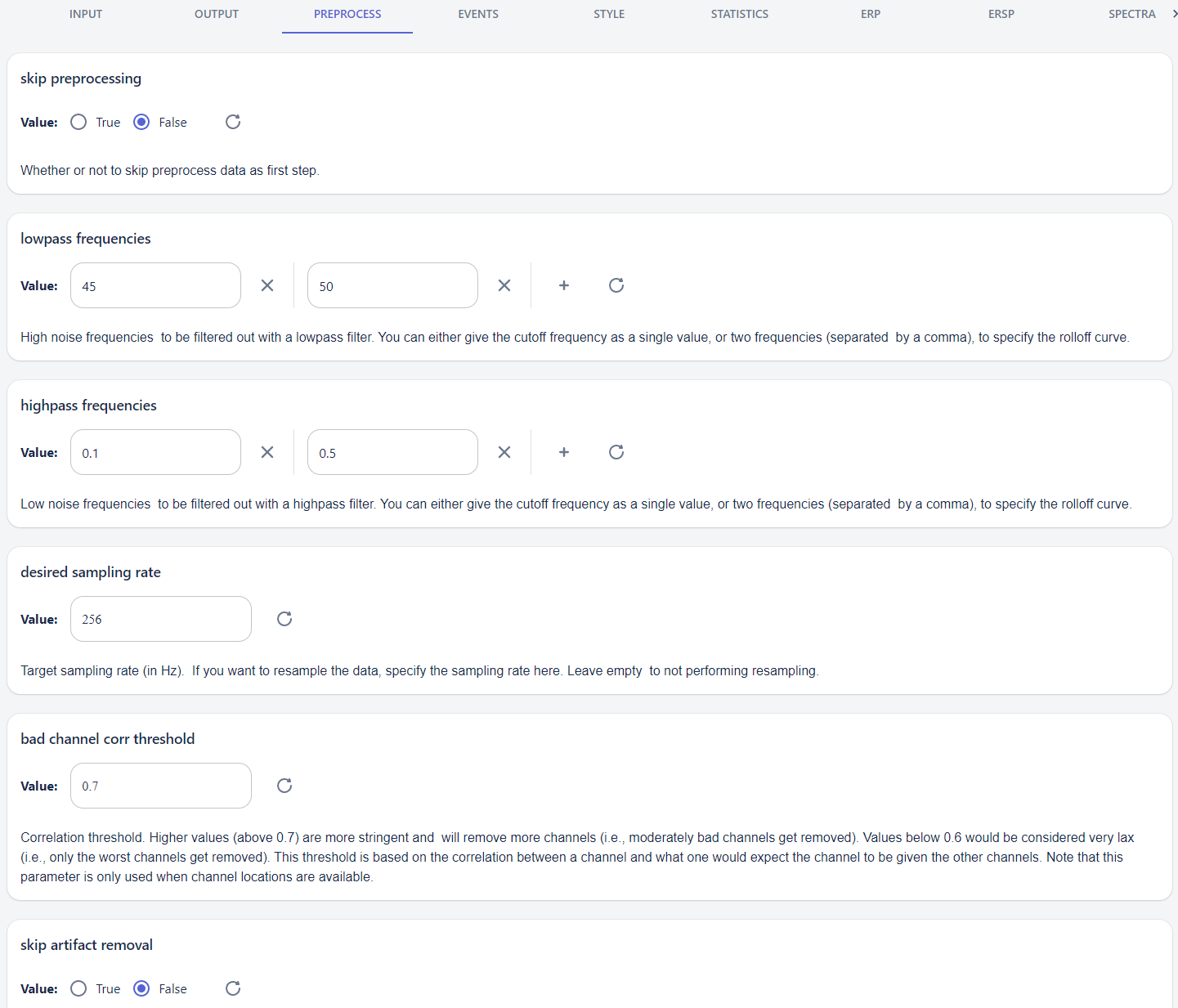
The parameter "skip preprocessing" will allow you to completely skip the entire preprocessing stage, in this case you might have already preprocessed data in which you are using as the input to the pipeline. If preprocessing is not being skipped you can set a number of parameters related to tuning how you want preprocessing to be done. You can set the "lowpass frequencies" which is common for excluding high frequencies (e.g. frequencies >45 Hz) that are often due to muscle, line noise, etc. The first value of this parameter specifies the cutoff frequency of the filter and the second value specifies the rolloff curve to create sharper or smoother filters. Similarly the "highpass frequencies" parameter is used for specifying the rolloff curve and cutoff, respectively, for the lowest limit frequencies to exclude, in the case of EEG data this is often used to remove low frequency drift an correct potential offsets. The "desired sampling rate" allows you to resample your data to a lower value in case you used a higher sampling rate for your data and are not interested in analyzing high frequency ranges. Lowering the sampling rate is often a good idea in that it reduces the data size and in general most downstream processing will compute faster. The "bad channel corr threshold" parameter lets you set how conservative you want to be in removing bad potentially bad channels from your data based no each channel's correlation to its neighbors. This is a correlation coefficient (between 0 and 1) such that higher numbers closer to 1 mean channels need to be highly correlated to its their neighbors in order to be considered "good". Channels identified as bad will be removed and re-interpolated based on the clean, neighboring channels. Finally, you can choose to "skip artifact removal" if you do not want to use our built-in artifact removal methods and only use the basic lowpass and highpass filtering.
The "EVENTS" parameter page is where you would set the ERP trial segmentation and create trial groups for conditions.
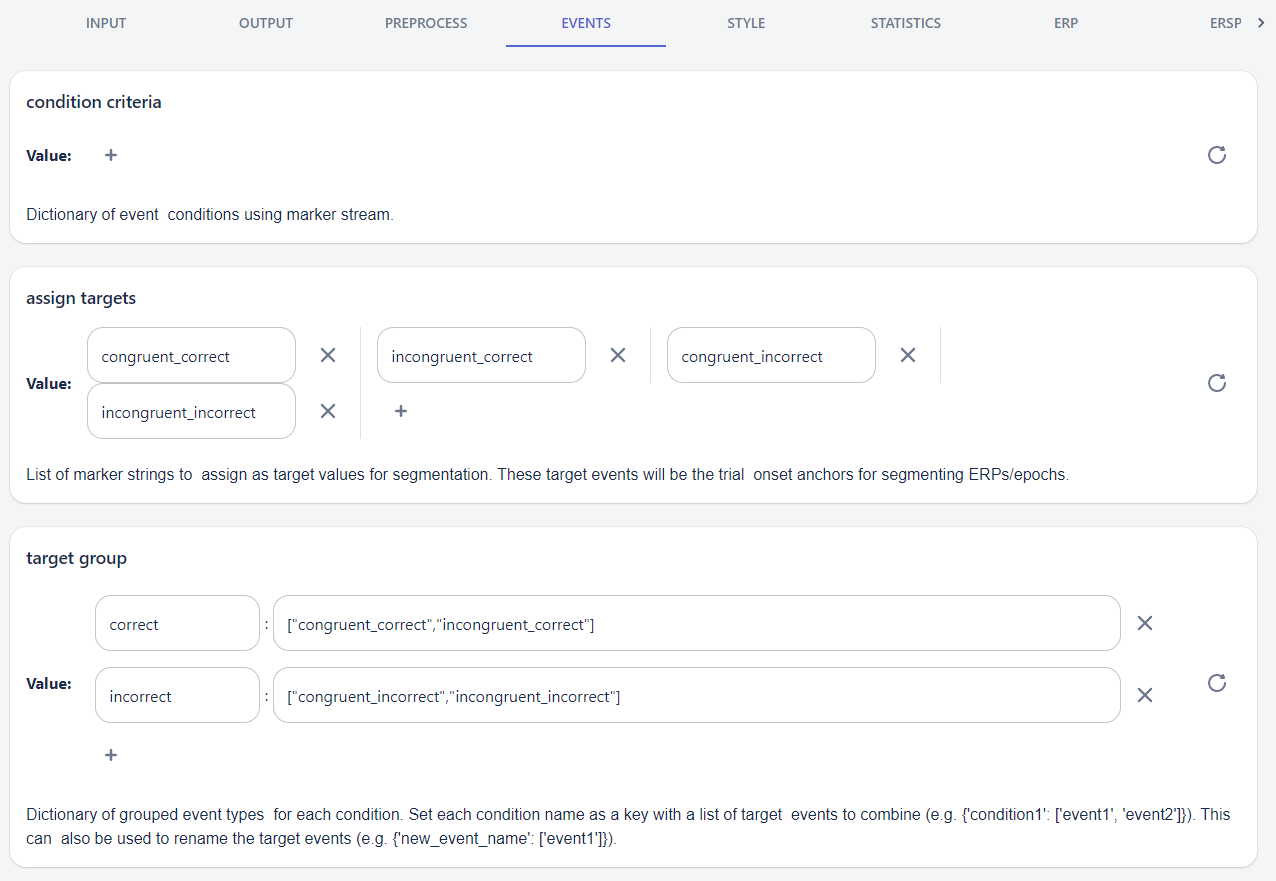
The "condition criteria" parameter is an event curation parameter that you may or may not need to use depending on the format of your event markers in your data. If your desired condition types have event markers named consistently and placed at your desired trial locations (e.g. stimulus onset, response onset, etc.) then you can leave this parameter blank. However, if you need to curate your trial conditions based on specific event parameters like defining the start and end markers for each trial and the criteria markers you need to define trial groups then you will need to set this parameter properly (see the pipeline specific parameter page for details on this). For this demo data the events are already properly curated so there is no need to use this parameter. The "assign targets" parameter is where you will use the names of the trial group event markers (assuming these are present and in the desired timestamp locations) to define which trial groups should be segmented and used for analysis. The "target group" parameter further lets you combine multiple trial types into a combined condition if you choose to group multiple trial types together. For the demo data we will group "congruent_correct" and "incongruent_correct" trial types to create a combined "correct" condition that will be used for analysis and plots. Similarly we combine "congruent_incorrect" and "incongruent_incorrect" trial types to create a combined "incorrect" condition.
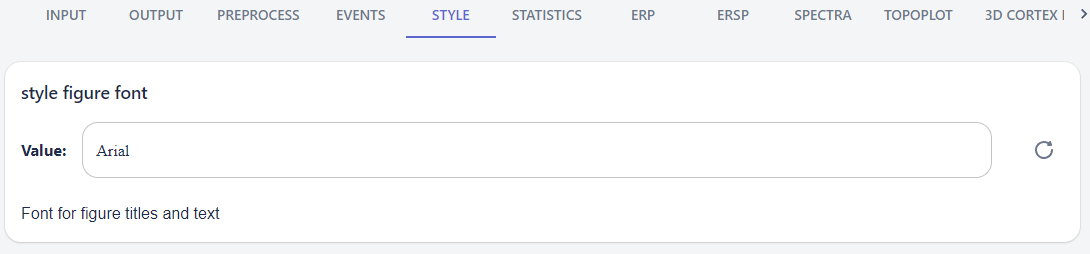
The "STYLE" parameter page let's you set any style settings specific to the output report. In this case the only changeable parameter is the font type.
The "STATISTICS" parameter page is used for setting all the statistics analysis parameters.
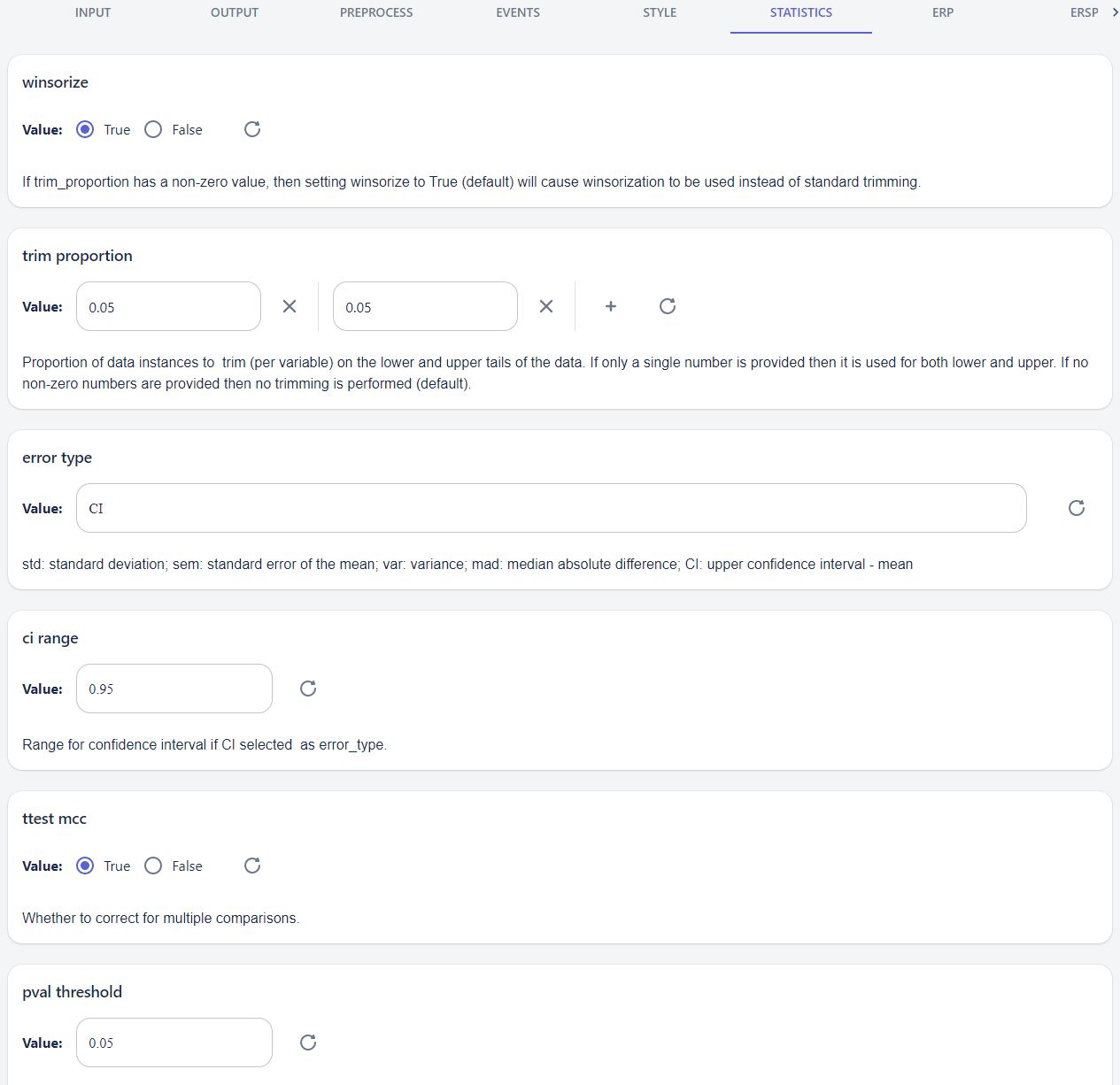
Use the "winsorize" parameter to choose if you want to apply winsorization to your trials before calculating the means, variance, and running statistics testing (e.g. T-tests). The "trim proportion" parameter allows you to set the percentile windows for how much data should be winsorized (if winsorize is True). "Error type" allows you to choose which type of variance metric to compute and the appropriate error bars will be used in the figures. If using confidence intervals the "CI range" parameter allows you to set your desired confidence intervals. The "ttest mcc" parameter allows you to set if you wish to use multiple comparison correction (False Discovery Rate) or not for adjusting p-values. And finally the "pval threshold" parameter let's you set the p-value to use for significance masking in figures.
The "ERP" parameter page allows you to set all the specific event-related potential (ERP) settings.
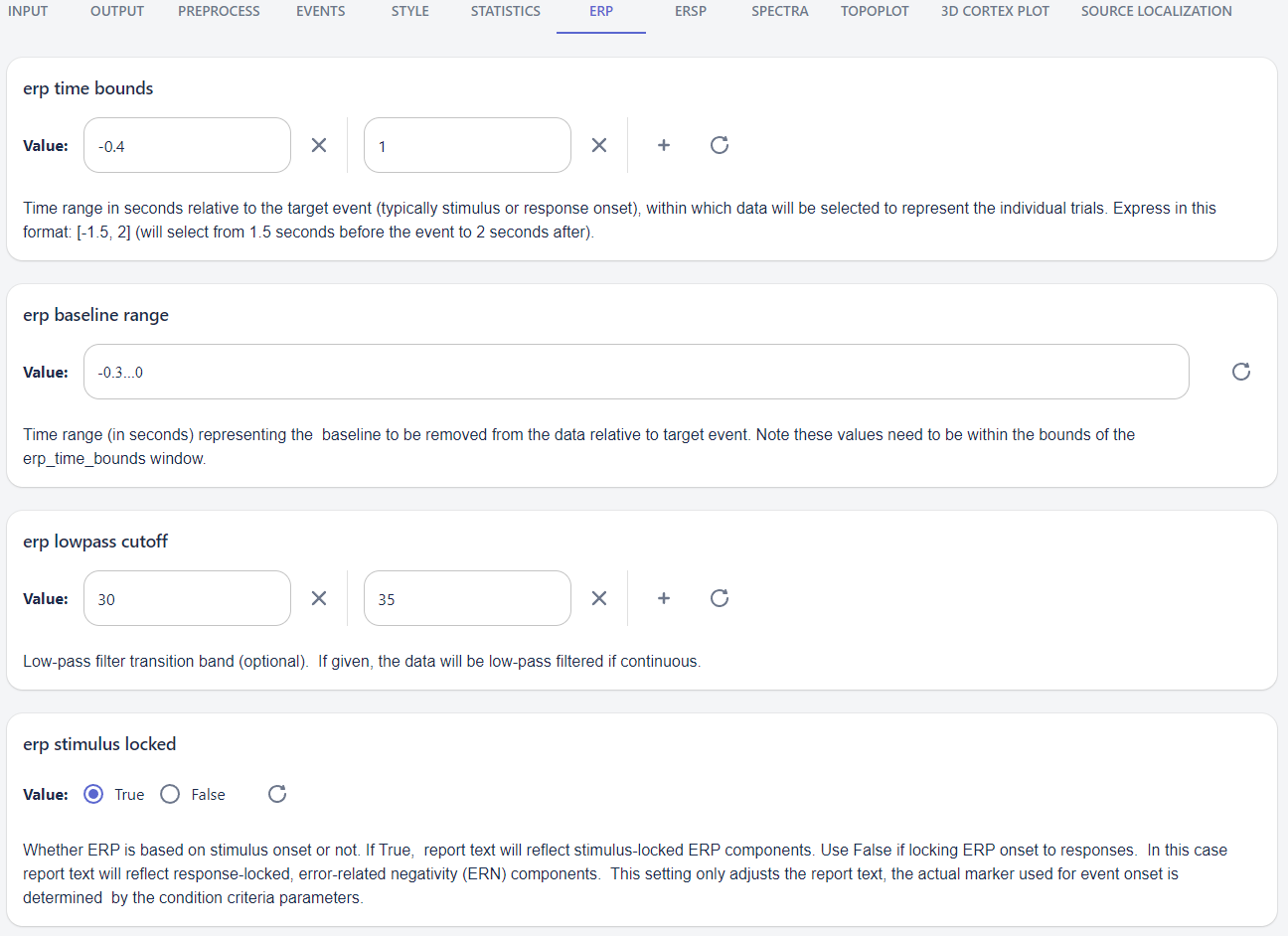
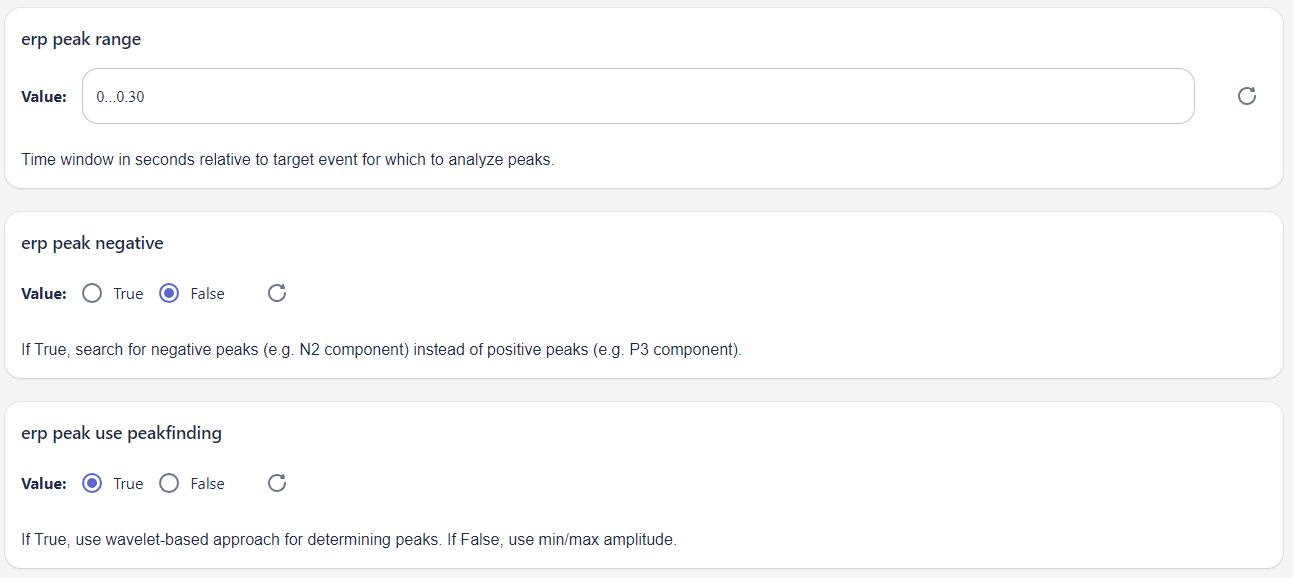
The "erp time bounds" parameter is required for determining the trial (epoch) window lengths around your desired target events. Previously in the "EVENTS" parameters the target assignment event was provided for where trials would be anchored (typically this is stimulus onset for ERPs or response onset for event-related negativity (ERN)). This parameter will consider your chosen target event as the onset at time t=0 such that you need to specify the time period before and after the target event for the window size. This demo pipeline is set to -0.4 as the first value and 1 as the second value, which means 0.4 seconds (400 milliseconds) before the target event (stimulus onset) to 1 second (1000 milliseconds) following the target event. The "erp baseline range" parameter specified a time window to use for removing potential offsets at each trial. Typically, the window is a few hundred milliseconds before the stimulus onset, in this demo the window is set as "-0.3...0" which means 0.3 seconds before the target event up to the target event (time 0). The "erp lowpass cutoff" parameter is optional in case you want to deploy a low-pass filter before creating the trials. This can help to remove noise from trials particularly high frequency noise like line noise and muscle. In this case the low-pass cutoff is set at 30 Hz with a roll-off curve down 35 Hz. Note the low-pass filter used for ERPs will not affect the other analyses in this pipeline like spectral analysis or event-related perturbations (ERSPs). The "erp stimulus locked" parameter sets whether the target onset you are using is locked to the stimulus or to the response. This parameter will only affect the report text describing the ERPs and it won't actually change any of the analyses being done. The "EVENTS" parameters are where the actual choice of target onset for analyses are set. For ERP peak analyses (amplitude and latency) the "erp peak range" is the window in which you want to find ERP peaks. If you are interested in the P300 component a typical window would be 250 to 400 milliseconds after stimulus onset, but it is usually ok to buffer that window with a range like 0.2 to 0.5 seconds. The "erp peak negative" parameter let's you select if you wish to search for negative (set to True) peaks instead of positive peaks. For instance, event-related negativity analysis should be set to True if looking for the ERN peaks. Finally, "erp peak finding method" let's you choose which type of peak finding method to use. The default "contour" uses the shape and characteristics of the peak prominence to identify peaks and is a common method if the your ERP waveforms have neighboring local minima/maxima. The "wavelet" method is more complex, but is able to fit more specific peaks shapes and sizes for identifying peaks. The "maximum" method is the simplest in that it returns the greatest value within the specified time window. Note that this method will still return a value regardless if there is a true "peak" in the ERP.
The "ERSP" parameter page contains the settings related to event-related spectral perturbations (ERSPs).
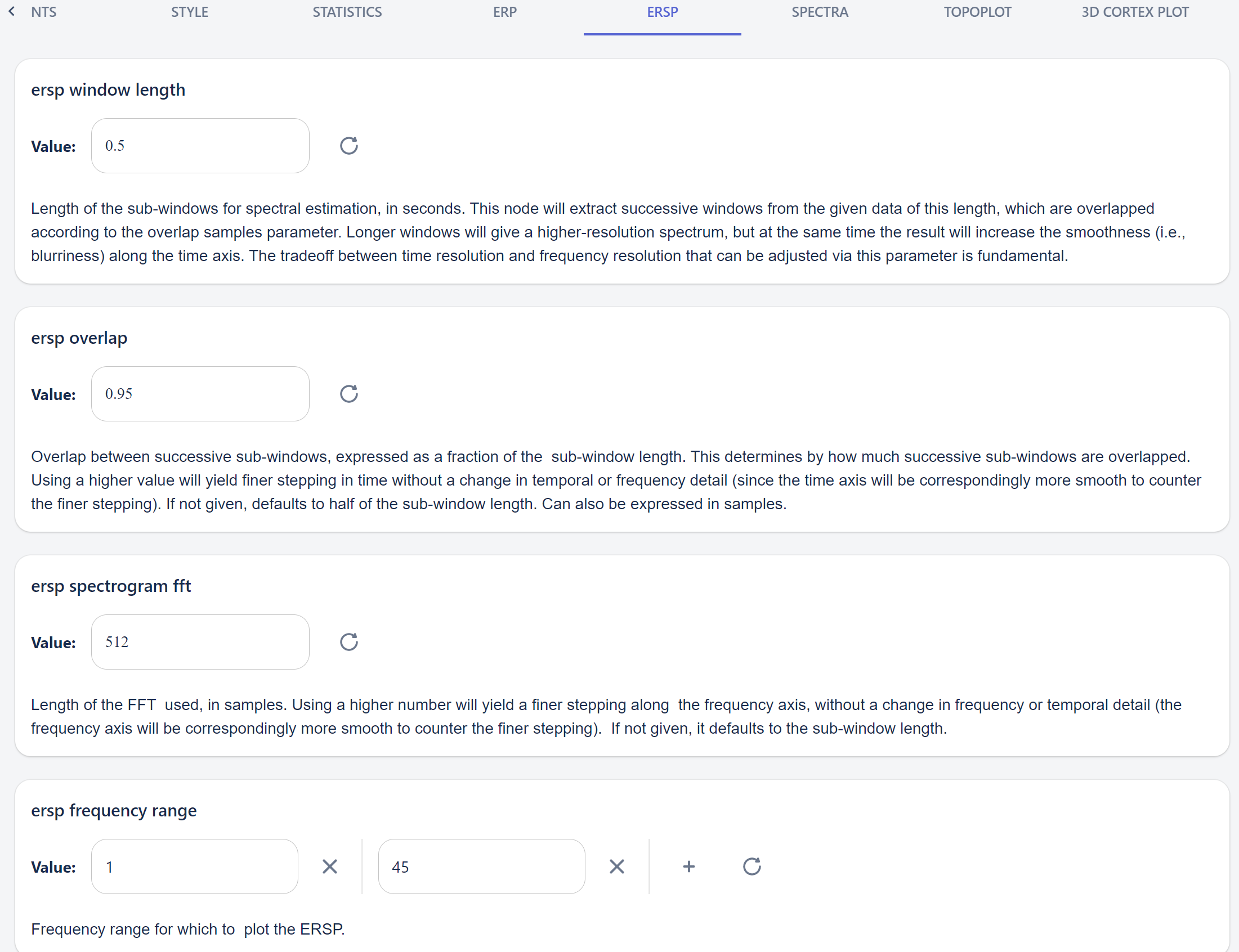
The "ersp window length" specifies the length of the sub-windows that are used in spectral estimation. Longer windows can provide higher resolution spectrum results but the time axis will appear more smooth. Usually windows in the 0.5 to 2 second range are common. The "ersp overlap" parameter specifies how much successive overlapping windows there should be (input as a fraction of the "ersp window length" parameter). The "ersp spectrogram fft" parameter is the length of the fast Fourier transform (FFT) given in samples. Higher values provide a finer stepping along the frequency axis. The "ersp frequency range" allows you to specify the frequency range (in Hz) to plot for the ERSP spectrogram figures.
The "SPECTRA" parameter page contains the settings for computing the power spectra of the ERP trials.
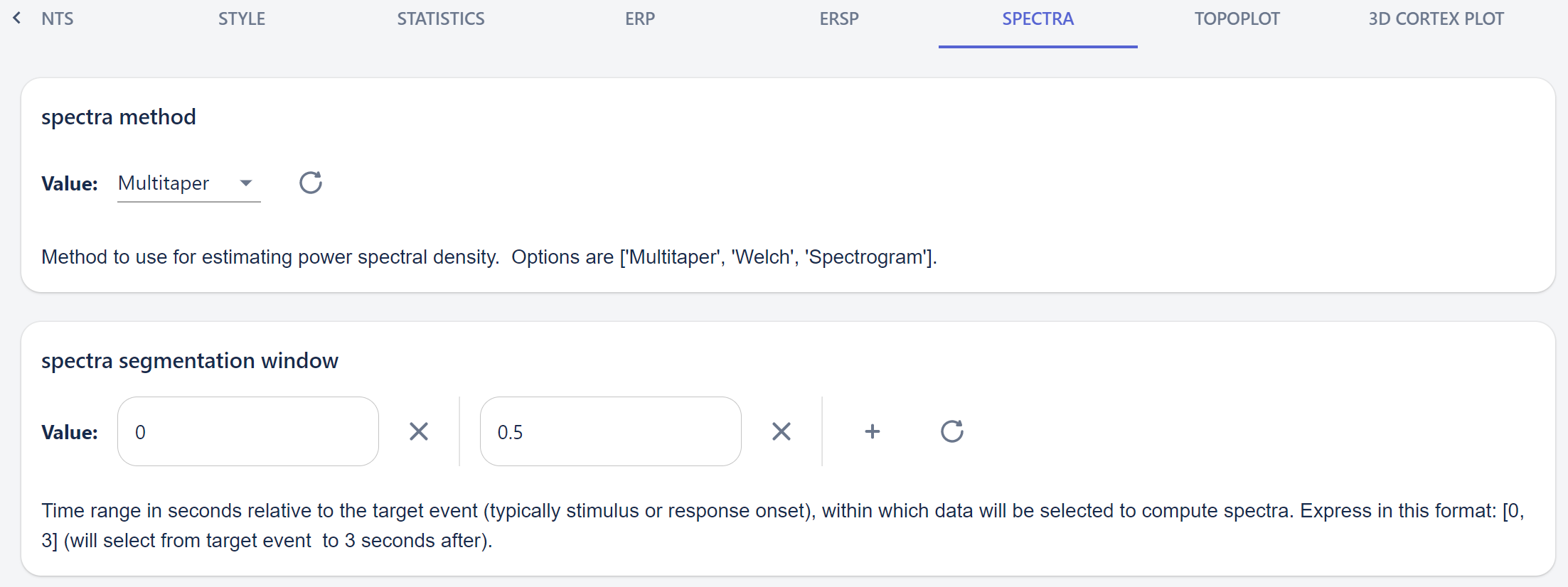
The "spectra method" allows you to set which power spectra method to use for estimating power spectral density. The "spectra segmentation window" is similar to the "erp time bounds" parameter and requires you to set the time window around the ERP trials for which to compute the spectra. Here there is no baseline removal so you may choose to start the time window at the target event onset (t=0).
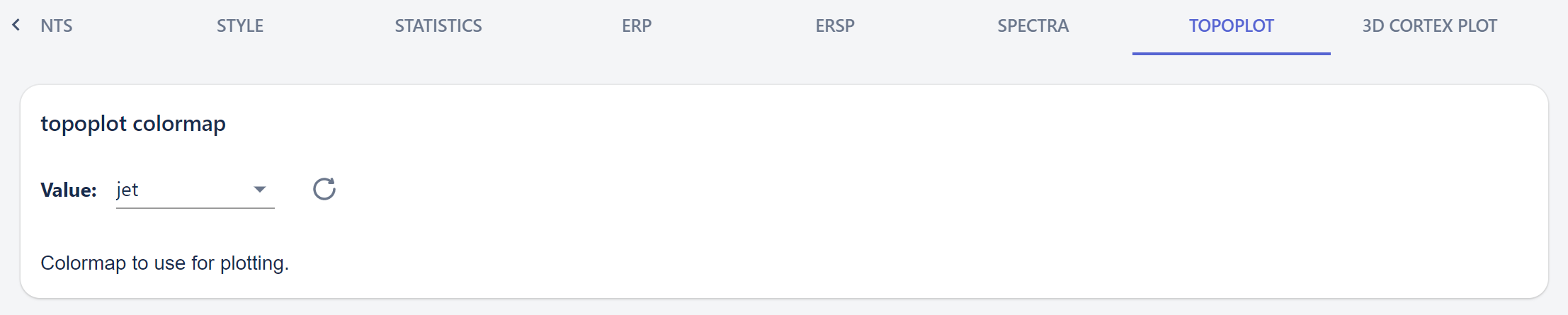
The "TOPOPLOT" parameter page just contains one setting ("topoplot colormap") for the colormap to use. The topoplots show the frequency band powers activation spread across the scalp and the computation of those use the settings from the "SPECTRA" parameters.
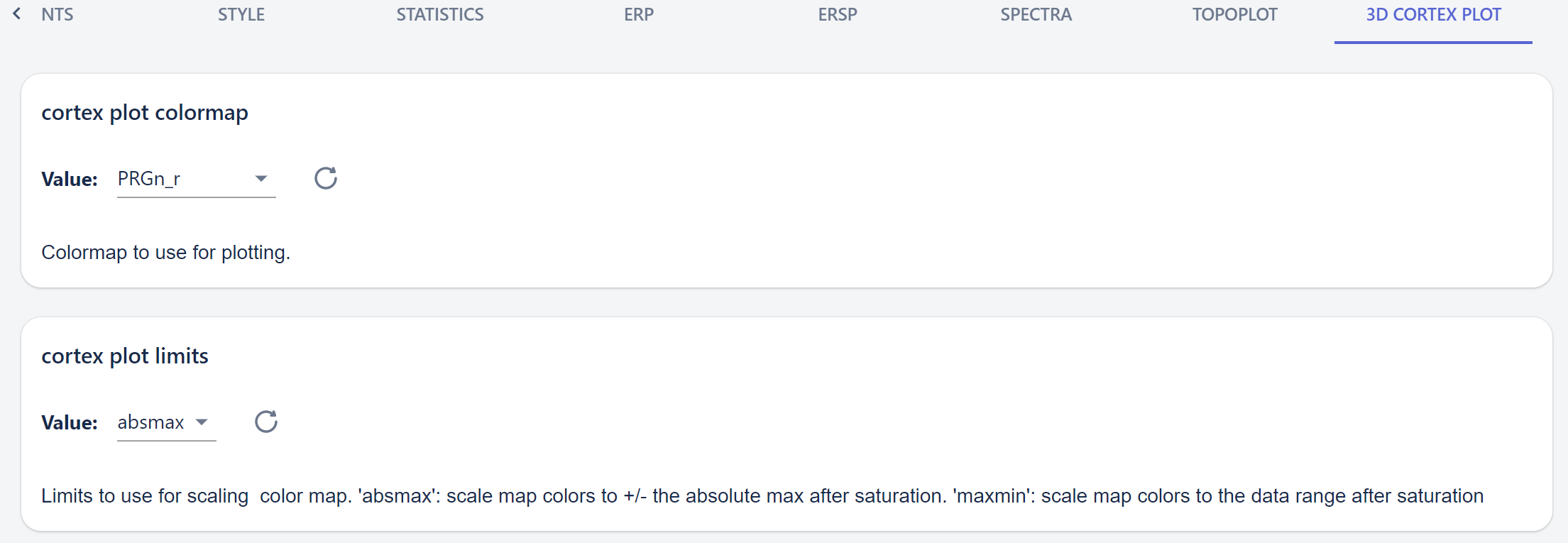
Similarly, the "3D CORTEX PLOT" parameter page also contains the "cortex plot colormap" for setting the colormap to use as well as an additional parameter called "cortex plot limits" which allows you to choose how if the limits should be set as symmetric around 0 ("absmax") or by the limits of the data ("minmax").
For this demo you will not need to change any of the other parameters. However, you are encouraged to check all
the other parameters and see what settings will be used in running this pipeline and many of those will be directly reflected in the final report.
Run the Task and Monitor the Progress
Once you are settled with all the parameters you are ready to send the task to be processed on Neuroscale. Click on the "Create Task" button in the upper right corner of the window. That will initiate the task and immediately take you into the "Insights Task List" view window where you can monitor the status of this task.
Here you will see a list of all the task that have been previously run as well as any current tasks being run. The "State" column gives the current state of all tasks (e.g. "succeeded", "failed", "runnable", etc.). Use the refresh button above the table to monitor the "State" of the current task and wait for the status to change to "succeeded" or "failed".
Retrieve and View Results
Finally, once the task has completed and if it was marked as "succeeded" then the outputs of the pipeline will have been created within the S3 storage folders. In this case the output files are all placed directly in the same folder as the inputs so if you navigate the Storage to /studies/flanker you should see new output files available. Here you can choose to download the files and save them to your local computer or you can view the .html report directly in the browser if instead of downloading you choose to "open" the file when prompted. Congratulations you have successfully learned how to run an Insights pipeline!