The NeuroScale Dashboard
The NeuroScale Dashboard provides access to NeuroScale through a user-friendly, graphical interface. Here one can manage account settings, resource utilization, authorizations, instances, pipelines, tasks, and storage. This page provides an overview of Dashboard features.
Dashboard Home
Upon logging in, one is redirected to the NeuroScale Dashboard home page, which provides a snapshot of your account status.
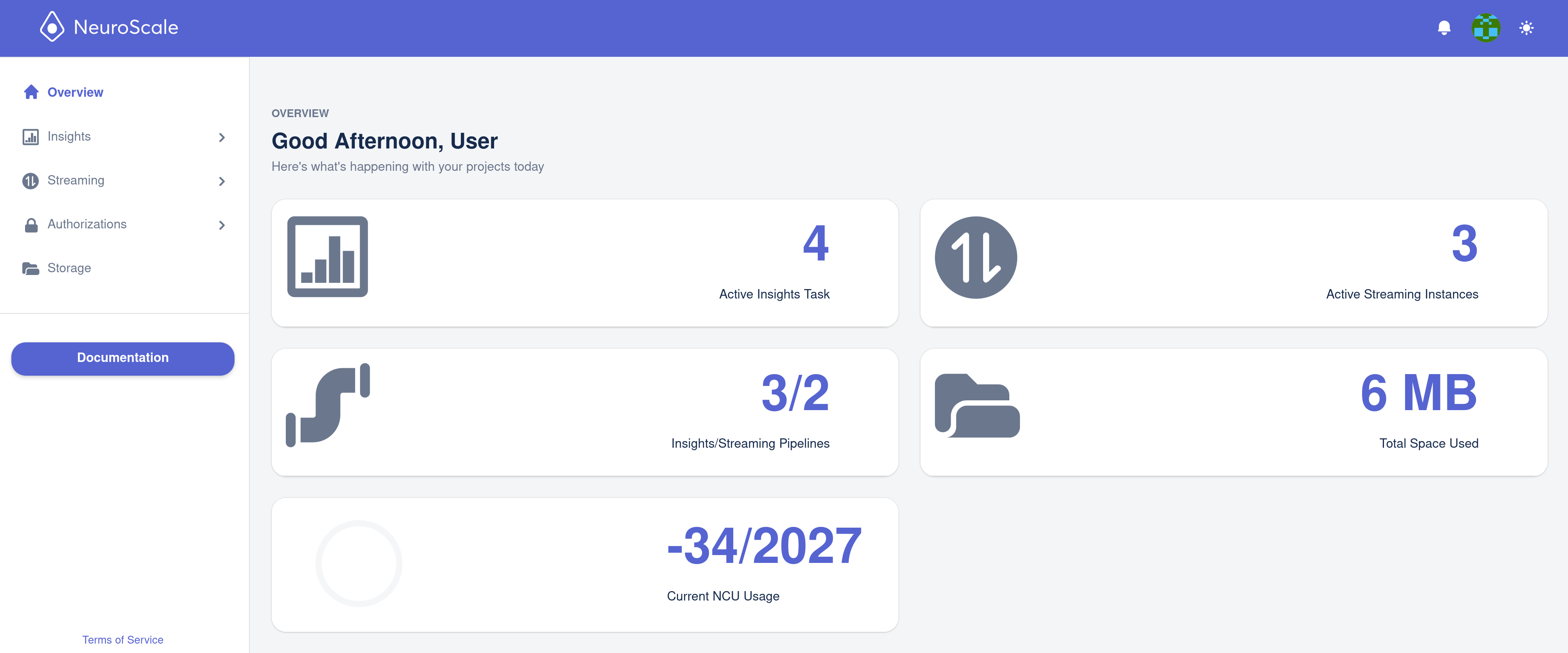
Here one can quickly view important account information, including how many NeuroScale resources (NCUs) you have used so far this month. Regularly monitoring your running streaming instances and batch tasks will help you ensure you are consuming NCUs as you intend, and in the case of streaming instances, will help you avoid leaving them running when no longer needed and consuming NCUs unnecessarily.
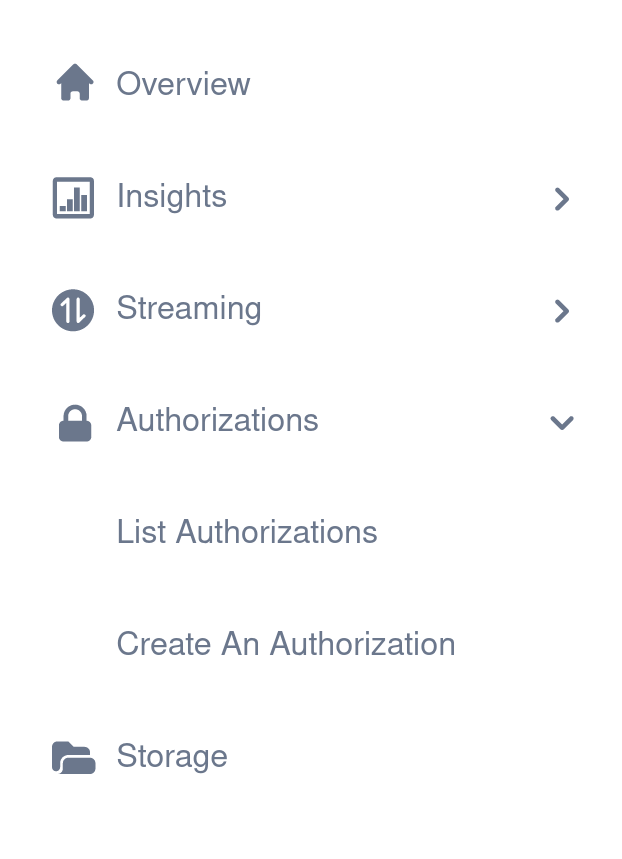
The Dashboard's navigation panel is located on the left. We will go through each of these helpful tabs in more detail in the following sections.
Settings
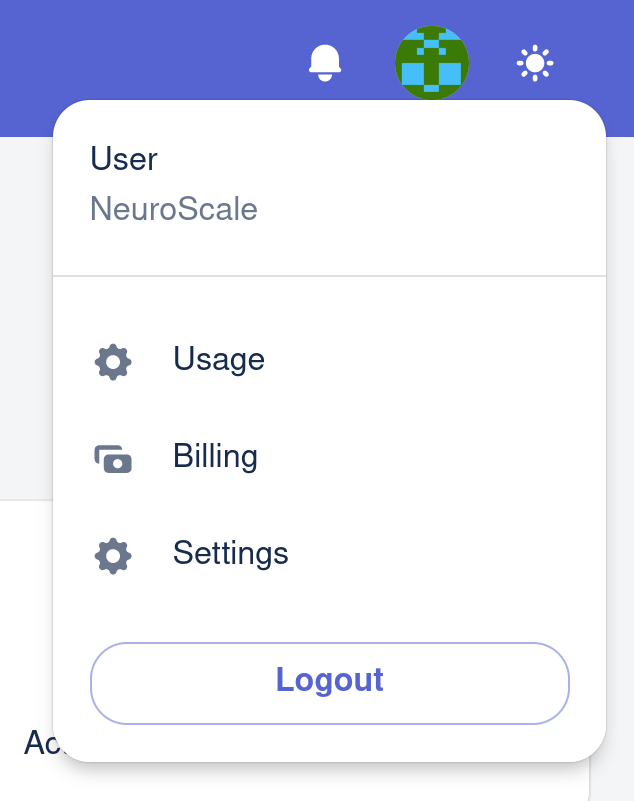
Your User settings are located in the top right hand corner, where you can change your Usage, Billing and other settings for your account.
Authorization
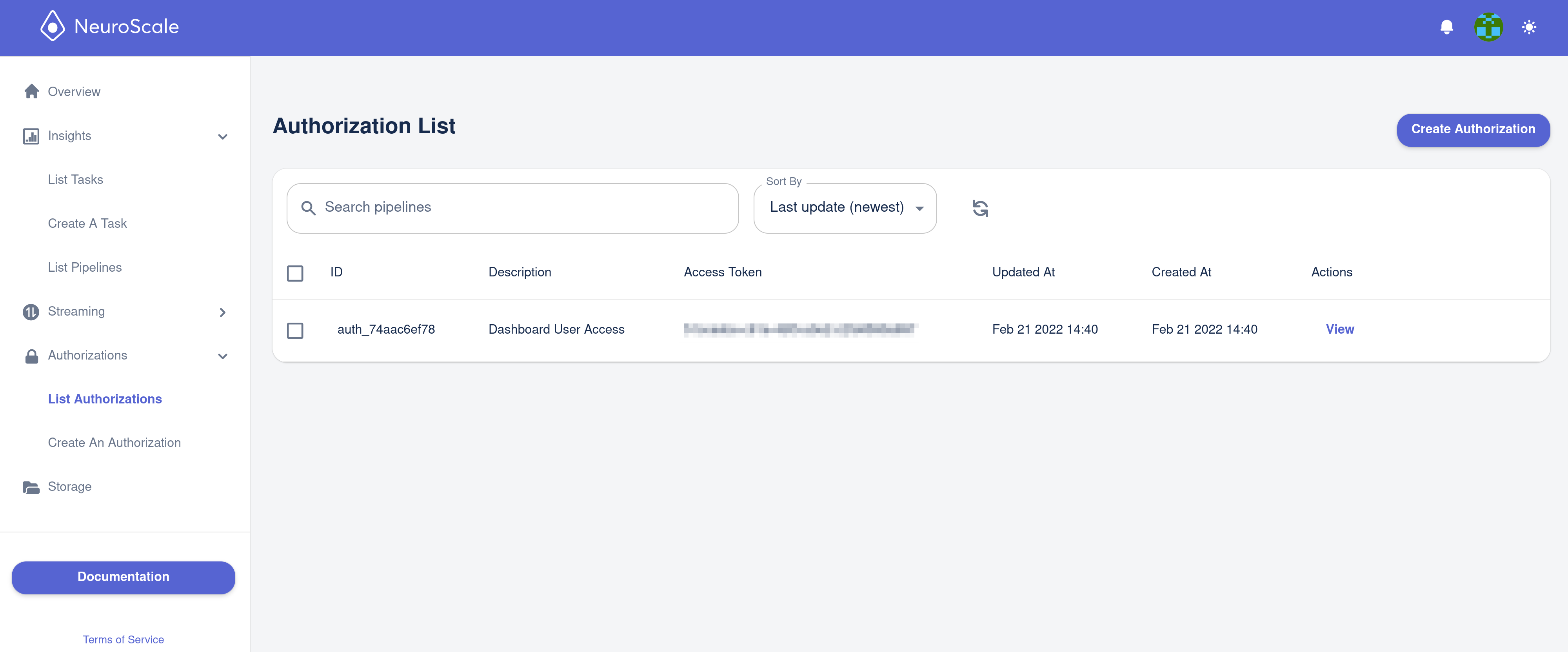
The Authorization section allows management of all account authorizations, which permit access to the NeuroScale API. The degree of authorization access can be set with the scope parameter upon authorization creation or by editing an existing authorization -- this feature is helpful in managing multiple users within an organization with access to NeuroScale. For more information on authorizations checkout the Creating an Access Token page.
Insights Pipelines
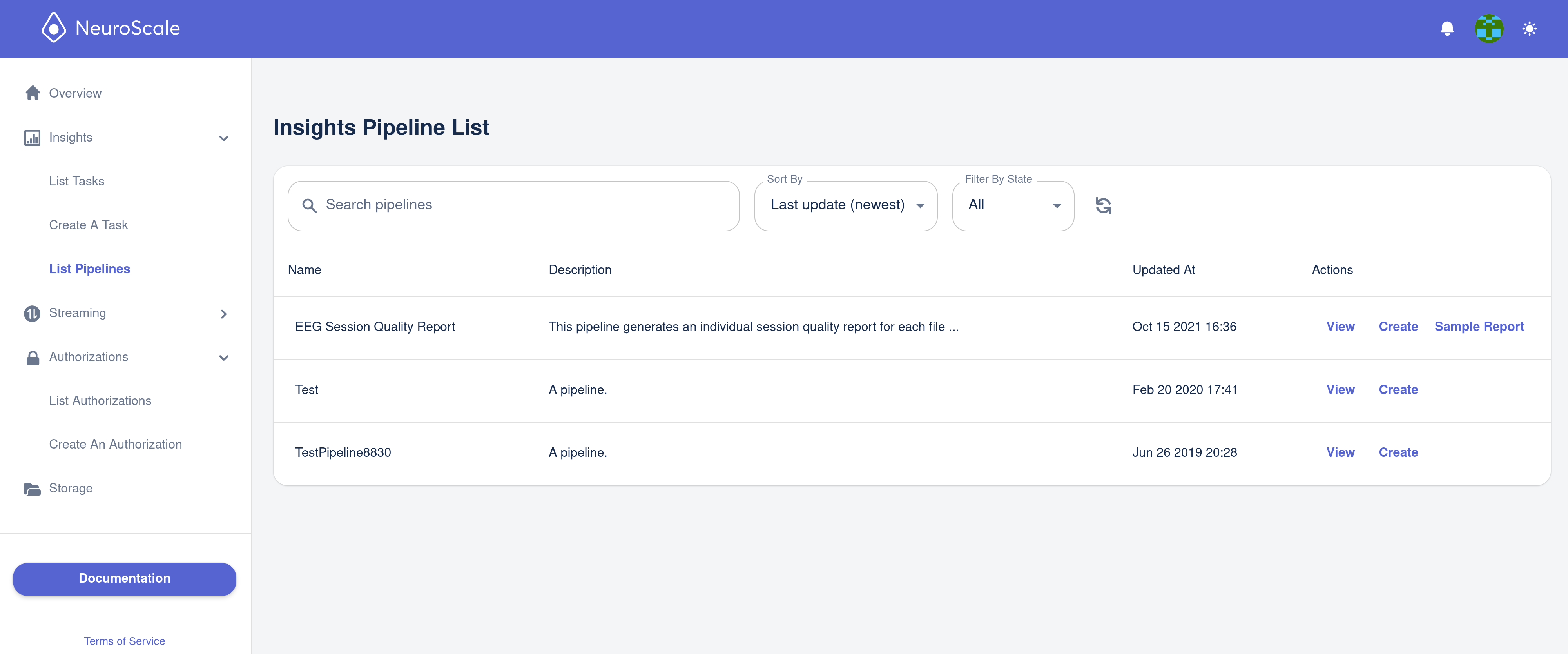
The Insights Pipelines section allows management of all insights pipelines available to your account, including those pipelines available to all NeuroScale users, and those pipelines available to your user only. An insights pipeline processes signal data files and generates an analysis report ("batch"). For more information on pipelines see the Overview.
With our NeuroPype Suite desktop application you can also create your own pipelines and upload them to your NeuroScale account to be run just like any other pipeline. See this guide for details.
Insight Tasks
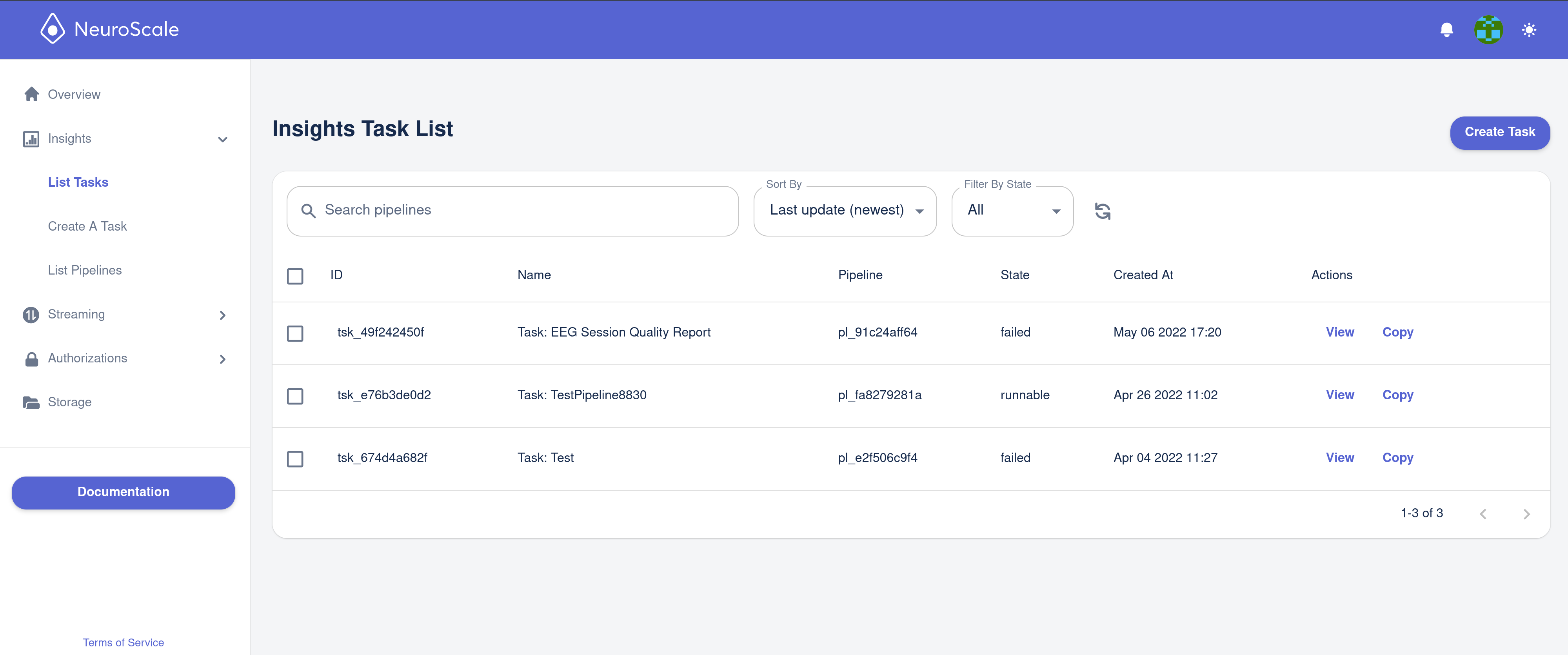
The Insight Tasks section allows management of all batch tasks. Insight tasks are processing pipelines that read in one or more signal data files and produce one or more output files with the results, typically an analysis report in HTML format, and/or the processed signal data and/or results (metrics) in a file format such as HDF5. For more information on batch tasks, see Run a Batch Task and Report Generation .
Streaming Pipelines
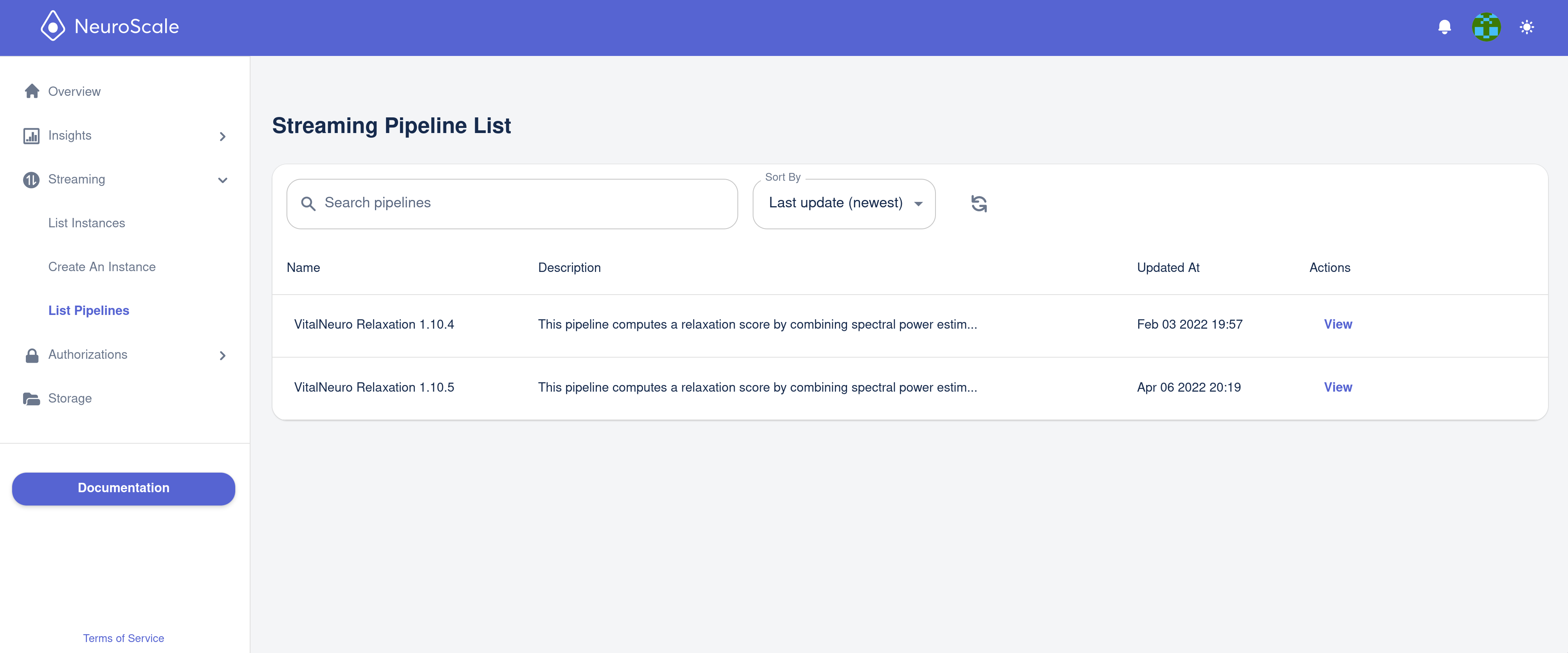
The Streaming Pipelines section allows management of all streaming pipelines. Streaming pipelines are for real-time "streaming" of signal data.
Streaming Instances
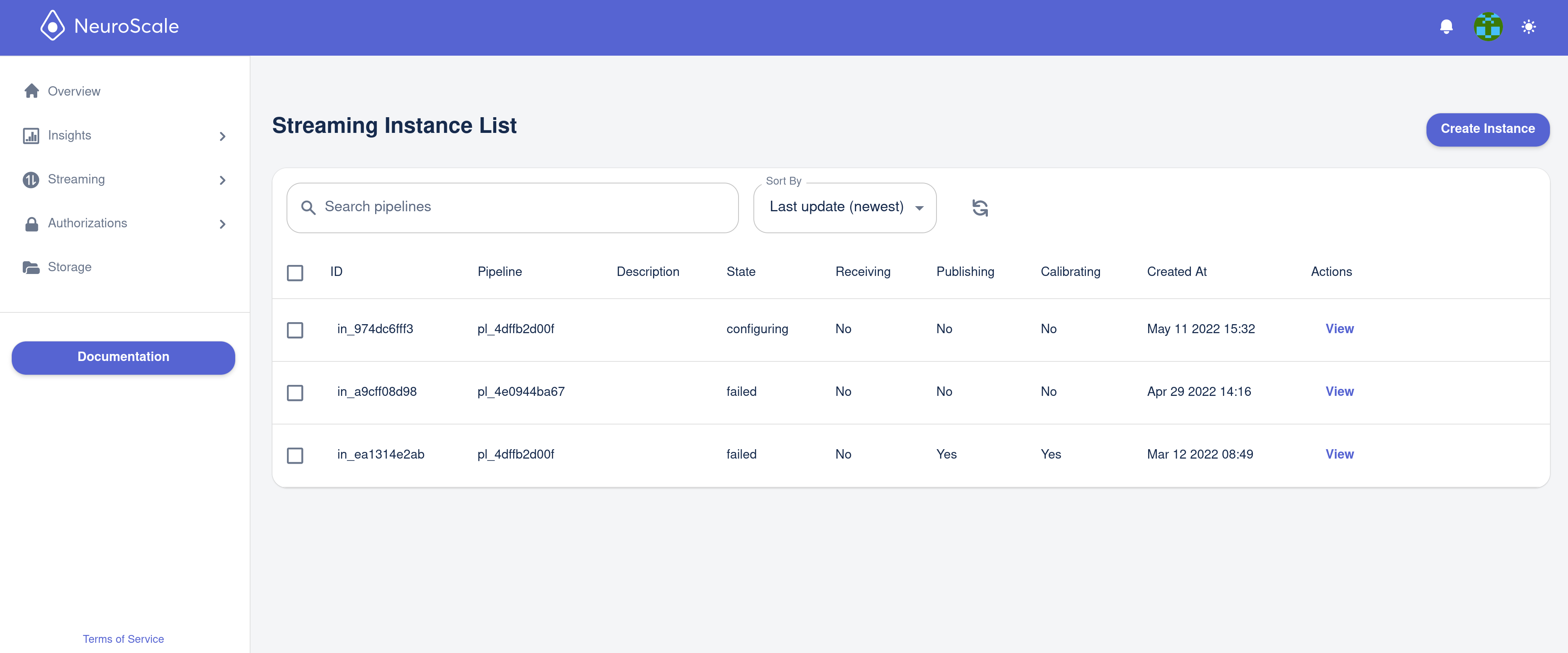
The Streaming Instances section allows management of all streaming instances, each of which represents a pipeline being run by your account that processes streamed signal data from one or multiple devices in real-time and returns the results through one or multiple NeuroScale API endpoints. Streaming Instances consume NeuroScale resources (NCUs) based on the type of pipeline and how long you run the pipeline for. (See Billing for details.)
For information on Instances checkout the NeuroScale Platform Overview
documentation.
Storage
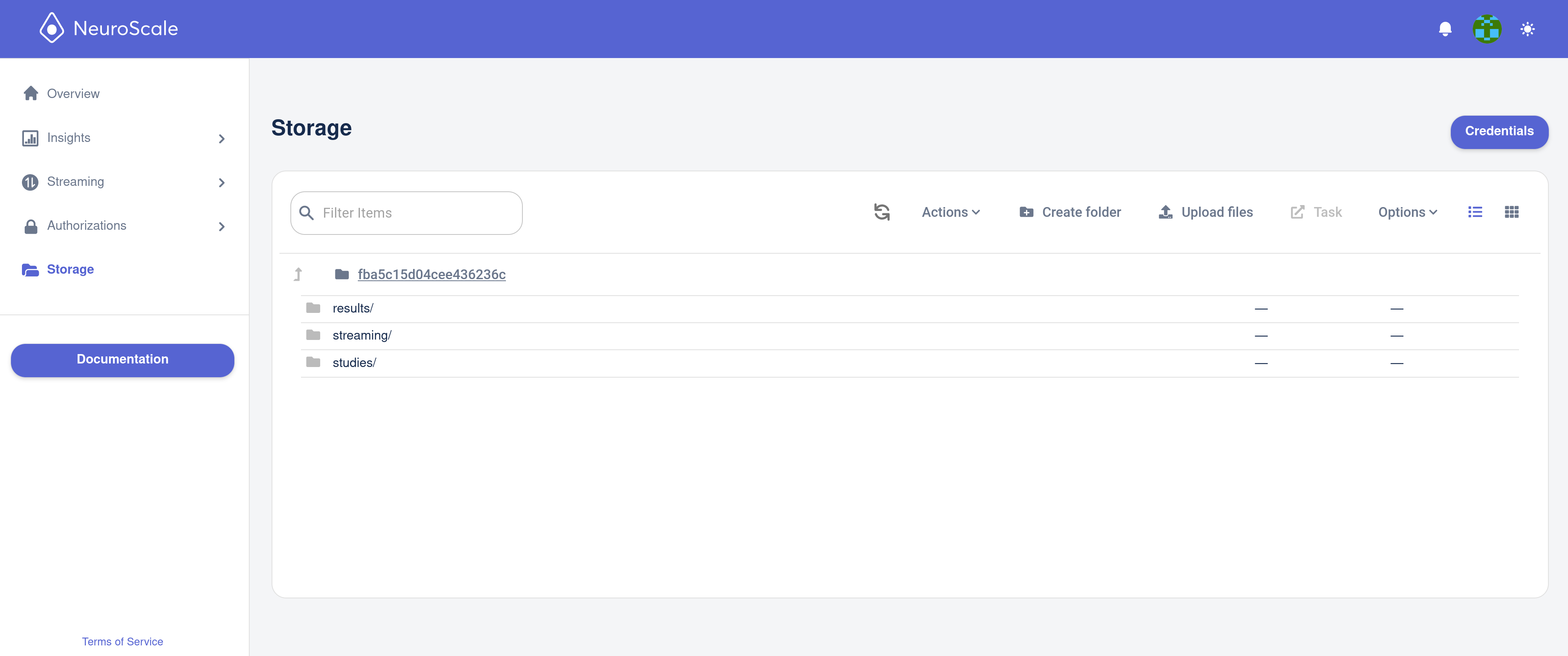
Each NeuroScale account has a private and secure storage bucket assigned to it, accessible only to you, where all the data consumed or generated by the Insights Task pipelines you run is stored. This includes neural signal datasets which you input to Insights Tasks, and HTML reports and other data files which may be generated by the Insights Tasks you run. You can access this storage bucket through the NeuroScale Dashboard itself or using a third party application. See the Setup Storage and Dashboard batch tutorial for more information.
API Documentation
A link to the NeuroScale REST API documentation for easy reference.