Streaming: Manage Streaming Instances
Overview
Instances in NeuroScale are resources that represent a running pipeline, and may be launched, configured or interrogated via the NeuroScale Platform API or the NeuroScale Dashboard. This guide will cover the latter.
For more details on Streaming Instances, see the NeuroScale Platform page. See also Run a Streaming Pipeline (Dashboard) on how to launch a streaming instance.
Check Running Instances
Checking the number of running instances will help you monitor your usage and remember to terminate streaming instances that you are no longer using (conserving resources). You'll find the number of currently running instances on the front page of the Dashboard.
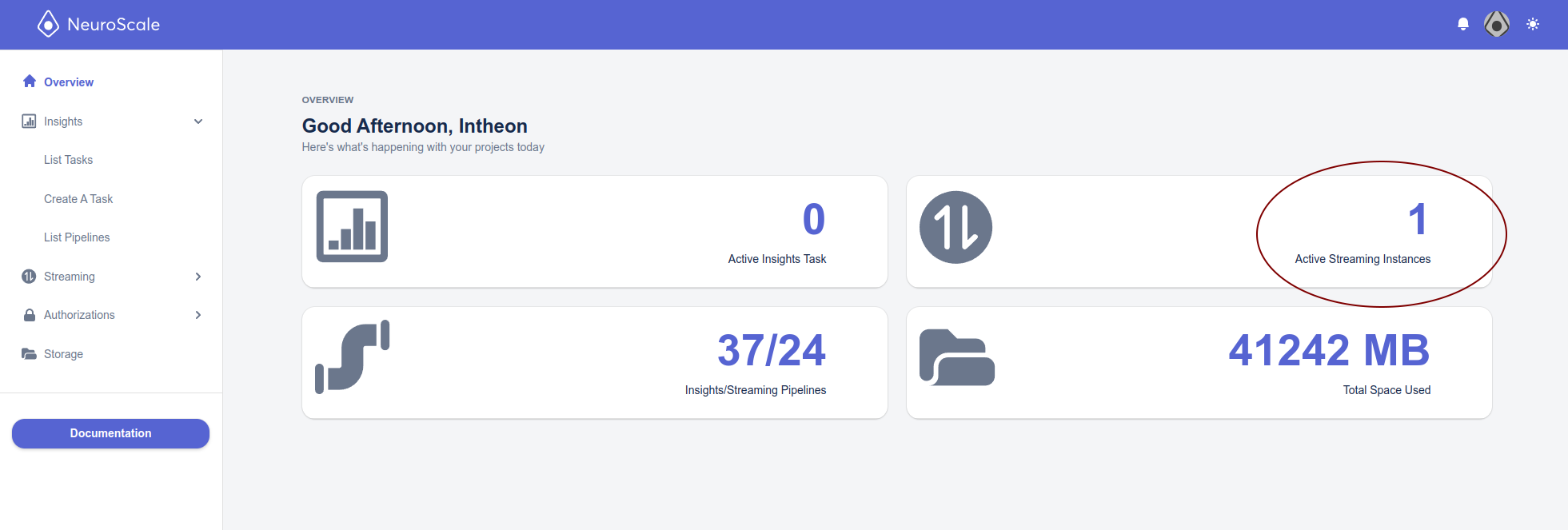
Streaming Tab
On the left, Dashboard has an Instances tab where you can manage the Streaming instances running on your account. Here you can create, delete or view an instance.
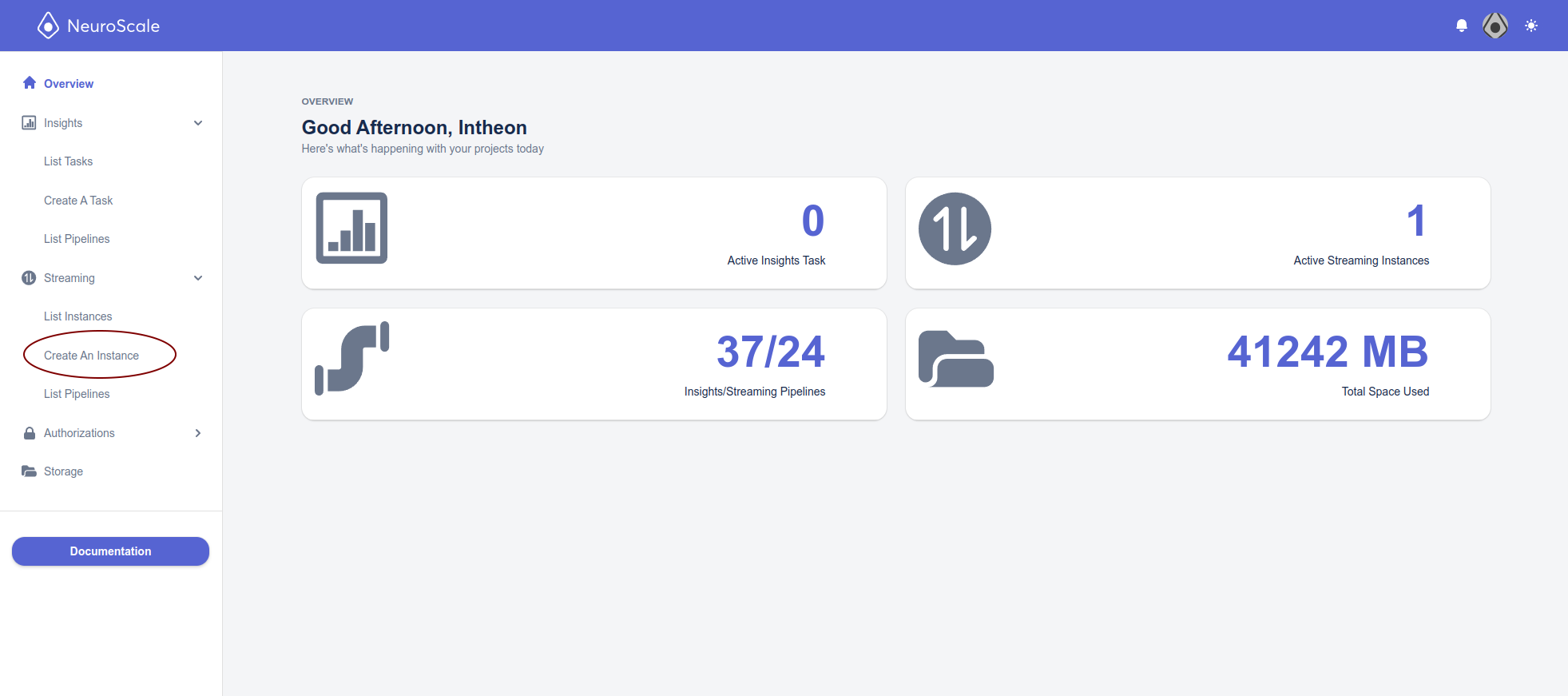
You can create a new instance (start a running pipeline) by
- clicking
Create New Instanceunder theInstancestab:
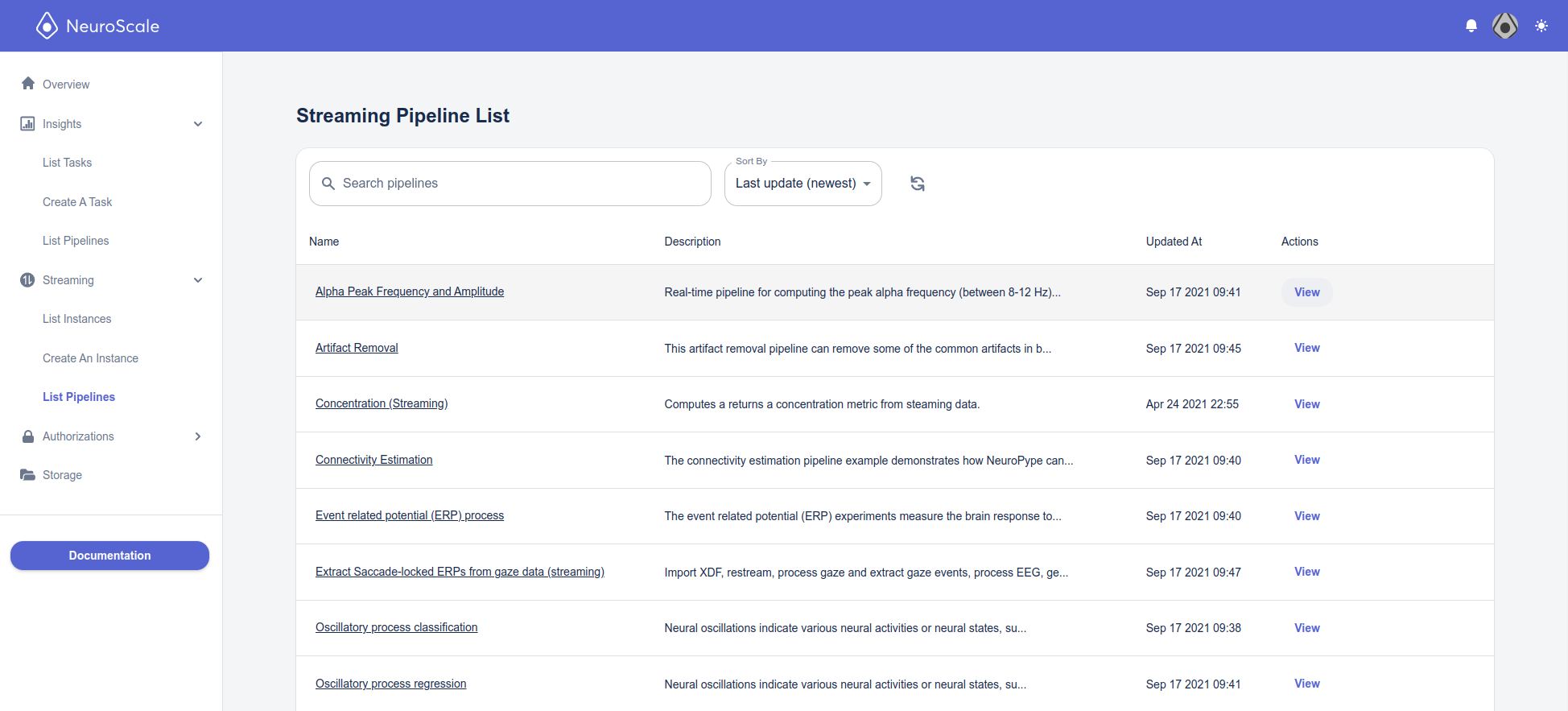
- From
List Pipelinesin theStreamingmenu, you can select a pipeline and clickView:
Then click Create Instance at the bottom of the View an Existing Pipeline:
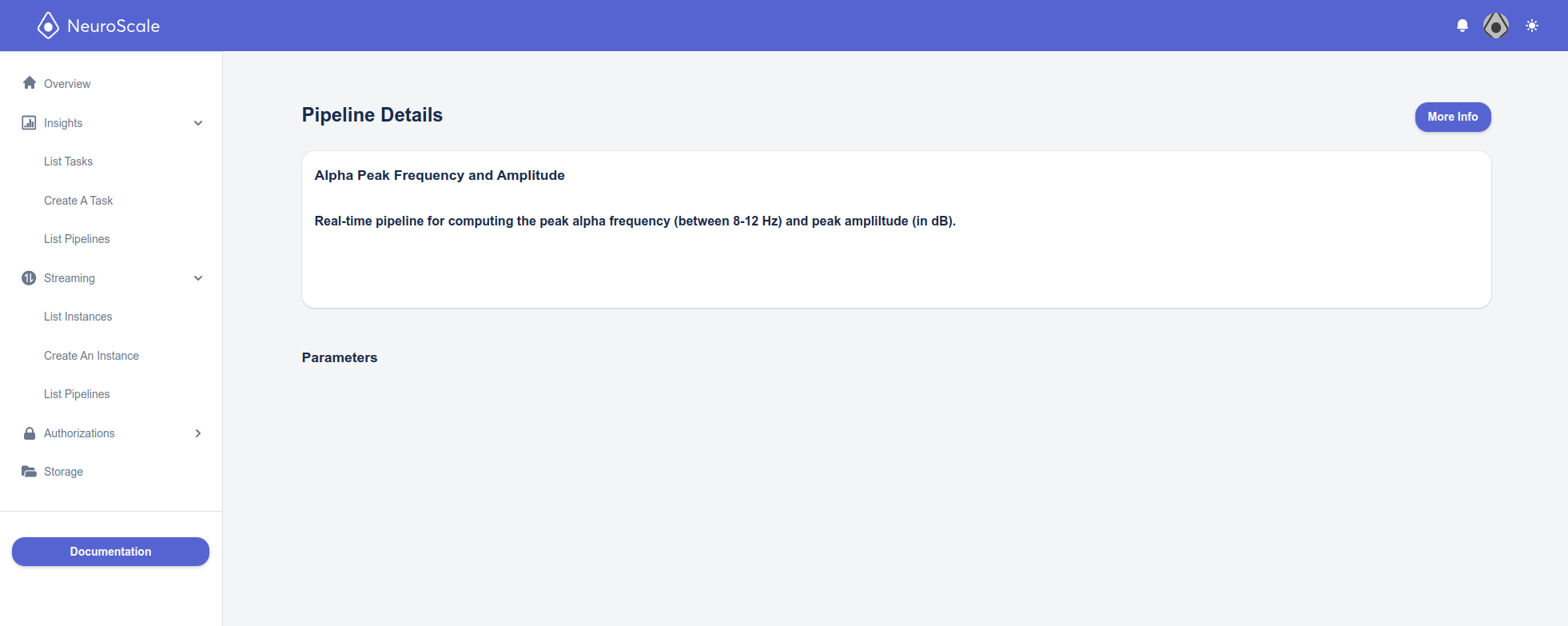
All three options will bring us to the Run a Streaming Pipeline (Instance) page, where a pipeline can be selected from a drop down menu:
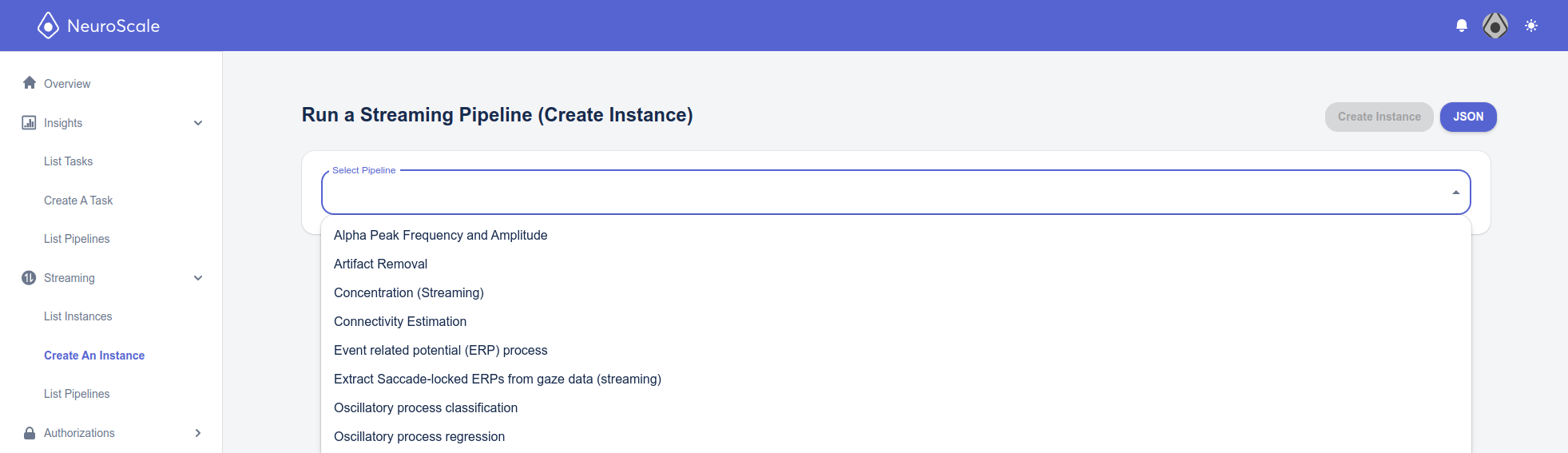
Once the pipeline is selected, exposed parameters can be configured.
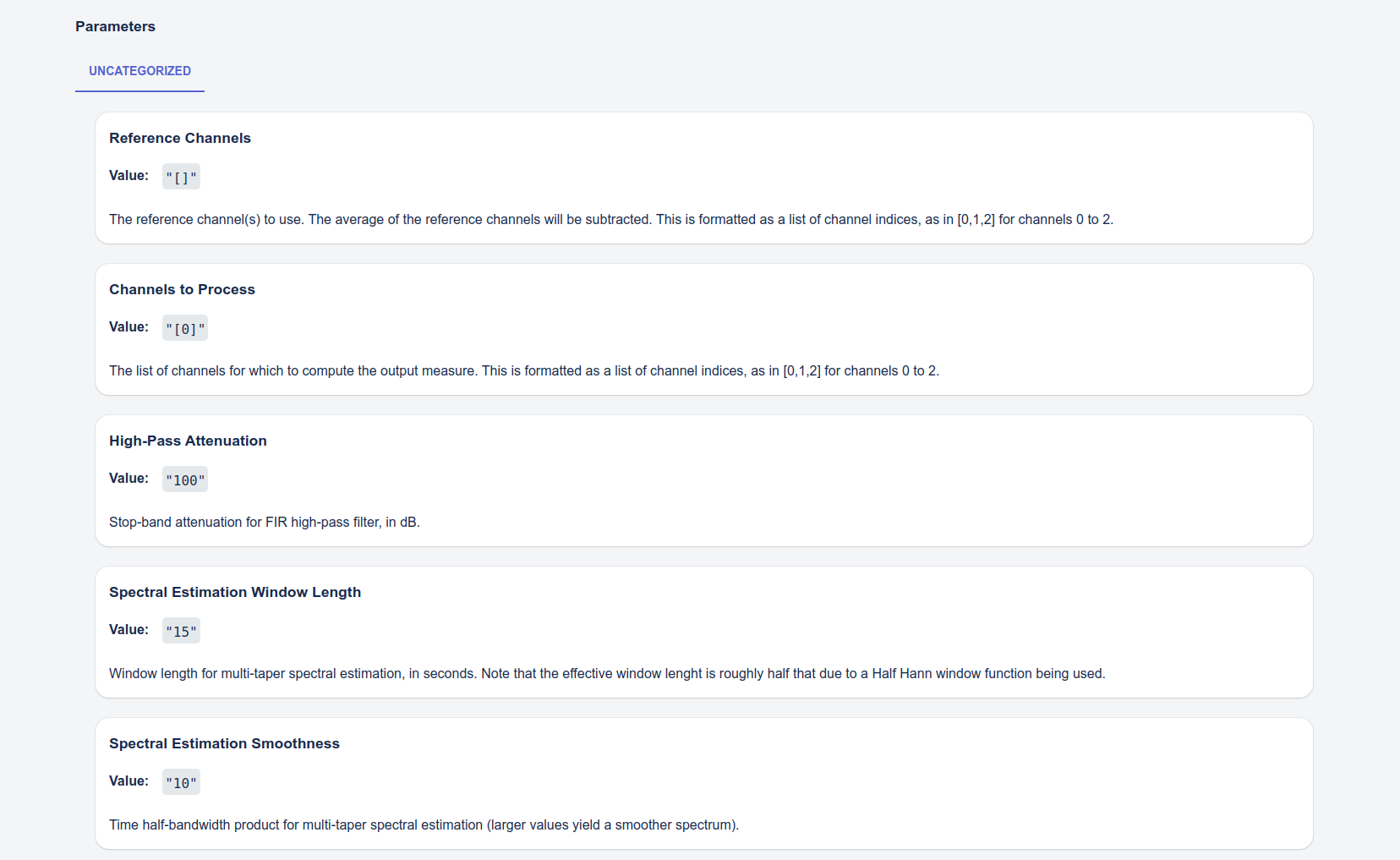
Clicking Create Instance will start the configured pipeline.
A pop up message will appear confirming the streaming instance was created successfully.
If the streaming instance is not created successfully a pop up message with an error will show. If the error message does not reveal the problem, please checkout the Troubleshooting your Pipeline Configuration section in the Troubleshooting page for common mistakes that cause this error.
Listing Running Instances
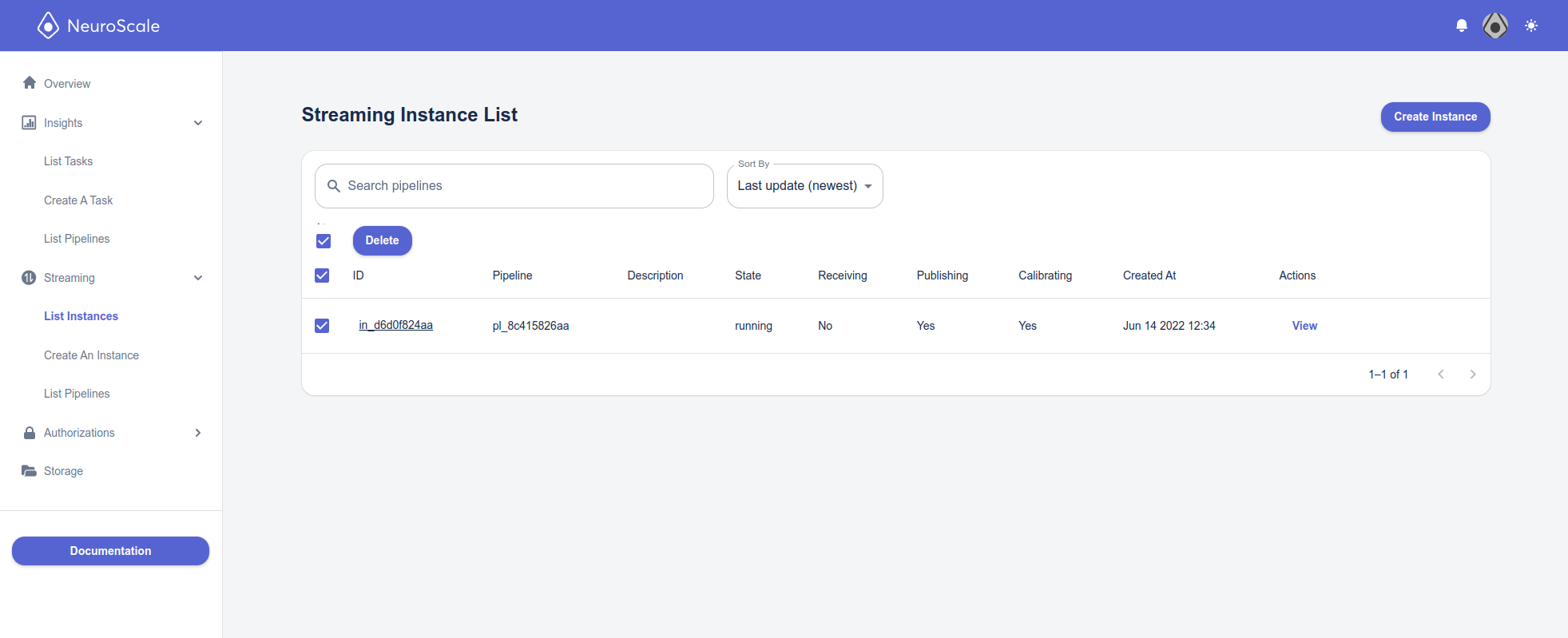
On this List Running Instances tab, you can see all the instances that are currently running from your account. On this page you can view the details of an instance, or terminate ("delete") an instance.
This page will also indicate whether the pipeline is receiving data (from the pre-configured endpoint), publishing data (to the pre-configured endpoint), or calibrating.
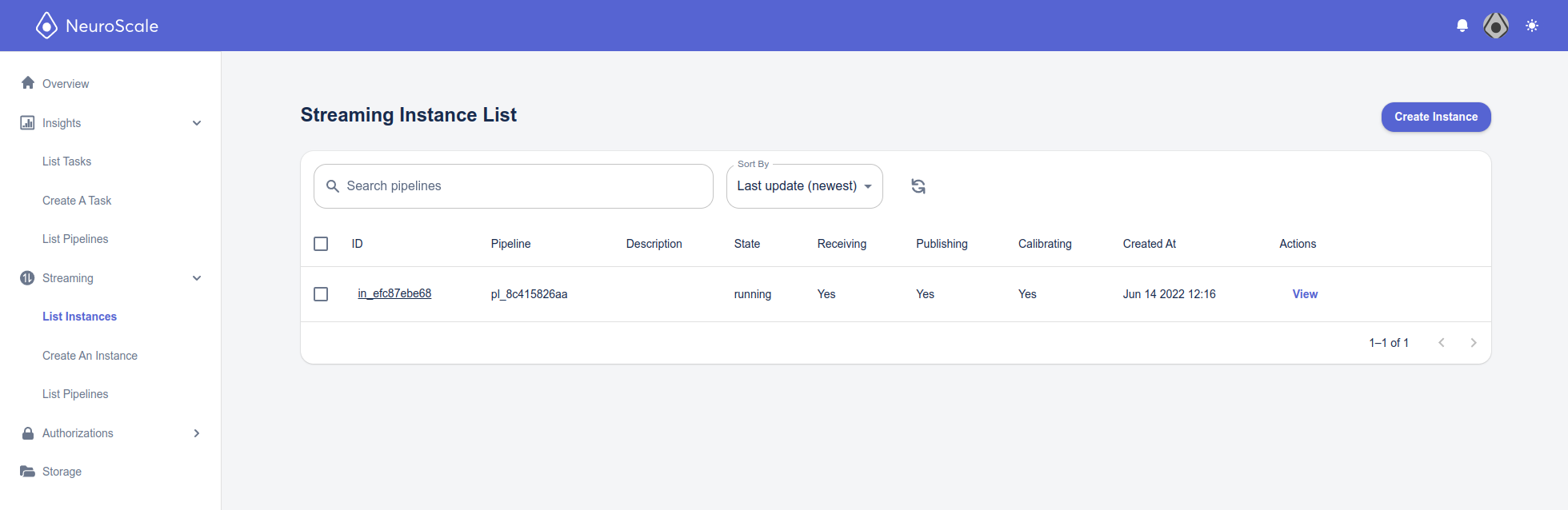
Running Instances Information
ID
A unique identifier used by the API to manage the instance. This identifier is created with the instance and discarded upon instance deletion.
Pipeline
The ID of the running pipeline associated with the instance.
Description
Brief description of the pipeline.
State
The current state of an instance, which can be in any of the following states: configuring, running, error or terminated. If you see an error status your streaming instance setup failed, please check the Troubleshooting your Pipeline Configuration section in the Troubleshooting page for common mistakes that cause this error.
Receiving
The instance is currently receiving data from the input source(s).
Calibrating
The instance is currently training on data. This typically takes place before the status moves to publishing.
Publishing
The instance is currently publishing results to the streaming endpoint(s).
Created At
The time and date when the instance was first created.
Actions
The View link takes you to a page with details about the running instance.
View a Streaming Instance
More information about the instance can be seen by clicking on an instance in the Running Instances and selecting View. This will bring you to the Instance Details page that shows some additional information about the instance, including a list of its presently configured parameters, the date / time the pipeline was started, etc.
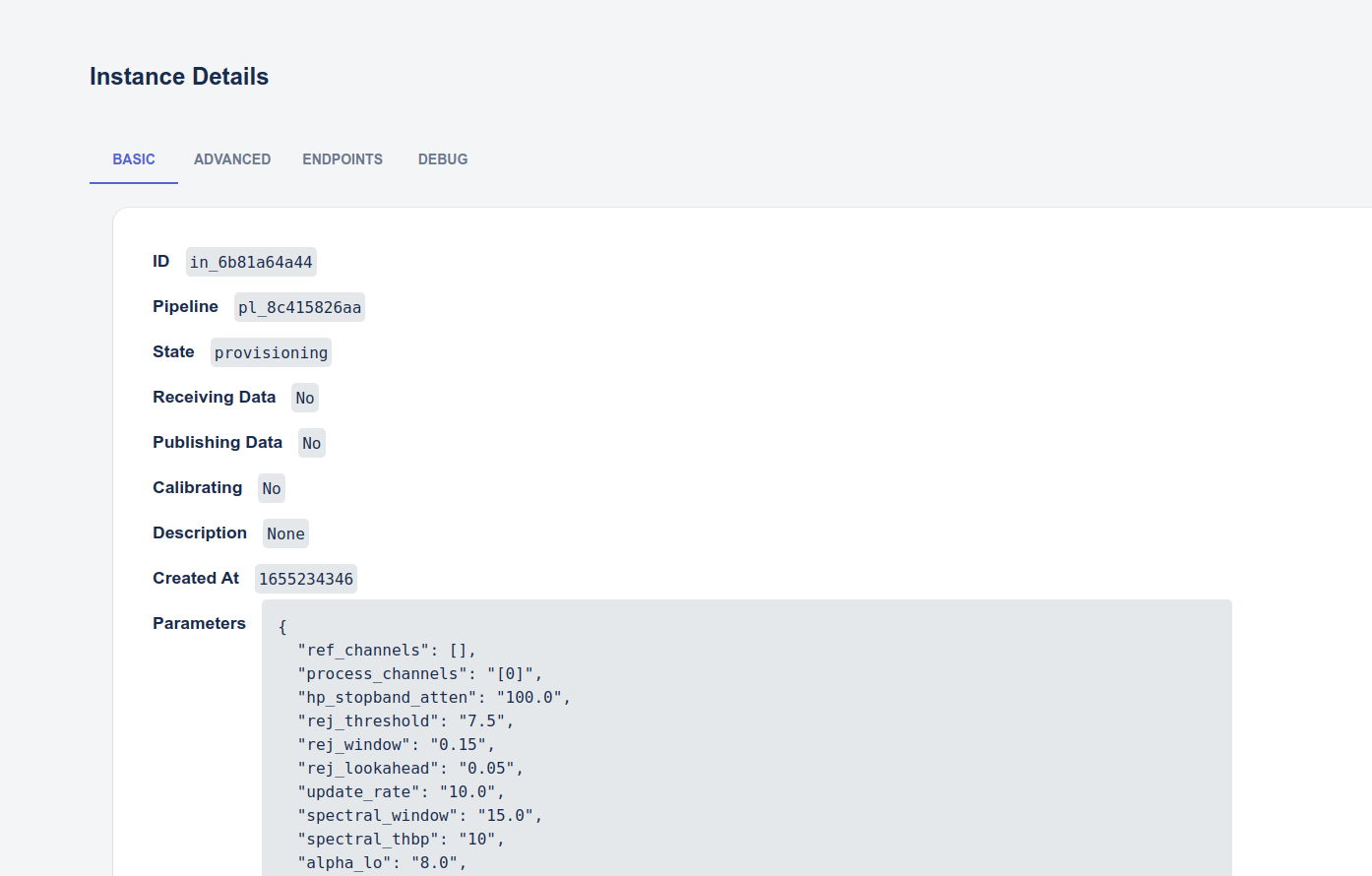
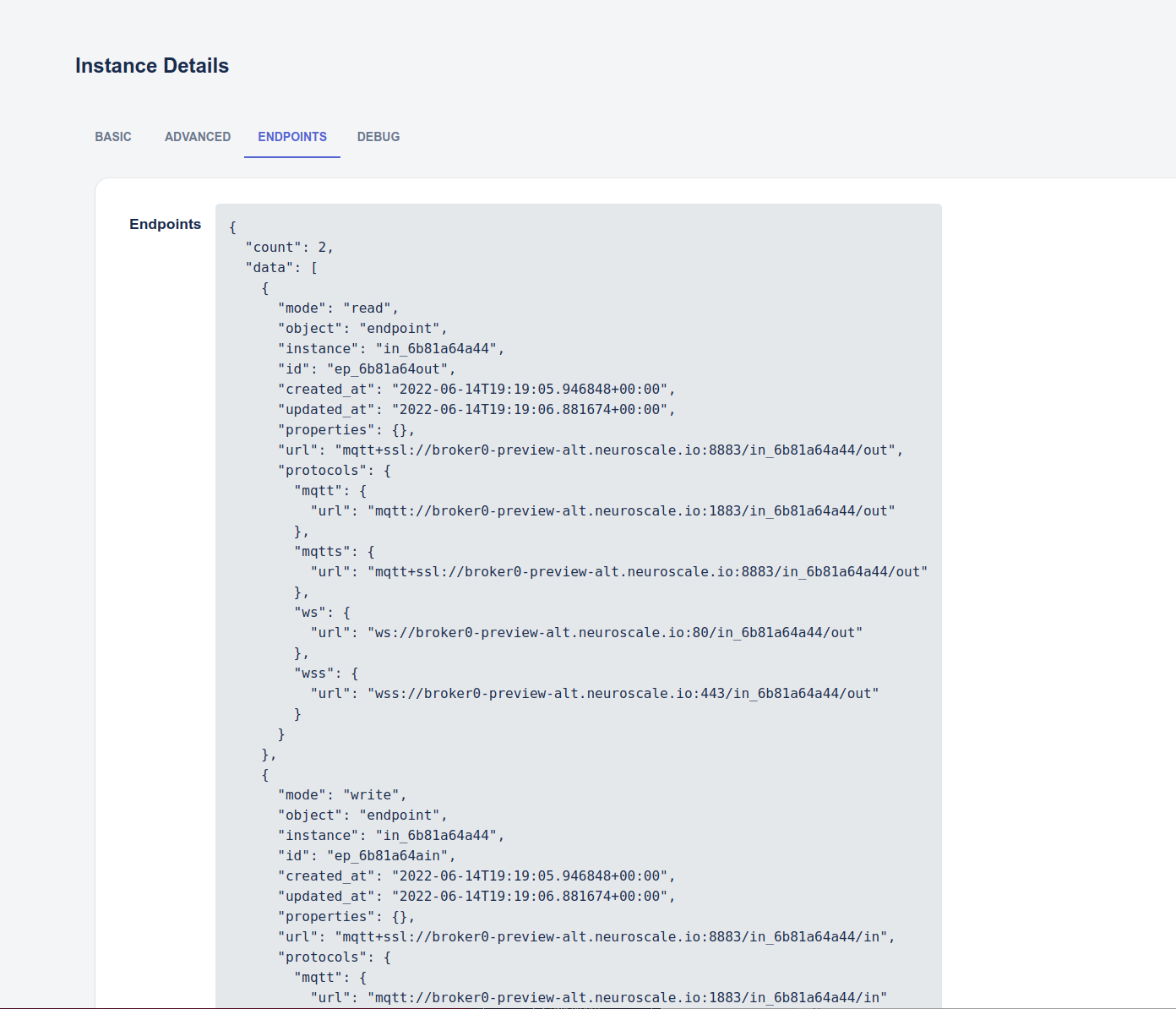
The Endpoints tab:
Endpoints
The URLs for the pipeline's endpoints, to which you would connect to stream data up to the pipeline or capture the results from the pipeline. See Streaming Data to NeuroScale (API) for details.
The Debug tab:
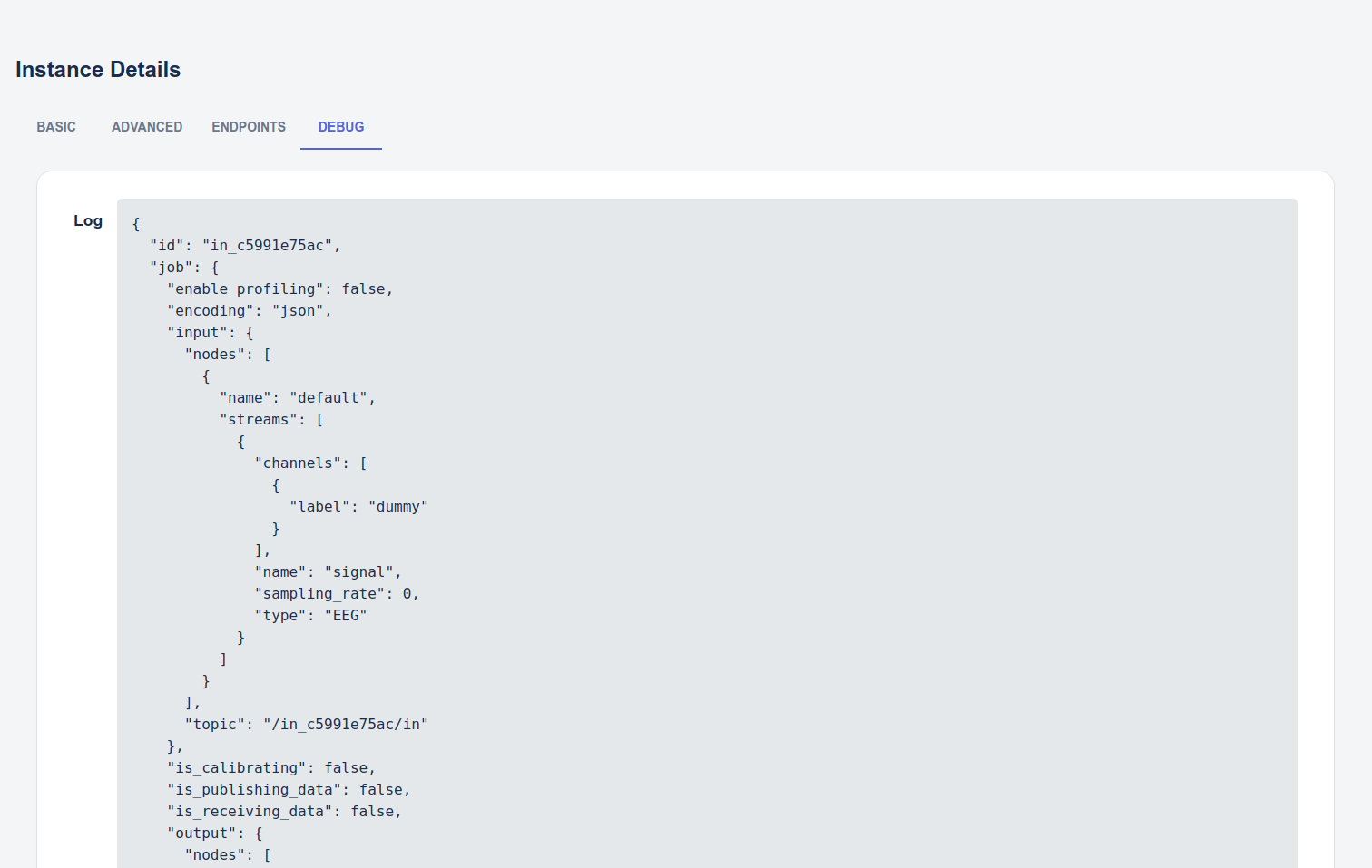
Debug
The Debug tab shows information about the running pipeline useful for debugging or verification, including the number of bytes it has received and sent, the parameters the pipeline is configured with, etc.
Terminate an Instance
Instances can be terminated (deleted) by clicking on an instance in the List Instances page, selecting the Instance(s) and clicking the Delete button.
Deleting an instance does not delete the pipeline itself, but rather terminates that particular running instance of the pipeline. You can have multiple instances of the same pipeline running simultaneously, and delete one without deleting the others.
A pop up message will appear confirming your streaming instance has been deleted. It will no longer show up on the List of Running Instances page or be counted in the Running Instances on the Dashboard home page.
