cURL (batch tasks)
This article describes the batch processing capabilities of NeuroScale. For accessing the API for streaming (real-time) processing using cURL, consult the article linked here.
Note: The batch capabilities are accessed through the regular https://api.neuroscale.io endpoint.
This tutorial describes the API commands needed to create and run batch tasks using the NeuroScale Platform. Batch tasks typically involve long-running processes that read one or more input files (often large in size) and perform a series of operations and transformations on the data to produce one or more output files containing the results. Depending on the complexity of its processing pipeline and the size of the input files it's operating on, a batch task may last anywhere from several minutes to several days. There is no upper limit, though generally users will want to organize and partition their data so that batch tasks do not take an unreasonable amount of time to complete.
For this tutorial, we will demonstrate the creation of a batch task using the Emotional Valence pipeline.
Prerequisites
cURL
Throughout this tutorial, we assume the use of cURL for issuing API commands. Please make sure you have it installed.
Expandrive
In this tutorial we will upload files to NeuroScale using ExpanDrive. Note however, that there are many alternative tools for accessing cloud files available, such as Mountain Duck, CloudMounter, TNTDrive, NetDrive, or s3fs.
NeuroScale Access Token
API commands require use of an access token to authenticate requests to the NeuroScale Platform. In the examples below, a dummy access token has been used that should be replaced with your own personal access token that you received when you registered an account on the NeuroScale Platform.
If you do not have an access token, please email support@neuroscale.io to request one.
Accessing Your Personal NeuroScale Storage Container
As part of your NeuroScale registration, a personal storage container is created for you to upload files to be used as input to your batch tasks (and from where you can also download the results).
To retrieve your storage profile (i.e. the name and location of your container, as well as the unique credentials to access it) simply copy and paste the following command into your terminal or command-line (make absolutely sure to copy and paste the command in a single line):
Important!
Remember to replace the dummy access token xxxxxxxx-xxxx-xxxx-xxxx-xxxxxxxxxxxx shown below with your own personal access token when running the following command.
curl -i -H "Authorization: Bearer xxxxxxxx-xxxx-xxxx-xxxx-xxxxxxxxxxxx" https://api.neuroscale.io/v1/users/self/storage
Assuming no errors, a response similar to the one shown below will be received:
HTTP/1.1 200 OK
Allow: OPTIONS, GET
Content-Type: application/json
Date: Fri, 08 Jul 2016 20:56:13 GMT
Server: nginx/1.1.19
Vary: Accept-Encoding
X-Frame-Options: SAMEORIGIN
Content-Length: 407
Connection: keep-alive

{
    "account_name": "AKIAIZDSA2U5DRRUWC7P",
    "container_name": "z7boav6j9gbyvarht6rwkm",
    "credentials": "4ZpfMdPmHiI2e4HvTQYoOnz8RfcUuQQkfdzuk1Do",
    "region": "us-east"
}
Important
Remember that your particular values (i.e. your account name, container name and credentials) will be different to the ones shown here. This is just an example response.
1. Uploading Files to NeuroScale
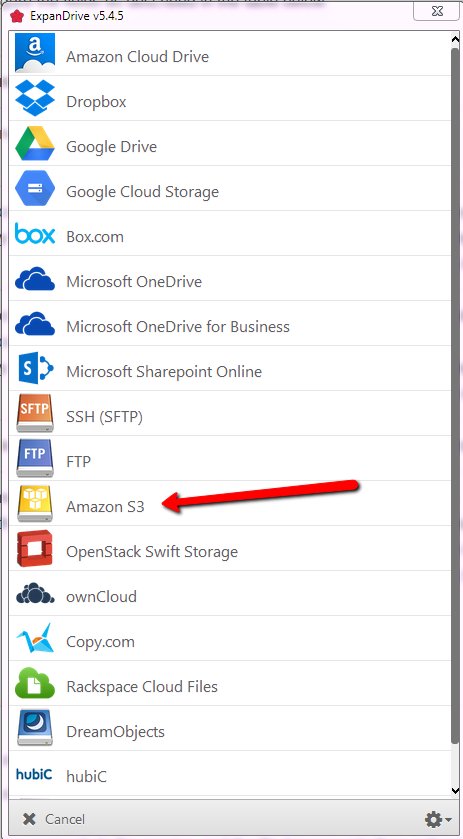
Open Expandrive and select Amazon S3
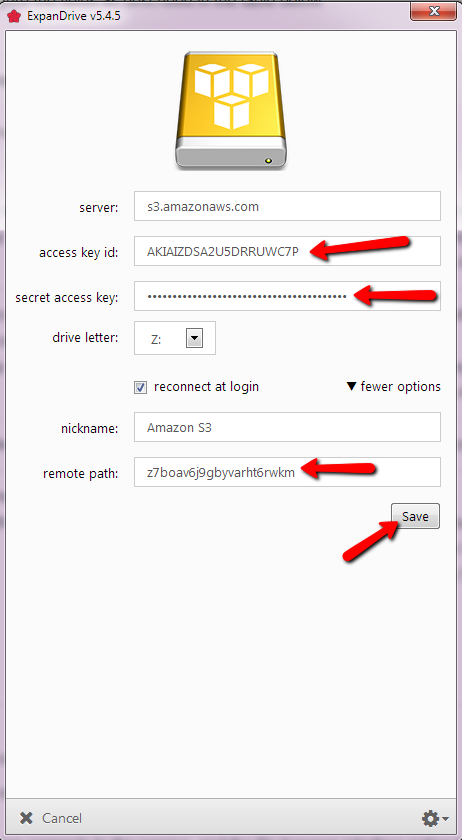
Enter your "account" name for "access key id", enter your "credentials" for "secret access key" and enter your "container_name" in "remote path". Click Save to continue.
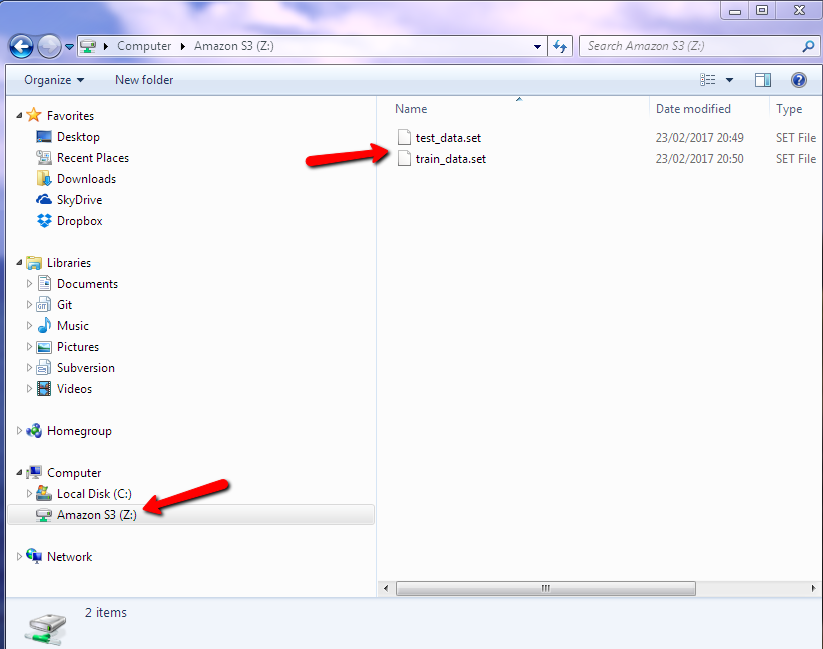
Your container should now be mounted on your computer. To upload files simply place them inside the newly created drive.
Important!
Make sure to download the test_data.set and train_data.set files to your computer if you have not done so already. If you have your own .set files, you may use it instead.
2. Creating Your Batch Task
Now that you have uploaded the input files needed to run your batch task, you can create it using the NeuroScale Platform API.
Important!
You should always upload your input files before creating your batch task.
In order to create a task, you must tell NeuroScale what pipeline you wish to use. The pipeline acts as a sort of blueprint from which NeuroScale can create a running task. Different pipelines process data in different ways, so you must choose the pipeline that best fits your requirements for processing data (i.e. what kind of input device you have, what kind of signal you wish to process, what kind of metric/measure you wish to infer from the data, etc.).
You will use the Emotion Valence pipeline to create your task. So the first thing you need to know is the unique identifier of the Emotion Valence pipeline. An example of retrieving and pipeline's unique identifier is described in detail in Step 1 of Creating Echo Instances on NeuroScale using cURL.
To create a batch task, simply copy and paste the following command into your terminal or command-line, replacing pl_xxxxxxxxxxxxxxxxxxxxxx with the unique identifier of the Emotion Valence pipeline (make absolutely sure to copy and paste the command in a single line):
Important!
Remember to replace the dummy access token xxxxxxxx-xxxx-xxxx-xxxx-xxxxxxxxxxxx shown below with your own personal access token when running the following command.
curl -i -H "Authorization: Bearer xxxxxxxx-xxxx-xxxx-xxxx-xxxxxxxxxxxx" -H "Content-Type: application/json" -X POST -d "{\"name\": \"My Task\", \"parameters\": { \"test_data\": \"test.set\", \"train_data\": \"train.set\"}, \"pipeline\": \"pl_xxxxxxxxxxxxxxxxxx\"}" https://api.neuroscale.io/v1/tasks
Assuming no errors, a response similar to the one shown below will be received:
HTTP/1.1 201 CREATED
Allow: POST, OPTIONS, GET
Content-Type: application/json
Date: Mon, 11 Jul 2016 15:34:54 GMT
Server: nginx/1.1.19
Vary: Accept-Encoding
X-Frame-Options: SAMEORIGIN
transfer-encoding: chunked
Connection: keep-alive

{
    "created_at": 1468251287,
    "description": "",
    "finished_at": null,
    "id": "tsk_TNje6VQJUPgaDA8tVbHPpU"
    "name": "My Task",
    "object": "task",
    "parameters": {
        "test_data": "test_data.set"
        "train_data": "train_data.set"
    },
    "pipeline": "pl_gKhLG5KvPGTmSJVqSxw7tX",
    "properties": {},
    "state": "submitted",
    "state_reason": "",
    "updated_at": 1468251294,
    "user": "usr_ZTNc2sEjoq6JoEgPNFUg6g"
}
Please pay particular attention to the items highlighted below:
The first item is the unique identifier of your newly created task. You will need this unique identifier to poll the state of the task in Step 3 and to delete it in Step 5.
Important!
Remember that your particular values (i.e. the task's unique identifier et al.) will be different to the ones shown here. This is just an example response.
3. Polling the State of Your Batch Task
The second item represents the task's current state. When you first create a task, it gets placed into a queue until sufficient resources are available to run it. The length of time a task must wait in the queue before being run depends on many factors, including the priority of the task, the resource requirements of the task (different pipelines have different resource requirements) and the number of tasks you currently have running.
The task begins in the submitted state and moves to the running state when it has been scheduled for execution. From there, it may then move to either the succeeded state or the failed state (depending on whether it executes successfully or not).
To poll the state of your batch task, simply copy and paste the following command into your terminal or command-line, replacing tsk_xxxxxxxxxxxxxxxxxxxxxx with the unique identifier of your task from Step 2 (make absolutely sure to copy and paste the command in a single line):
Important!
Remember to replace the dummy access token xxxxxxxx-xxxx-xxxx-xxxx-xxxxxxxxxxxx shown below with your own personal access token when running the following command.
curl -i -H "Authorization: Bearer xxxxxxxx-xxxx-xxxx-xxxx-xxxxxxxxxxxx" https://api.neuroscale.io/v1/tasks/tsk_xxxxxxxxxxxxxxxxxxxxxx
Again, assuming no errors, a response similar to that shown in the previous section will be received.
When the state of the task changes from queued to one of running, completed or failed, you are ready to move onto Step 4 and retrieve the log for your batch task:
Assuming no errors, a response similar to the one shown below will be received:
The log for a task contains the output of its most recent execution. In the case of a task failure, the log can often be inspected for error messages and other signs of incorrect operation (including, but not limited to, issues downloading and/or uploading files).
4. Downloading Files from NeuroScale
To copy a file from you neuroscale container, simply copy it from the mounted drive on your computer.
5. Deleting Your Batch Task
When you are finished with your batch task, you should delete it to save resources. You will need the unique identifier of your task to delete it.
To delete your batch task, simply copy and paste the following command into your terminal or command-line, replacing tsk_xxxxxxxxxxxxxxxxxxxxxx with the unique identifier of your task from Step 2 (make absolutely sure to copy and paste the command in a single line):
Important!
Remember to replace the dummy access token xxxxxxxx-xxxx-xxxx-xxxx-xxxxxxxxxxxx shown below with your own personal access token when running the following command.
curl -i -H "Authorization: Bearer xxxxxxxx-xxxx-xxxx-xxxx-xxxxxxxxxxxx" -X DELETE https://api.neuroscale.io/v1/tasks/tsk_xxxxxxxxxxxxxxxxxxxxxx
Assuming no errors, a response similar to the one shown below will be received:
HTTP/1.1 204 NO CONTENT
Allow: DELETE, OPTIONS, GET, PATCH
Content-Length: 0
Date: Tue, 12 Jul 2016 00:54:43 GMT
Server: nginx/1.1.19
X-Frame-Options: SAMEORIGIN
Connection: keep-alive
Summary
The basic workflow described in this tutorial is applicable to running any kind of batch task on the NeuroScale Platform (regardless of pipeline). In summary:
- Upload input files to NeuroScale;
- Retrieve a pipeline identifier and create a task;
- Poll the state of the task until it is no longer queued;
- Download output files from NeuroScale when the task has completed;
- Delete the task when no longer required.