Streaming: Run a Pipeline (Create an Instance)
A "streaming" pipeline accepts signal data sent to NeuroScale, processes it in real-time (or near real-time), and returns the results to one or more endpoints, which are accessible by an external application or device. Streaming pipelines are particularly well suited for brain-computer interface (BCI) applications. For more information on streaming pipelines, see NeuroScale Platform.
This guide shows how to run a NeuroScale streaming (or running) pipeline with the NeuroScale Dashboard. Please checkout the Create a Streaming Pipeline (API) tutorial to start a streaming pipeline using the NeuroScale API.
The outline of this guide is as follows:
- Pipelines On Dashboard
- Pipeline Details
- Create a Streaming Instance
- Pipeline Configuration
- Launch the Pipeline
- Check the Streaming Instance Status
1. Pipelines On Dashboard
Your NeuroScale account provides a collection of readymade pipelines to get you up and running quickly. The NeuroScale pipeline library includes pipelines designed for many common use cases and is added to on a regular basis.
These pipelines can be viewed on Dashboard in the List of Available Pipelines under the Pipelines tab. The below set of screenshots still shows an older version of the dashboard, but functionality of our new dashboard is identical and you should find your way in no time.
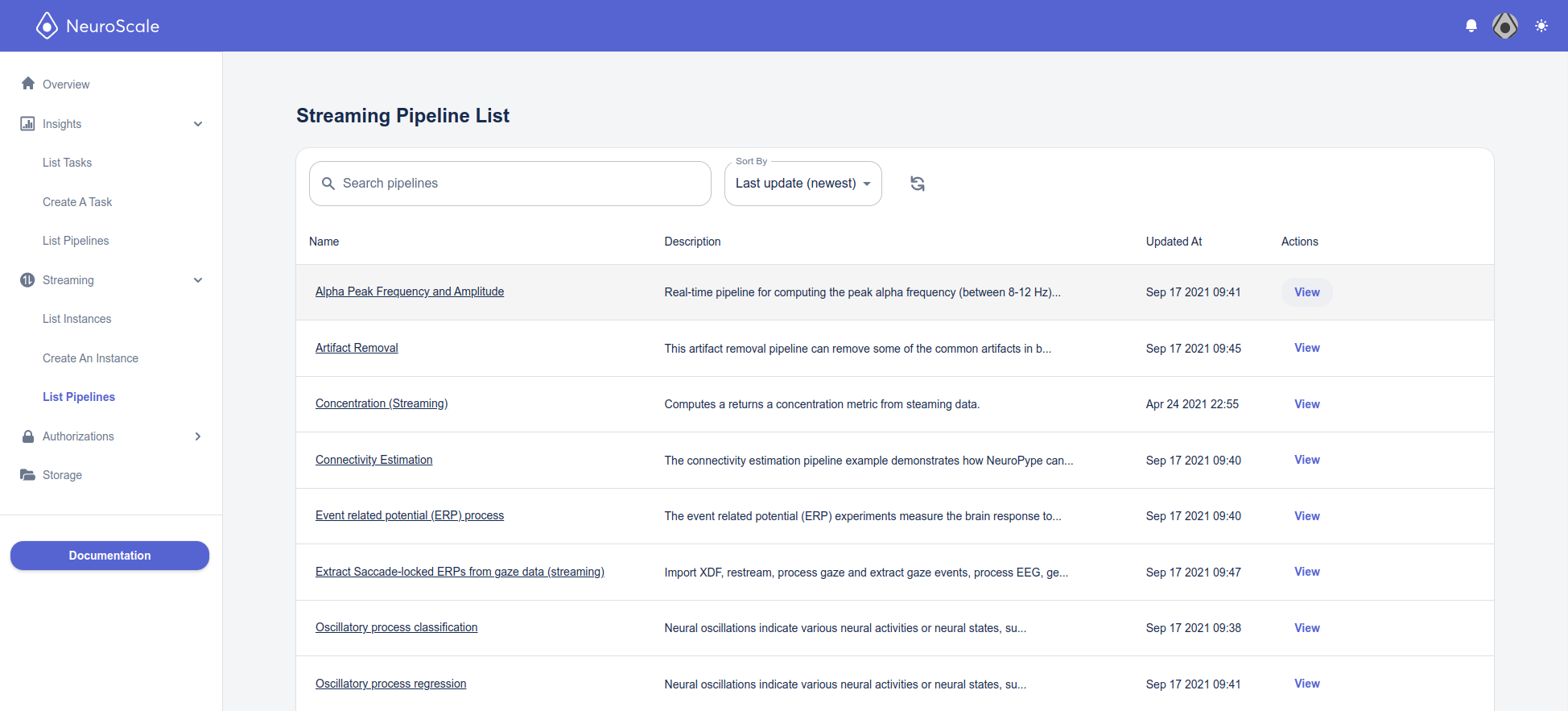
Additionally, if you have a license for the NeuroPype desktop suite, you can create and upload your own custom pipelines by following the Upload a Pipeline tutorial.
2. Pipeline Details
From the List of Available Pipelines you can launch a streaming instance or a batch task. This tutorial will focus on launching a streaming instance-- batch tasks are covered in the Run a Batch Task tutorial. Note that all streaming pipelines are will have their Type listed as Stream.
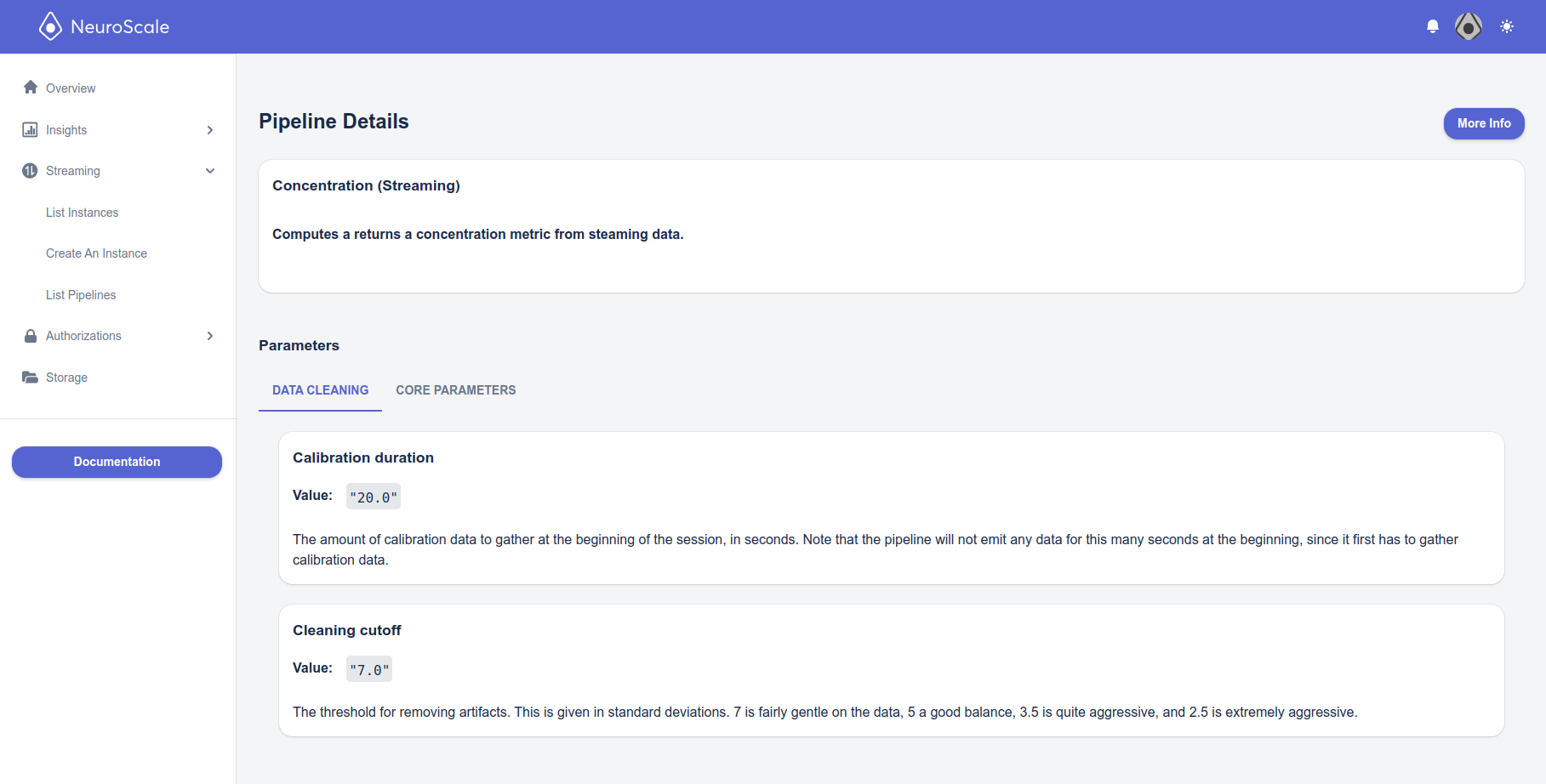
Lets take a closer look at some pipeline details before starting it. From the List of Available Pipelines, you can select Artifact Removal (Streaming) and click View.
This will open the View an Existing Pipeline page. Here you can see a detailed description of the pipeline, the pipeline's configurable parameters, and the pipeline ID.
3. Start a Streaming Instance
Now that we have some more insight into what this pipeline does, lets start it by launching a streaming instance. In NeuroScale, a streaming instance represents a running pipeline, so "launching" a "streaming instance" means running a pipeline to which you will stream data to a receive results from.
To launch a Streaming pipeline, select Create An Instance on the Run a Streaming Pipeline page
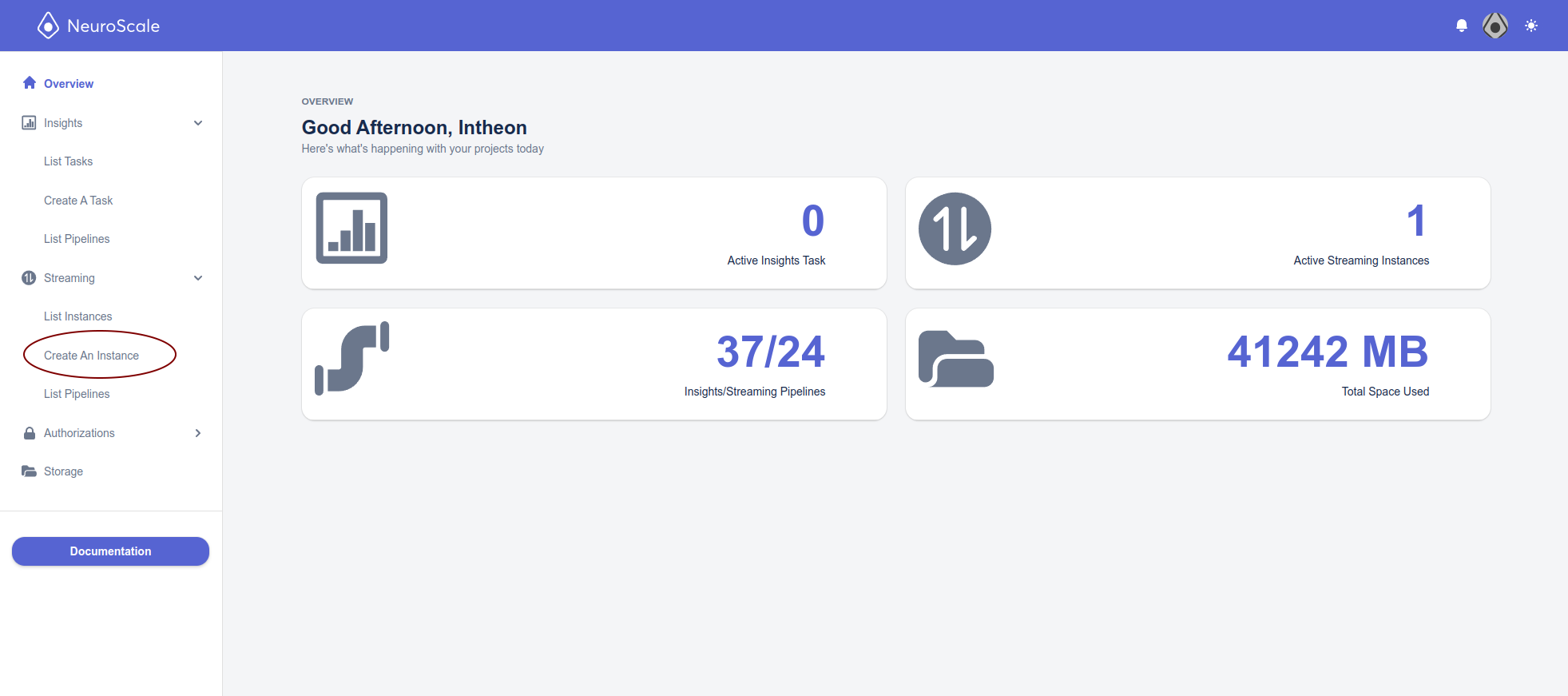
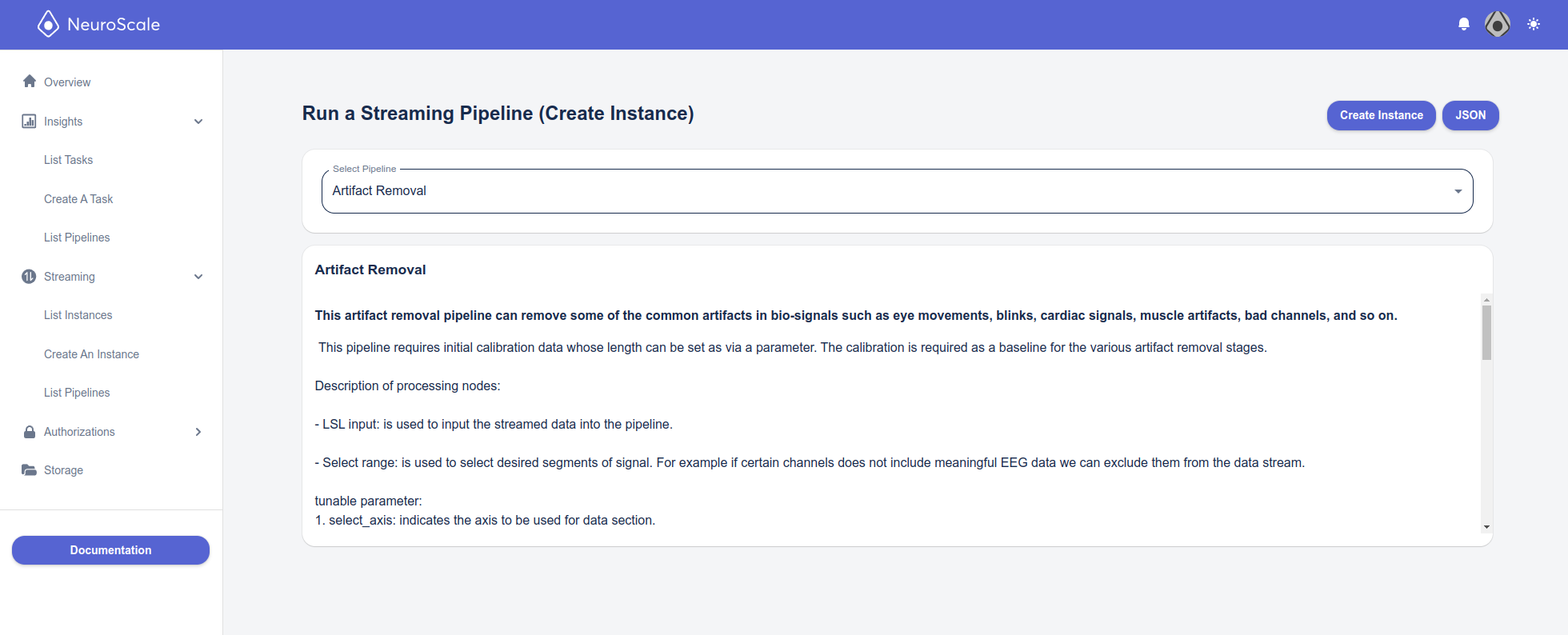
This will bring you the Run a Streaming Pipeline (Instance) page, where we can configure our pipeline.
4. Pipeline Configuration
Each pipeline will have its own set of parameters to configure; these parameters come pre-configured according to the pipeline selected, be sure to update these default parameters to suit your application.
5. Launch the Pipeline
After you have configured the pipeline parameters to your liking, you are ready to launch the pipeline by clicking Create Instance. The maximum time a streaming instance is permitted to run can be specified by the Automatic Termination parameter under the Advanced tab, otherwise the streaming instance will continuously run until it is manually shutdown.
6. Check the Streaming Instance Status
A pop up message will appear confirming the streaming instance was created successfully:
If the streaming instance is not created successfully a pop up message with an error will show. If the error message does not reveal the problem, please checkout the Troubleshooting your Pipeline Configuration section in the Troubleshooting page for common mistakes that cause this error.
Now you can see our streaming instance in List Running Instances under the Instances tab on the left panel. The State will change from Configuring to Running if successfully started. If you see an Error status your setup failed, please checkout the Troubleshooting your Pipeline Configuration section in the Troubleshooting page for common mistakes that cause this error.
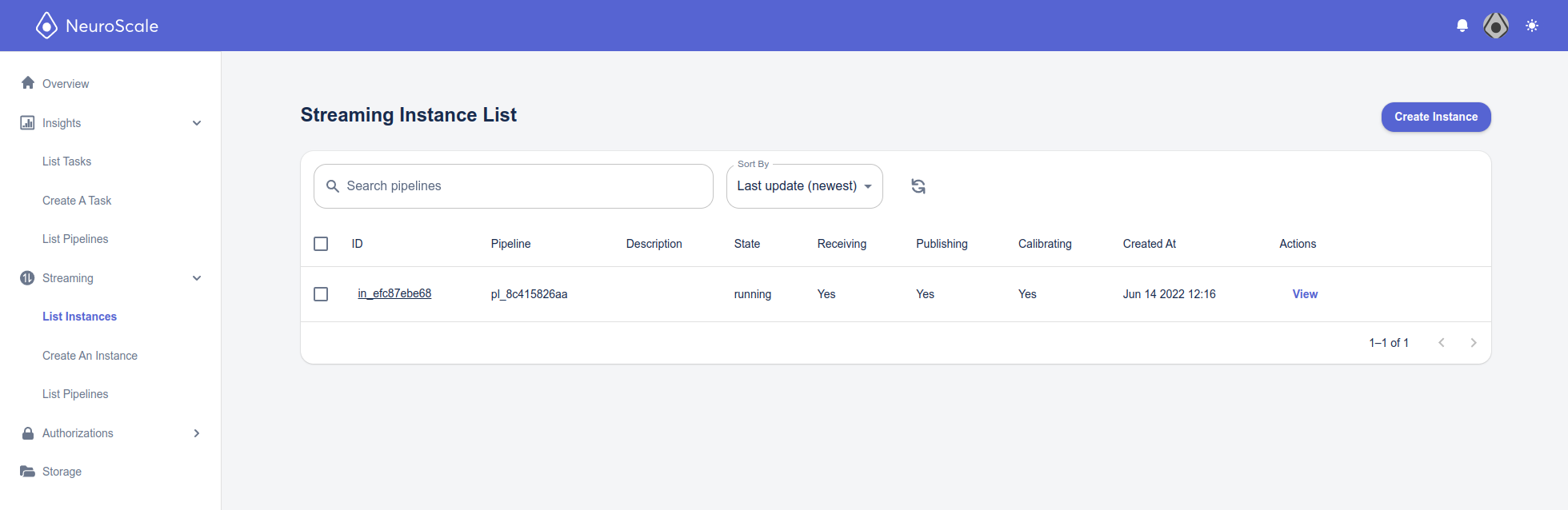
Now our pipeline is running and ready to process some data! Checkout Managing Streaming Instances for more information and Stream Data to NeuroScale (Client) to start streaming data through your pipeline.