Stream Results from NeuroScale (API) from LSL
This tutorial will cover how to stream results from a streaming pipeline out over the Lab Streaming Layer (LSL) network using NeuroScale API.
This tutorial assumes:
- Your Python environment is installed and setup.
- You have completed the Streaming Data to NeuroScale (API) tutorial or Stream Data to NeuroScale (API) from LSL and data is being streamed up to the instance.
- You have read through the Lab Streaming Layer page.
- You are reading alongside the source code of the Python example
client_lsl.py(link).
Please look over the Python documentation, go through the Stream Results from NeuroScale (API) tutorial, Lab Streaming Layer page, and client_lsl.py, if this is not the case.
Tutorial Outline
- LSL Overview
- Setup an LSL Outlet in Your NeuroScale Client
- Review: Obtaining the MQTT Input/Output Endpoints
- Review: Setting up Communication With the Instance
- Review: Handling Return Messages From Instance
- Managing Returned Results with LSL
LSL Overview
LSL acts as a central communication hub connecting applications and devices across the LSL network on one clock, including: biosignal hardware (EEG, eye tracking, etc), stimulus presentations, real-time viewers, recorders, online processors, and many more.
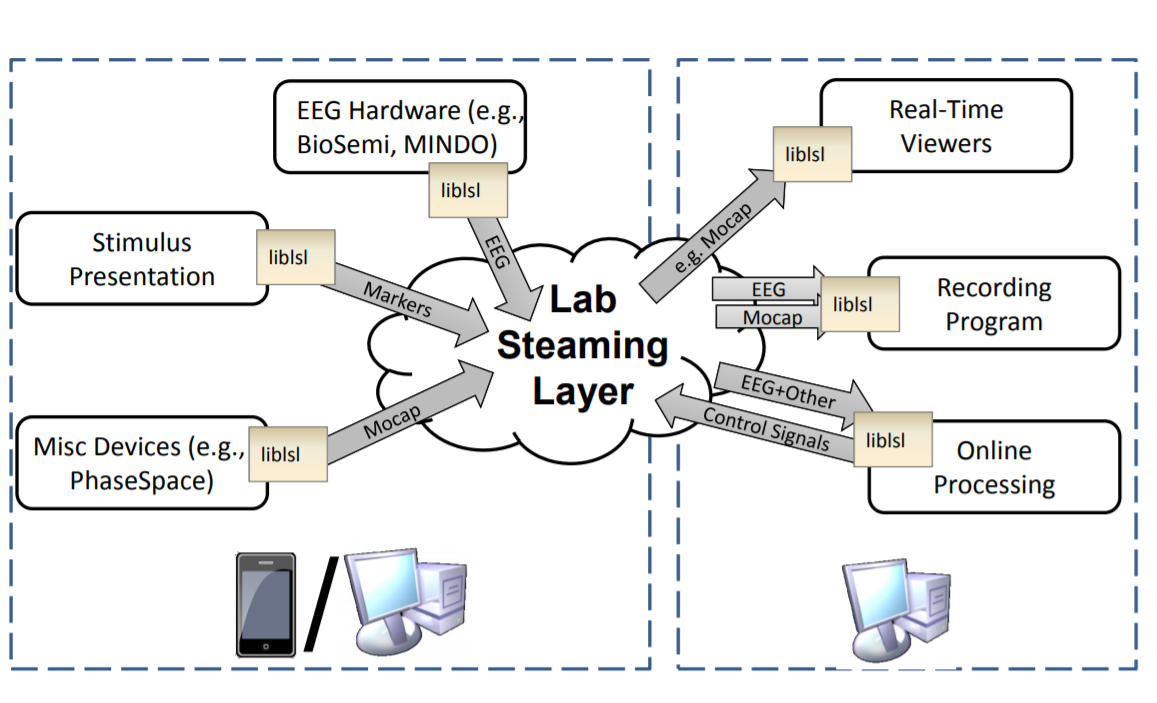
For example, raw data from an EEG headset can be streamed over the LSL network to a NeuroScale client that sends the raw data up to a NeuroScale streaming pipeline for processing in real-time. The results returned by the pipeline can then be streamed out over the network to a real-time viewer, stimulus presentation, or recording program.
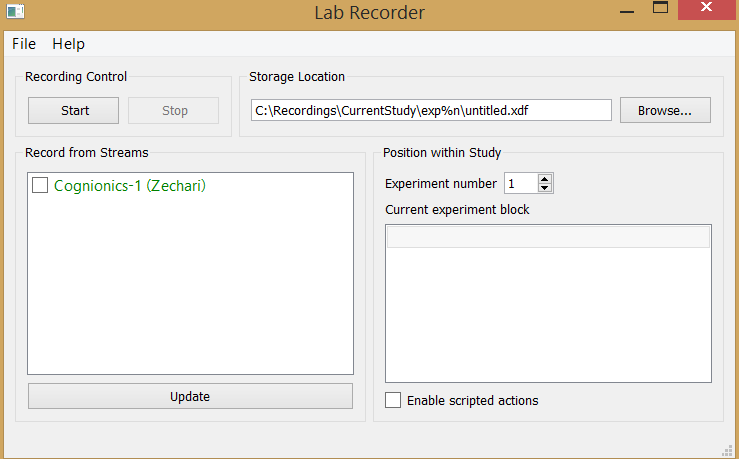
Lab Recorder
In order to view and record the Cognionics EEG stream and all other streams on the LSL network we can use the Lab Recorder app, which comes in the LSL distribution. It provides a nice snap shot of the LSL network:.
LSL Outlets
Applications that stream sensor data (EEG in this case) out over the LSL network in real-time do so by creating an LSL outlet and pushing data through that outlet onto the network as it becomes available. SendData.py is an example program that demonstrates how to send a multi-channel time series over the LSL network:
"""Example program to demonstrate how to send a multi-channel time series to
LSL."""

import time
from random import random as rand

from pylsl import StreamInfo, StreamOutlet

# first create a new stream info (here we set the name to BioSemi,
# the content-type to EEG, 8 channels, 100 Hz, and float-valued data) The
# last value would be the serial number of the device or some other more or
# less locally unique identifier for the stream as far as available (you
# could also omit it but interrupted connections wouldn't auto-recover)
info = StreamInfo('BioSemi', 'EEG', 8, 100, 'float32', 'myuid34234')

# next make an outlet
outlet = StreamOutlet(info)

print("now sending data...")
while True:
    # make a new random 8-channel sample; this is converted into a
    # pylsl.vectorf (the data type that is expected by push_sample)
    mysample = [rand(), rand(), rand(), rand(), rand(), rand(), rand(), rand()]
    # now send it and wait for a bit
    outlet.push_sample(mysample)
    time.sleep(0.01)
SendData.py formats the LSL stream information to match the acquisition hardware (an 8 channel BioSemi EEG headset in this example), which is then used to create an LSL outlet. Finally a random 8 channel sample is created and pushed out over the LSL network. The random sample generation mimics real-time data acquisition from the hardware, which may be done via serial port communication depending on the system.
LSL Inlets
Conversely, inlets pull data from the LSL network in real-time. This data can be printed, logged, processed or whatever suits your application. ReceiveData.py is an example program that shows how to read a multi-channel time series from LSL:
from pylsl import StreamInlet, resolve_stream

# first resolve an EEG stream on the lab network
print("looking for an EEG stream...")
streams = resolve_stream('type', 'EEG')

# create a new inlet to read from the stream
inlet = StreamInlet(streams[0])

while True:
    # get a new sample (you can also omit the timestamp part if you're not
    # interested in it)
    sample, timestamp = inlet.pull_sample()
    print(timestamp, sample)
ReceiveData.py looks for all currently available streams from any outlet on the LSL network, if this stream is found it creates an inlet with that stream's information, and pulls data through that inlet to your application in real-time as it becomes available. Streams can be searched for by any criteria specified in the stream information.
For example by stream type:
Or by stream name:
Stream Info
The StreamInfo object stores the declaration of a data stream.
Represents the following information:
- stream data format (#channels, channel format)
- core information (stream name, content type, sampling rate)
- optional meta-data about the stream content (channel labels, measurement units, etc.)
Whenever a program wants to provide a new stream on the lab network it will typically first create a StreamInfo to describe its properties and then construct a StreamOutlet with it to create the stream on the network. Recipients who discover the outlet can query the StreamInfo; it is also written to disk when recording the stream (playing a similar role as a file header).
Setup an LSL Outlet in Your NeuroScale Client
This tutorial assumes you have gone through Streaming Data to NeuroScale (API) or Stream Results from NeuroScale (API) from LSL, and have a running instance. This section will cover how to setup an LSL outlet in your NeuroScale client code, which will be used to stream pipeline results out over the LSL network. The concepts in client_lsl.py (link) should be used as a reference for this portion of the tutorial.
First you must choose a name for your outgoing stream name:
Next the stream information can be assembled based on the format your pipeline outputs and an LSL outlet can be created. For example, if your pipeline outputs a single value like relaxation at an irregular rate, your stream info may look like:
# open an LSL output stream
outinfo = pylsl.StreamInfo(name=output_stream,
                           type='Relaxation',
                           channel_count=1,
                           nominal_srate=0,
                           channel_format='float32',
                           source_id='mystream-id')
outlet = pylsl.StreamOutlet(outinfo)
Or if your pipeline simply applies a filter to all your EEG channels, your stream info may look like:
# open an LSL output stream
outinfo = pylsl.StreamInfo(name=output_stream,
                           type='EEG',
                           channel_count=len(channel_labels),
                           nominal_srate=sampling_rate,
                           channel_format='float32',
                           source_id='mystream-id')
outlet = pylsl.StreamOutlet(outinfo)
Now your outlet is setup and ready to push out the pipeline results as it becomes available.
Review: Obtaining the MQTT Input/Output Endpoints
At this point, you should have a running instance, but you do not yet know the concrete endpoints over which to send/receive data to communicate with the instance. These endpoints can be looked up from the response body that corresponded to the <API-URL>/v1/instances/<instance-id> resource (same for the POST, GET and PATCH request cases). The list of endpoint URLs is in the field "endpoints", under "data". Each endpoint has a "url" field, as well as a "mode" field (which is either "read" for pipeline instance outputs or "write" for pipeline instance inputs):
def get_endpoint(x, mode='read'):
  url = [e['url'] for e in x['endpoints']['data'] if e['mode'] == mode]
  return urlparse(url[0])

read_endpoint = get_endpoint(body, mode='read')
write_endpoint = get_endpoint(body, mode='write')
Review: Setting up Communication With the Instance
Now that we have the endpoints, we can establish communication with the instance. Data transmission is done via MQTT, so we first create an MQTT client (the userdata is just for our own use in our callback function implementations). Since we have two endpoints, we need to create two clients, one per endpoint:
Review: Handling Return Messages From Instance
In order to use the streaming results of the pipeline we need a handler that interprets the messages that we receive from the pipeline instance. This is conducted in the on_message function in the python clients:
We will use the following code excerpt to illustrate how to handle the results:
def on_message(client, userdata, msg):
            # this callback will be invoked whenever we get a message back
            # since pipelines may output on additional topics (e.g., producing
            # diagnostics or data from earlier processing stages), but we have
            # only one output LSL stream, we discard any non-default messages
            topic = msg.topic.split('/')[-1]
            if topic != 'default':
                print("received message on non-default topic (%s); ignoring."
                      % topic)
            # the payload must first be decoded using either JSON or msgpack
            # (depending on pipeline settings)
            payload = msg.payload
            data = json.loads(payload) if json_fallback else msgpack.loads(payload)
            # the message has a 'streams' field that is a list of one chunk per
            # stream for which data was received (note that a stream that
            # updates less frequently than others may not be included in every
            # message)
            streams = data[b'streams']
            if streams:
                print('received message on topic %s: ' % msg.topic)
            else:
                print('received empty message on topic %s: ' % msg.topic)
            for stream in streams:
                # the name of the stream: many pipelines will pass the input
                # names through unchanged
                name = stream[b'name']
                # this is a list of samples, each of which is a list of channels
                samples = stream[b'samples']
                # a list of time stamps, one per sample (same length as samples)
                stamps = stream[b'timestamps']
                # here we send our received data back to LSL
                if name == b'myeeg':
                    outlet.push_chunk(samples)
                print('  stream %s: %i samples' %
                      (name, len(stamps)))
Once the pipeline instance is producing output, the data will be received by the MQTT reader client, and will arrive at the on_message() handler function. For pipelines with multiple outputs this function should first check that the topic matches the one of interest (unless that is already taken care of by subscribing to only the desired output node's topic):
Next, the payload of the message needs to be parsed. The message format is the same as for sending data, and is encoded using JSON or MessagePack, according to what was declared when the pipeline was first instantiated:
Once decoded the list of chunks (one per output stream) can be obtained from the "streams" field of the decoded object. Just like a single node can take in multiple streams simultaneously, an output node can also produce multiple output streams. In the case of the Echo pipeline, the output streams are the same as the input streams, and, in fact, the messages should have the same content. In the following Python code, the 'b' prefix is only necessary because the message decoders happen to produce byte strings rather than Unicode strings:
Now each stream and its details can be extracted, including the stream name, an array of multi-channel samples (each an array of values), and an array of timestamps (one per sample):
for stream in streams:
                # the name of the stream: many pipelines will pass the input
                # names through unchanged
                name = stream[b'name']
                # this is a list of samples, each of which is a list of channels
                samples = stream[b'samples']
                # a list of time stamps, one per sample (same length as samples)
                stamps = stream[b'timestamps']
Managing Returned Results with LSL
Now that our handler is interpreting the messages received from the running pipeline, we can manage what happens to the results. A powerful option is to stream the processed data out to your applications over the Lab Streaming Layer network. This can be done by pushing data onto the network as it becomes available through your LSL outlet:
for stream in streams:
                # the name of the stream: many pipelines will pass the input
                # names through unchanged
                name = stream[b'name']
                # this is a list of samples, each of which is a list of channels
                samples = stream[b'samples']
                # a list of time stamps, one per sample (same length as samples)
                stamps = stream[b'timestamps']
                # here we send our received data back to LSL
                if name == b'myeeg':
                    outlet.push_chunk(samples)
                print('  stream %s: %i samples' %
                      (name, len(stamps)))
Your pipeline results are now streaming out over the Lab Streaming network for your applications to acquire! For more information on how to acquire this stream checkout the ReceiveData.py example, which demonstrates how to read a multi-channel time series from the LSL network.