Your NeuroScale Storage
NeuroScale Account Storage
NeuroScale provides a private and secure user storage account to each NeuroScale user, accessible to that user only. NeuroScale uses Amazon S3 as the backend storage service for this, which provides a high level of user-level security. You can interface with your NeuroScale Storage account directly with the NeuroScale Dashboard browser interface, or using any third-party file management tool that supports Amazon S3. This guide will show you how to use the NeuroScale Dashboard and two third-party management tools.
Using the NeuroScale Dashboard
Upload and download files with a click of a button, no setup or third party software required.
Upload files
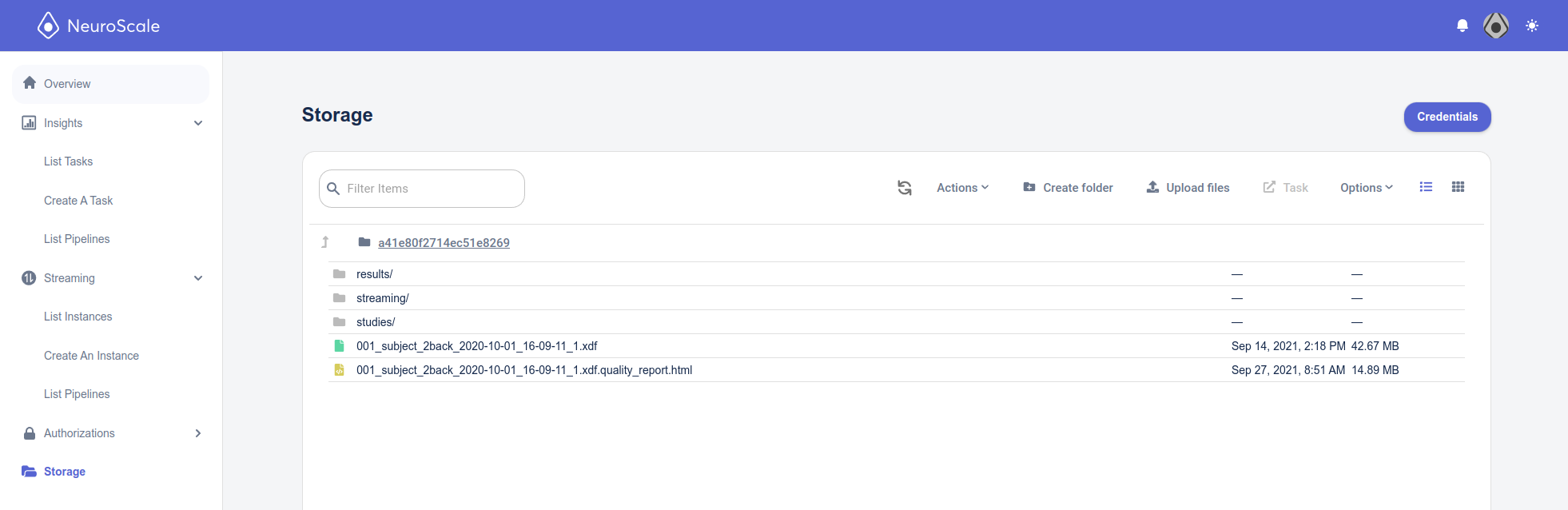
To upload files, click the Upload Files button, and drag and drop the files to upload onto the panel.
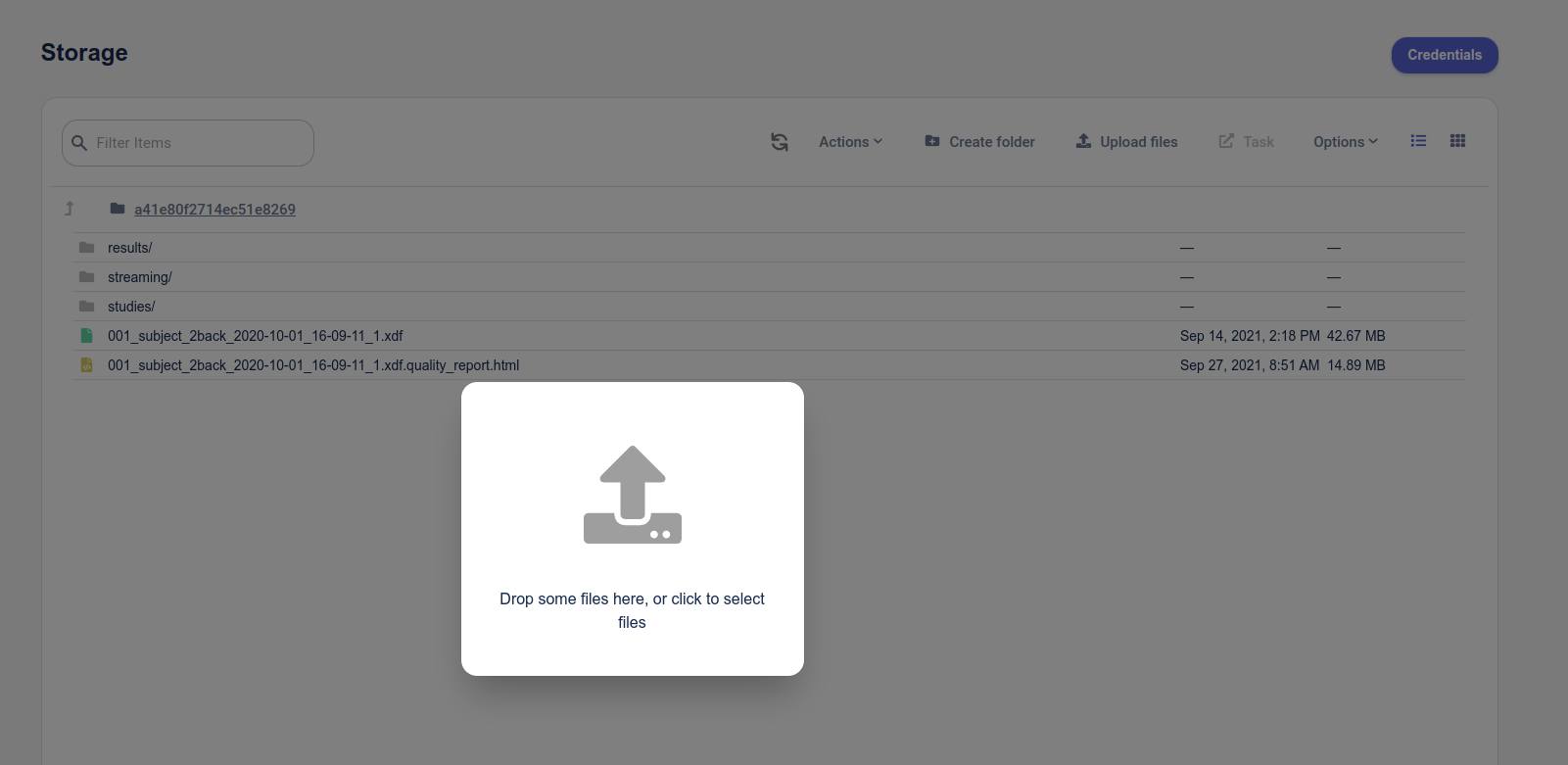
Then click the Upload button to upload.
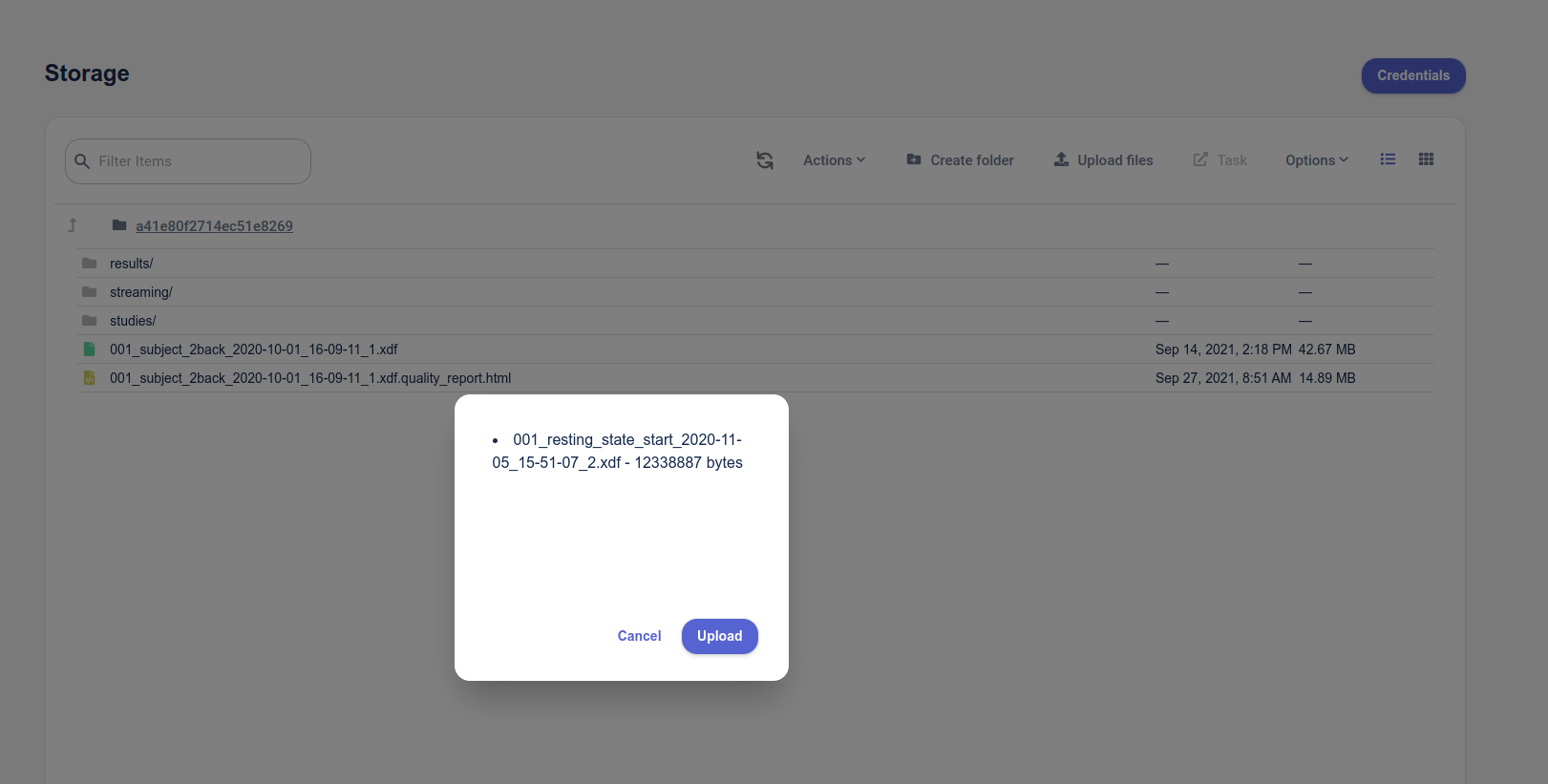
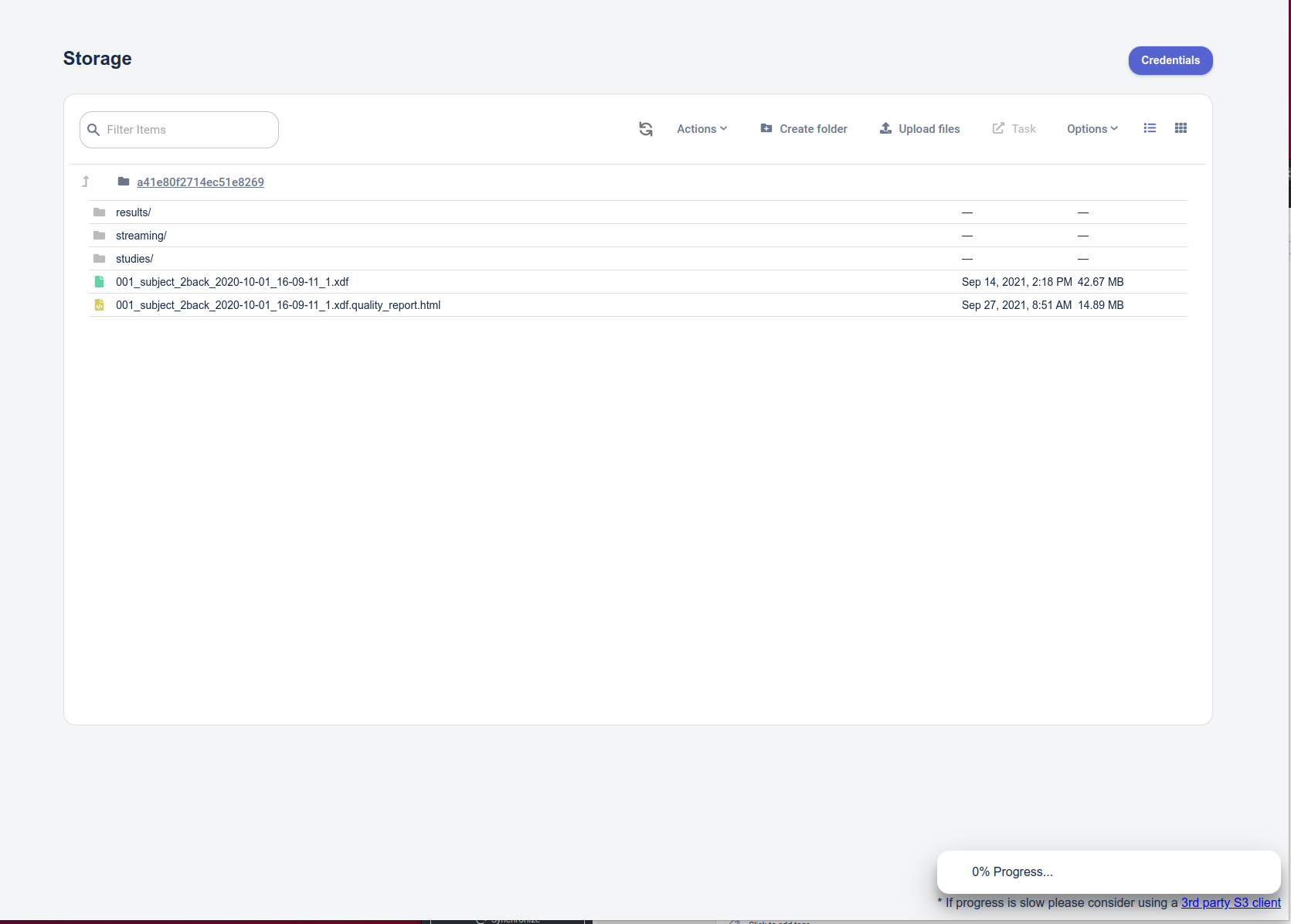
You will see a progress bar at the bottom right-hand corner of the screen. Very large files may take some time to upload depending on your connection and browser status.
Downloading files
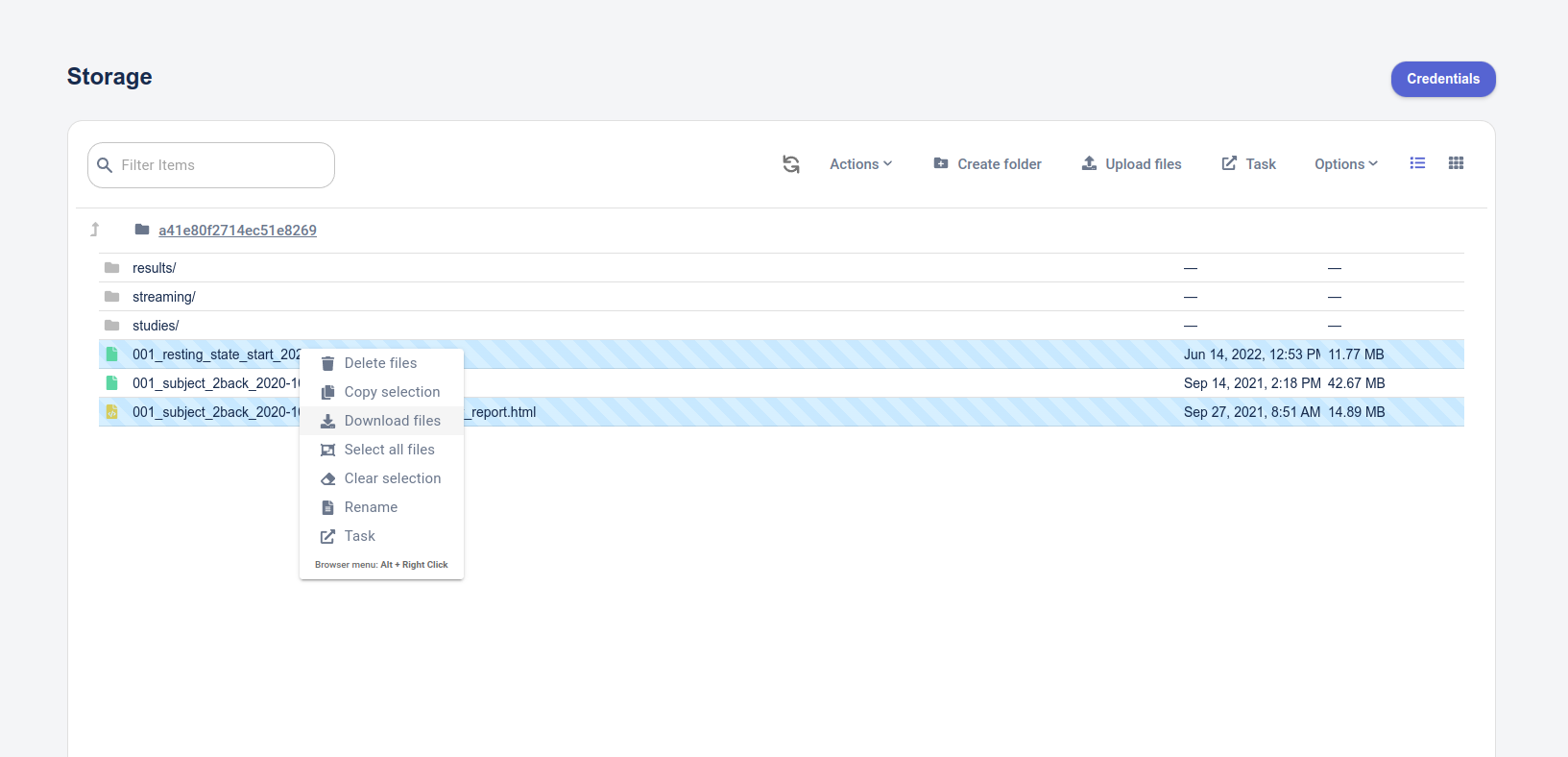
Select one or more files (select additional files using Control-click or Shift-click), and select Download to download the selected file(s) from storage to your local computer.
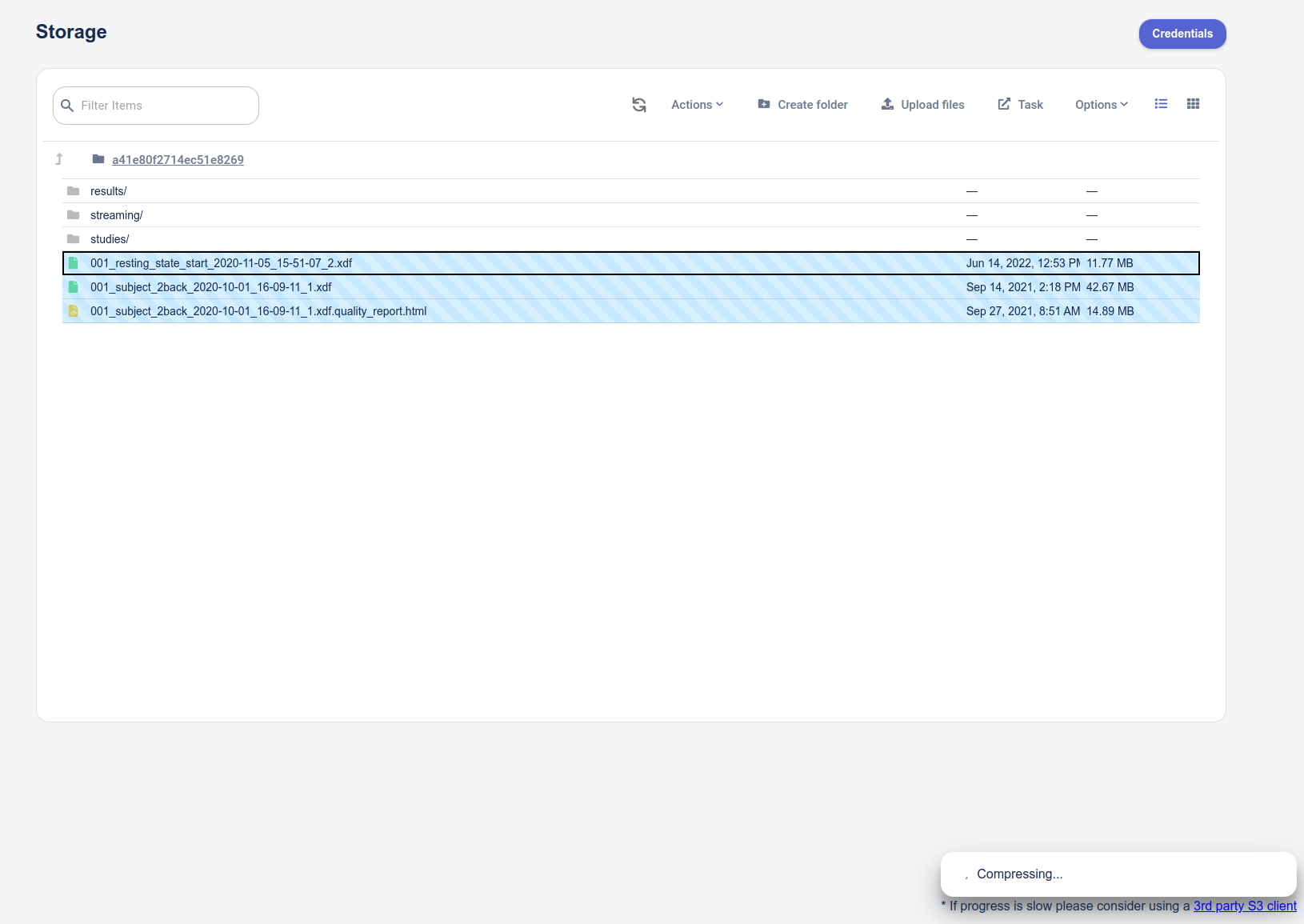
If downloading multiple files, a Compressing notice will appear at the bottom of the window. The selected files are zipped together and downloaded in one go (similar to how Google Drive works).
The downloaded files will appear wherever your browser is set to download files.
If copying many files to/from your NeuroScale Storage or very large files, you may want to use a non-browser based third party application (see next below).
Method 2: Third Party Application
Install a desktop application for managing files in an AWS (Amazon Web Services) S3 bucket. Such applications can sometimes be easier to use than a browser-based option for working with large numbers of files and/or very large files. There are many such applications available commercially or for free, for various operating systems, including WinSCP, MountainDuck, ExpandDrive, S3 Browser, etc.
Example 1: ExpandDrive
For this example, we'll use ExpandDrive on Windows to upload data files and download reports and result files.
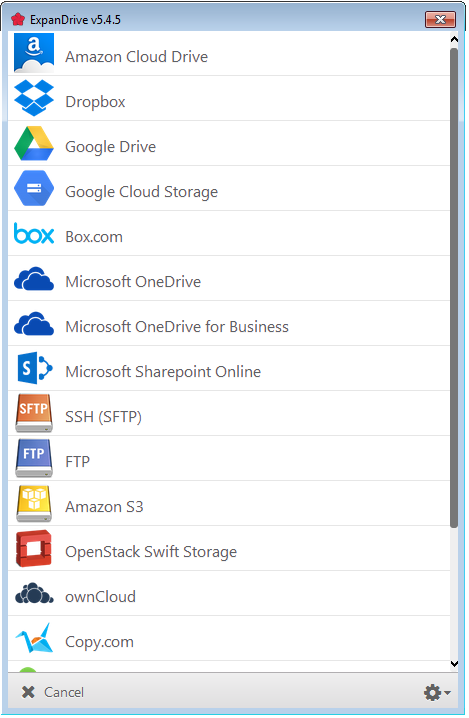
ExpandDrive allows connecting to a number of cloud services, including Amazon S3. After selecting the Amazon S3 option, navigate to the NeuroScale Storage menu and click the Credentials button to see your credentials. Enter the credentials displayed to the corresponding fields in the ExpandDrive. Note that Container name corresponds to Remote path, Credentials to AWS Secret Key ID and Account Name to AWS Key ID. (Other S3 clients may use other names for these fields).
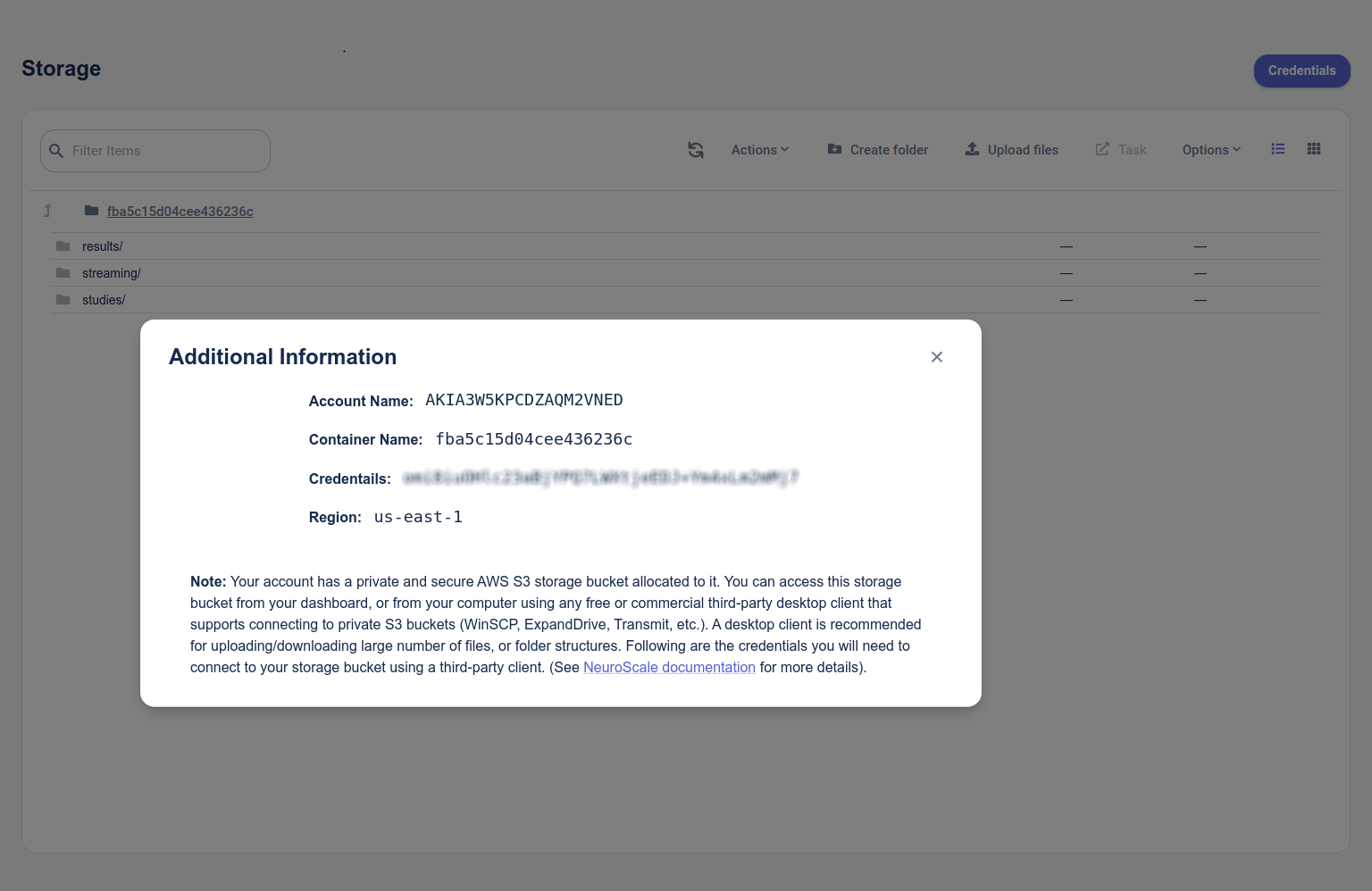
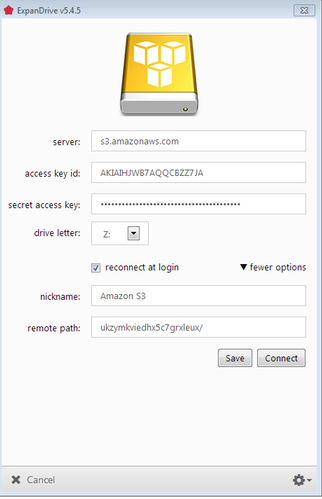
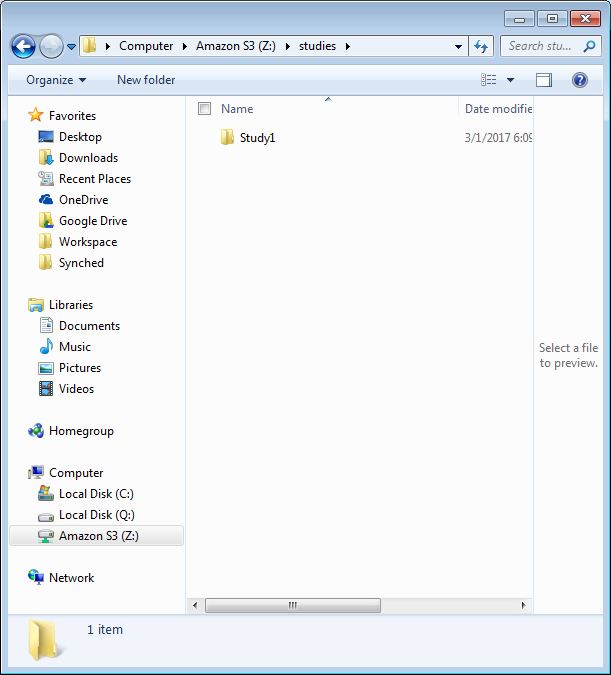
Press Connect in the ExpandDrive window. After connecting to your account, ExpandDrive will mount your Amazon S3 bucket as a folder in your local machine (see Figure 6). The mapped directory will behave as a regular directory, enabling you to copy, paste, drag & drop files and/or folders to it. For example, we can now copy a folder containing a study to the mapped Amazon S3 directory.
Example 2: CloudBerry Explorer
For this example, we'll use the free version of CloudBerry Explorer.
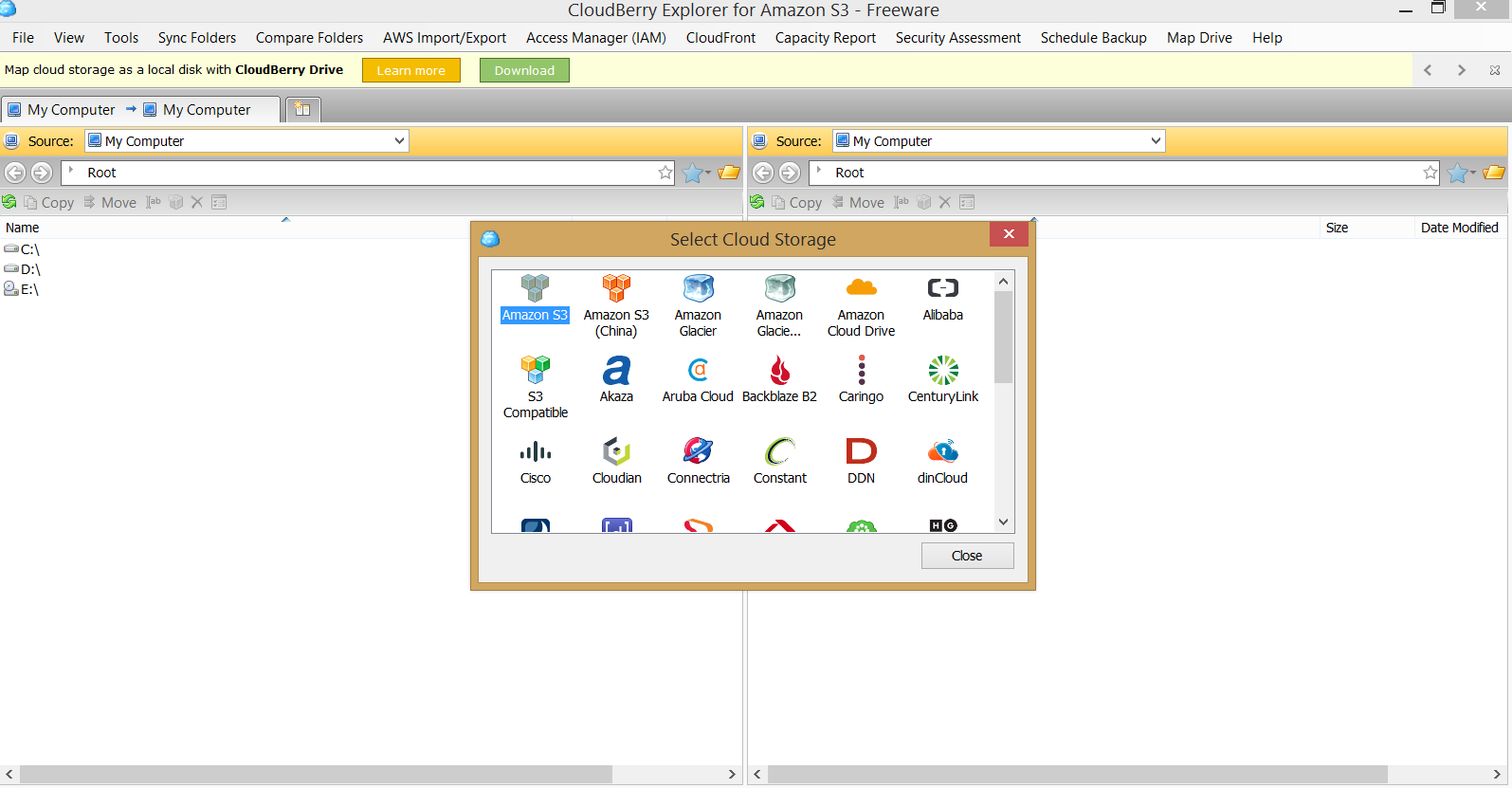
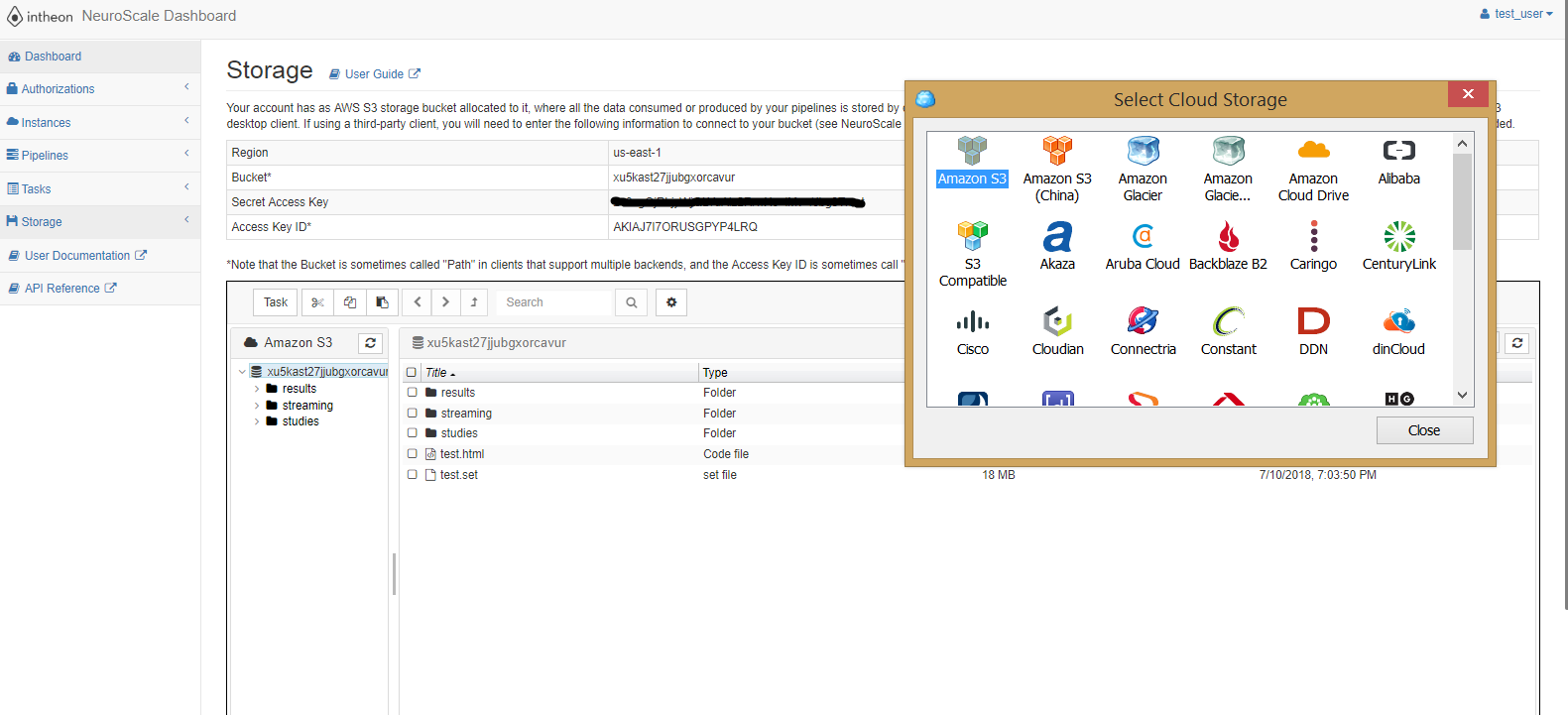
Once CloudBerry Explorer is installed and opened we will need to select the Amazon S3 type of cloud storage:
Its handy to have the Storage Dashboard page open to copy over the Amazon S3 account details:
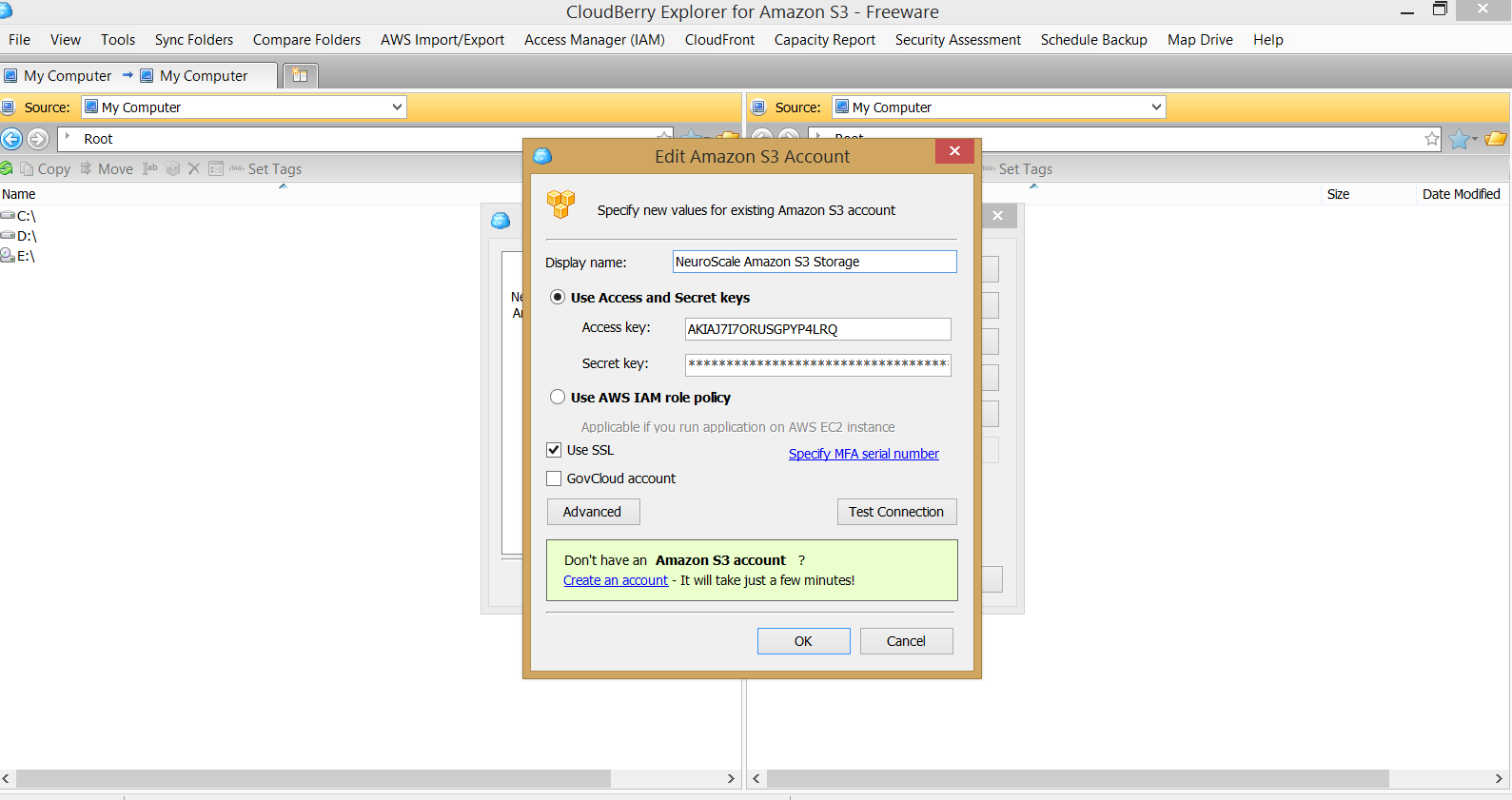
Next we name our Storage and add the Access Key ID and Secret Access Key from the Storage Dashboard page:
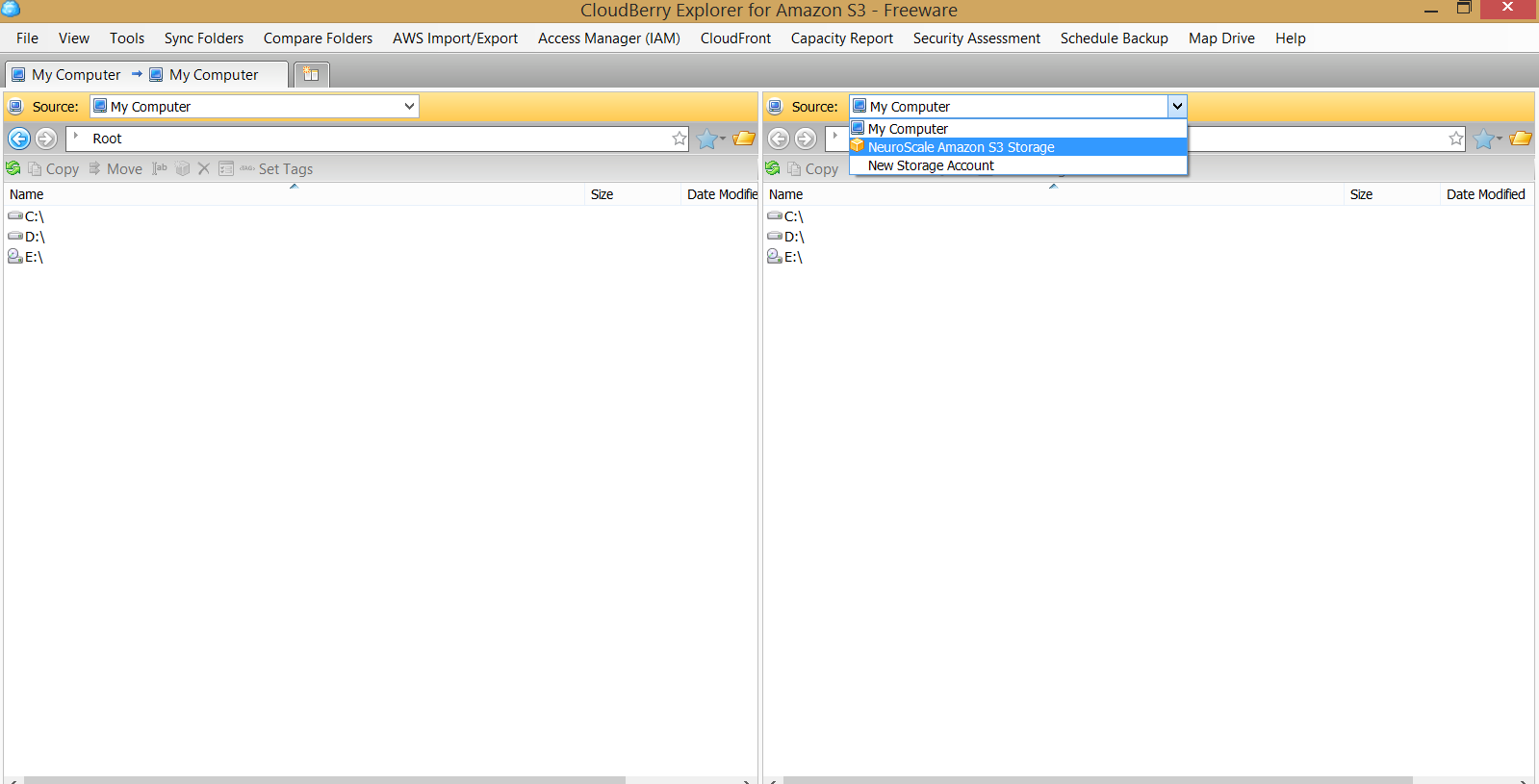
Now that we can select our newly added Amazon S3 account:
Now in our Amazon S3 storage we have to navigate to our bucket, which can be done by entering the Bucket I.D. found on the Dashboard Storage page:
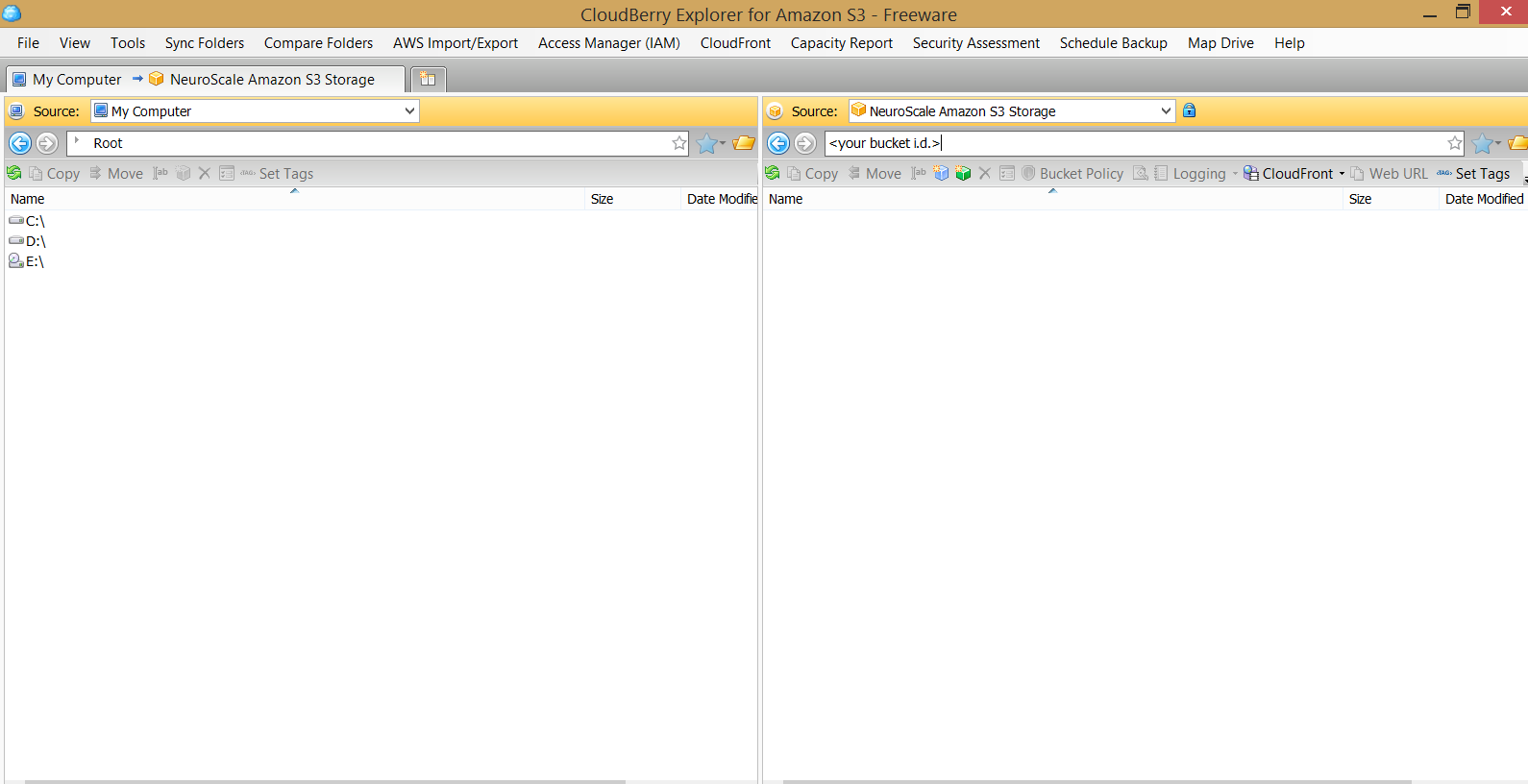
Now we can see all of our folders and files in our Bucket:
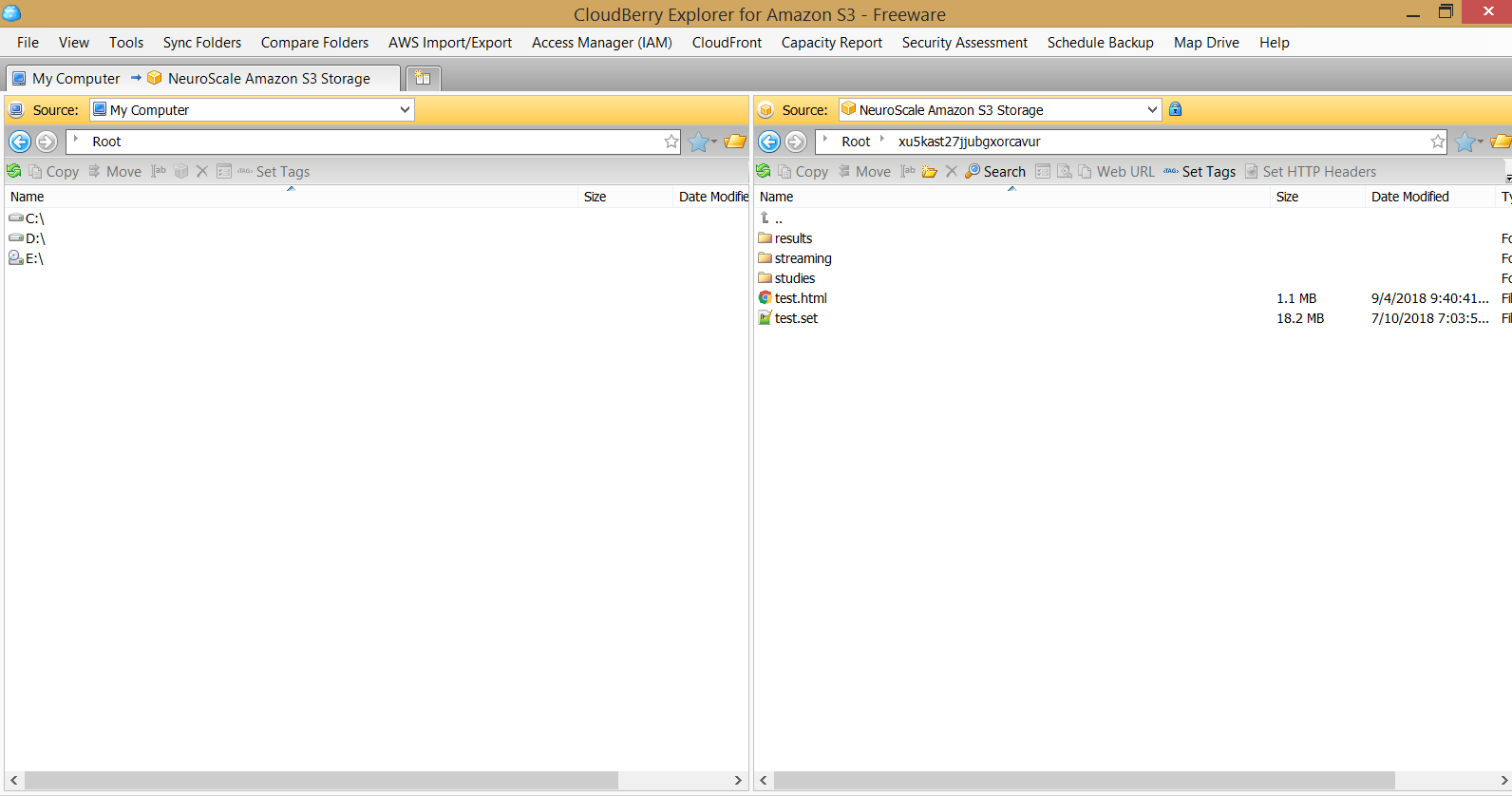
In order to upload and download files and folders, we must navigate to the Add Sync Folder tab:
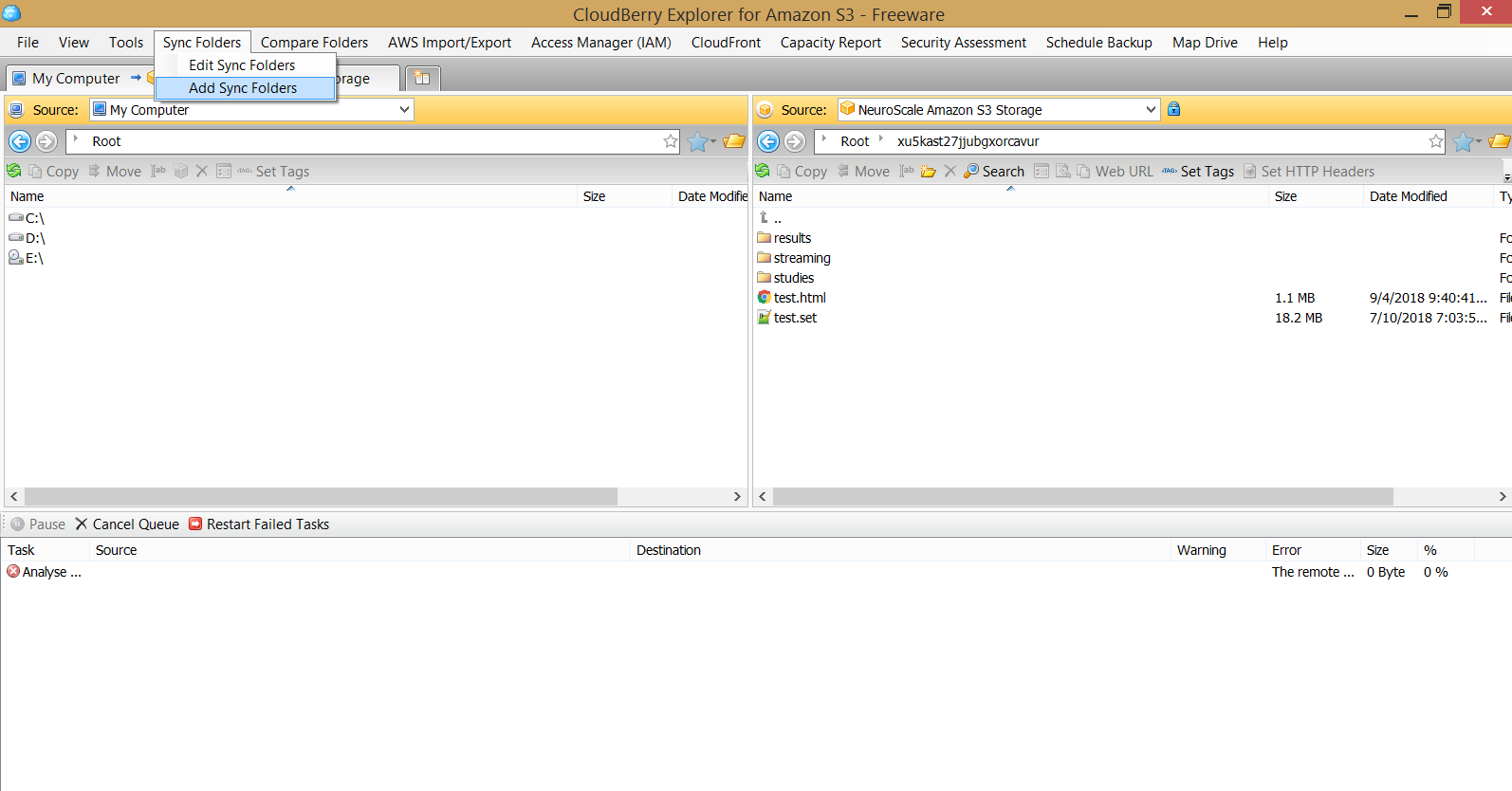
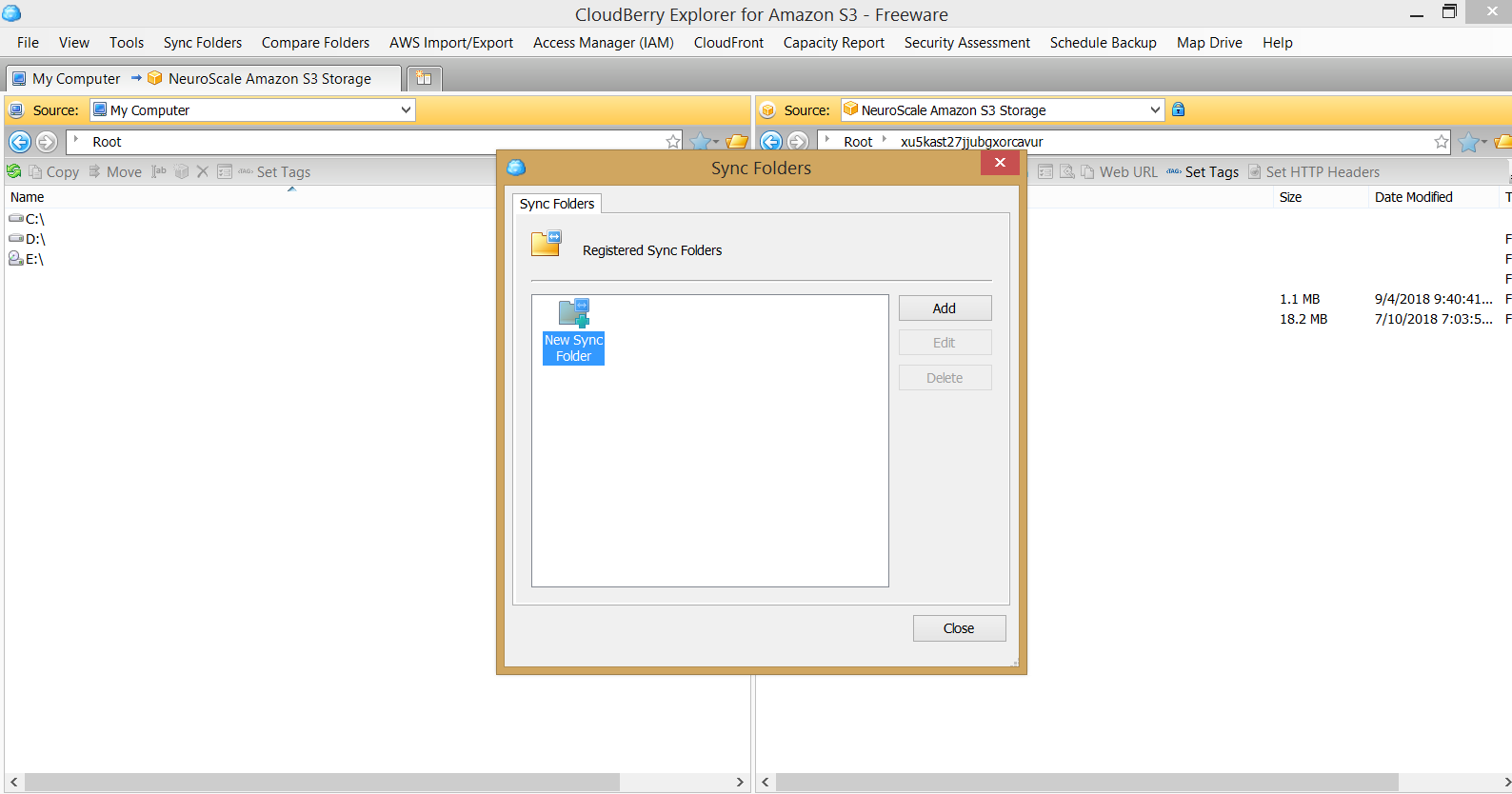
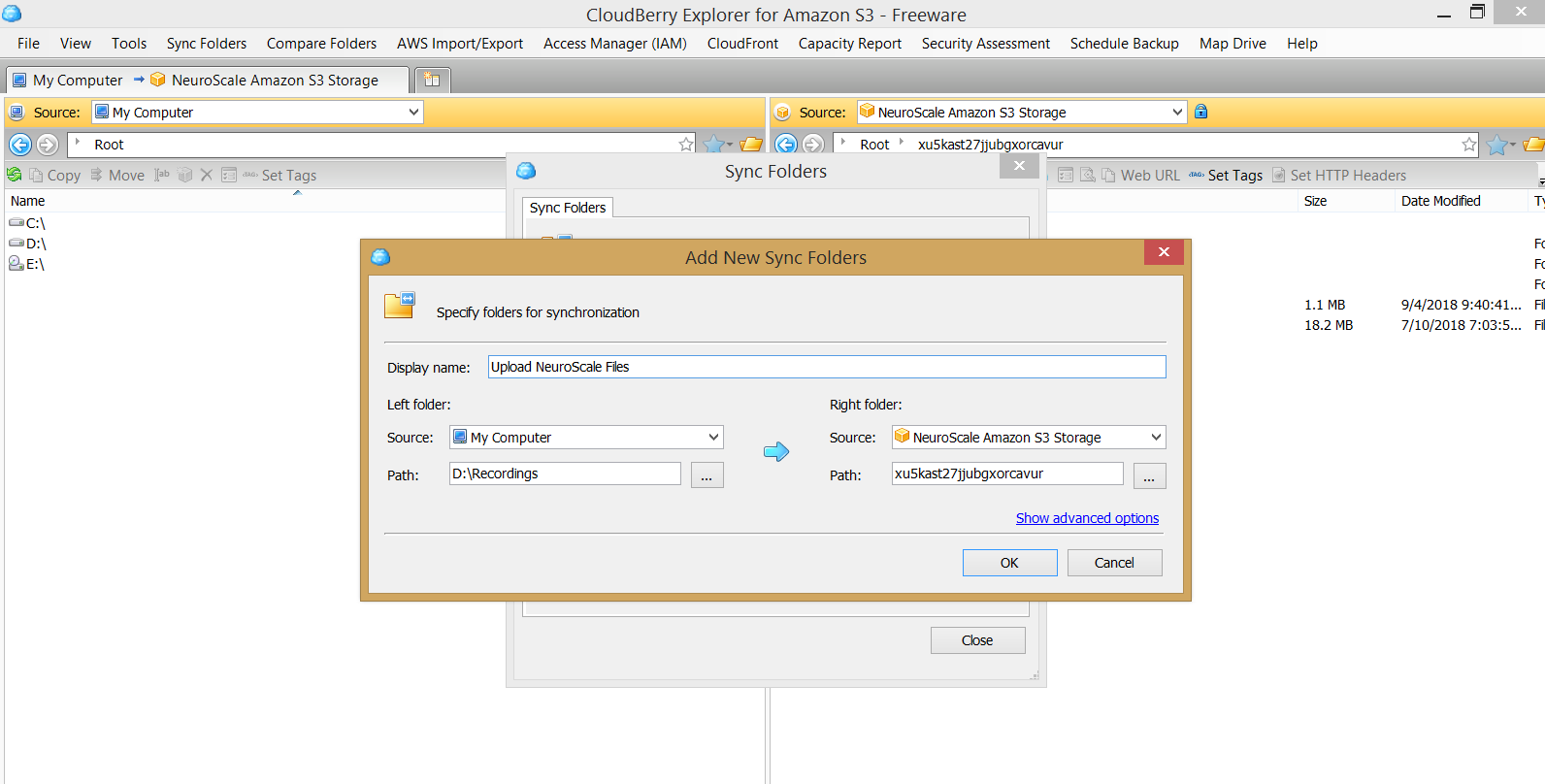
CloudBerry favors downloading and uploading contents of folders. To backup Storage contents, adjust the arrow accordingly, add the Bucket I.D. to the Amazon S3 path and select the download directory:
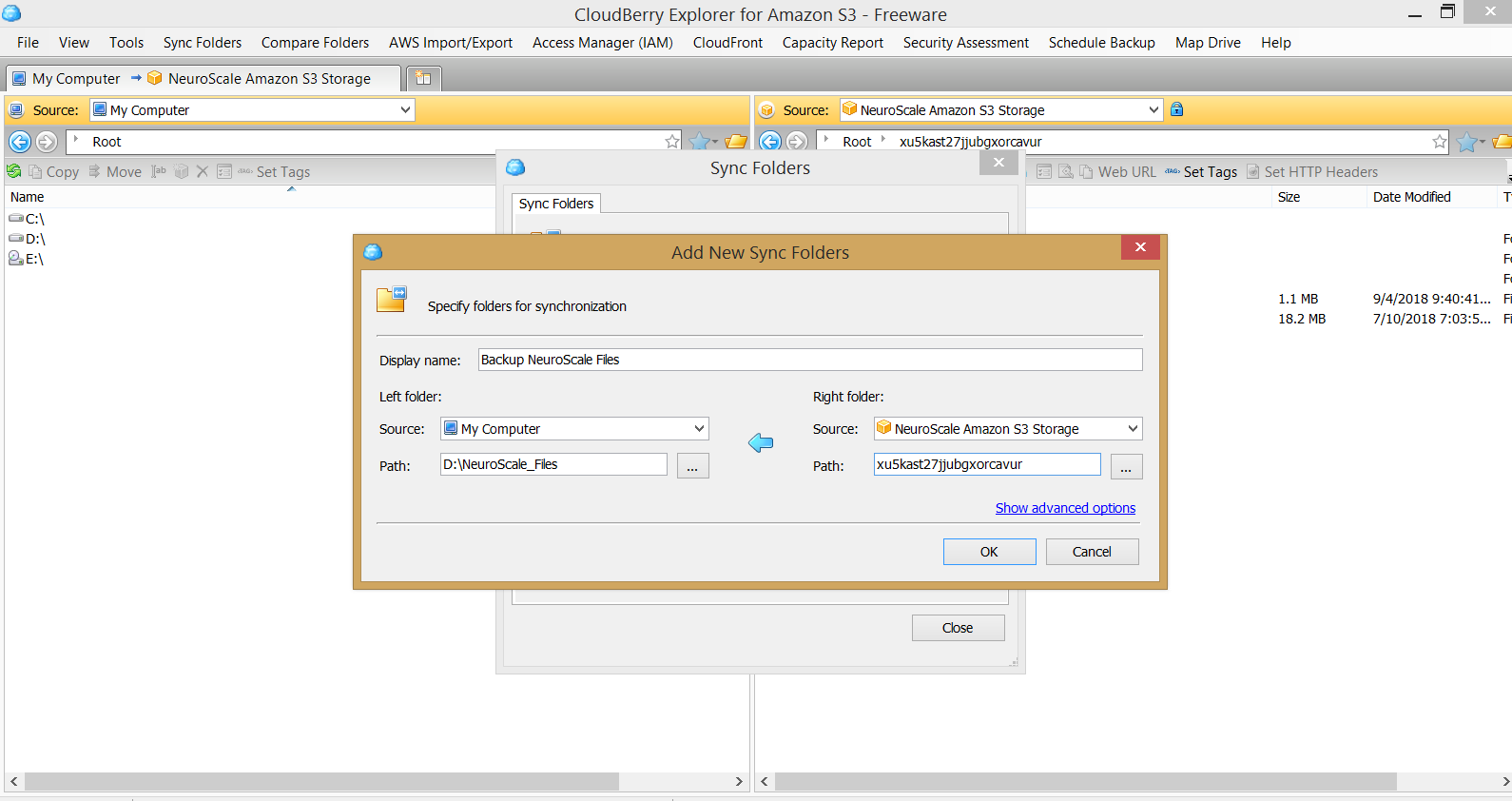
To upload files, adjust the arrow accordingly, add the Bucket I.D. to the Amazon S3 path and select the upload directory: