Javascript
This document uses an example to show how to interact with the NeuroScale Platform API using the JavaScript client from our public GitHub repository (you can follow the example code side-by-side with this documentation).
This JavaScript library simplifies access to NeuroScale API. To learn more how to send and receive data to NeuroScale without the use of this library (using native JavaScript functions), read this tutorial.
Before we start
JavaScript code can run in browsers and also in NodeJS. This document primarily addresses reading the results of a NeuroScale pipeline from within a browser. We do not cover sending data to NeuroScale in this tutorial since the code executed inside a browser often cannot access biosensors. JavaScript code provided here can be executed in NodeJS with slight modifications (see JavaScript environment section in this tutorial).
Since the code is executed in the browser, having a method to see error messages and investigate the variables would be handy. Chrome DevTools is a nice tool in Chrome browser that enables this. It can be invoked by pressing CTRL+Shift+I in Google Chrome browser.
Tip
Invoke Chrome Tools by pressing CTRL+Shift+I in Google Chrome browser.
Setting up credentials
The first thing you need when connecting to NeuroScale is the URL at which the API lives. Besides the default endpoint https://api.neuroscale.io, you may have received one or more endpoints for testing or customer-specific features, which you can use here. https://api.neuroscale.io corresponds to the "production" platform. There are also staging and testing platforms to which you may be granted access if your are using cutting-edge pipelines.
The other piece of information you need is your personal access token. Access tokens are credentials specific to a customer and should be treated with the same secrecy as passwords for security reasons. They should not generally be committed to repositories, and should also not be entered verbatim as command-line arguments to prevent them from leaking into your shell history file. On the other hand, when you intend to make public a webpage that reads data from NeuroSccale, the access token needed to read the data often becomes public too, e.g. it is embedded as plain text in your HTML or javascript source file. To prevent security issues in this case, you should create a read-only access token with a scope limited to listing and reading instances on NeuroScale Dashboard (Authorizations section):
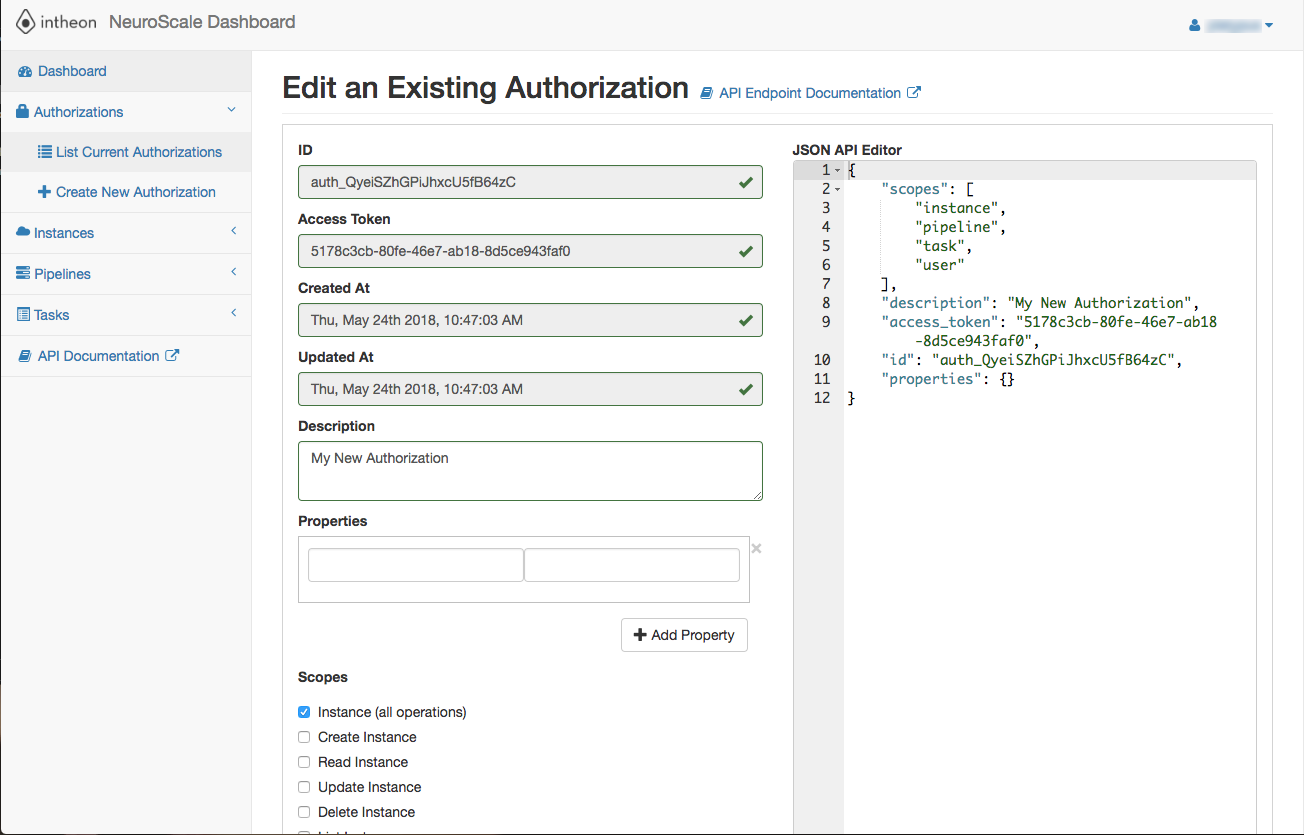
Open basic-example.html file from the top folder in the javascript-example-clients repository in your favorite browser and enter your access token (NeuroScale.ACCESS_KEY) and API endpoint URL (NeuroScale.API_HOST) in the code. If you are using the production platform, the NeuroScale.API_HOST should be set to https://api.neuroscale.io.
// Set up needed variables. PUT ACCESS KEY AND API ENDPOINT HERE
  NeuroScale.ACCESS_KEY = '[your access token]';
  NeuroScale.API_HOST = 'https://api.neuroscale.io';
Starting a pipeline
Since this tutorial is about reading data, you should first start a pipeline on NeuroScale and send to it some data so you can read its output in the browser. You can use GUI clients, introduced in Getting Started with GUI-Clients tutorial, for this task. You need another full-access token to launch pipelines using GUI clients (which can be created in NeuroScale Dashboard).
For this tutorial, we will use the "Relaxation (Muse)" pipeline with https://github.com/Neuroscale-Users/datasets/blob/master/MuseFocusRelax_30s_trans.set file. Start playing the file in PlayEEGLSL and start the "Relaxation (Muse)" pipeline using NSSender.py. Wait until the pipeline is in the running state. You can use NSReceiver.py to see data received from the pipeline. Now we can work on receiving this data in the browser.
Receiving packets in the browser
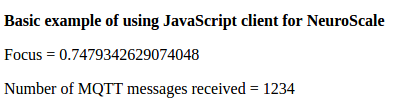
It is now time to open the page in the browser and see the incoming data:
Under the hood
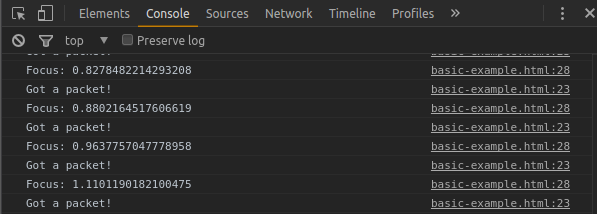
To look under the hood we suggest that you use Chrome browser with chrome-tools. After opening the page you should be able to see incoming relaxation values in chrome-tools console:
Lets go over the code. First, a number of JavaScript libraries are added to the page:
<head>
  <meta charset="UTF-8">
  <title>Basic example of using JavaScript client for NeuroScale</title>
  <script src="core-client/jquery-1.12.2.js"></script>
  <script src="core-client/mqttws31.js"></script>
  <script src="core-client/msgpack.js"></script>
  <script src="core-client/neuroscale-js-client.js"></script>
</head>
jquery is used to make HTTP calls to NeuroScale endpoints. mqttws31.js is an MQTT client that connects over Websockets to NeuroScale. msgpack.js implements MessagePack protocol which is a more efficient (than JSON) way to send numerical data over the Internet. neuroscale-js-client.js is loaded last as it uses these libraries.
Then we have a small HTML section for displaying the incoming data:
<body>
  <p><b>Basic example of using JavaScript client for NeuroScale</b></p>
  <div id="relaxationValue">Relaxation: </div>
The code first obtains a list of running instances in your account and calls the createConnection function:
The createConnection function selects the most recent running instance (last started instance) and creates an MQTT connection to it:
// get instance and create connection
  var createConnection = function () {
    console.log(NeuroScale.API.getInstances())
    var instance =  NeuroScale.API.getLatestInstance();

    // create mqttConnection
    var host = NeuroScale.API.getMQTTHost(instance);
    var port = 8000;
    var topic = "/" + NeuroScale.API.getMQTTTopic(instance) + '/out/default';
    var encoding = instance.encoding;
    return new NeuroScale.MQTT.Connection(host, port, "js_client_id_" + get_uuid(), topic, encoding, messageArrivedCallback);
  };
Please note:
- the code subscribes to '/out/default' topic which is the default outlet for the pipeline (here containing Relaxation measures calculated from Muse EEG headset data).
- A random id is used for each instance:
"js_client_id_" + get_uuid(). This is important for preventing communication issues. - After receiving each message,
messageArrivedCallbackfunction is called:
var messageArrivedCallback = function(topic, jsonObject){
    // this callback is called when a new packet arrives.
    console.log('Got a packet!');
    numberOfMessages = numberOfMessages + 1;

    if (jsonObject.streams.length > 0) { // if the received sample contains any values.
      // read the first array value of the last sample of the first stream.
      relaxation = jsonObject.streams[0].samples[jsonObject.streams[0].samples.length - 1][0];

      console.log('Relaxation: ' + relaxation);
      document.getElementById('relaxationValue').innerHTML = '<p>Relaxation = ' + relaxation + '</p>' + '<p>Number of MQTT messages received = ' + numberOfMessages + '</p>';
    }
  };
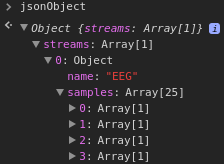
This function receives the message as a JavaScript object. Each (non-empty) message contains one or more streams (EEG, Motion capture, computed measures..) and each stream can contain several samples (each corresponding to a different time). Each samples can also have a vector of values, e.g. relaxation and focus:
The code:
places the last sample of the first stream in the relaxation variable. The rest of the code updates the content in <div id="relaxationValue">Relaxation: </div> with the received value.
Clean Up!
Make sure to Terminate the running instance using the GUI client NSSender after finishing this section of the tutorial. Otherwise it will continue to consume your allocated compute hours.
Emotion visualization example
We have included a more complex example emotion_example in the javascript-example-clients repository. This example plots, in real-time, Arousal and Valence values received from a NeuroScale pipeline:
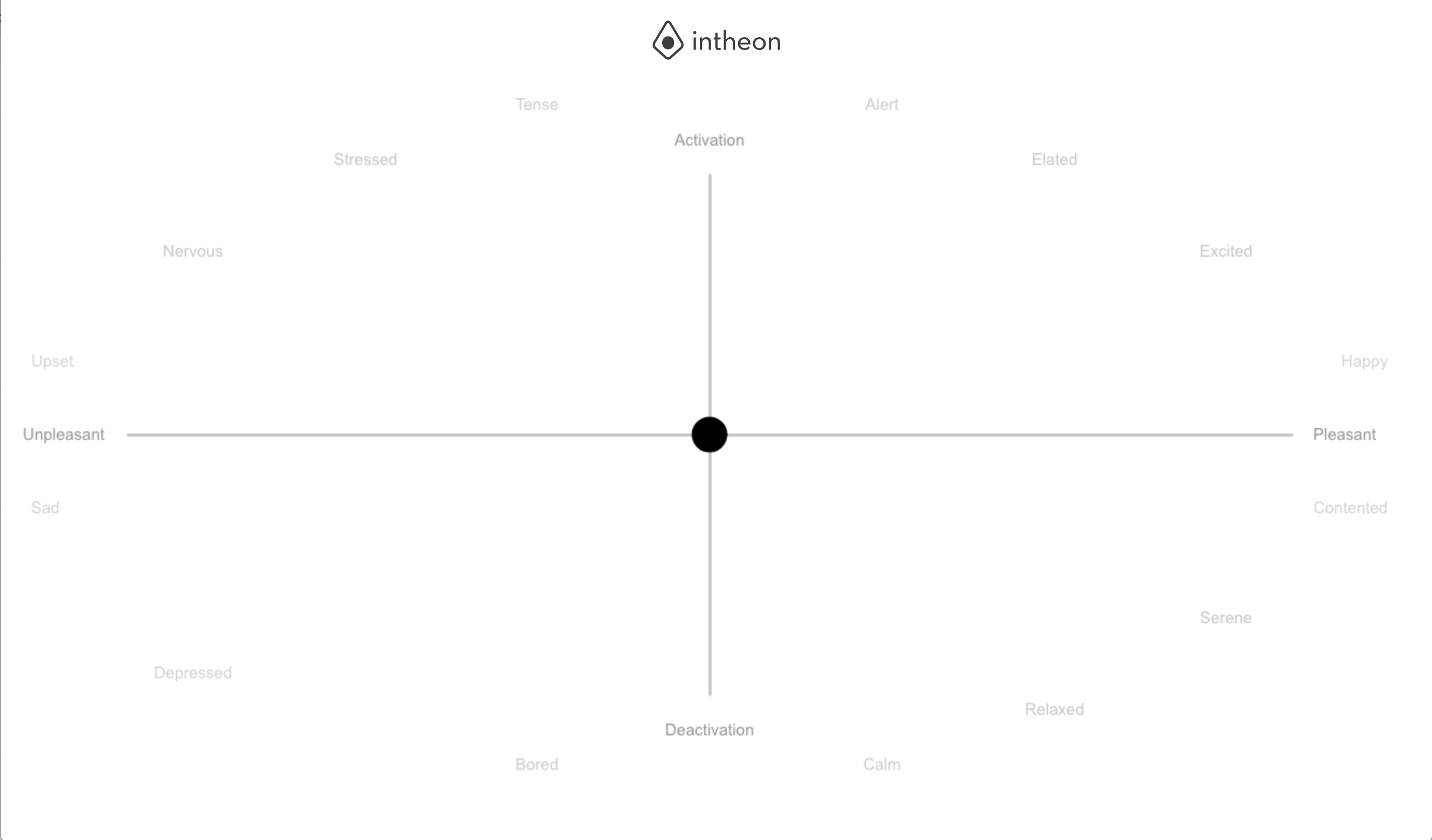
It makes use of two additional JavaScript libraries:
- processing.js is used to render
emotion_viewer.pdesketch (written in Processing visualization language) for real-time display of emotion values. - hammer.js is used to handle gestures on mobile screens.
Pay special attention to
if (jsonObject.streams.length > 0) {
      valenceReceived = jsonObject.streams[0].samples[jsonObject.streams[0].samples.length - 1][0];
      arousalReceived = jsonObject.streams[0].samples[jsonObject.streams[0].samples.length - 1][1];
      console.log('Valence:' + valenceReceived.toString() + ' Arousal' + arousalReceived.toString());
    }
Where two different measurements (valence and arousal) are read from the last sample of the arrived MQTT message. Also note in
where # in /out/# has been used subscribe to all MQTT topics under /out/.