Insights: Run a Report Pipeline
A powerful feature of NeuroScale is the ability for biosignal batch processing pipelines to not only process files with biosignal data, but also generate a full-featured analysis report containing plots that visualize the results. These are called Report pipelines. The process for running a Report pipeline is the same as any Batch task (see Run a Batch Task), with the difference being that you must select a Report pipeline when creating a task, and the output of the pipeline is an analysis report. Resulting reports are generated in a peer reviewed article HTML format. The report style can be selected from a set of provided templates or customized by the Intheon team based on need.
In addition to generating visual reports, most Insights pipelines also output the computed metrics that are plotted in the report as an HDF5 file for additional offline processing as desired. Some may also output the preprocessed EEG as a separate file in XDF format.
The following tutorial shows how to generate a biosignal analysis report by running a reporting pipeline on a study. It assumes you have completed the Setup Storage tutorial. The outline of the tutorial is as follows:
- Select the file(s) to be processed
- Select the Insights Report pipeline to run
- Edit the Pipeline parameters
- Launch the Pipeline
- Check the Task status
- Locate the Pipeline output
- View the Neuroscale Insights report
Select the file(s) to be processed
Lets create the task that will run a report pipeline on Dashboard. A task can be created by navigating to the Storage tab, selecting the file or folder to be processed by checking the box next to its name, and then clicking the Task button or right-clicking and selecting Task.
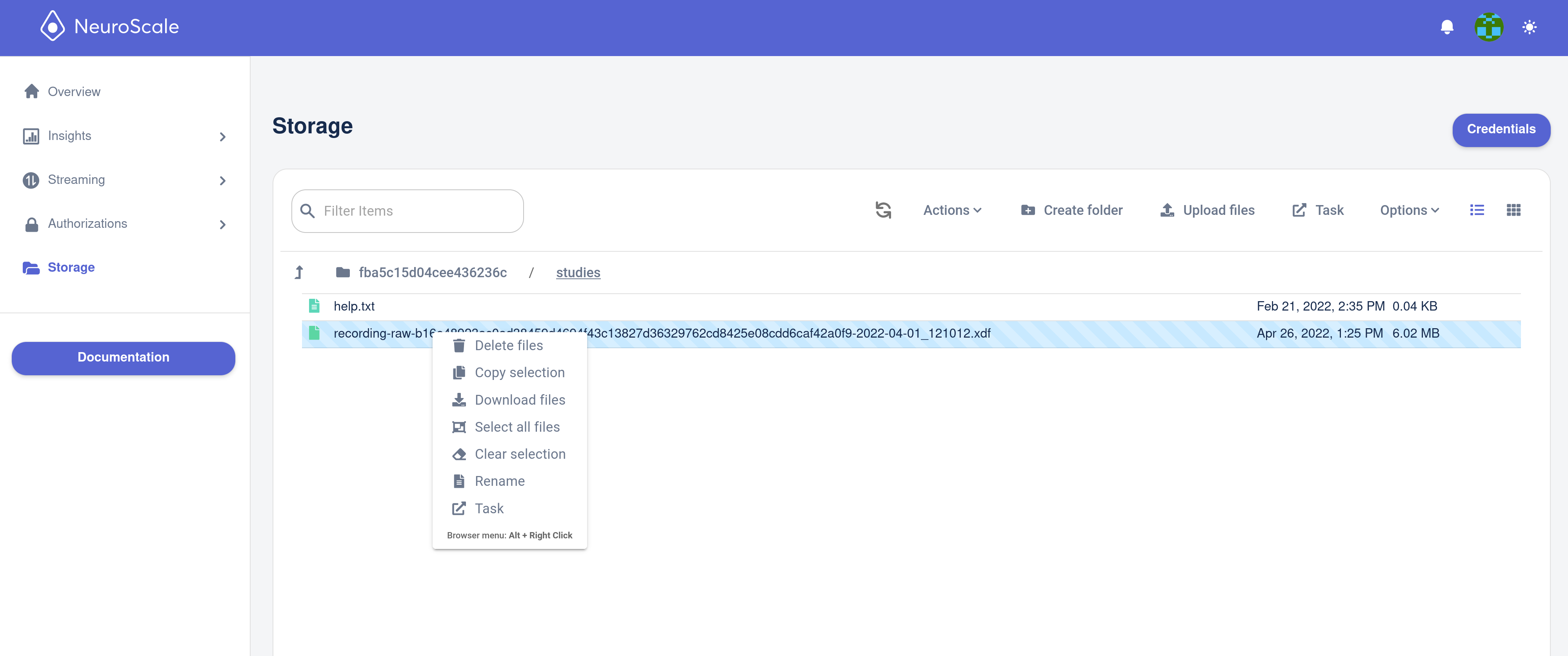
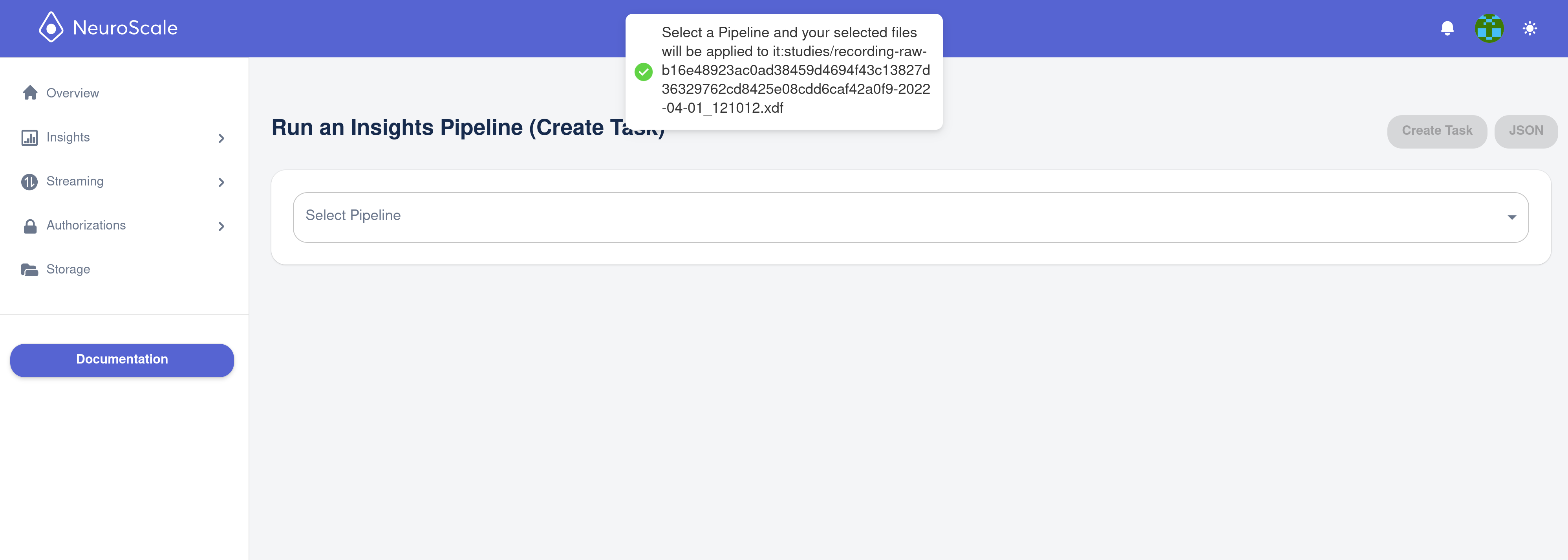
Selecting Task will automatically bring us to the Run a Batch/Report Pipeline (Task) page where we can select the pipeline to run and edit any pipeline parameters.
Pipelines that take a single file will have an input_path field which will be automatically populated with the path of the file that you selected in the Storage page. Pipelines that take a list of files with have an input_paths which will be automatically populated with a list of the files you selected.
A notification will appear in the top of the page with the path of the file(s) you selected.
Select the Insights Report pipeline to run
Select the pipeline you want to run from the Pipeline dropdown.
You will see another notification in the bottom right informing you that the selected filename was applied to the input_path parameter.
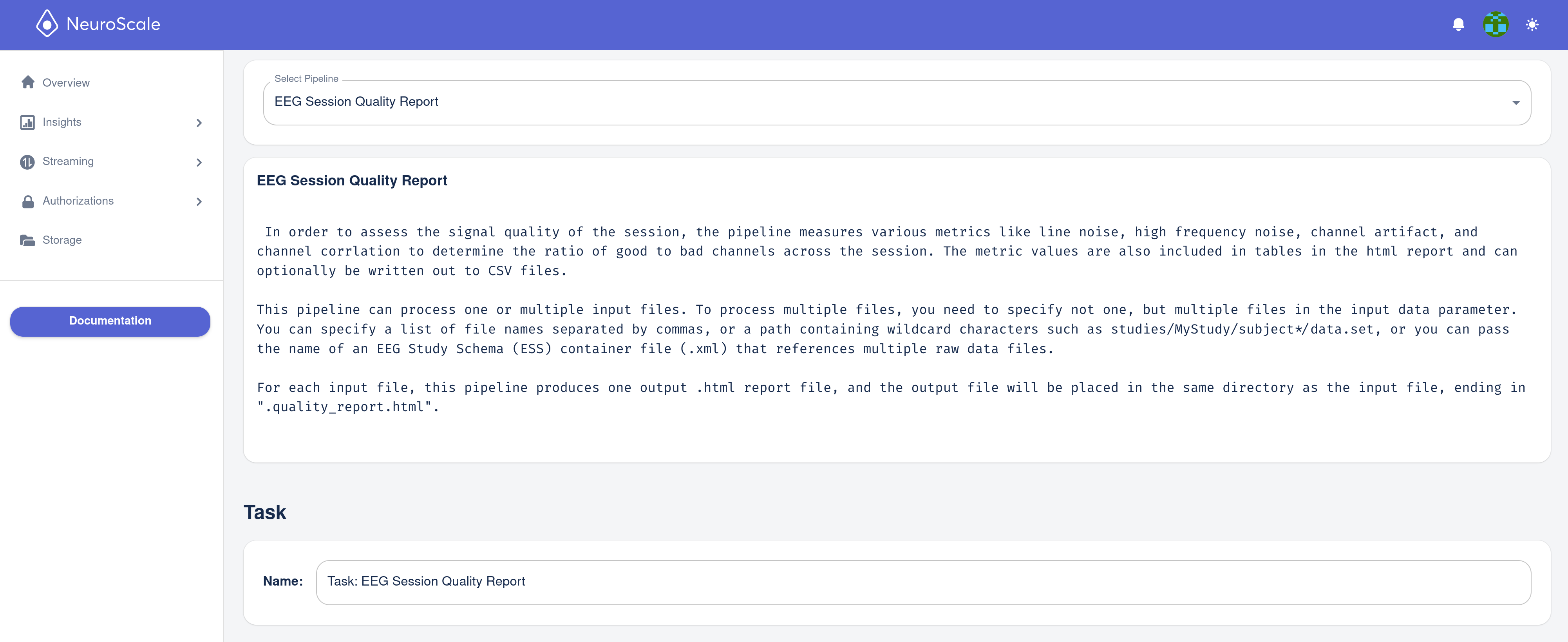
The Name field will automatically be filled in with the Pipeline name. The Name field is only used to identify that particular Task (that run of the Pipeline) and has no bearing on the pipeline itself. You can edit it if you want to be able to identify this particular run from other runs of the same pipeline. Otherwise, you can leave it as the default.
Edit the report pipeline parameters
With the report pipeline selected we can edit our reporting pipeline parameters, which govern the content of our report. For example, a report pipeline's parameters may include settings for certain filters, names of markers to extract ERPs, and filenames. Each report has a unique set of parameters.
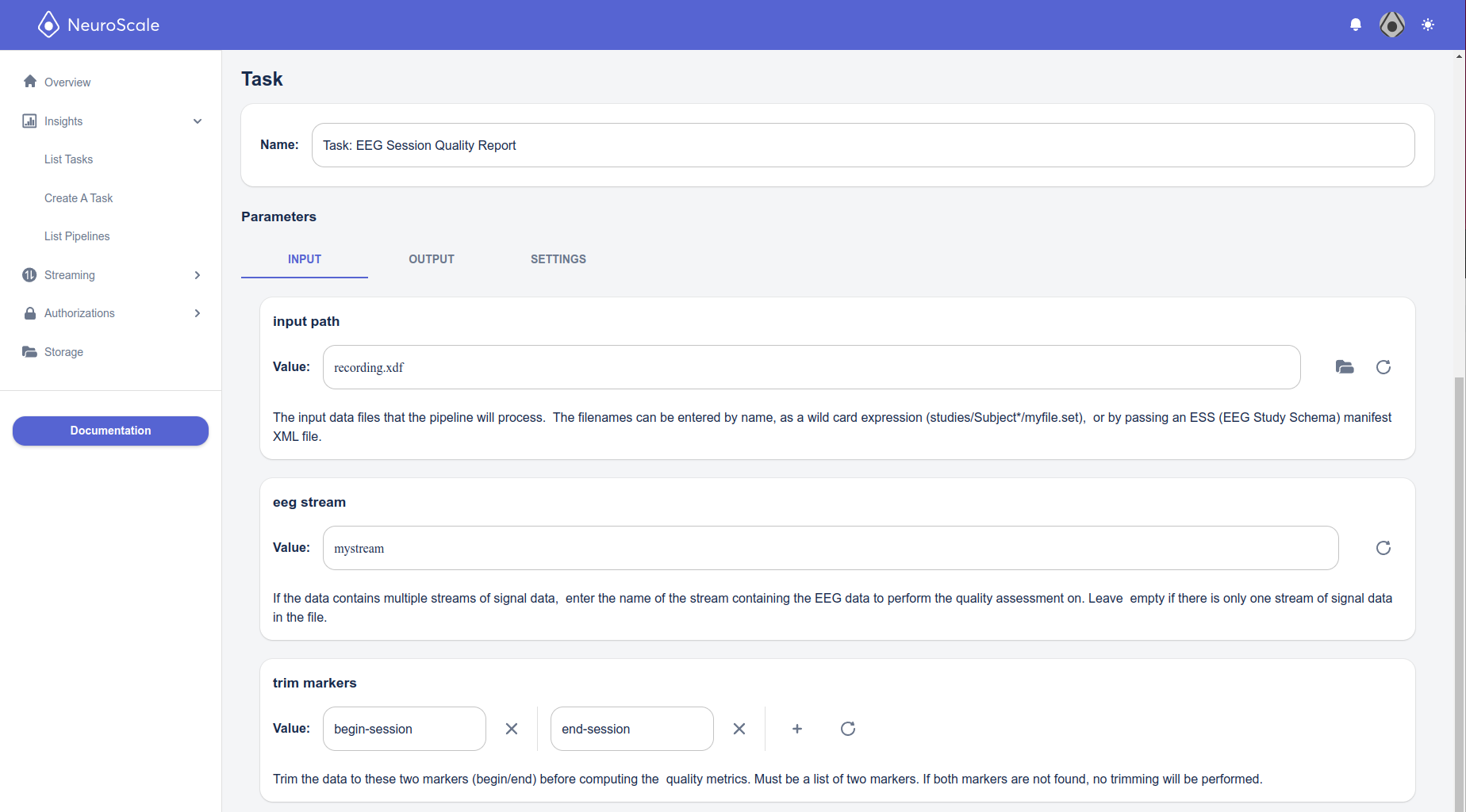
Parameters are categorized and grouped in tabs for easy navigation. Pipelines are pre-configured with most commonly used defaults, so you may not need to change any parameters, especially if the input_path field is already automatically filled in. For pipelines that require special syntax in the input_path field in order to identify the files to be processed, follow the input_path parameter description in the Input tab.
For details on a particular report pipeline, see its corresponding page in the PIPELINES section of this documentation (example here.
In the example below, the parameter is configured to input the recording.xdf EEG file, read the mystream stream from that file, trim the data to the begin-session and end-session markers (discarding data on either side).
Certain parameters expect input of a certain type or in a particular format, though this will be enforced by the param input box. For example, if a parameter must take a number, then you will see an error message in red with the expected type, as in the following example. You can find details on the allowed data types (string, integer, float, array, dictionary) here.

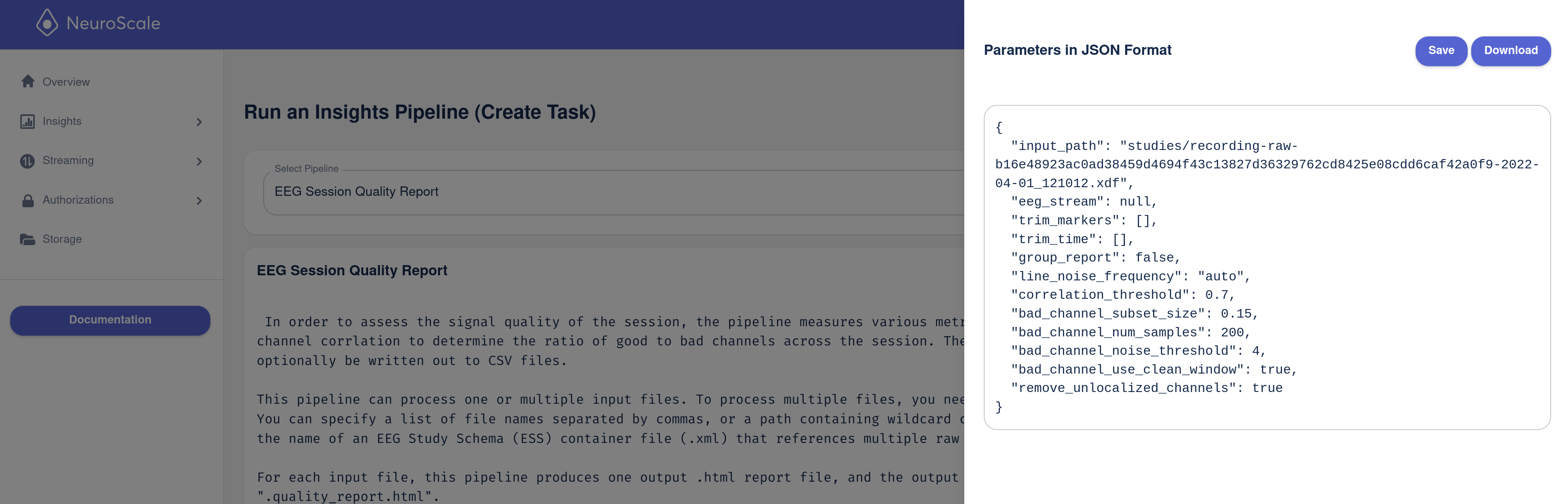
Pressing the JSON button in the top right will show the pipelines' current configuration and parameters as you have currently input them. It's possible to change the parameters directly in this panel, though we recommend using the parameter fields to avoid syntax errors. You can also copy out or save this set of parameters for use in launching this pipeline with these exact settings over the Neuroscale API rather than through the Dashboard. (See more about this on Run a Batch Pipeline (API).)
Launch the Task
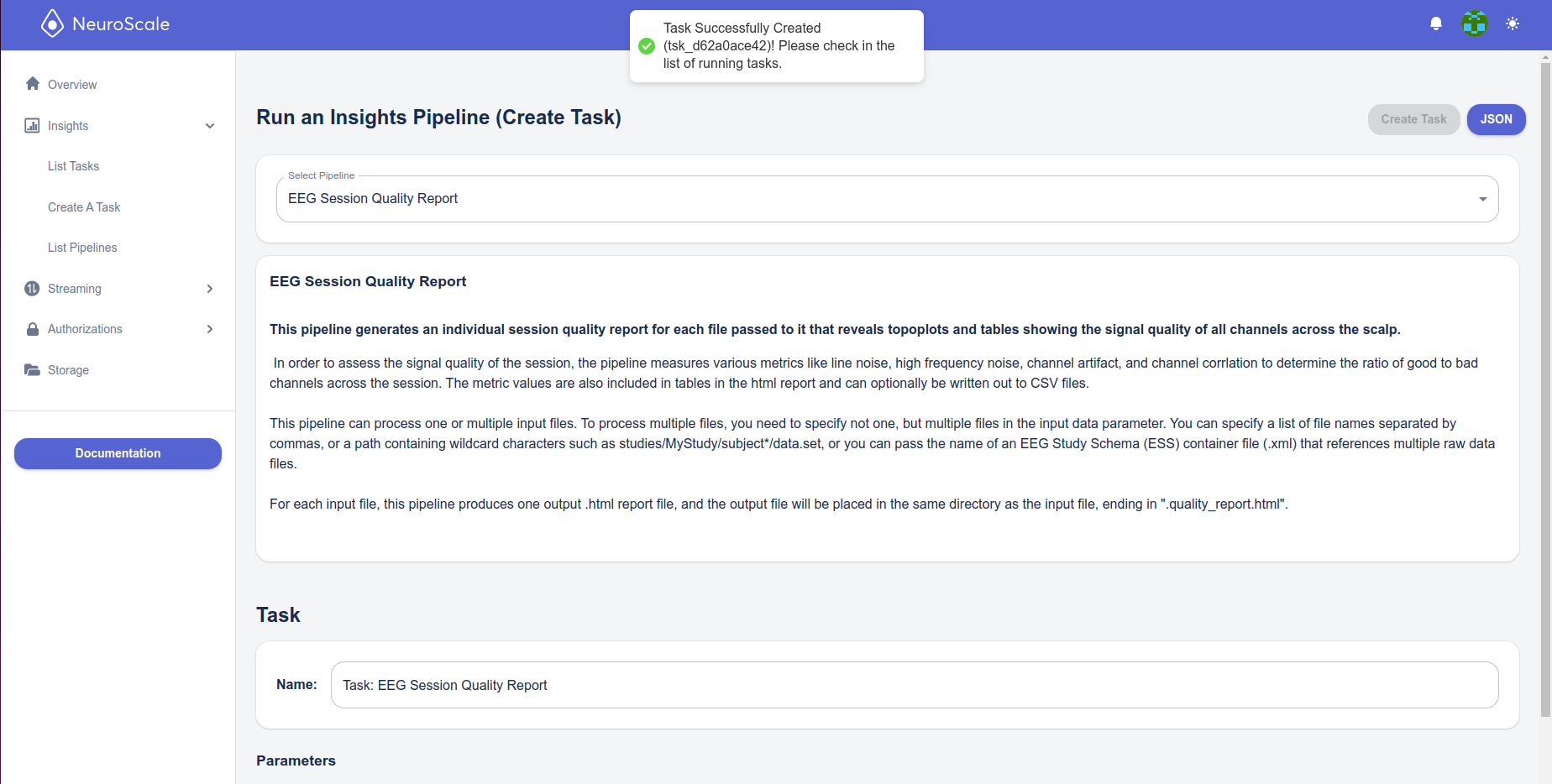
After we have configured the different parameters of the pipeline, we are ready to create the task by clicking the Create Task button in the top right. A message will pop up at the top of the screen indicating the task was successfully created, and you will be automatically redirected to the List Tasks page where you can see the Tasks in progress.
Check the Task status
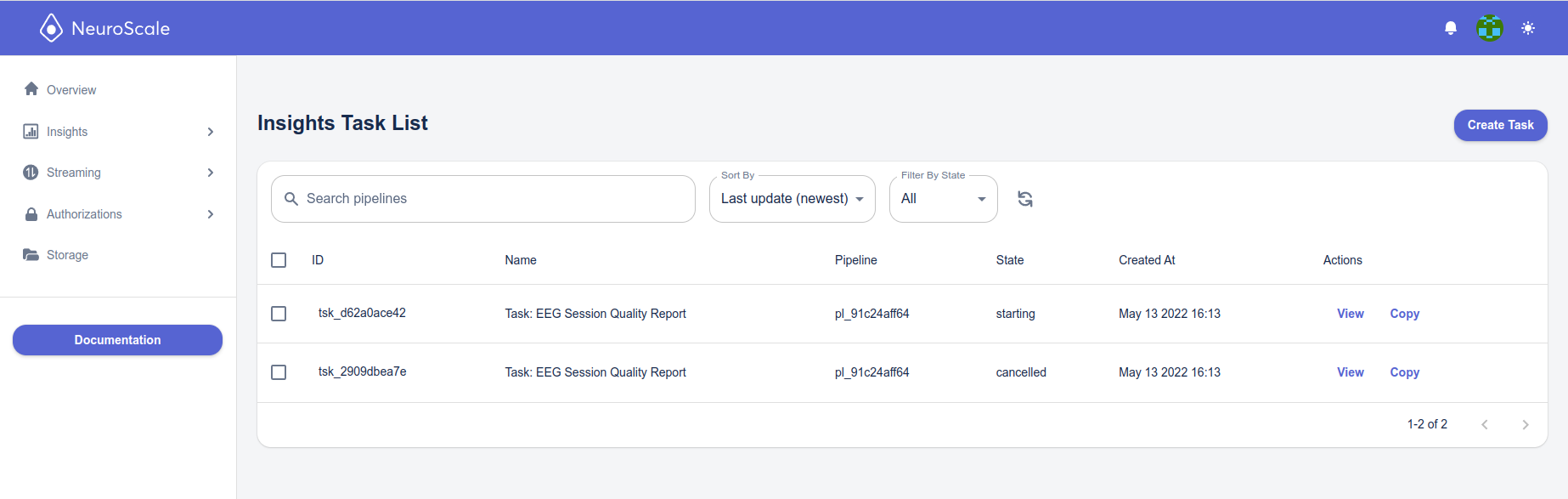
You can go to the List Tasks under Insights to check the state of the tasks you have run, including the one you just launched. The task will show the state Submitted, if the task was configured correctly, shortly afterwards it will switch the state to Runnable and then Running. When it completes successfully, the state will change to Succeeded. If the pipeline failed to complete (i.e., a misconfigured parameter or invalid data), the state will appear as Failed.
If your pipeline failed, check out the Troubleshooting your Pipeline Configuration section in the Troubleshooting page for common errors that may cause this.
See the Task details
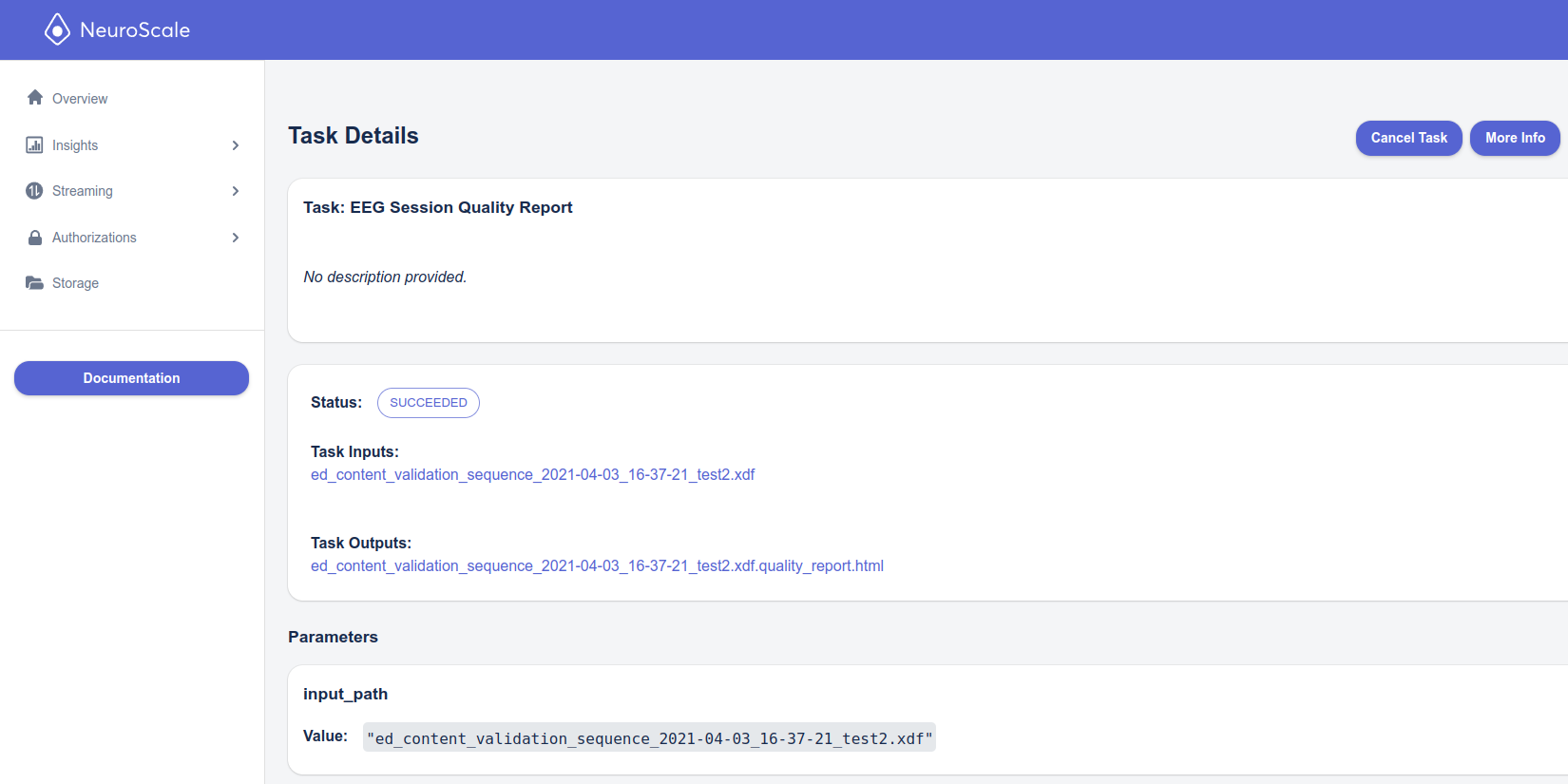
Clicking on the task id or the View link to the right will show the details of the task. This includes the current status and the values of the parameters. It will also show a list of the pipeline's inputs and outputs as these are processed, that is, the list of inputs is incrementally updated as each file is successfully located and imported; likewise the list of outputs is incrementally updated as each output file is generated (typically at the end of the pipeline run). These lists will only be complete once the status is set to Succeeded or Failed. Refresh the page to update the status and lists of inputs and outputs.
See Insights Task Status for more details on this page.
If a pipeline fails, an Error Logs button will appear with a list of errors that were generated by the pipeline, which will provide some information as to why it failed (usually an incorrect filename or parameter setting).
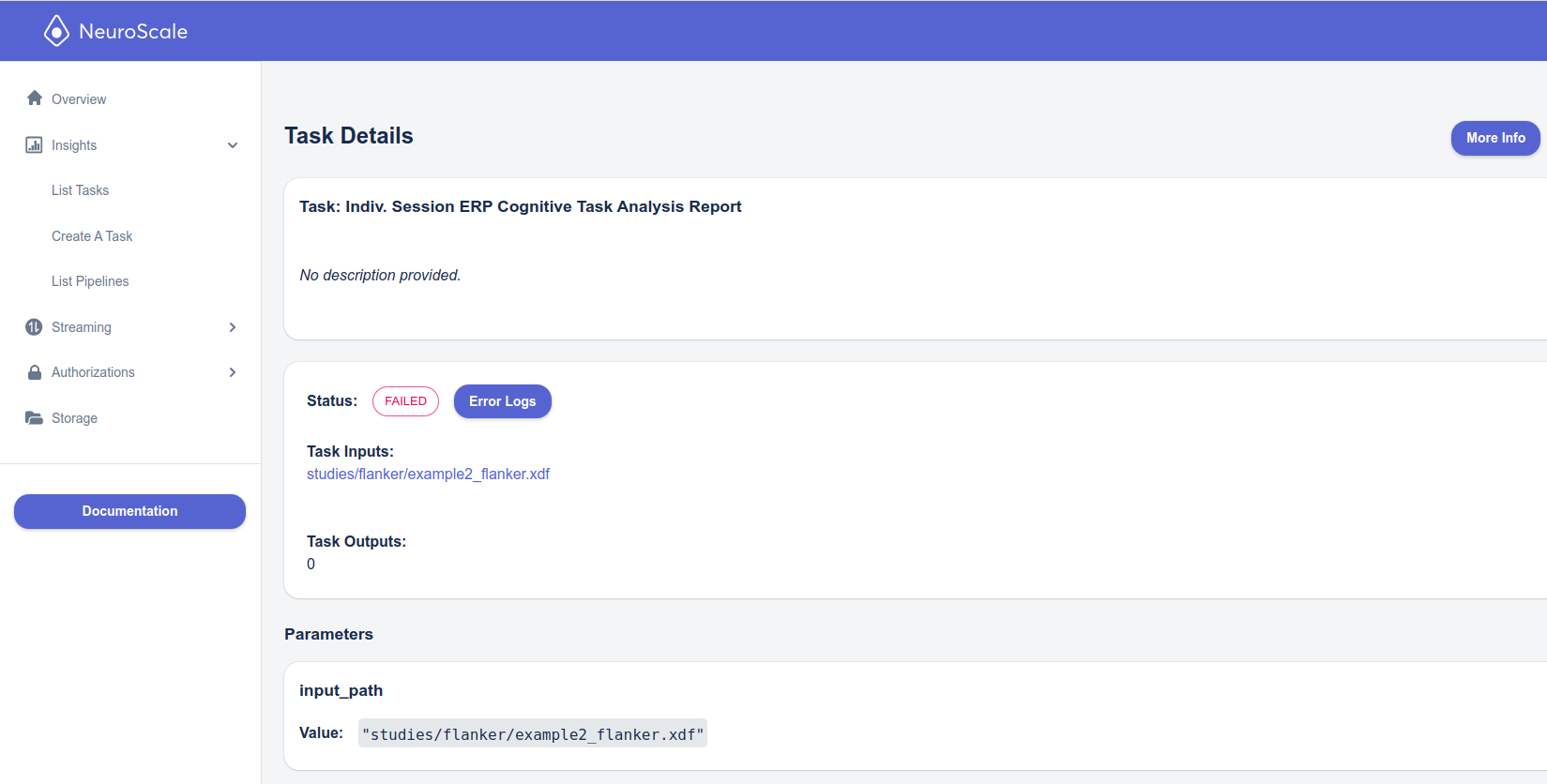
Some pipelines which are designed to iterate over multiple files (i.e., all files in a folder) will continue operation even if one or more input files fail (i.e., is not found or cannot be successfully imported, etc.). In that case, upon completion the status may show Succeeded with Errors. Again, an Error Logs button will appear which show the log entries providing information on what went wrong.
In other cases a pipeline may complete successfully but a particular plot was not able to be generated to due a problem with the data, or an inconsistency was found which you should be aware of. In that case, the status will be Succeeded with Warnings and a Logs button will appear so you can see the relevant log entries.
Locate the resulting report
Once the task has finished, the outputs of the pipeline can be found in your Storage.
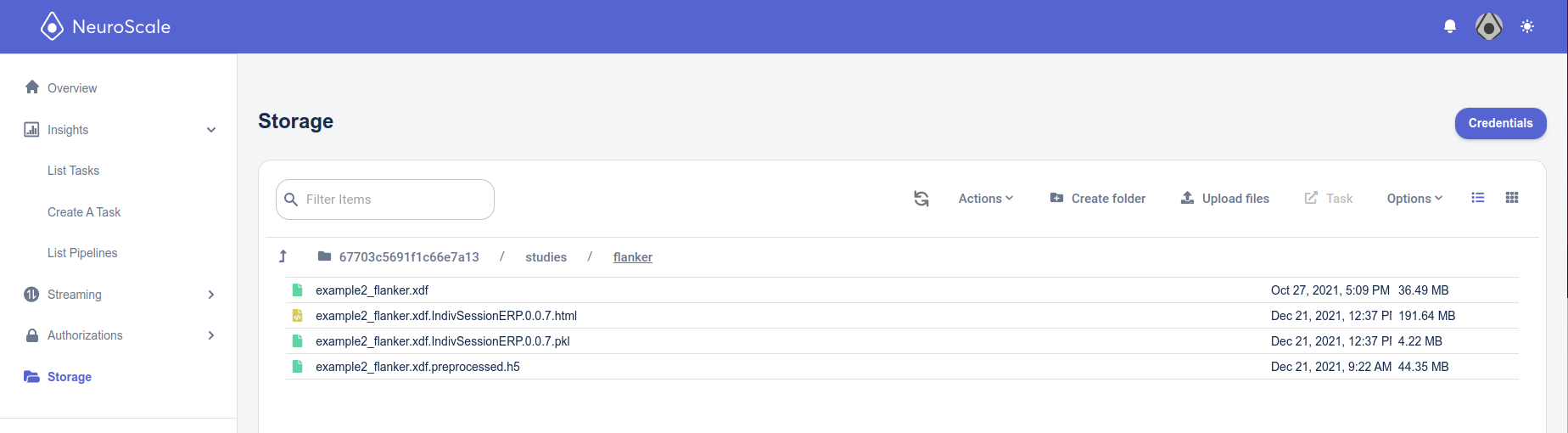
Insights pipelines will in most cases generate a report in HTML format (.html file extension). In the case of an individual session report, it is typically named with the source filename, as in the figure below. In the case of multi-session reports, each pipeline will have its own naming schema.
Most pipelines also output the computed metrics (the values plotted in the report), in pickle format (for processing with python, with a .pkl extension), or Matlab format (with a .mat extension). Some pipelines also output the preprocessed biosignal data in HDF5 format (with an .h5 extension) or EDF or XDF format. Some pipelines may also output certain metrics in CSV format.
The output files of individual session reports are placed in the same folder as the original signal data. Output files of multi-session reports are generally placed in the top folder of the data structure containing the data (i.e., if a report traverses subfolders with different subject groups, for example.)
Your report is now ready to be viewed! Double-click on a file to download it, or select several files, right, click and choose Download. Then open the .html file in your browser.
View the results
Note that some reports may generate very large files and take a while to load in the browser.
For best results, we recommend using Chrome for viewing report files.
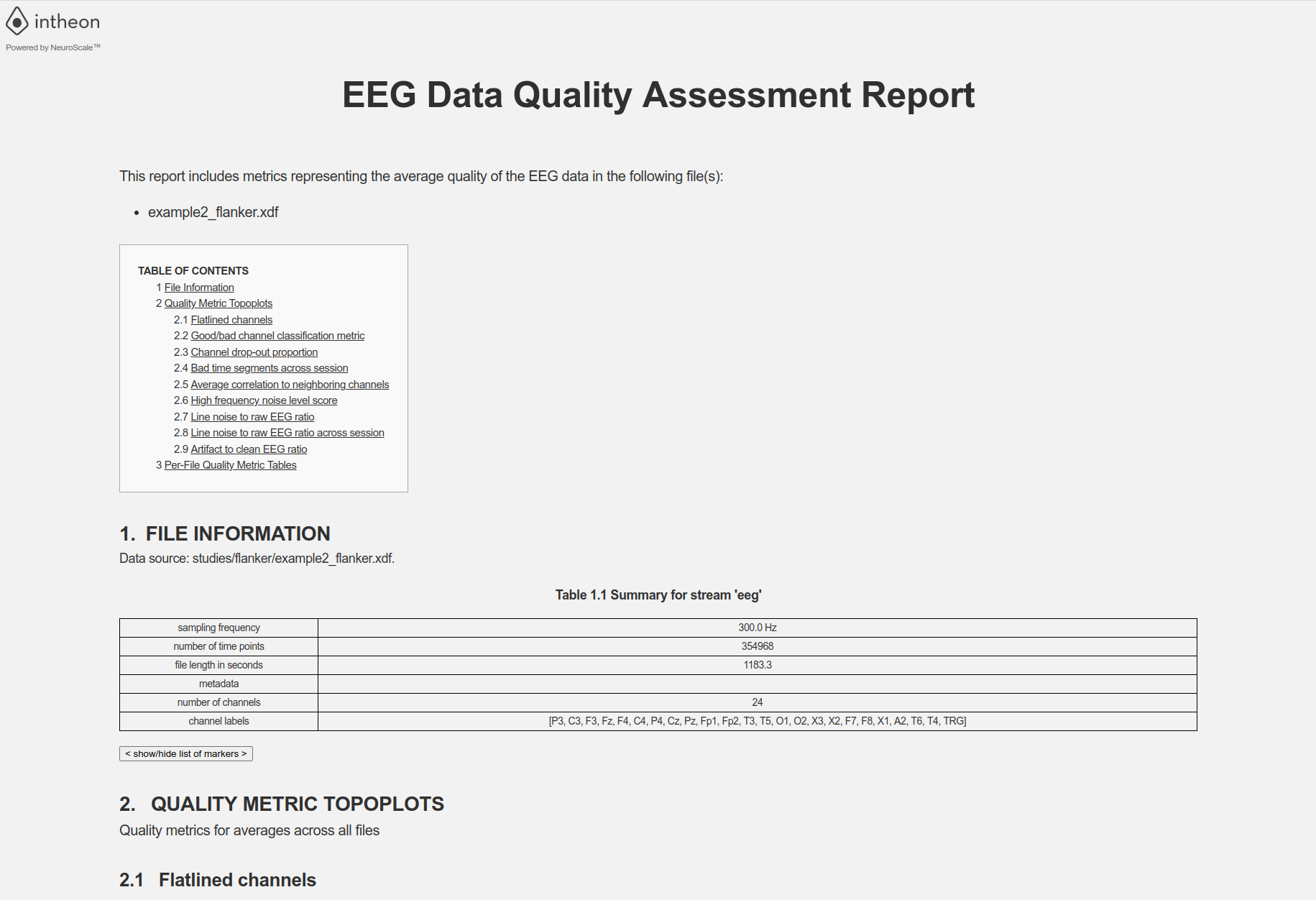
Here's the report generated from running the above pipeline.
Launching a task using Create A Task menu
Alternatively, instead of going to the Storage tab, selecting the file you want to process, and then selecting the Pipeline to run, you can use the Create a Task menu item, select the Pipeline to be run, and then fill in the input_path directly, add the other params, and start the task. The process is the same except that the input_path field won't be filled in automatically.