Dashboard (batch tasks) Old
As a registered developer, you will be able to access the dashboard, linked here, using the username and password that you have received (also available via the Login or Dashboard button in the top left of the neuroscale.io webpage). The Dashboard allows a user to seamlessly interact with NeuroScale. The different features or the Dashboard are outline below.
This tutorial explains how to use NeuroScale's batch processing capabilities for offline data analysis.
Landing Page
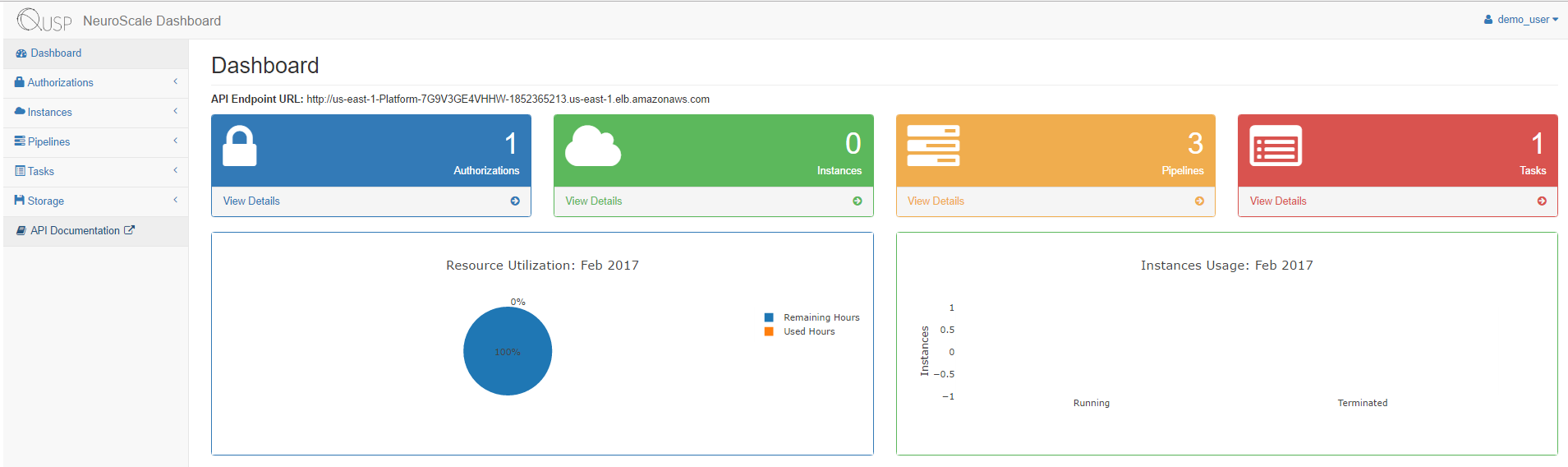
After logging in to the Dashboard you will be redirected to the landing page. On this page you can view a summary of your interactions with NeuroScale. Also displayed on this page is a navigation panel which enables users to jump instantaneously to other areas of the Dashboard.
Creating a Batch Task
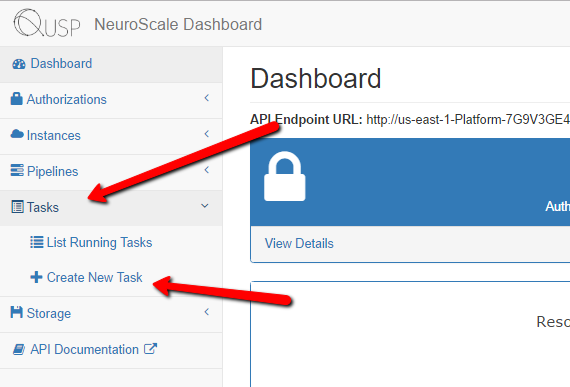
To create a new task through the Dashboard select Tasks in the navigation panel. This will open up a sub-menu. Once this menu appears select Create New Task.
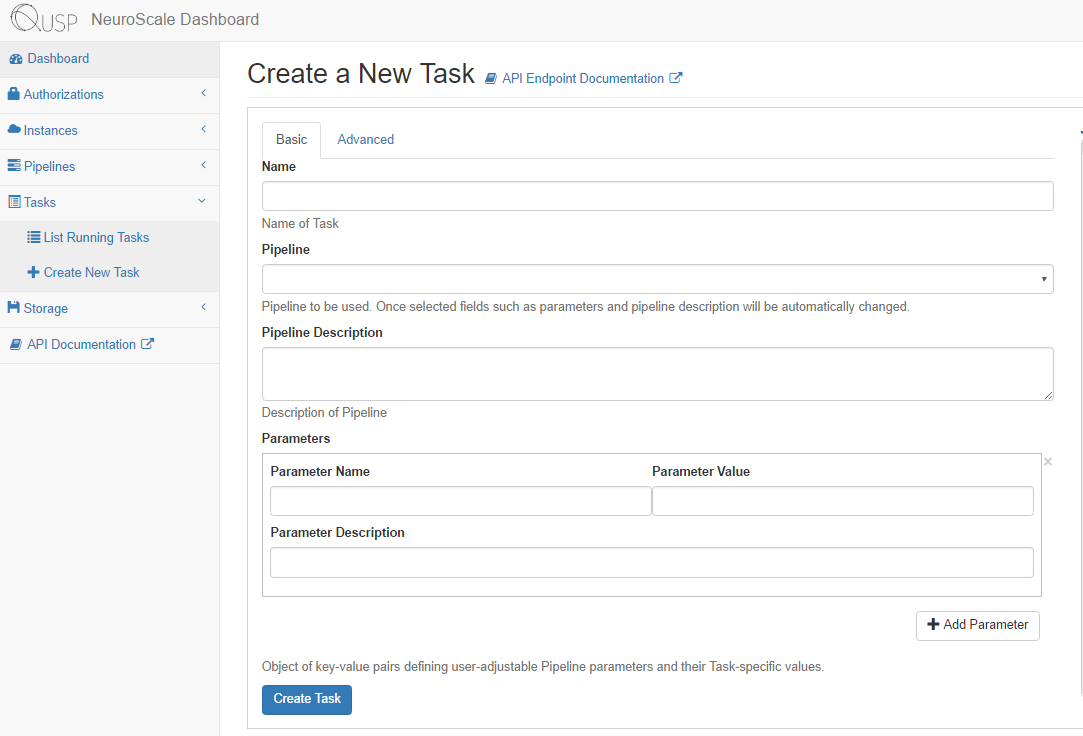
The Create a New Task page will appear. This page is dived into two section Basic and Advanced. We will focus on the Basic section for now.
Lets begin by naming our Task. In this example well will name it "My First Task". Next we choose the pipeline that we wish to run. Lets select "Emotion Valence". Once the pipeline has been selected some of the other fields in the form will be automatically populated. To find out more about the pipeline, have a look at the Pipeline Description field in particular.
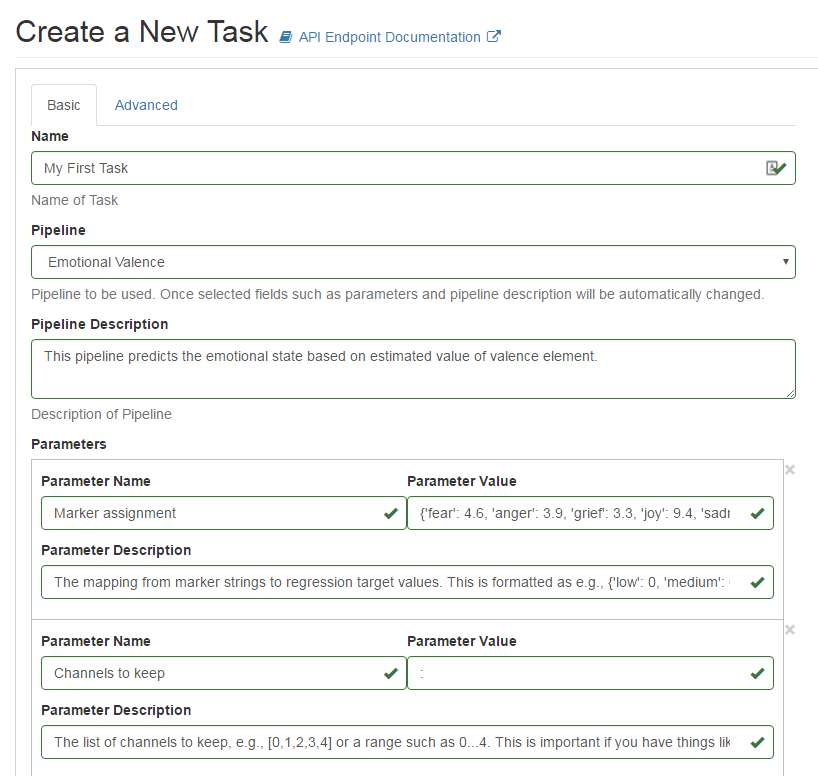
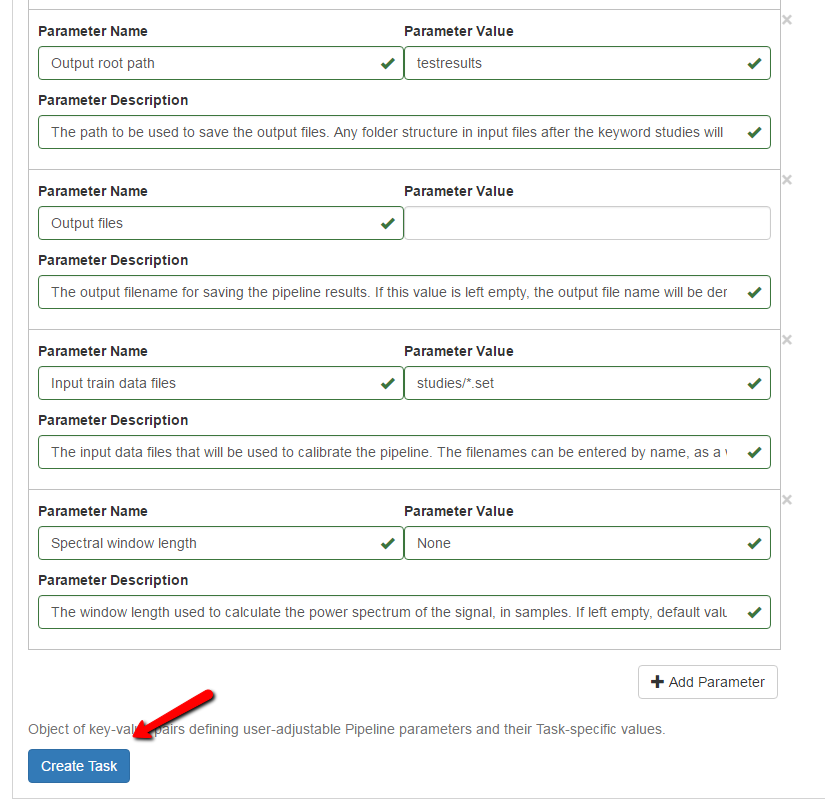
In the parameters section we can now see that this pipeline has three parameters. The default values for these parameters will be automatically filled in. You can see a description for what each parameter does under Parameter Description. We can see that this pipeline needs two input data sets, since this is a machine learning based pipeline. Once data set (the training set) is used to train (calibrate) the pipeline, and the other data set (the test set) is used to make predictions. You can change the values of these parameters to match the names of your datasets hosted on NeuroScale. Note that this pipeline can also process multiple training and test sets, if you give it multiple files (see the description for more information).
Once you are happy with the datasets that you have selected click the "Create Task" button located to the bottom lest hand side of the page.
You will see a message in the bottom right hand side of the screen saying that you task was created. You can click the link in the message to view your newly running task, or alternatively you can select "List Running Task" in the navigation panel.
This page will show you current Tasks and relevant information including the pipeline that was used and the Task's current state.

Here we can see the Task that we have just created is in the "Submitted" State. As then task progresses this state will change and on successful competition will appear as "Successful". Now you can download your result files using ExpanDrive again.